Creating and Managing Rule Sets
Memberships in OpenCourt have two distinct layers of configuration: Membership settings and Rule Sets. Every membership must be assigned exactly one rule set. The rule set defines the booking behavior and pricing that applies to all members holding that membership. Multiple memberships can share the same rule set.
What is a Rule Set?
A rule set is a named configuration profile that controls how members book courts. It has four areas:
Pricing — court booking rates (hourly, per-person, daily), including time- or day-based overrides
Schedule — how far into the future members can see the court schedule
Reservations — how far in advance members can book, default booking duration, cancellation window
Refunds — cancellation refund percentages and non-refundable periods
Rule sets exist separately from memberships so a single configuration can be reused across multiple membership products (e.g., "Standard Member" and "Family Standard Member" may share the same rule set if their booking privileges are identical).
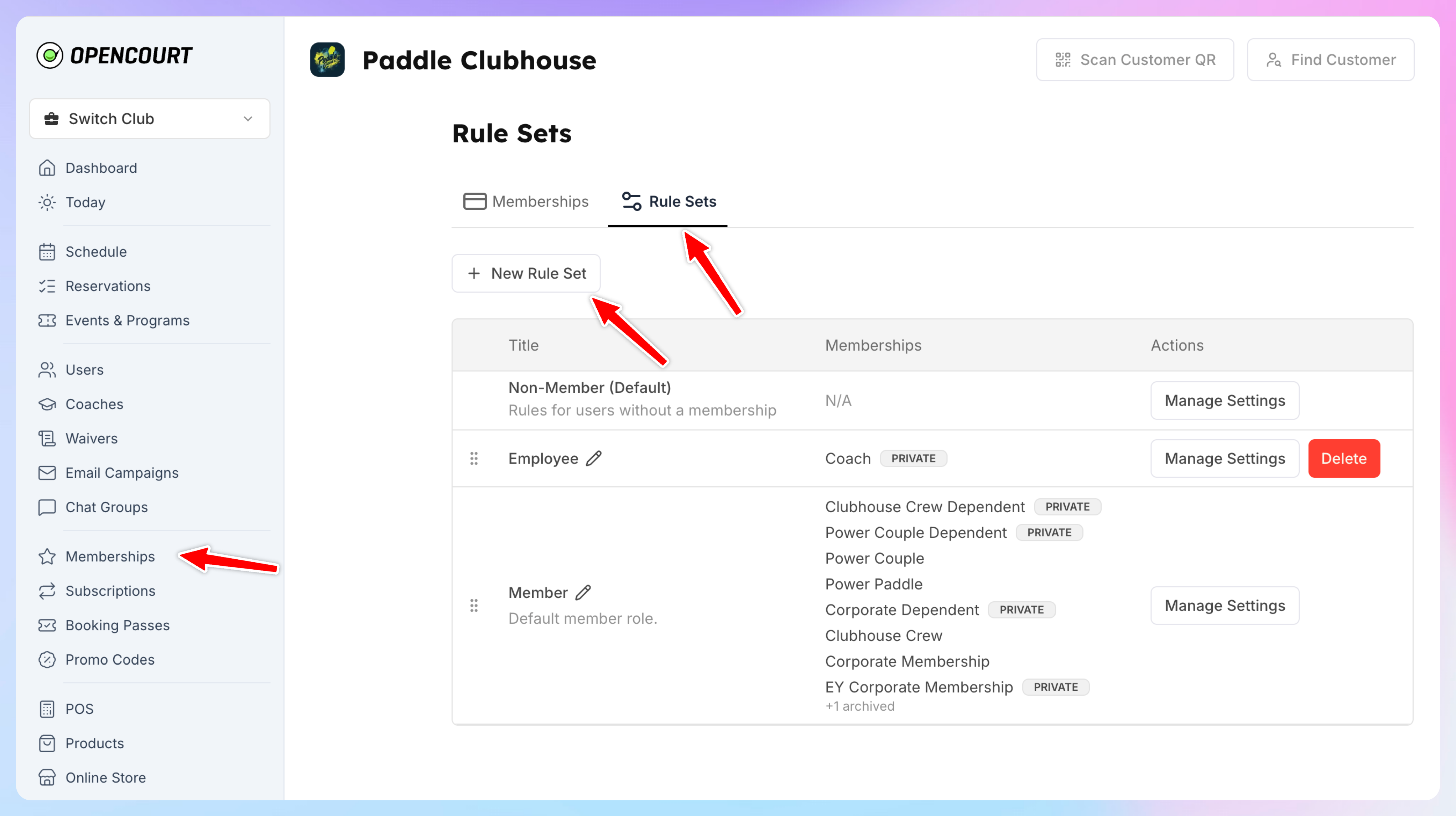
One special rule set is always present and cannot be deleted:
Non-Member — applied to logged-in users with no active membership
Creating a rule set
Go to Memberships → Rule Sets
Click + New Rule Set
Fill in:
Name (required) — identifies the rule set in dropdowns throughout the admin
Description (optional) — internal notes, not shown to members
Default — check this if new memberships should default to this rule set
Click Create
You are redirected to the rule set settings page where you can configure all four tabs.
Editing a rule set
Go to Memberships → Rule Sets
Click the rule set name in the list
Make changes across the four tabs:
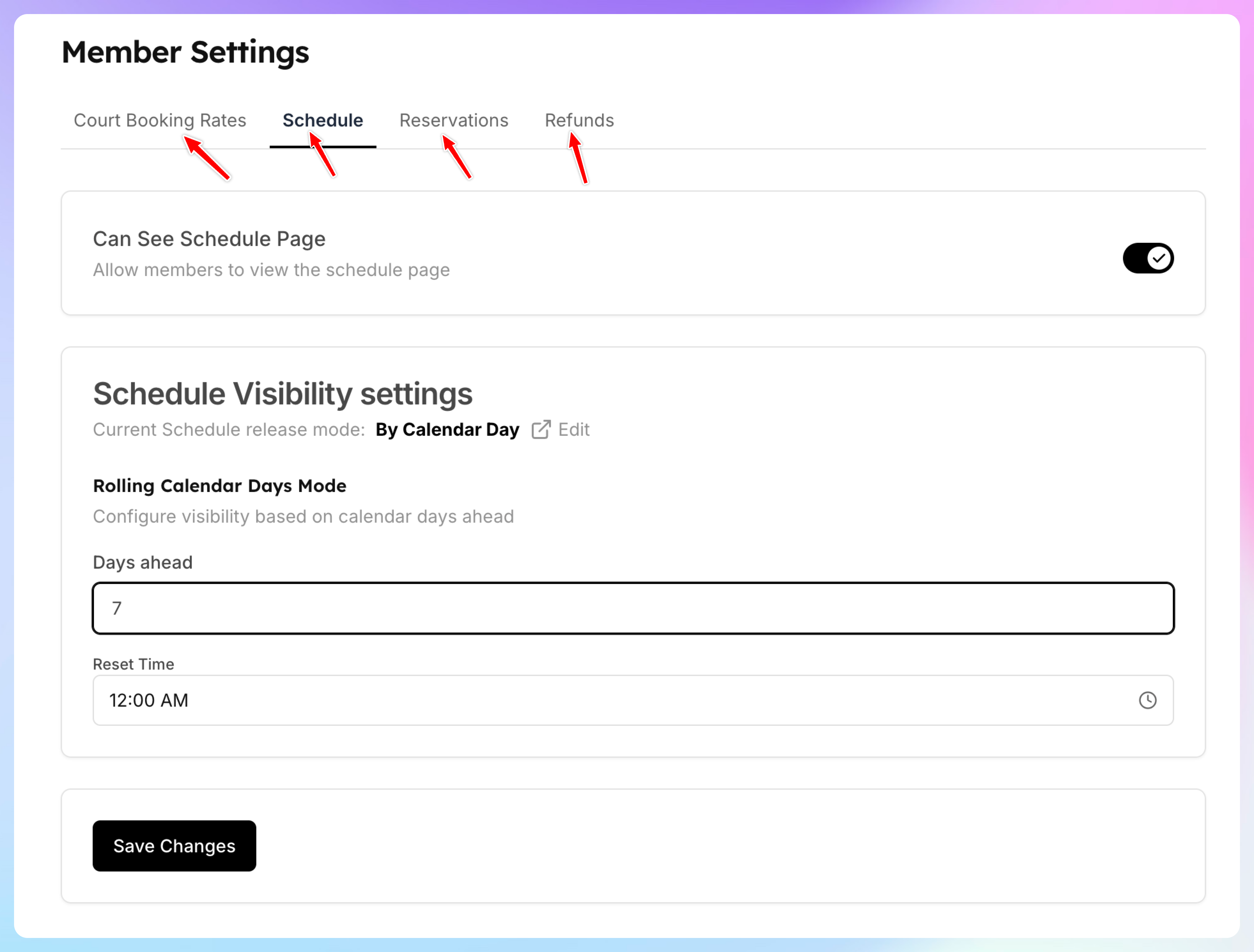
Court Booking Rates tab
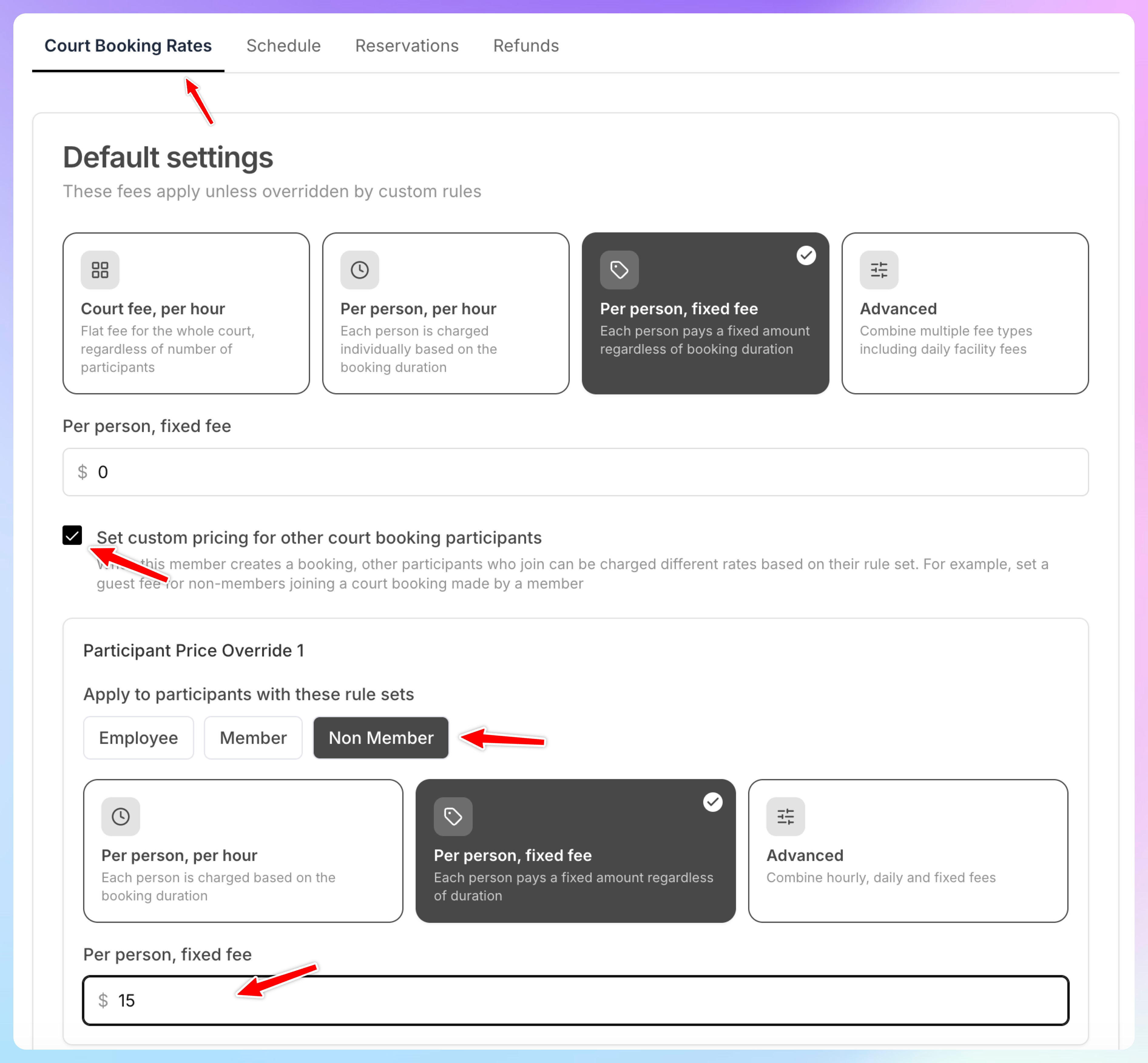
Defines the cost applied when a member books a court.
Basic mode — a single default rate that applies to all courts, all times:
Court hourly — per-court hourly charge
Person hourly — per-person hourly charge
Person daily — per-person daily cap
Person fixed — flat per-person fee per booking
Learn more about pricing models here.
Advanced mode — You can set the combination of the previous models. E.g. Daily fee for guests in addition to the court hourly price.
If you want to charge members a guest fee, make sure to check the box “Set custom pricing for other court booking participants” and enter the fee. This is usually set either per person, per hour or as a fixed fee per person, per reservation.
Add an override rule
Click + Add Rule. A dialog opens with the following fields:
Rule name — give it a descriptive label, e.g.,
Off-Peak HoursDays — select the days this rule applies to. Toggle individual days (Mon–Sun) or click All to select every day. For weekday mornings, select Mon, Tue, Wed, Thu, Fri.
Time — choose Specific times, then set the start and end time (e.g., 6:00 AM – 11:00 AM). Times are in 30-minute increments. You can add multiple time ranges per rule by clicking Add another time frame.
Courts — select specific courts this rule applies to, or click All to apply it to every court.
Pricing mode — select the pricing mode that matches your default (e.g., Court/Space fee, per hour), then enter
30in the Court hourly field.
Click Create Rule.
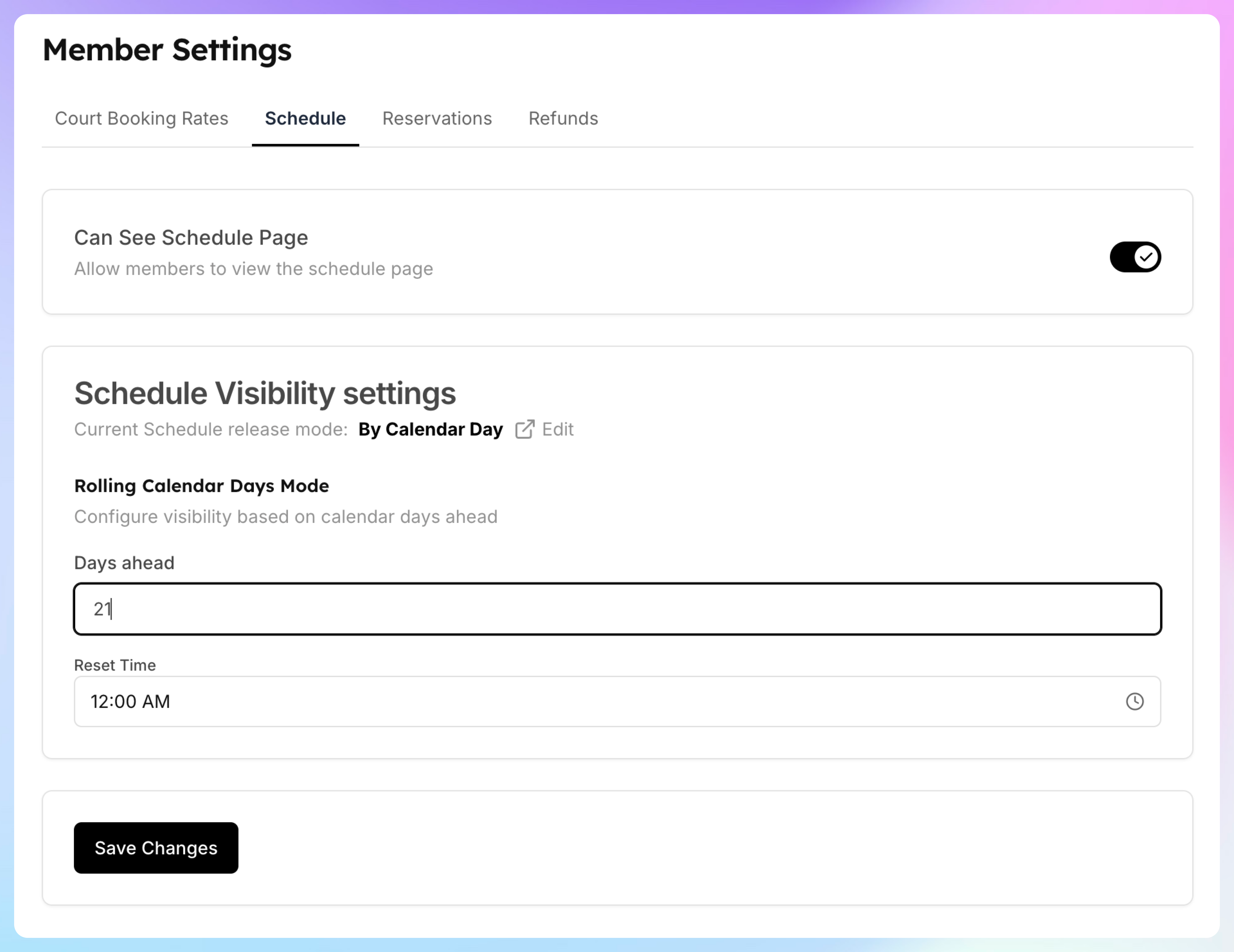
Schedule tab
Controls what members see on the schedule page:
Can see schedule — toggle to allow/block access to the schedule entirely
Rolling hours — show only the next N hours of availability
By calendar day — show availability up to N calendar days ahead
Release time settings (when a future day first becomes visible)
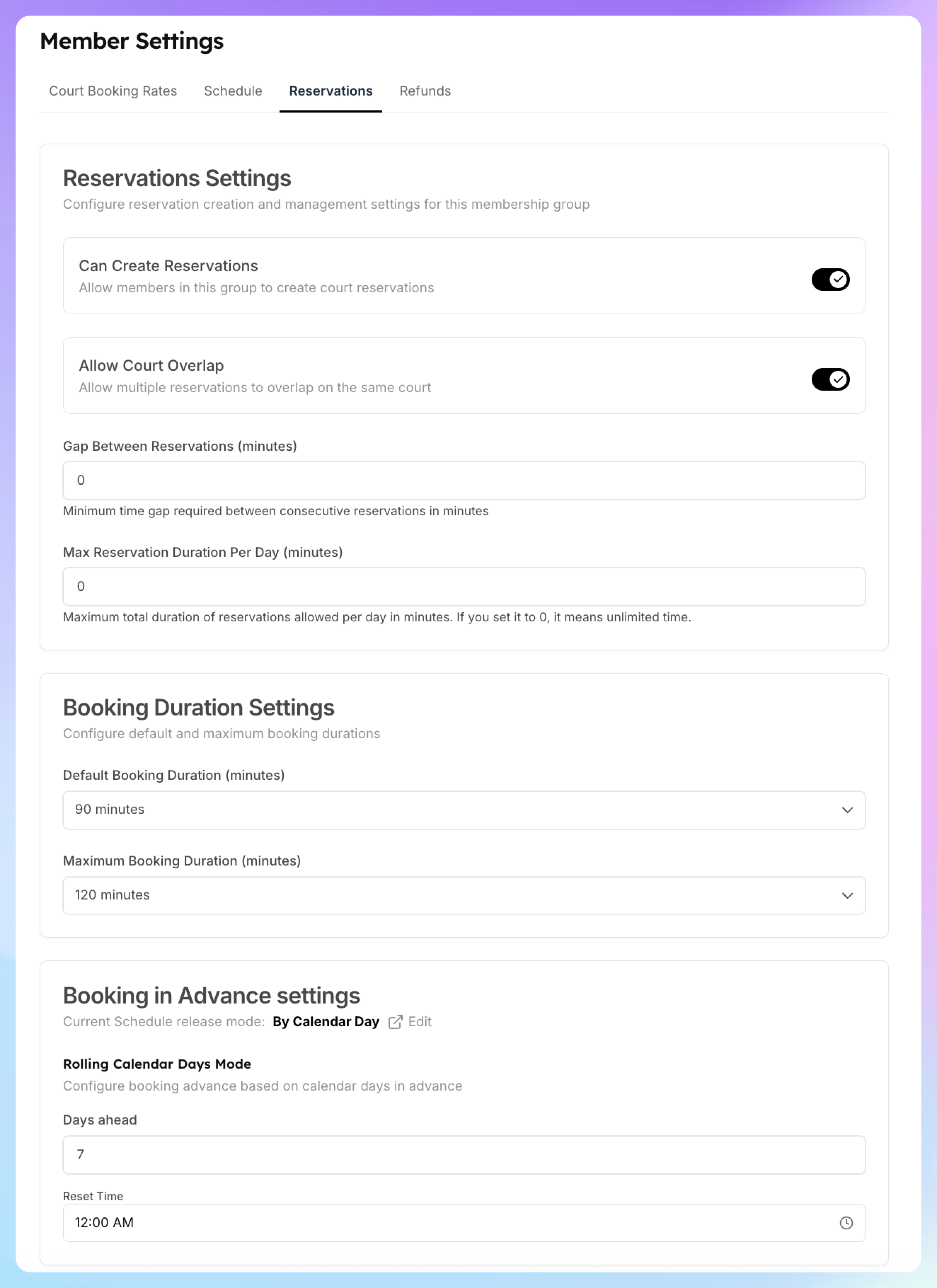
Reservations tab
Controls booking creation:
Can create reservations — toggle to allow/block booking
Advance booking limit — how far ahead a member can book:
Unlimited
Fixed hours (e.g., 72 hours in advance)
Fixed calendar days (e.g., 7 days in advance)
Default booking duration — pre-selected length when opening the booking dialog (30–300 minutes)
Allow court overlap — whether a member can hold overlapping reservations
Cancellation window — minimum hours before a booking that cancellation is allowed
Refunds tab
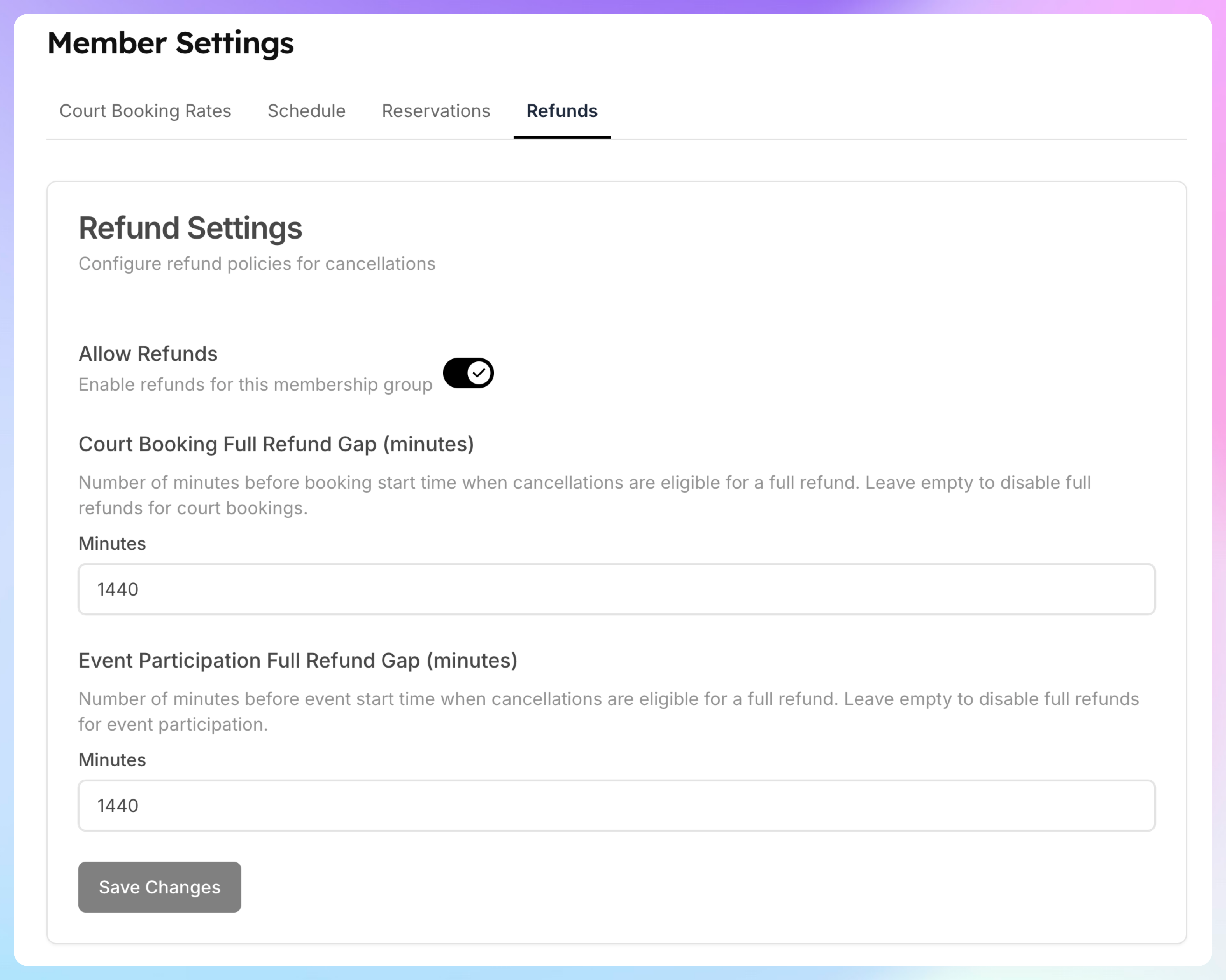
Defines the refund policy when a booking is canceled:
Percentage refunded based on how far in advance the cancellation happens
Non-refundable period (e.g., no refund within 2 hours of the booking)
Changing which rule set a membership uses
Go to Admin → Memberships → [membership] → Settings
Scroll to the Membership Rule Set section
Select a different rule set from the dropdown
Click Save changes
All existing members are immediately subject to the new rule set's booking configuration on their next booking attempt.