Setting Up Private & Group Lessons
Learn how to configure a coach’s availability, create lesson types, and control pricing. Set weekly schedules with date exceptions, define private, semi-private, or group services, and customize pricing per participant or membership role — all while ensuring lessons are bookable only when both the coach and a court are available.
Setting Up the Coach's Schedule
Each coach has a weekly schedule template that defines when they're available for lessons, plus date exceptions for one-off changes like holidays or vacation days.
Weekly Schedule
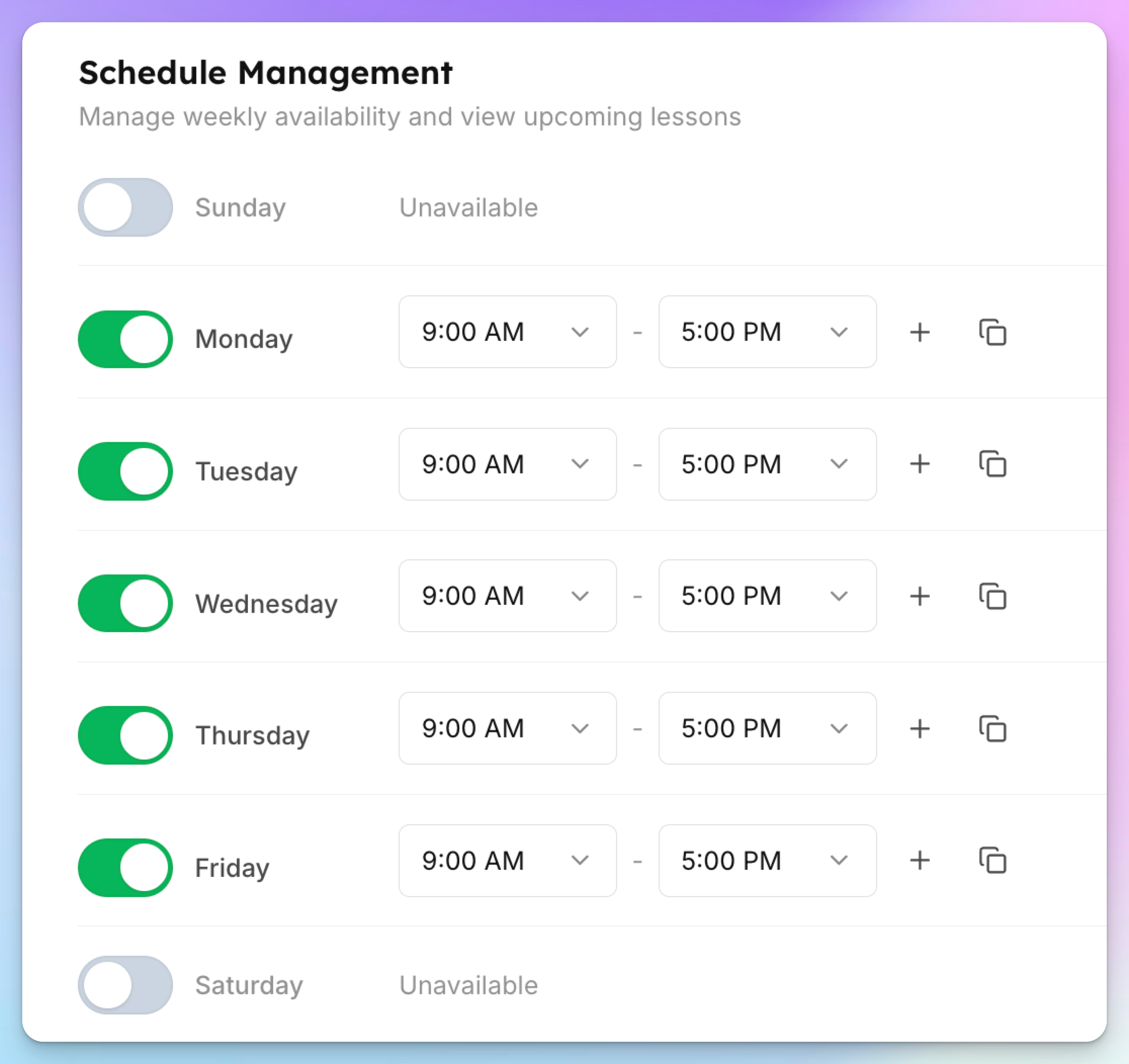
Go to Coaches → [Coach Name] → Schedule tab
For each day of the week, add time blocks when the coach is available
Example: Monday 9:00 AM – 12:00 PM and 2:00 PM – 6:00 PM
Multiple blocks per day are supported (e.g., morning and afternoon with a lunch break)
Leave a day empty if the coach doesn't work that day
Members can only book during these availability windows. The system automatically combines the coach's schedule with court availability — a time slot only appears as bookable if both the coach and a court are free.
Date Exceptions
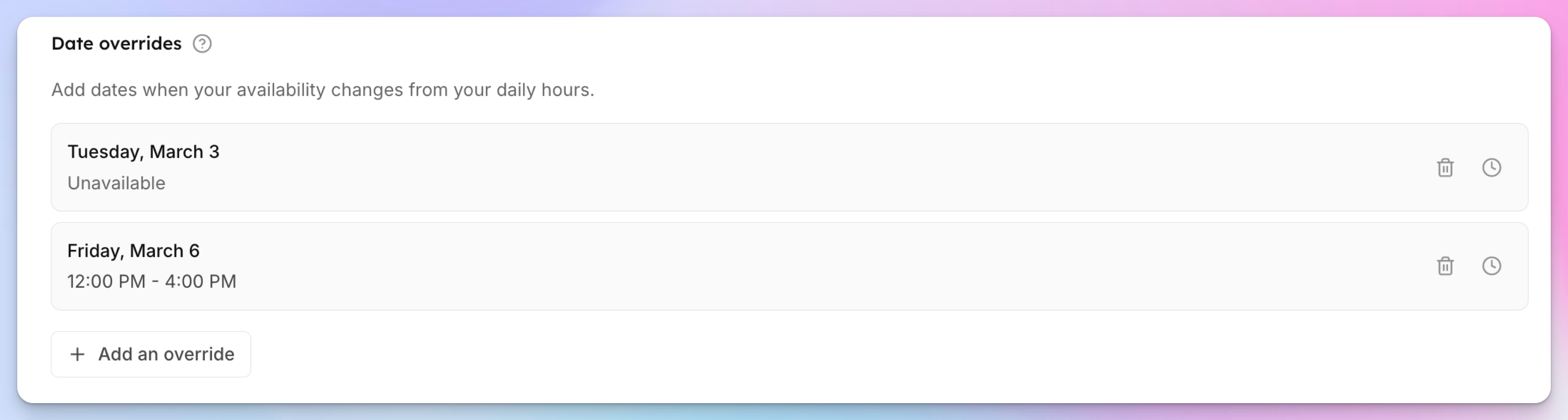
For holidays, vacations, or one-off schedule changes:
On the Schedule tab, select a specific date
Either:
Mark the coach as unavailable for that entire day, or
Set custom hours that override the weekly template for that date
Date exceptions take priority over the weekly schedule for that specific date.
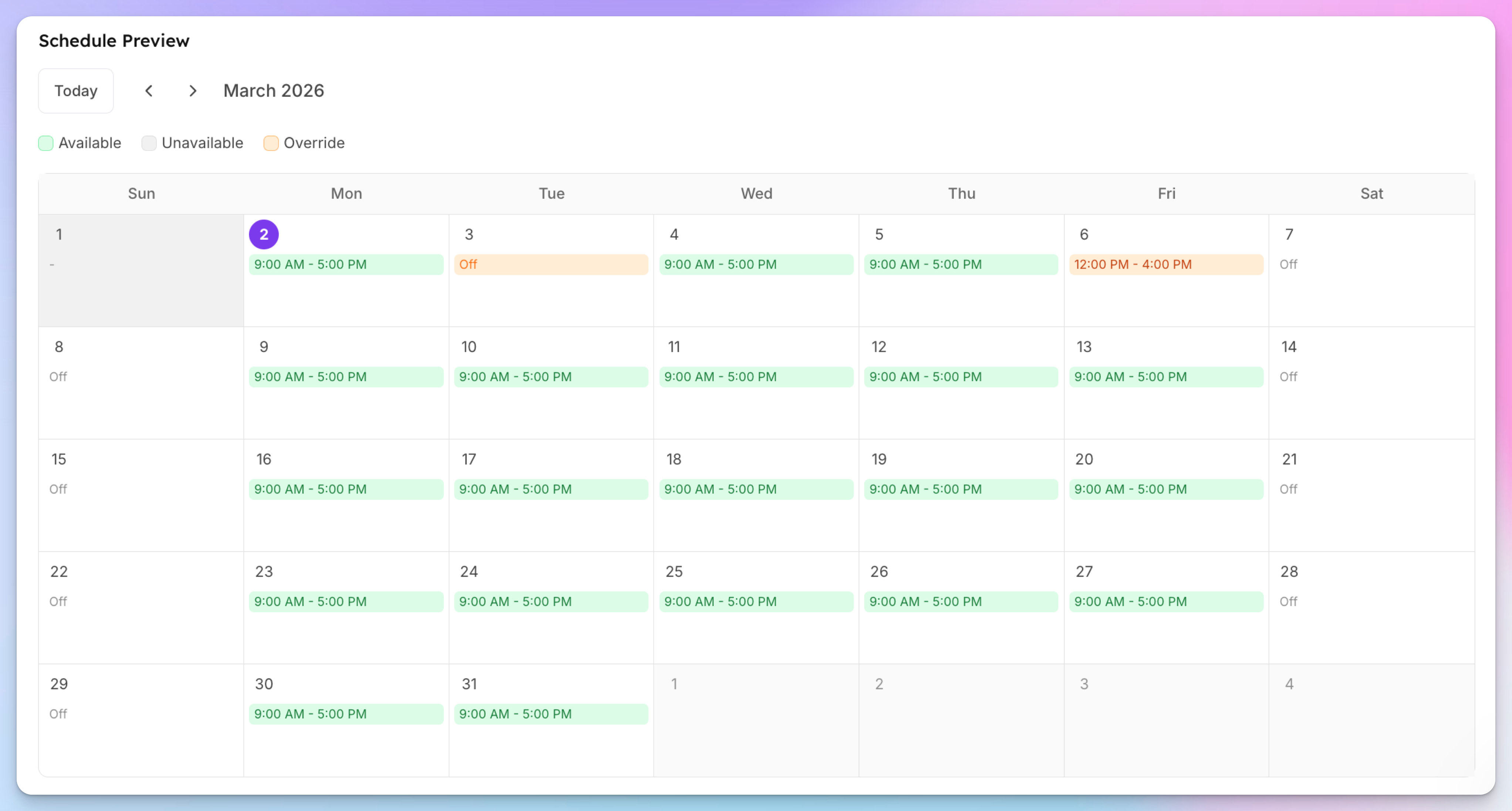
Admins can easily preview the coach’s schedule:
Creating Services (Lesson Types)
Services define what a coach offers — the type of lesson, how long it is, how much it costs, and how many people can join.
Go to Coaches → [Coach Name] → Services tab
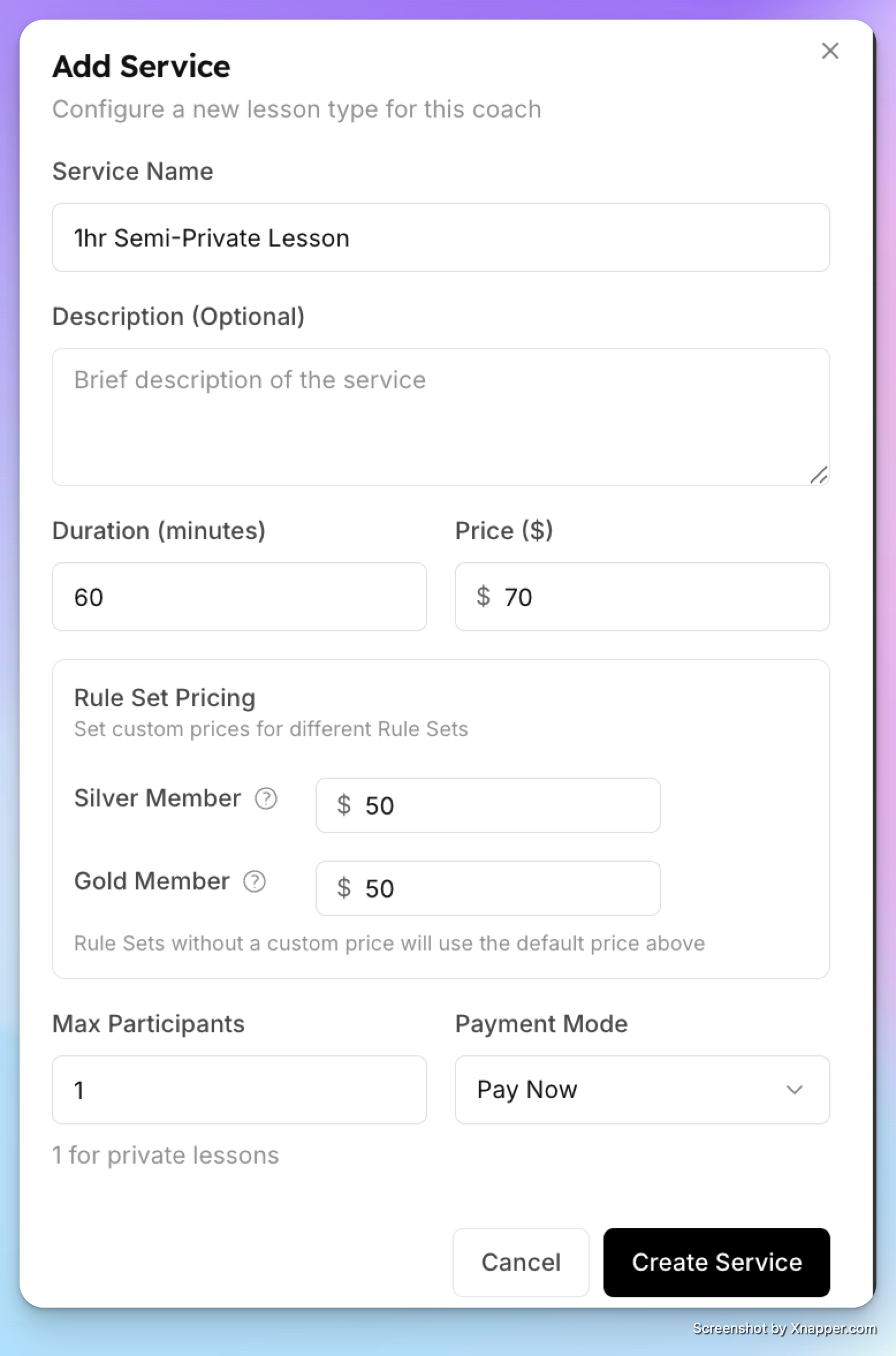
Click Add Service
Configure the service:
Name — A clear name members will see, e.g., "1-Hour Private Lesson", "1-Hour Semi-Private (2 Players)", "1-Hour Group Lesson (Up to 4)"
Description (optional) — Additional details shown to members during booking
Duration — Lesson length in minutes (e.g., 60, 90, 120)
Price — The price per person (more on this below)
Max participants — This is the key field that determines the lesson type (see below)
Payment mode — Immediate (pay at booking) or Deferred (book now, pay later)
Drag services to reorder them — this is the order members see when booking
How Max Participants Works
The max participants setting controls the entire lesson dynamic:
Private lesson (max participants = 1)
Only one person books this slot. Once booked, the time slot is taken — no one else can join.
The price shown is the total price for the lesson.
Straightforward: one member, one coach, one court.
Semi-private or group lesson (max participants = 2, 3, 4, etc.)
The member who books first can add additional people up to the max.
The price is per person. If a semi-private lesson is $50/person and the member adds a second player, the total is $100.
The booking member can add participants in two ways:
Add them directly — Enter names during the booking flow and pay for everyone
Share an invite link — Send a link to other players so they can join and pay for themselves
Role-Based Pricing (Member Discounts)
You can set different prices for different membership roles:
When editing a service, expand the Member Pricing section.
Add custom prices for specific roles (e.g., Gold Members pay $50/person instead of the default $70/person - price for non-members).
Members whose role doesn't have a custom price pay the default.