Connect a Seam lock to your club
Connect your club's smart locks through Seam so bookings get automatic door codes.
Connect your club's smart locks through Seam so bookings get automatic door codes. (About 5 minutes. You'll need admin access and a Seam-supported lock that's online.)
You need access-control permission. The page is under Settings → Access Controls.
Before you begin
Your lock is a model OpenCourt supports through Seam (for example August, Yale, Schlage, Kwikset, or Lockly) and it's online. Haven't bought one yet? Start with Which locks work with OpenCourt, and contact OpenCourt support to confirm the model before installing.
You have the login for the lock's own account (for example your August or Yale account) — you'll sign in to it during the connection.
Steps
In the admin app, go to Settings → Access Controls. You land on the Locks tab. With nothing connected yet you'll see No access control system connected.
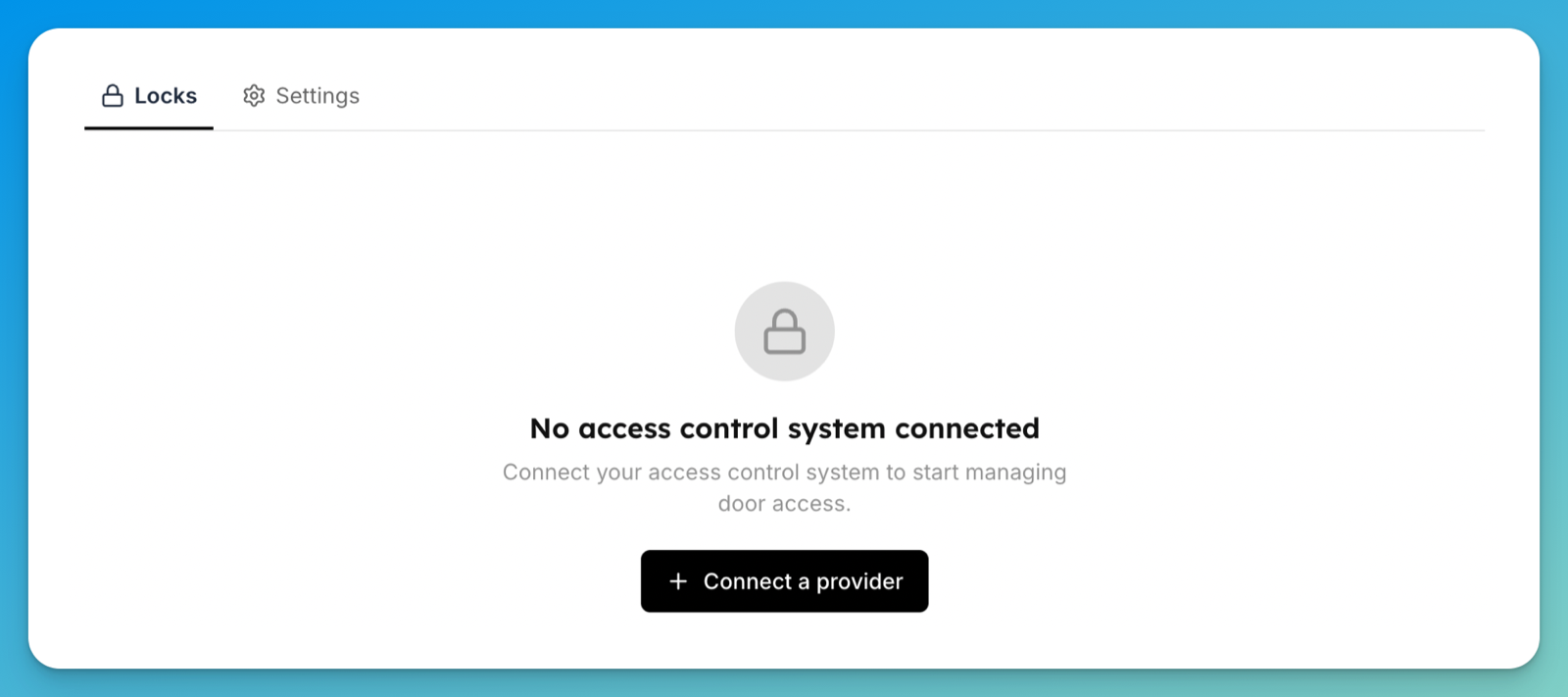
Click Connect a provider. The button expands in place into the systems OpenCourt supports.
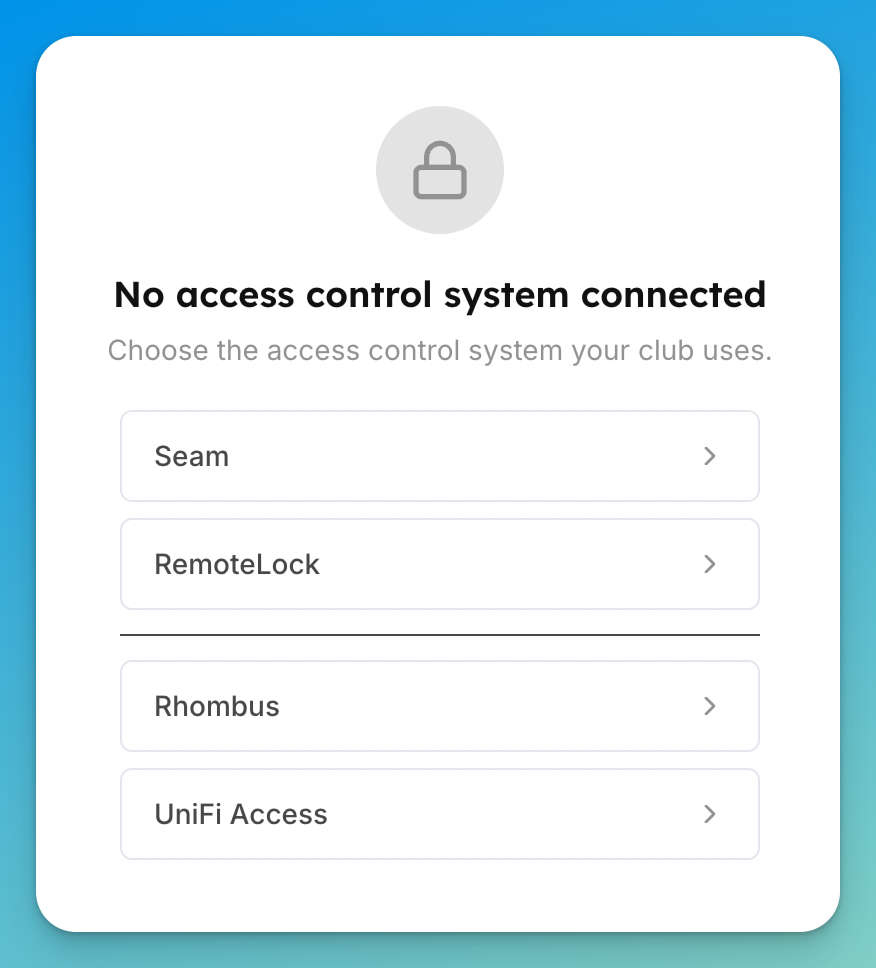
Choose Seam. OpenCourt takes you to Seam's secure connect page.
There, choose your lock brand, sign in to your lock account, and approve access for OpenCourt.
When you're done, you're returned to the Access Controls page with your locks listed.
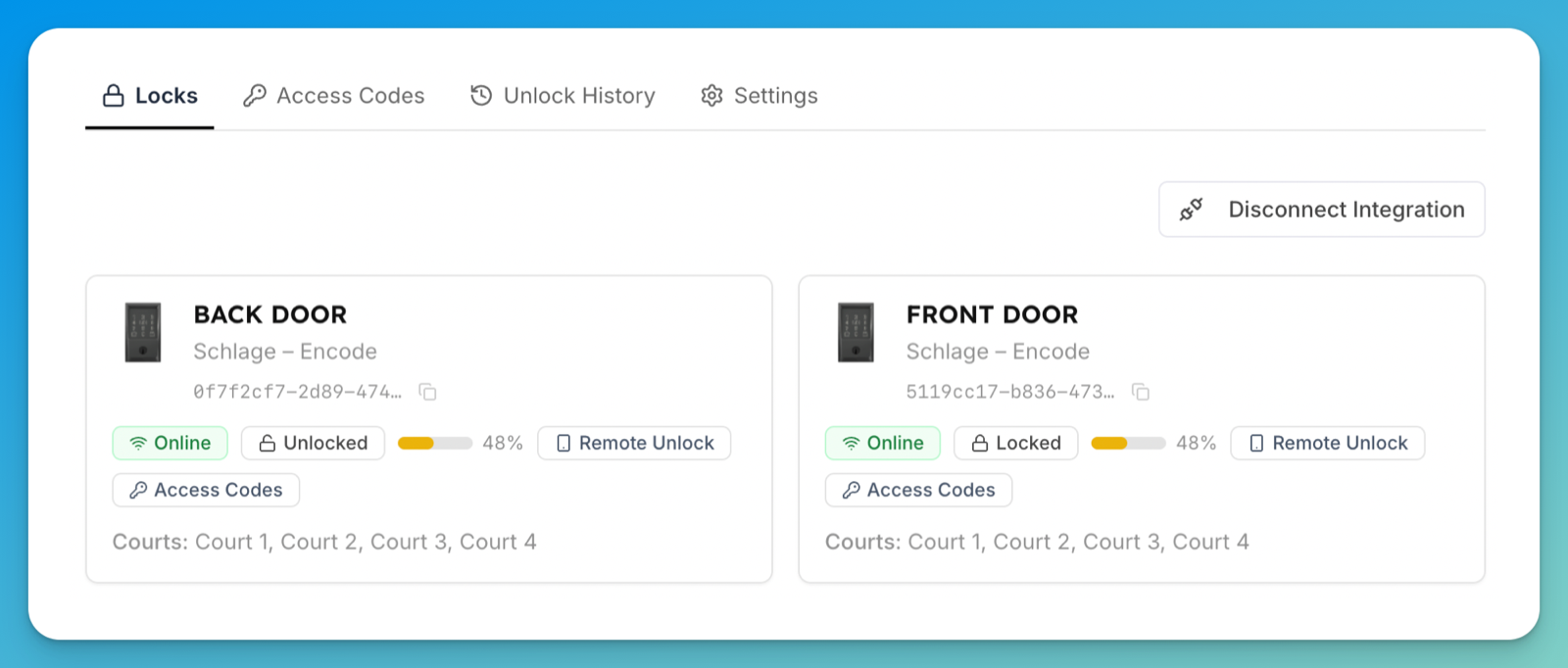
Each lock card shows its name and model, whether it's Online, whether it's currently Locked or Unlocked, battery level, and badges for Remote Unlock and Access Codes — what that lock supports.
Map each lock to a space. Switch to the Settings tab and find Court-to-Lock Mapping — that heading follows your club's own wording, so it reads Bay-to-Lock or Field-to-Lock where that applies. Choose a lock for each space, then click Save. A booking on a mapped space automatically receives a time-limited door code.
What happens next
Customers who book a mapped space get their own door code for the booking window — you don't issue or revoke anything. Open a lock to see its assigned codes and recent activity.
A couple of settings worth knowing (both under Settings → Access Controls):
Let customers unlock from the app — turn this on so customers can open a mapped door from the OpenCourt app during their booking. See Unlock a door from the app.
Scheduling — if your club runs a high volume of bookings, or your locks store a limited number of codes, read Access codes & scheduling before going live.
If something goes wrong
No locks appear after connecting — the locks may be offline or not yet added in your lock account. Add or power them on in your lock's own app, then return to Access Controls and refresh.
A customer says their code didn't work — by default, codes activate 30 minutes before the booking starts (not earlier) and expire 10 minutes after it ends. Check the booking time and that the lock is online, then see A customer can't get in.
Codes intermittently fail to appear on a lock — the lock may be at its code-storage limit. See Access codes & scheduling and consider Just-in-Time scheduling.