Assigning Coaches to Events
Beyond private lessons, you can assign coaches to any event — clinics, group classes, drills, camps, or any other event type. This lets members see who's teaching before they sign up, and gives coaches visibility into their full schedule.
How to Assign Coaches
Create or edit an event in the admin panel
In the General tab, find the Coaches section
Click the coach selector and search by name
Select one or more coaches — they appear as chips in the field
Save the event
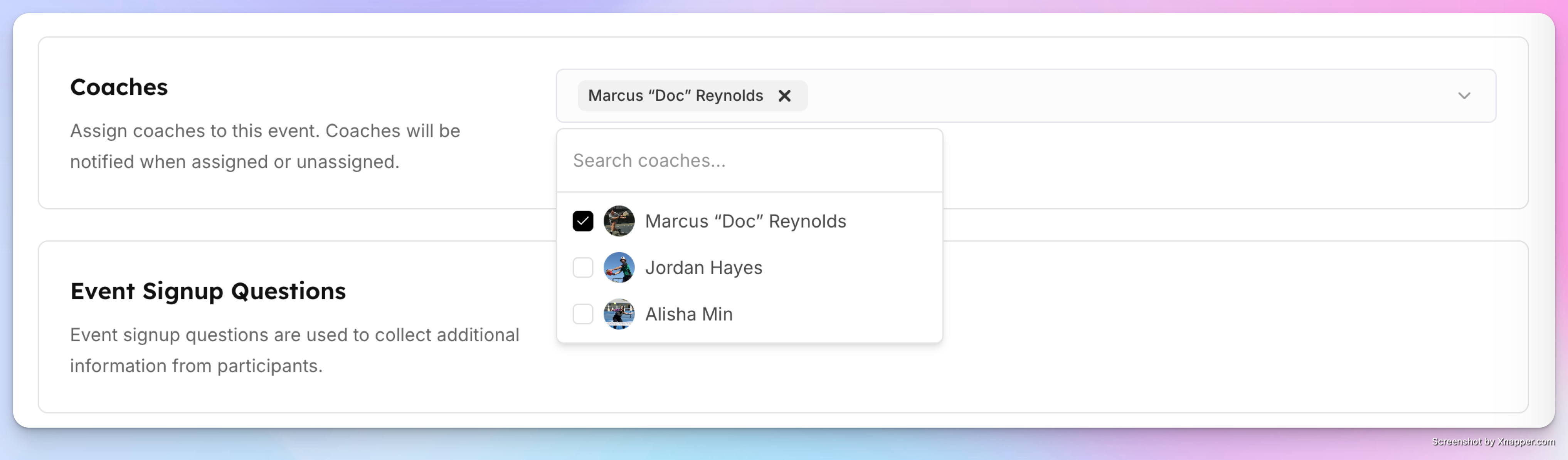
Coaches are notified when they're assigned to a new event.
For Programs (Event Series)
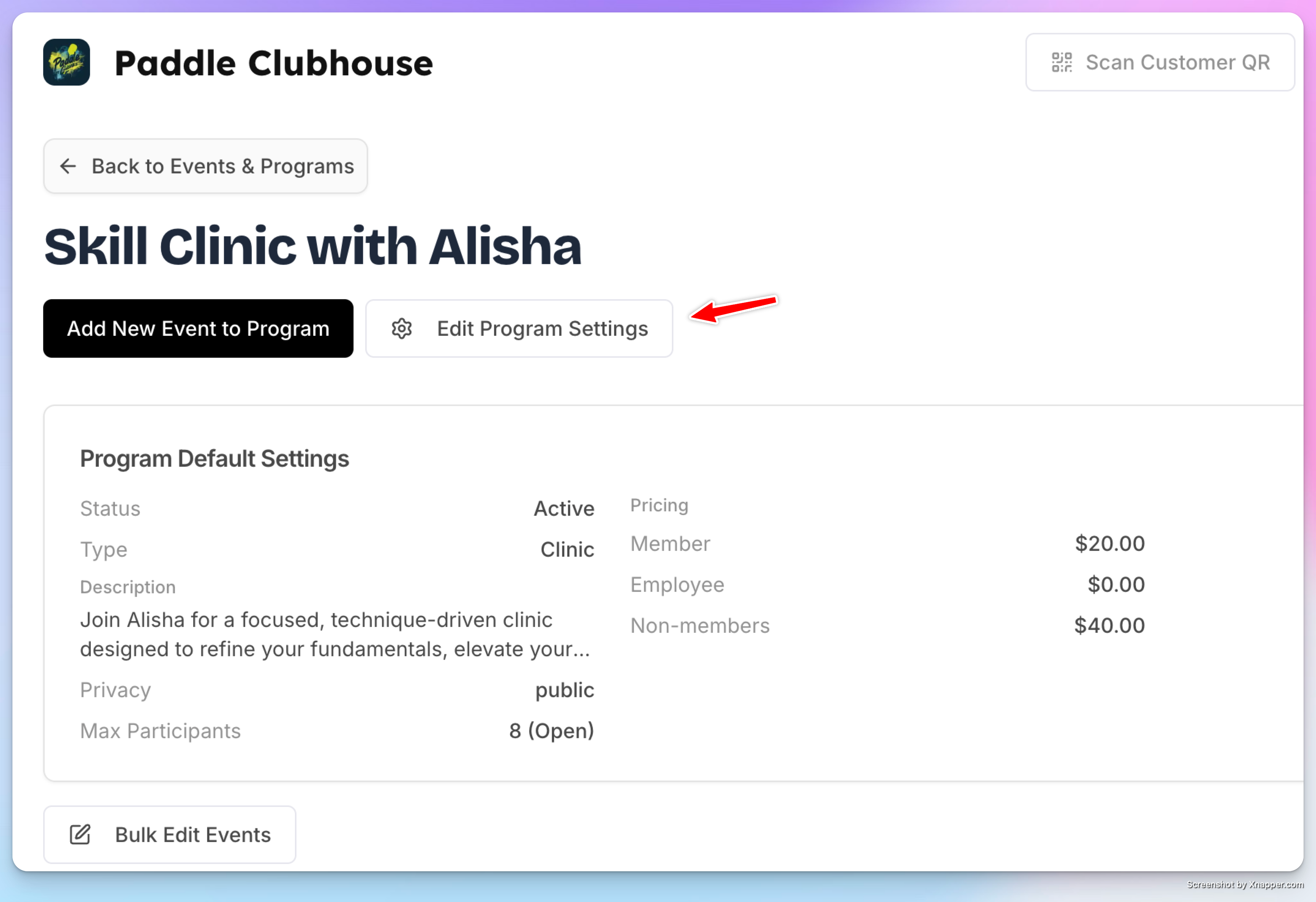
When editing a program (recurring event series), coaches assigned in the General tab apply to the entire series.
How It Appears to Members
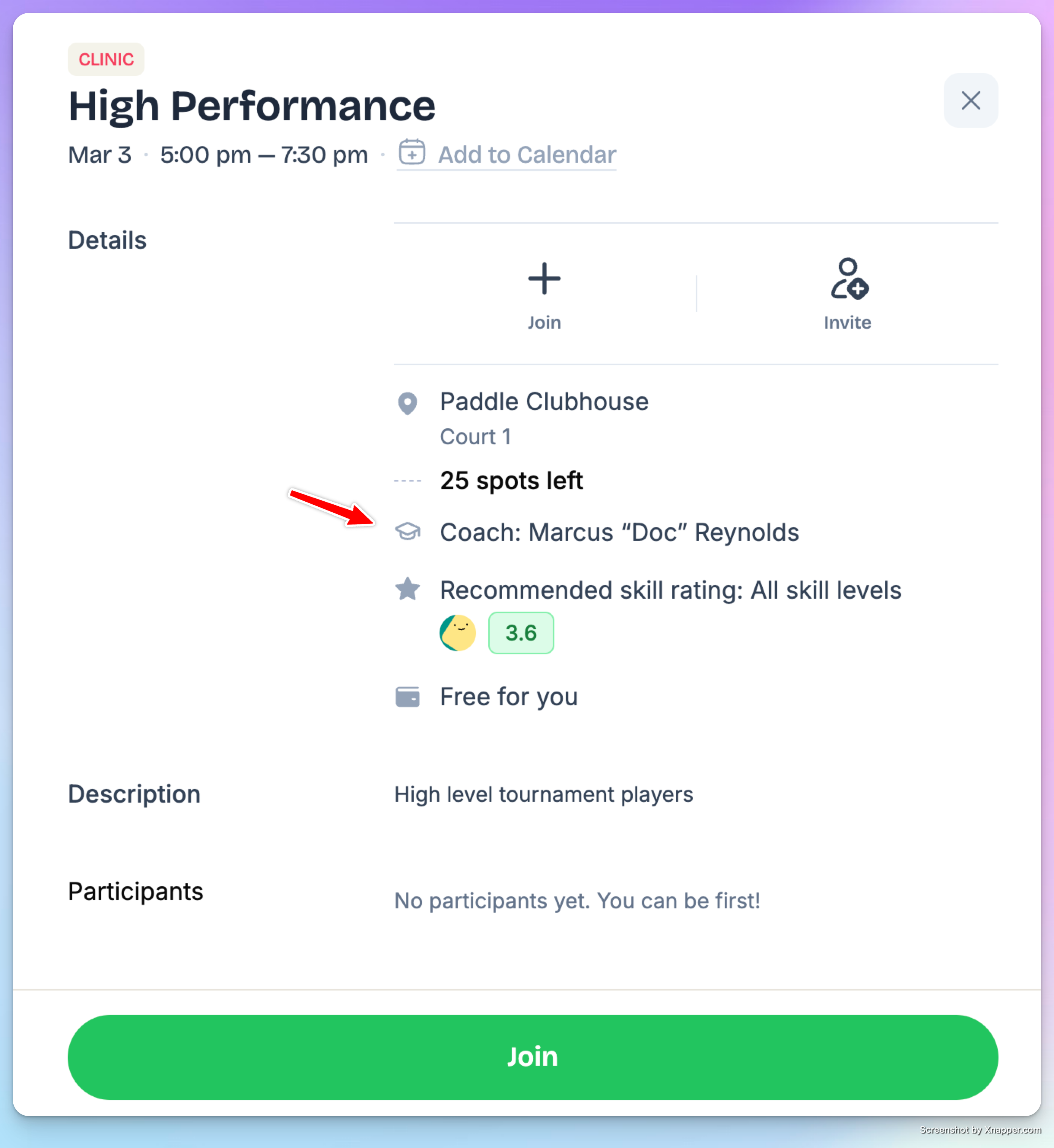
When coaches are assigned to an event, their names appear in the event details so members know who's teaching before they join.
Unified Coach Schedule
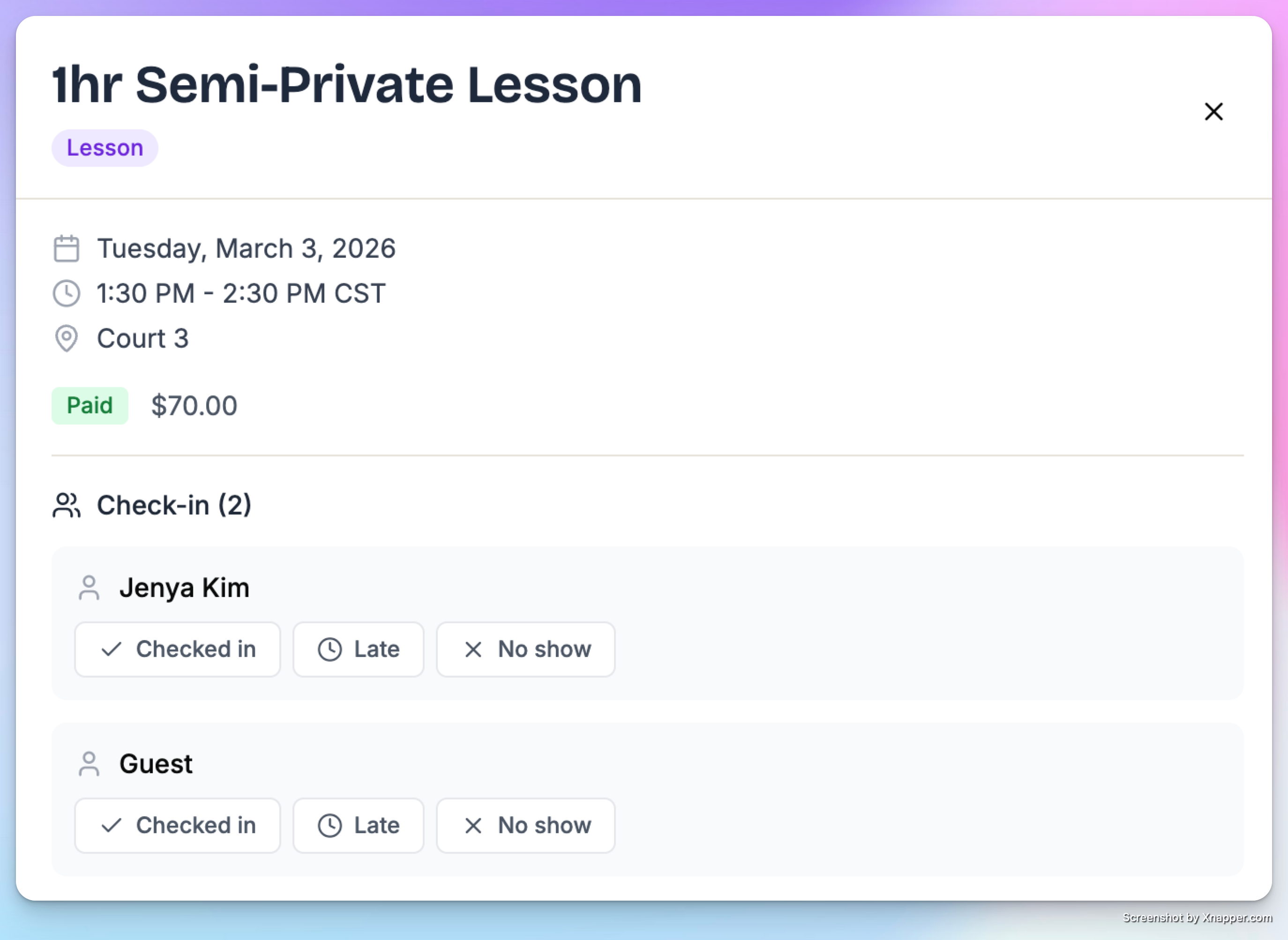
Assigned events appear in the coach's agenda alongside their private lessons. Whether a coach checks their schedule through My Profile → Coach Schedule or an admin views the Agenda tab, everything is in one place:
Private and group lessons
Assigned events (clinics, classes, etc.)
Coaches can also check their students in right there.