Creating a Coach Profile
Learn how to activate Coach Booking at the club level and configure default settings like booking windows, payment modes, and court restrictions. Then set up coach profiles with bios, contact details, and photo, and optionally link them to user accounts so coaches can access their own schedules in the app.
Enabling Coach Booking
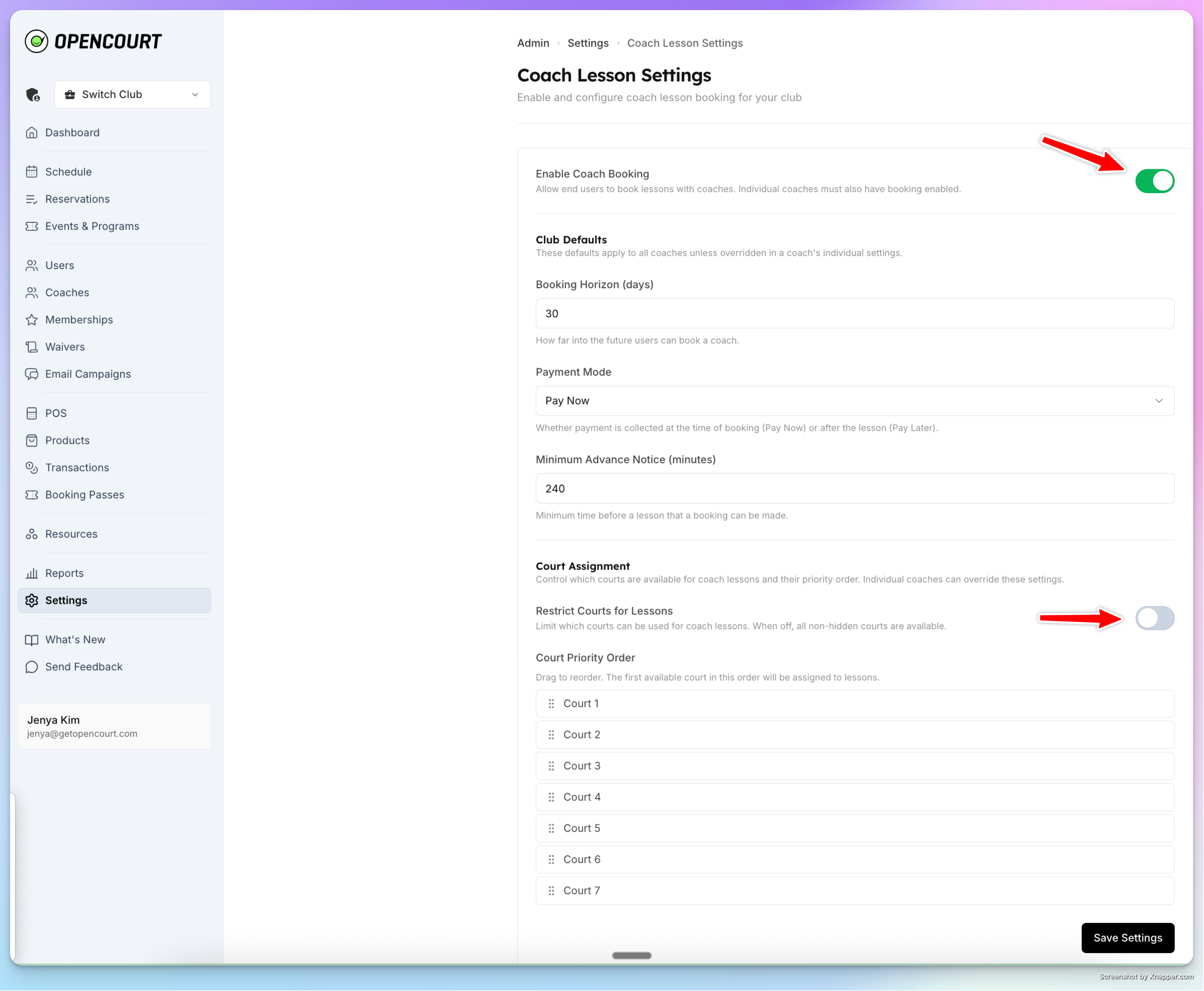
Before members can book lessons, enable the feature at the club level.
Go to Settings → Coach Lessons
Toggle Enable Coach Booking on
Configure club-wide defaults:
Default booking horizon — How far in advance members can book (e.g., 30 days)
Minimum advance booking — How soon before a lesson it can be booked (e.g., must book at least 24 hours ahead)
Default payment mode — Whether lessons require payment at booking (Immediate) or can be paid later (Deferred)
Court restrictions — Which courts can be used for lessons and in what priority order
These are defaults — each coach can override them individually from their own settings.
Creating a Coach Profile
Go to Coaches in the admin sidebar
Click Add Coach
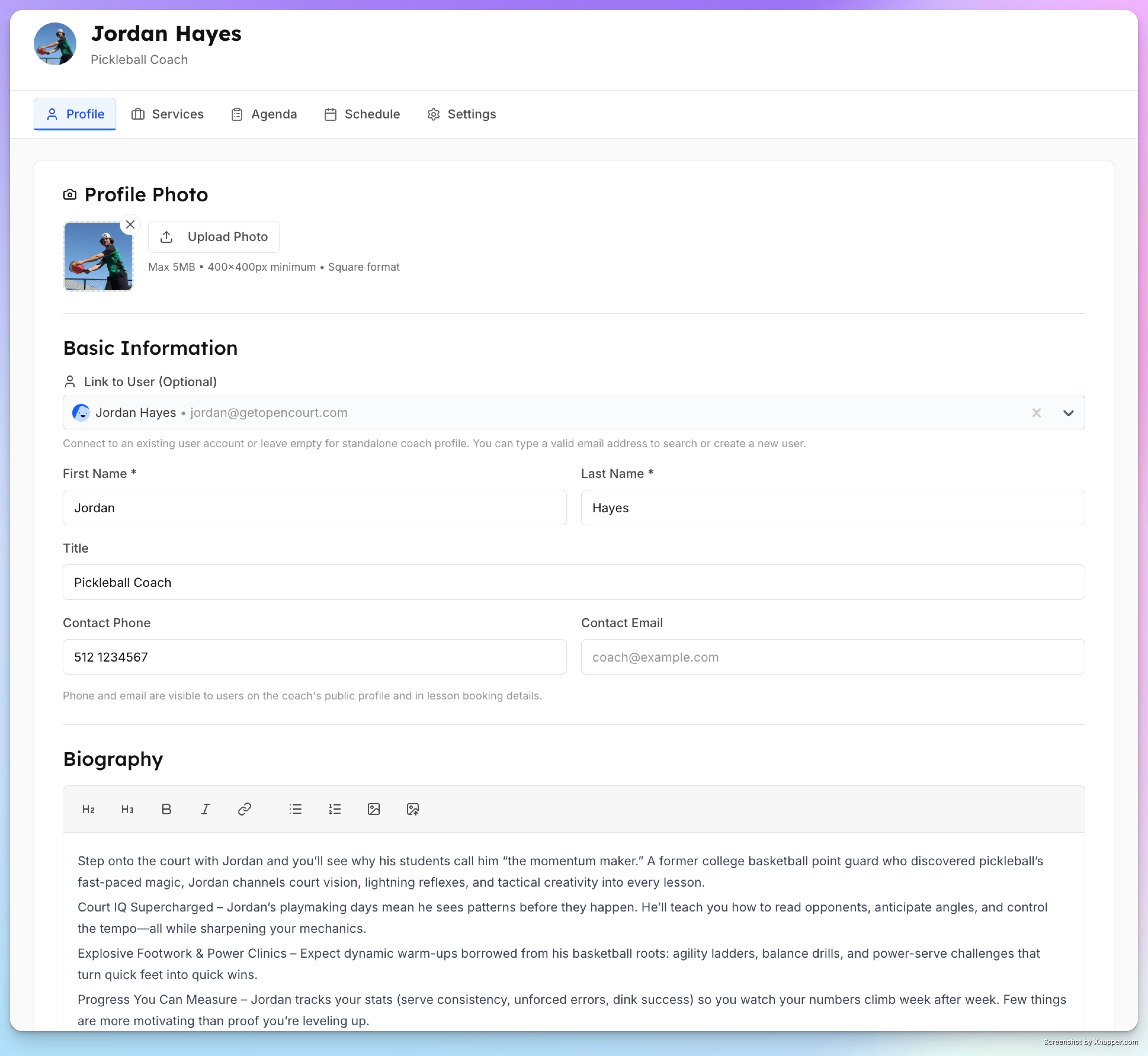
Fill in the coach's basic information:
First name and Last name (required)
Title (optional) — Shown under their name, e.g., "Head Pro", "Pickleball Coach"
Link to a user account (optional but recommended) — Use the Link Profile field to search for and select an existing OpenCourt user. This links the coach profile to their user account, which gives the coach access to their own schedule view in the app (at My Profile → Coach Schedule). The linked account does not need to match the coach's contact email — they are separate.
Fill in contact details:
Phone — Displayed on the coach's public profile, so members can call or text. This is a contact number for the coach's profile and does not have to match the linked user account.
Email — Same idea — a contact email for the coach's public profile, independent from the linked user account's email.
Add a Profile photo — Shown on the coaches page and the coach's detail page.
Write a Bio — A description of the coach's background, playing experience, teaching style, certifications, etc. Supports rich text formatting.
Save the profile.
Linking to a user account vs. contact details
These serve different purposes:
A coach can function without a linked user account — they just won't have self-service access to their schedule. Admins can always manage everything from the admin panel.