Creating a Guest Pass
Give your members a set number of free guest visits per month. When a member adds a guest to a reservation or event, the guest's fee is automatically waived — one pass is consumed per guest visit.
Example: Gold members get 3 free guest passes per month.
Step 1: Create the Pass Template
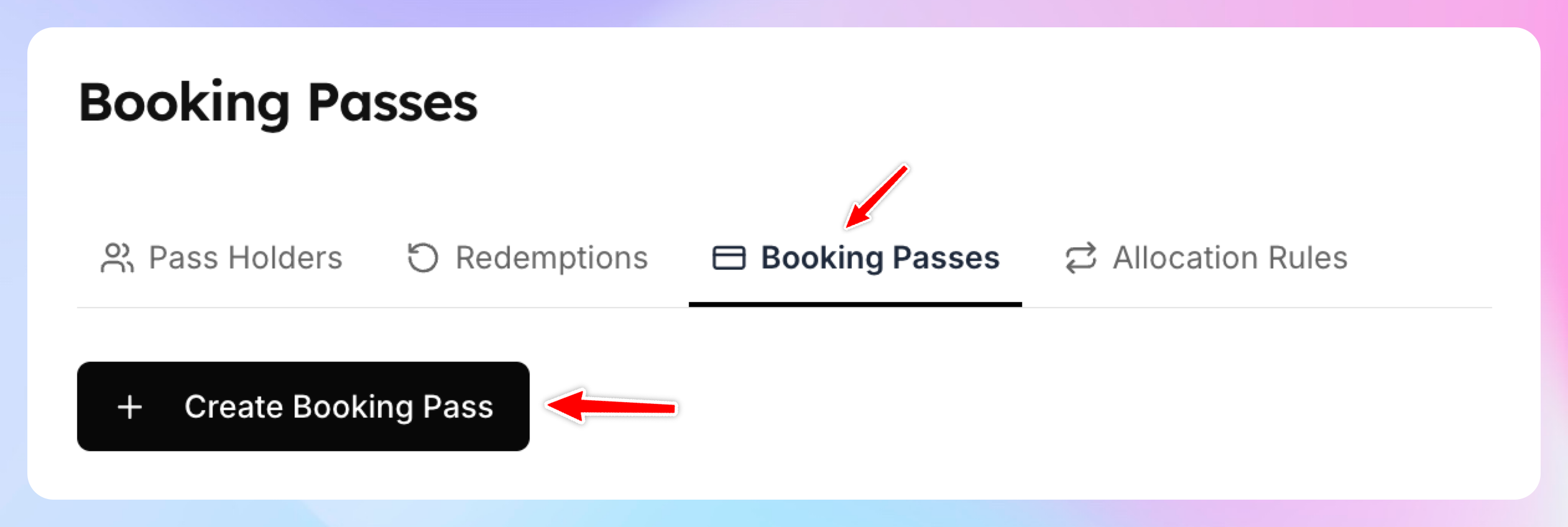
Go to Booking Passes page
Click Create Booking Pass
Enter the name and the description of the pass (optional)
Pick Event that it applies to.
Choose Whole Event/Reservation
Choose Guest Only as a user type that it can be applied to.
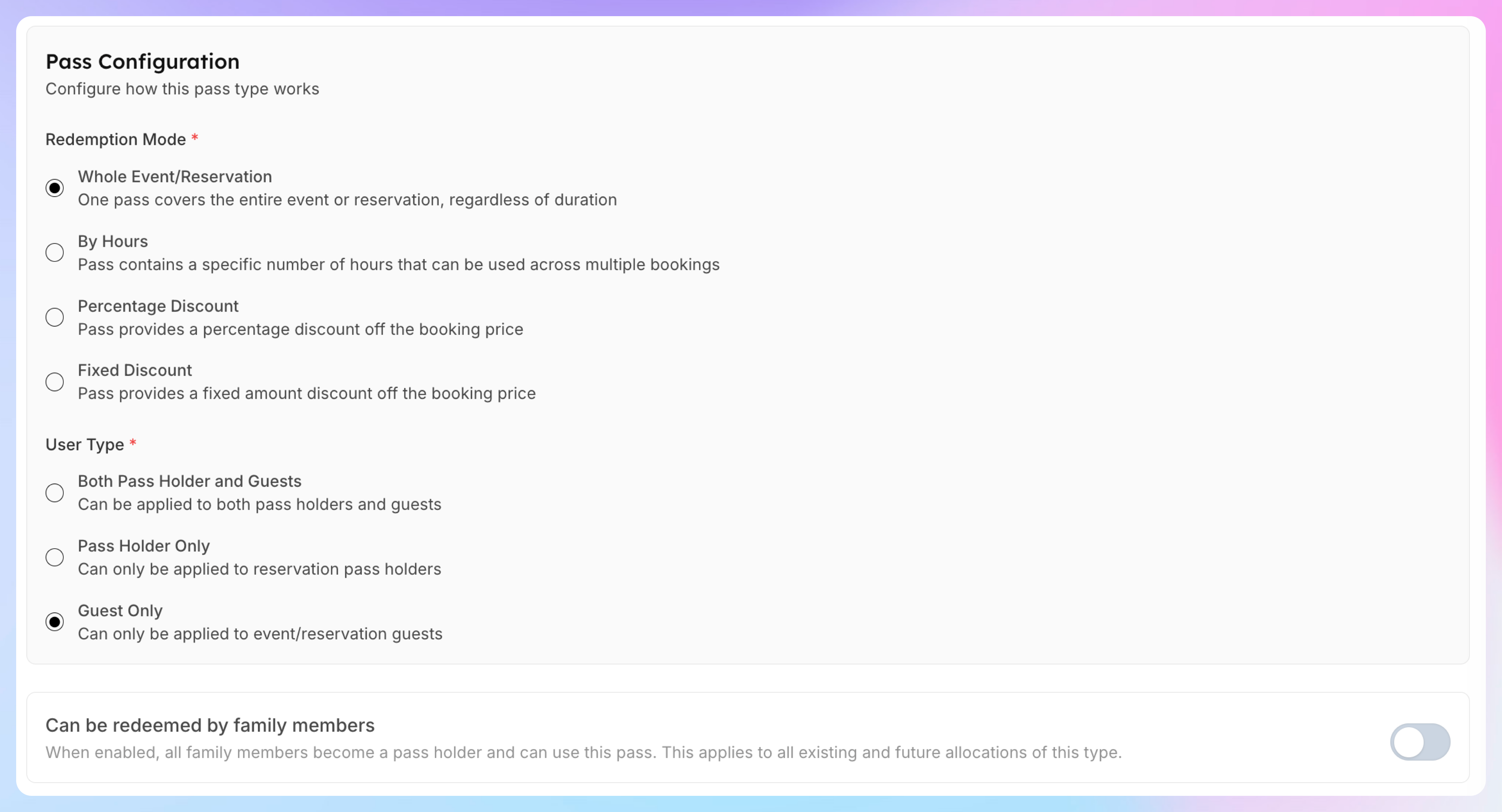
Leave Family Sharing off — guest passes apply to guests, not family members.
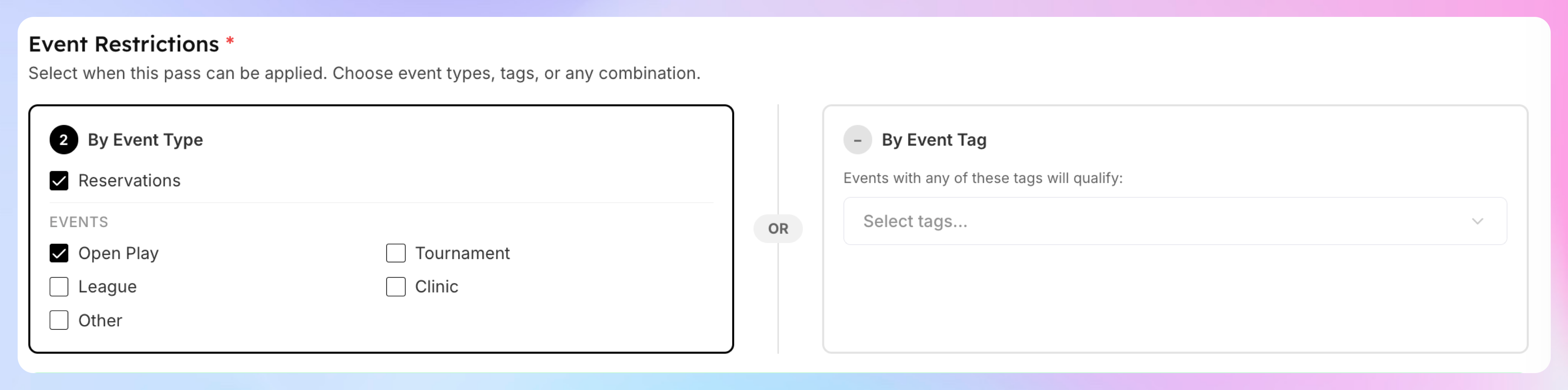
Under Event Restrictions, select which event types guests can attend — for example, check Reservations and Open Play.
Click Create Booking Pass.
Step 2: Create the Allocation Rule
Now set up automatic allocation so members get passes when their membership activates.
Go to Booking Passes → Allocation Rules
Click Create Rule

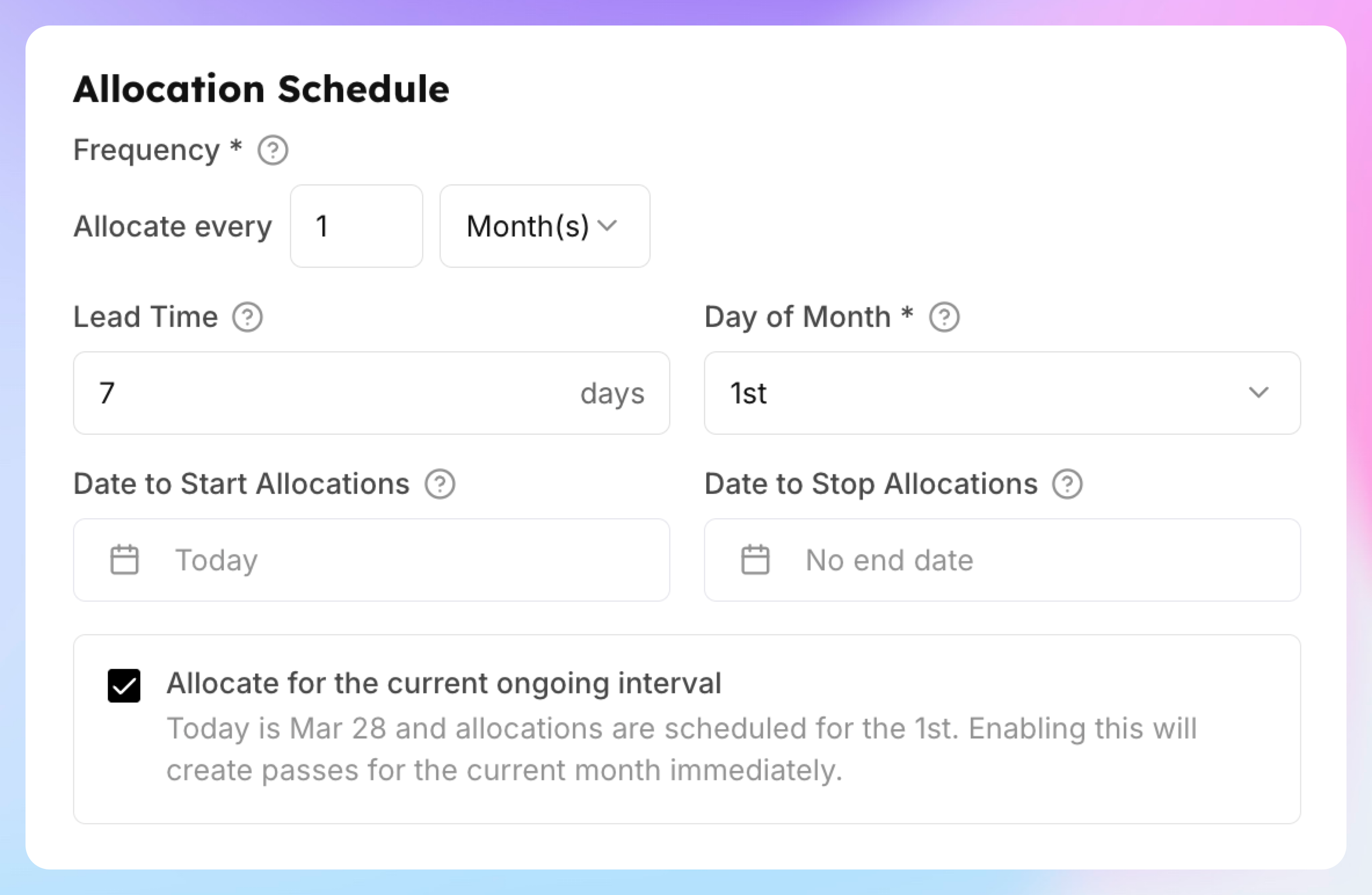
Use this form to choose who will receive these passes, when they’ll be granted, and how often they’ll be issued.
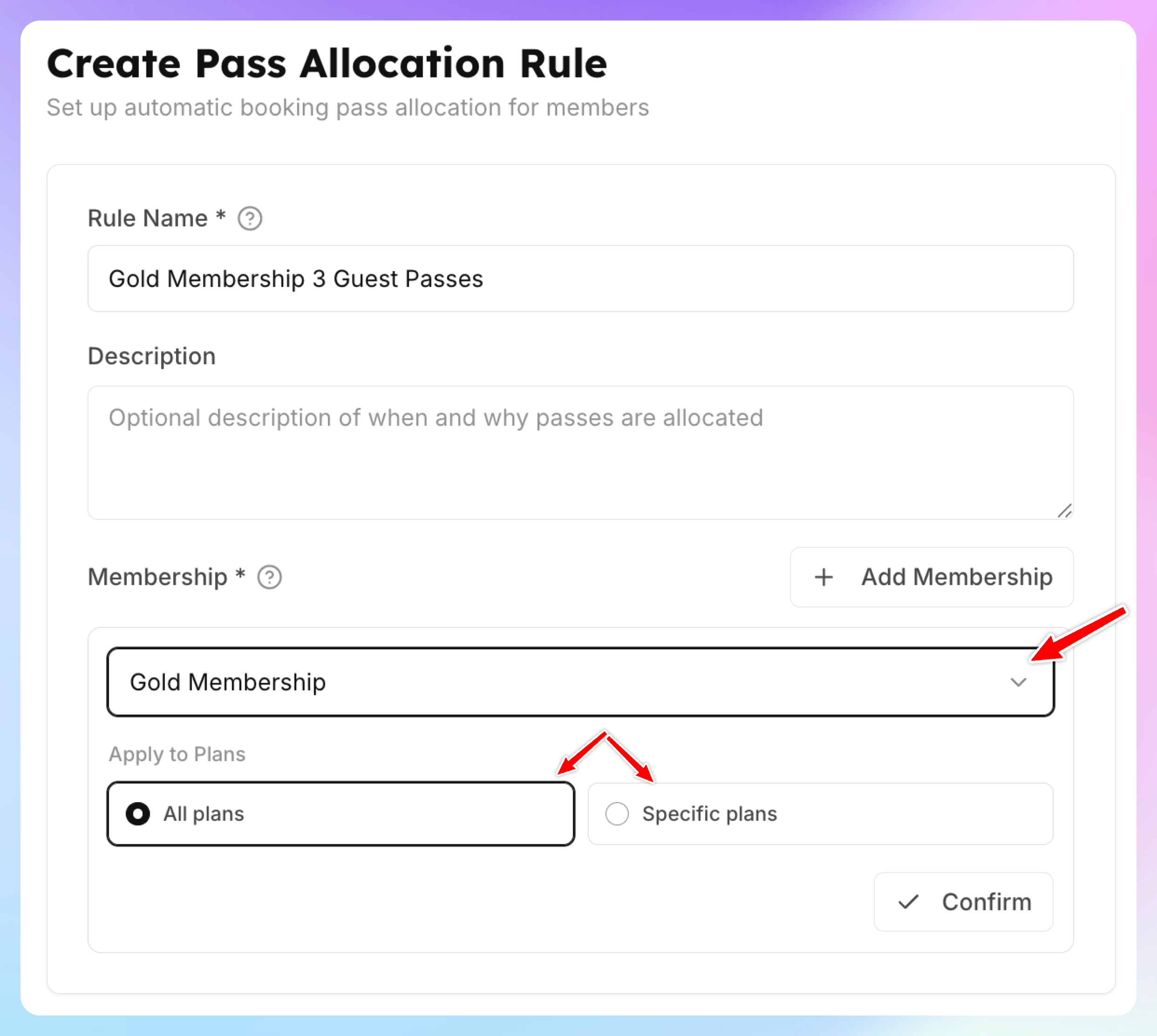
1. Fill out the name and the description (optional)
2.Select the memberships and plans these passes should apply to.
3. Define how often you will grant those passes - e.g. every month, or every week etc.
4. How many days in advance you’ll issue them - e.g. your members can book 7 days in advance, then they’ll need to have passes 7 days in advance before the new month/week starts.
5. If you check “Allocate for the current ongoing interval”, it’ll create the passes for he current period. Otherwise, it will start generating passes from the next month/week.
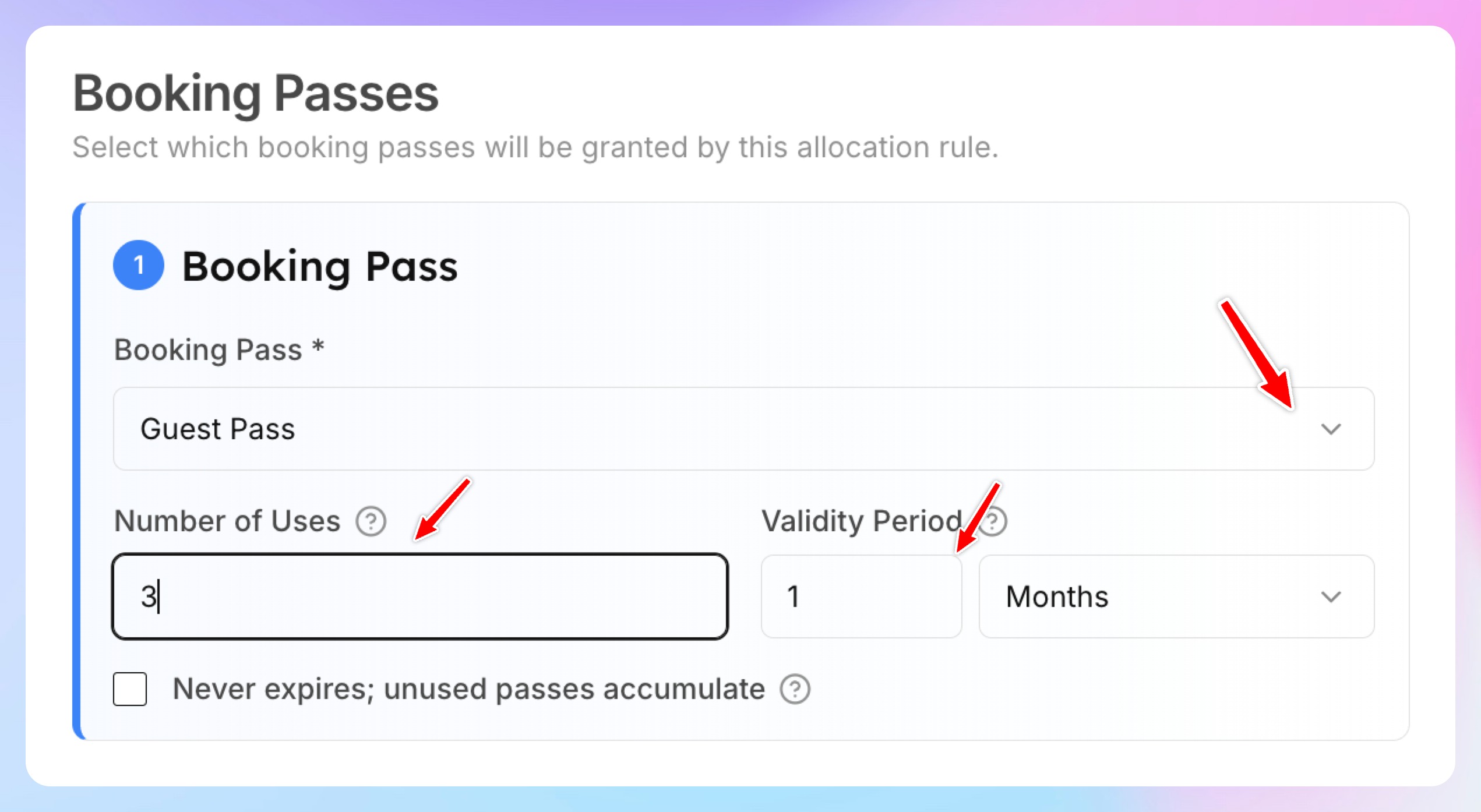
6. Under Booking Passes, click Add a booking pass and configure how many passes you want to give per certain period.
Click Save.
How It Works for Members
A Gold member creates a reservation and adds a guest
The system checks for available guest passes
If the member has passes remaining, the guest's fee is waived
One pass is consumed — remaining uses go down (e.g., 3 → 2)
If all 3 passes are used up, the guest pays full price
On the 1st of next month, 3 new passes are allocated automatically
Key Points
Guest Only user type means the pass only covers guests — the member's own participation is unaffected
Unused passes expire at the end of the month (based on the 1-month validity period)
To let unused passes carry over, check "Never expires; unused passes accumulate" in the allocation rule
Guest passes work for both reservations and events — control which types via the Event Restrictions checkboxes