Creating an Allocation Rule
Once you created a template of the passes
This is where you connect passes to memberships and define the schedule.
Go to Booking Passes → Rules
Click Create Rule

Configure:
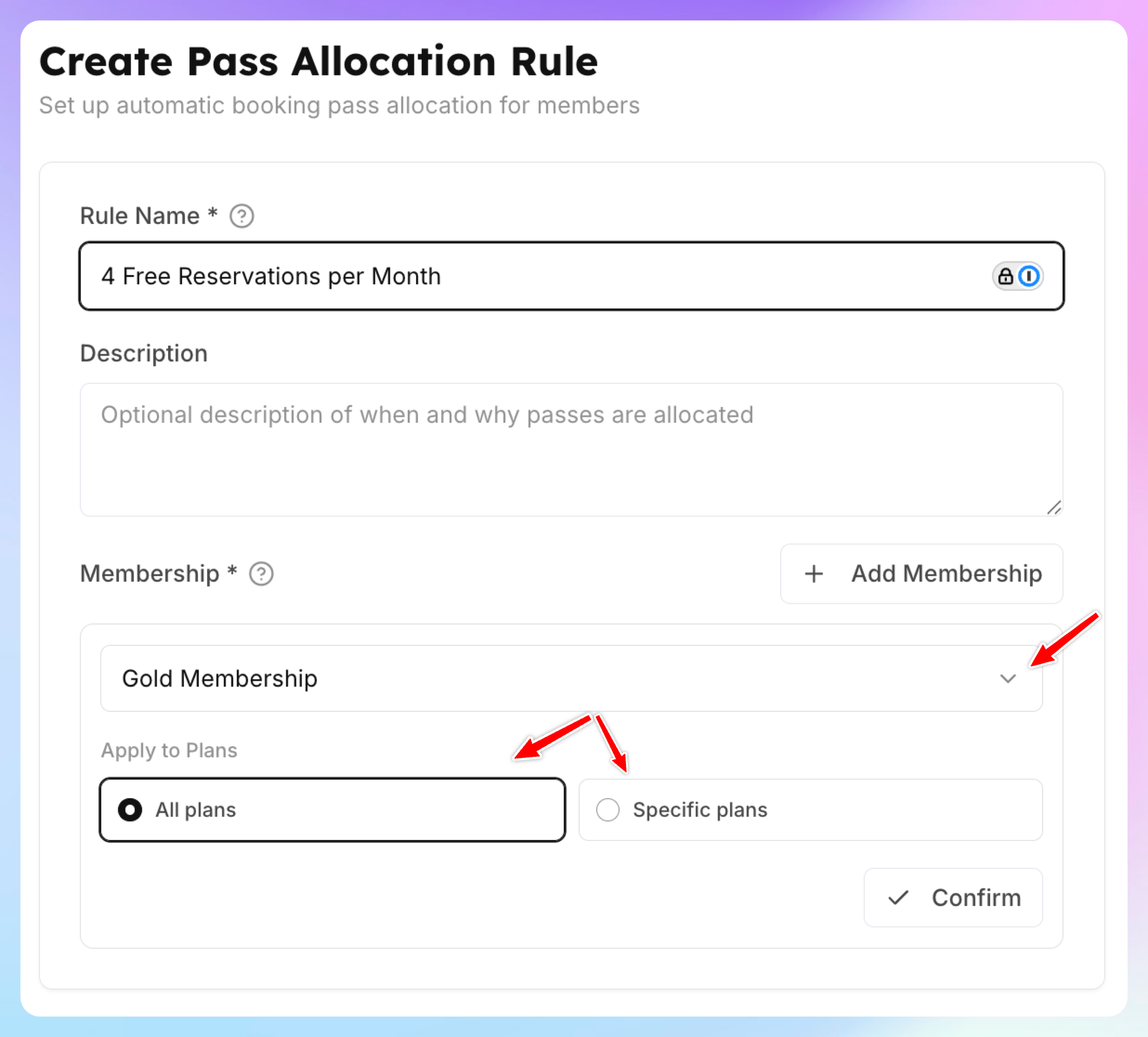
Which memberships receive this pass?
Select one or more membership products. You can optionally narrow it down to specific price tiers within a product (e.g., only the "Annual" price, not the "Monthly" price).
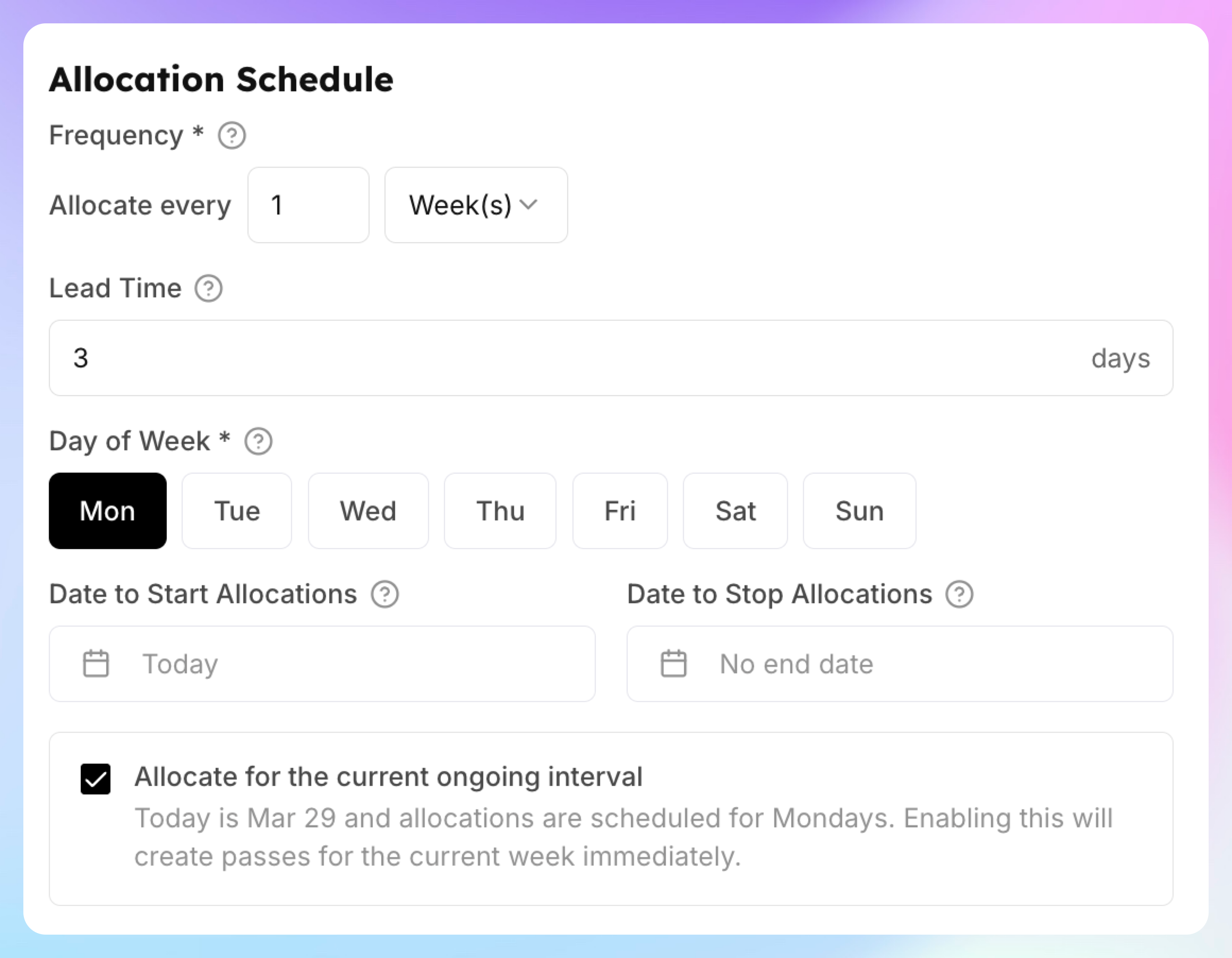
How often are passes allocated?
Set the recurrence schedule:
You can also set:
Start date / End date — Optional bounds for when the rule is active
Pre-create advance days (Lead Time) — How many days before a period starts to create the passes (e.g., 7 days ahead so members can see upcoming passes)
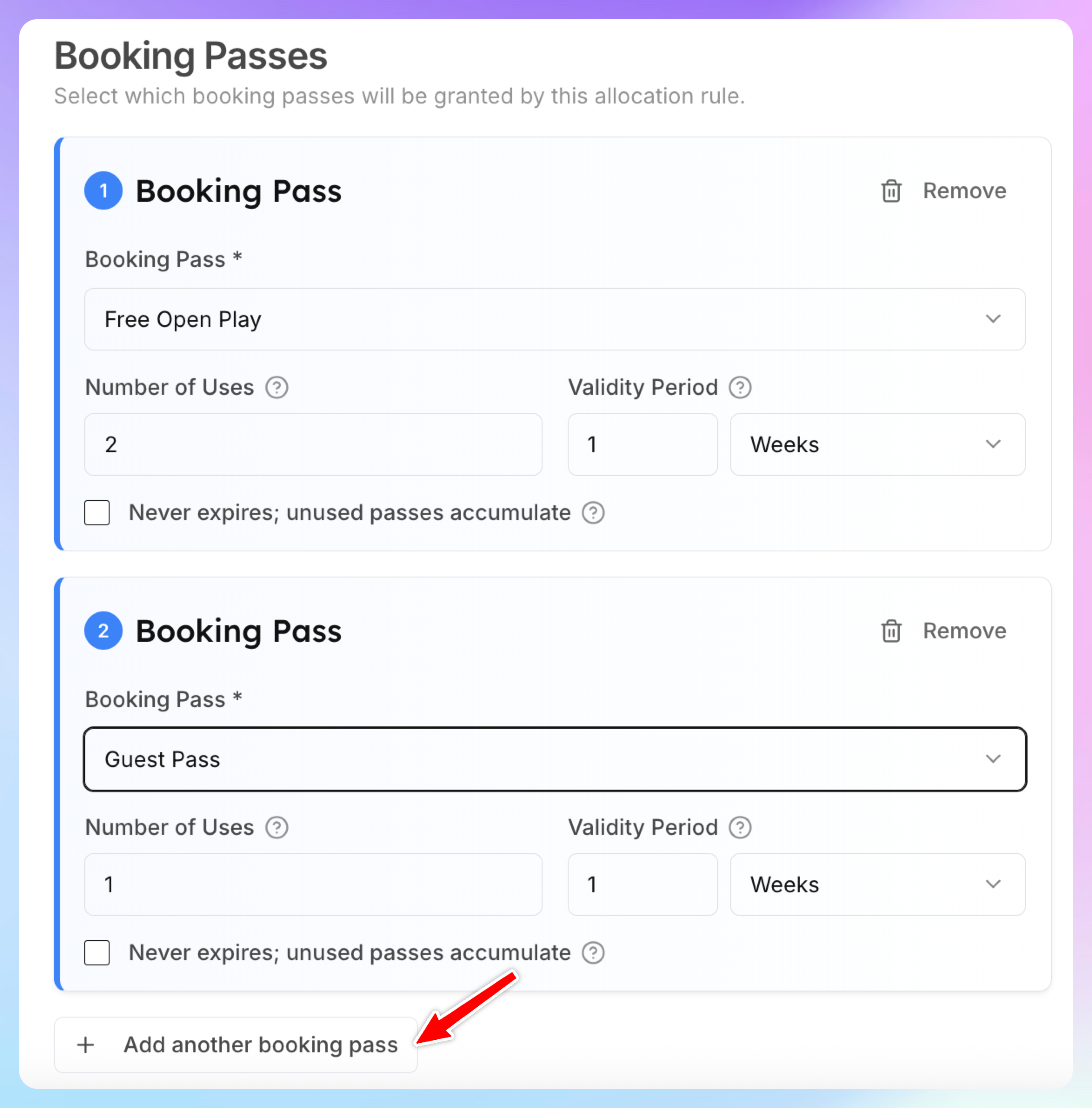
Which passes to allocate?
Add one or more pass templates with their quantities:
Select a pass template
Set number of uses (e.g., 8 sessions) or leave unlimited
Set amount of minutes (for minute-based passes, e.g., 600 minutes = 10 hours)
Set validity period (e.g., 1 month — the pass expires at the end of the period)
Toggle Never Expires if the pass should stay valid indefinitely.
Note: If this pass is issued on a recurring basis, any unused passes will roll over into the next period.
You can add multiple pass templates to a single rule. For example, a "Premium" membership rule might allocate both "8 Open Play Sessions" and "50% Off Clinics" every month.
Preview and Confirm
Before creating the rule, a preview shows:
How many currently eligible members will receive passes
Which passes will be allocated
When the first allocation will occur
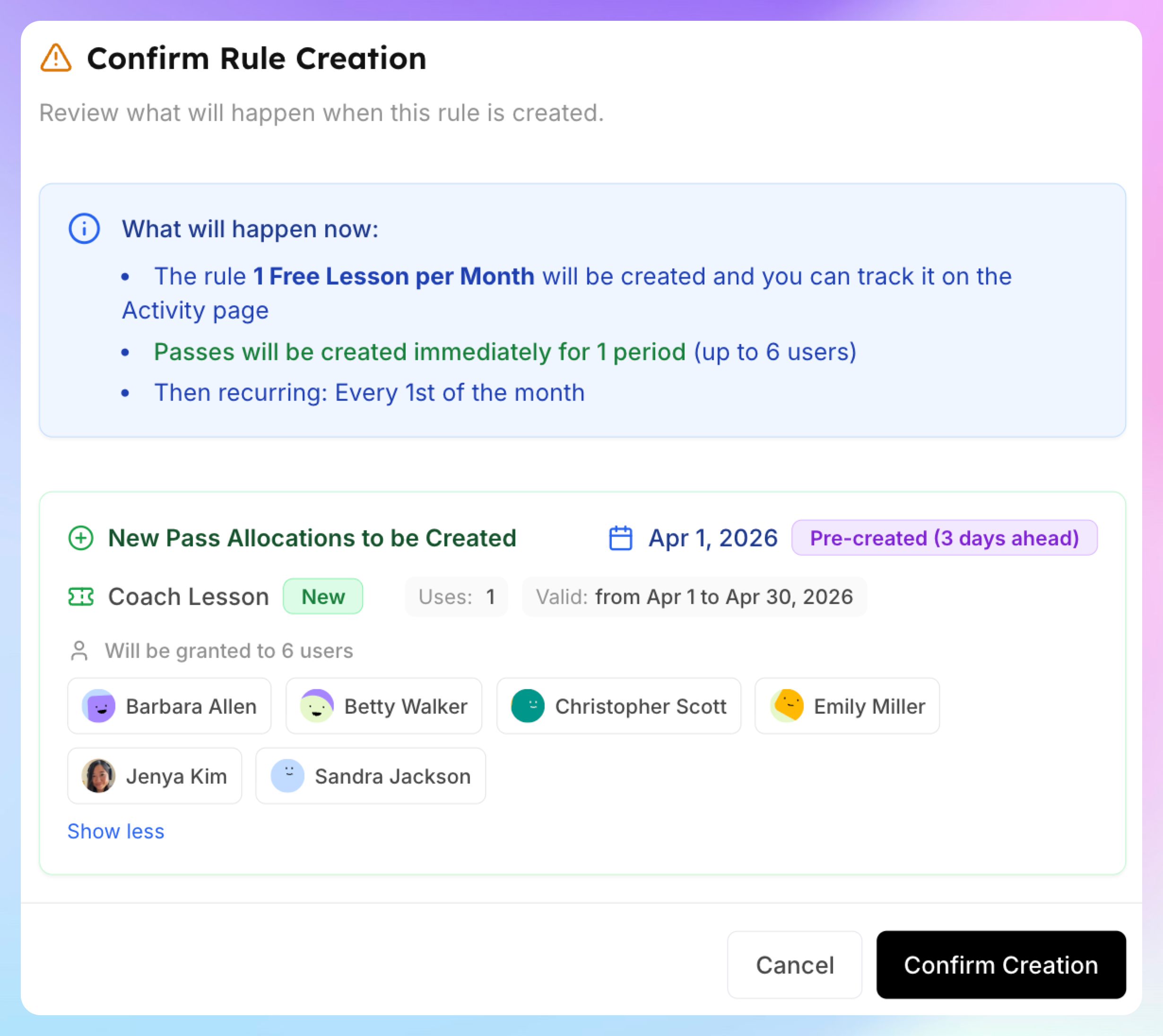
Click Confirm to create the rule. Passes are immediately allocated to all currently eligible members.