Connecting POS Terminal
Connecting the Stripe terminal is a 3-step process:
Generate the pairing code generated on the terminal (done by you)
Enter that pairing code into the Stripe admin panel (done by you or by OC)
Connect the resulting terminal ID in to the OpenCourt system (done by OC)
1. Generate the pairing code generated on the terminal
To open the settings menu, swipe right from the left edge of the reader screen to reveal a Settings button. Tap the Settings button and enter the admin PIN
07139.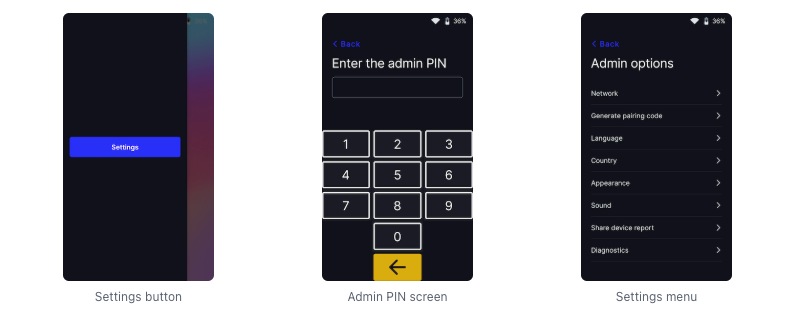
Tap Generate pairing code.
Send this code to your OpenCourt representative, or proceed with the next steps for DIY setup.
2. Enter that pairing code into the Stripe admin panel
In your Stripe admin panel, open the Readers page, click Register reader.
Enter the pairing code code from the above then click Next.
Optionally, choose a name for the reader.
If you already created a Location, select the reader’s new Location. Otherwise, create a Location by clicking + Add new. Name of the location doesn't matter.
Click Register to finish registering your reader.
Let your OpenCourt representative know the above is done.
3. Connect the resulting terminal ID in to the OpenCourt system
Contact your OpenCourt representative, we will do this for you.
After everything is set up, Terminal will show up as a payment processing option for every transaction you process from the admin panel.