Creating and Managing Subscriptions
A subscription lets you give users recurring benefits on a set schedule, such as every month or every quarter. For example, a subscription can include 2 clinic booking passes per month, 4 private lessons per month, or other recurring packages. The user is then charged automatically based on the billing frequency you set (monthly, quarterly etc).
Subscriptions are different from memberships. A membership usually defines a user’s core access and rules, such as how far in advance they can book courts or bays, how far in advance they can view the schedule, court or bay pricing, and other membership-level benefits.
A subscription, on the other hand, gives the user additional recurring benefits on top of those membership benefits. Unlike memberships, users can have multiple subscriptions at the same time, and each subscription can provide its own set of benefits. These benefits are added alongside the user’s membership benefits, and the subscription billing cycle can be completely separate from the membership billing cycle.
Before you start
Before creating a subscription, you need to create the booking pass that the subscription will deliver.
The booking pass is the actual benefit the subscriber will receive on a recurring basis. Once that booking pass is ready, you can attach it to a subscription product.
How to create a subscription product
Go to the Subscriptions page.
Click New Subscription Product.
Enter the product details:
Name
Short description
Full description (optional)
Picture (optional)
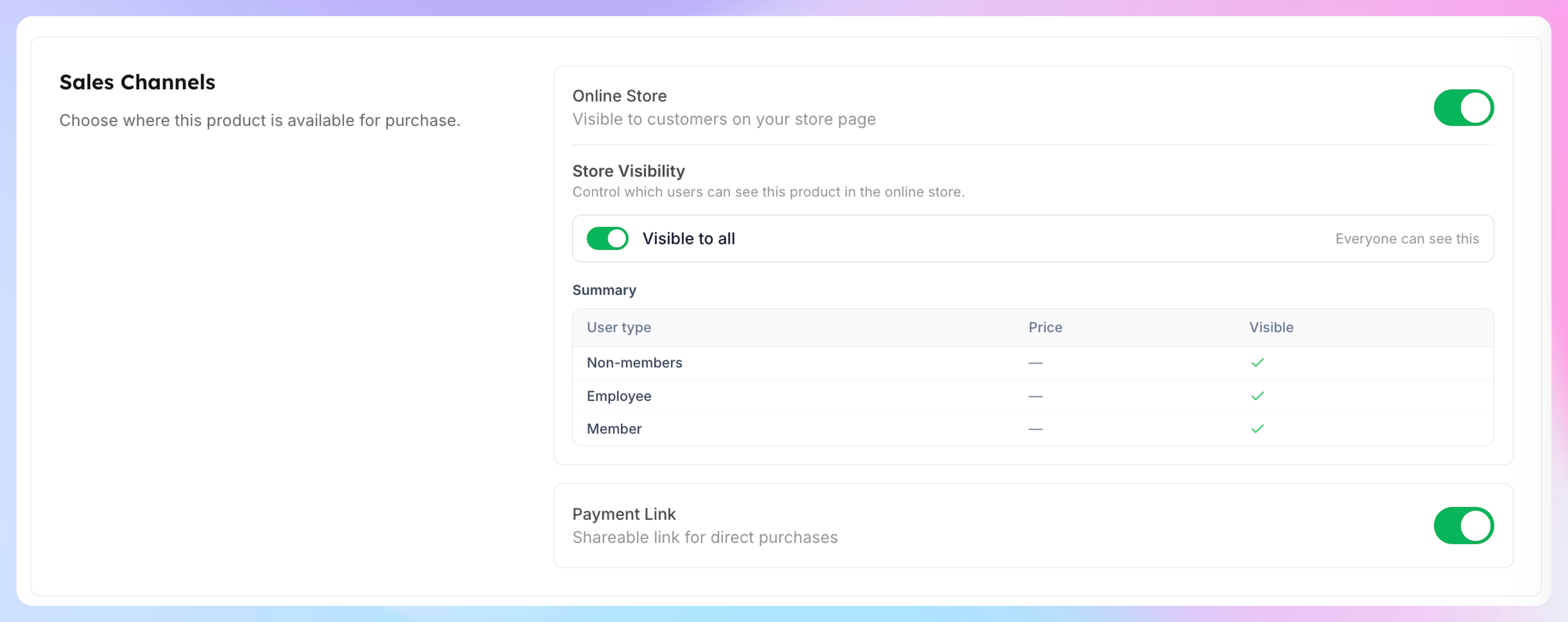
Choose how you want to sell the subscription:
in the online store on the homepage
through a payment link that you can send directly to users
Set up the subscription tier
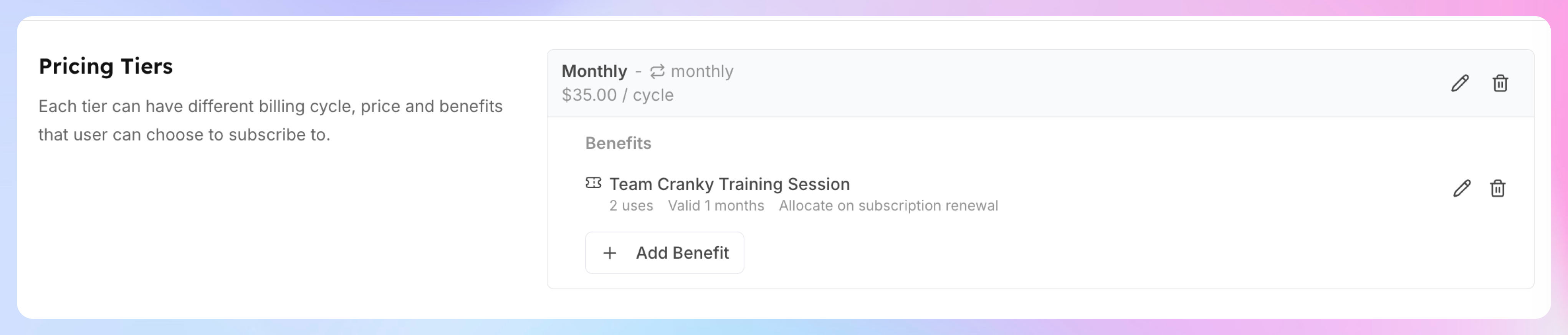
In the subscription product, add the tier details:
Tier name — for example, Monthly or Quarterly
Price
Billing frequency — for example:
every 1 month for a monthly subscription
every 3 months for a quarterly subscription
You can also customize pricing:
set a default price for non-members
override the price for members
set different prices for different membership tiers
Add subscription benefits
After setting up the pricing and billing cycle:
Click Add Benefit
Select the booking pass you want to include in the subscription
You can add more than one benefit if needed. This means a single subscription can include multiple booking passes, even different types of passes bundled together.
Once everything is set up, click Create Product.
How to add a subscriber
After the subscription product is created:
Go to the Subscribers section
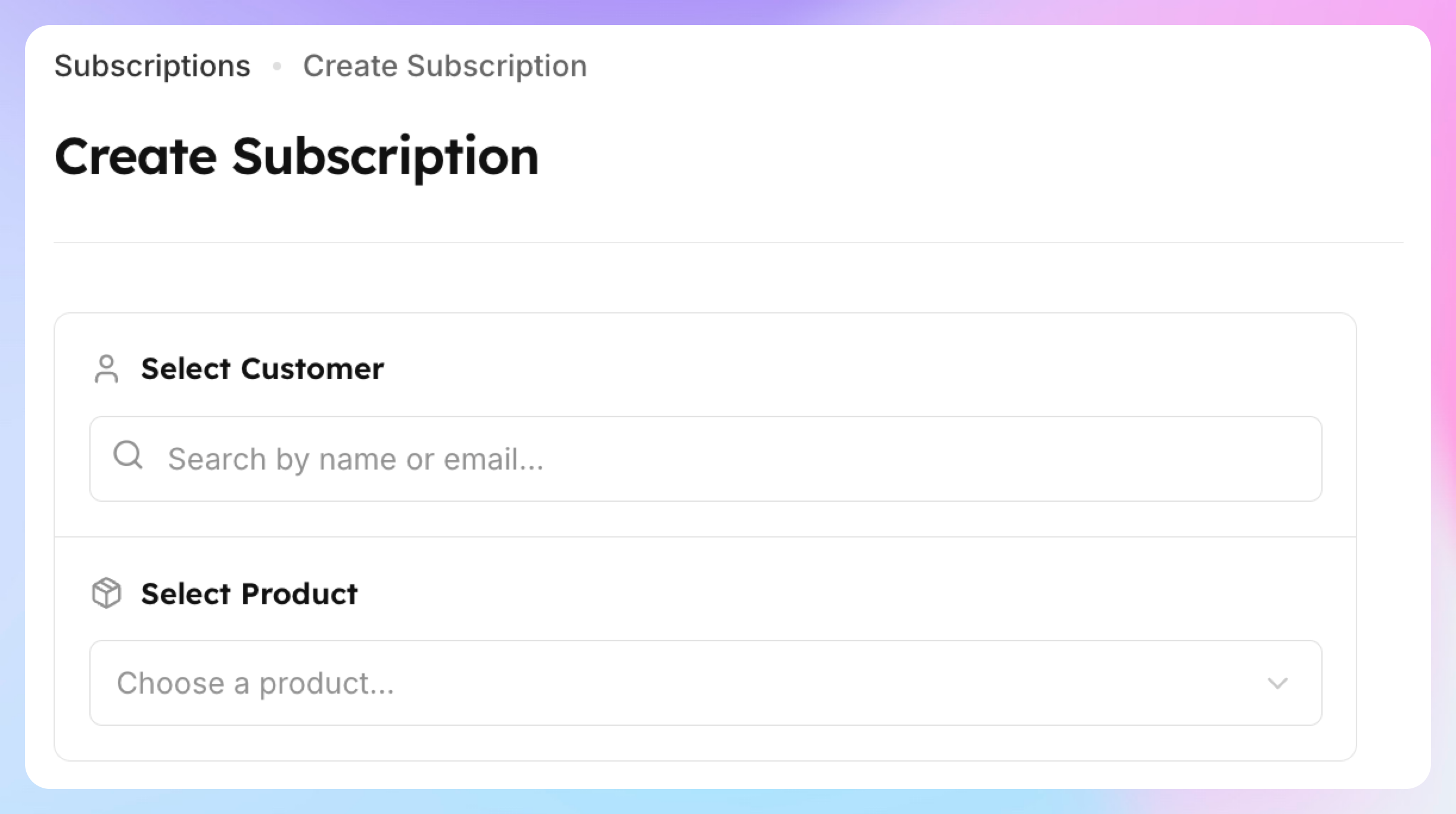
Click Add Subscriber
Search for and select the user
Choose which subscription to assign to them
Once added, the subscriber will appear on the Subscribers page.
Managing subscribers
On the Subscribers page, you can view and filter subscriptions by status, including:
Active
Past due
Frozen
Canceled
Clicking into a subscription lets you see its details, including:
the next charge date
past invoices
payment history
the benefits included in the subscription
the booking passes the user received
how many uses are left
when the current booking pass expires for the active billing period
For example, if the subscription renews monthly, you’ll see the details for the current month. If it renews quarterly, you’ll see the details for the current quarter.
Example use cases
Subscriptions can be used for recurring packages such as:
1 private lesson per month
4 private lessons per month
2 clinics per month
4 clinics per month
Summary
A subscription is a recurring product that automatically charges the user on a set schedule and gives them the booking pass or passes included in that subscription. To create one, first set up the booking pass, then create the subscription product, add its pricing and billing cycle, attach the benefits, and assign subscribers.