Connect UniFi Access to your club
Connect your club's UniFi Access console so every booking gets its own door code and you can unlock mapped doors from the OpenCourt app.
Connect your club's UniFi Access console so every booking gets its own door code automatically, and so you and your customers can unlock a mapped door from the OpenCourt app. (About 5 minutes. You'll need admin access, your console reachable from the internet, and a scoped UniFi Access API token.)
You need access-control permission. The page is under Settings → Access Controls.
What you'll need (and who sets it up)
UniFi Access is a complete access-control system, not a single device — a door hub on its own won't open a door. For one door you'll typically need:
A UniFi console running the UniFi Access application (for example, a Dream Machine Pro Max).
A UniFi Access Hub (the door controller the reader and lock connect to).
A keypad reader — a "Pro" model (G2 Reader Pro or G3 Reader Pro). This one matters for OpenCourt: we send each booking a numeric code, so the reader must have a keypad. The base G2/G3 readers have no keypad and can't be used for door codes.
An electric lock or strike, plus the usual door hardware (position sensor, request-to-exit, free-egress).
Networking (a PoE switch) and a way for OpenCourt to reach the console (the next section).
OpenCourt doesn't spec, supply, or install the UniFi hardware — that's the UniFi side. If you're new to UniFi Access, work with a UniFi/Ubiquiti installer or IT person; it's straightforward for anyone who does this regularly. We'll happily share these guides with them, but the install itself is on your side.
UniFi Access runs entirely on your own console — there's no UniFi cloud for door control. For OpenCourt to reach it, the console has to be reachable from the internet. Do this first: Make your UniFi console reachable (Cloudflare Tunnel) — a one-time setup your UniFi installer can knock out in about 30 minutes. Come back here once it's done.
Before you begin
You have a UniFi Access console (for example, a Dream Machine Pro Max) running the UniFi Access application, with at least one door connected through a UniFi Access Hub and a keypad reader (a Pro model — needed so booking codes can be typed in). Remote unlock only works on a door bound to a hub.
Your console is NOT enrolled in UniFi Identity Enterprise. That mode turns off the local API OpenCourt connects to. Standard UniFi Access is what you want. (If it's already on Identity Enterprise, you'd need to move it back to standalone UniFi Access before connecting.)
Your console is reachable from the internet. Set this up first with Make your UniFi console reachable (Cloudflare Tunnel) — a Cloudflare Tunnel (recommended) gives OpenCourt a normal
https://…address with no open firewall ports; a direct port-forward on 12445 is the alternative. That guide gives you the Console address you'll paste in below.Your console is running UniFi Access 1.9.2 or later — the version that introduced the API OpenCourt uses.
You have a scoped UniFi Access API token. Create one in UniFi Access → Settings → General → Advanced → API Token (on some versions this sits under Settings → Security → Advanced), click Create New, and grant the space, visitor, user, policy, credential, device, and webhook scopes (view + edit).
Two things about the token that catch people out. UniFi shows it only once — copy it before you close the dialog, or you'll have to create another. And UniFi asks you to set a validity period: when that period ends the token stops working and OpenCourt can no longer issue door codes or unlock doors. Choose the longest period your security policy allows, note the expiry date, and reconnect with a fresh token before it lapses.
Steps
In the admin app, go to Settings → Access Controls. You land on the Locks tab. With nothing connected yet you'll see No access control system connected.
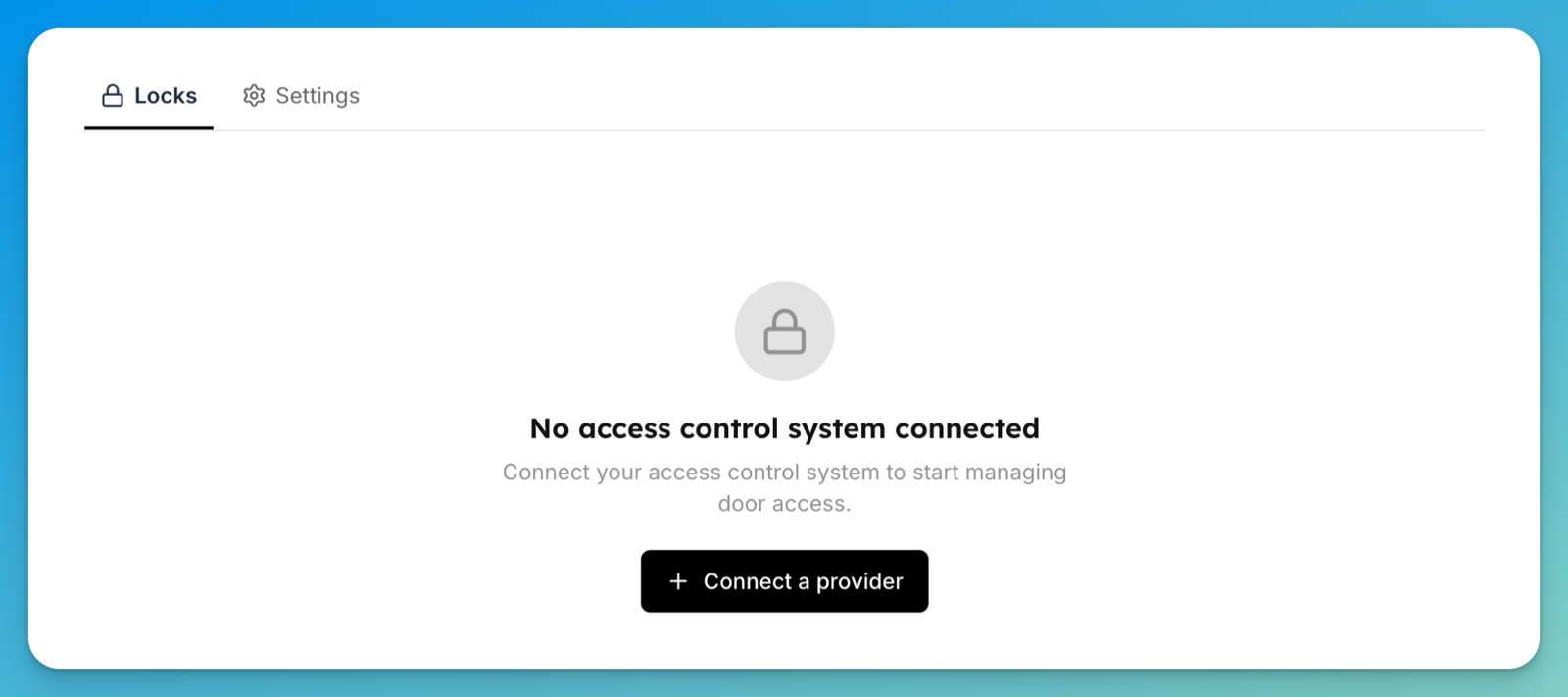
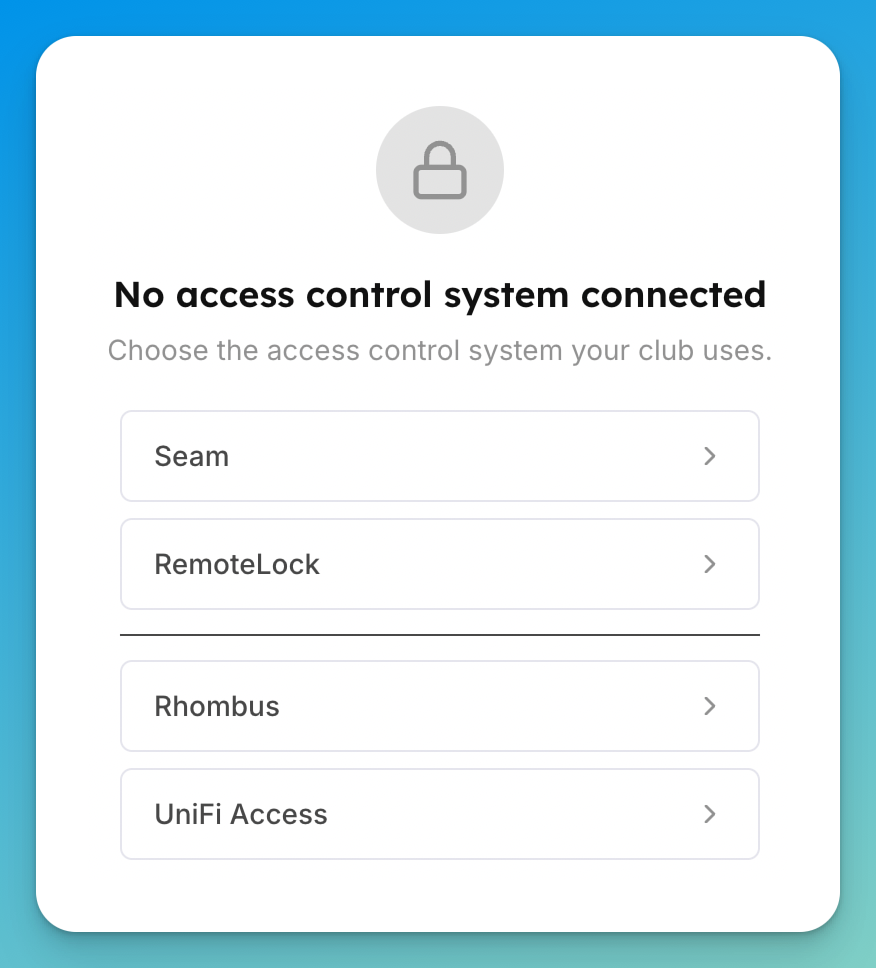
Click Connect a provider, then choose UniFi Access. A dialog opens.
Under How is the console reached?, choose Cloudflare Tunnel (recommended) or Direct / port-forward.
In Console address, paste your console's address. For a tunnel that's the hostname (for example
access.yourclub.com); for a port-forward it's the full address including the port (for examplehttps://your-host:12445).In API token, paste the scoped token you created, then click Connect.
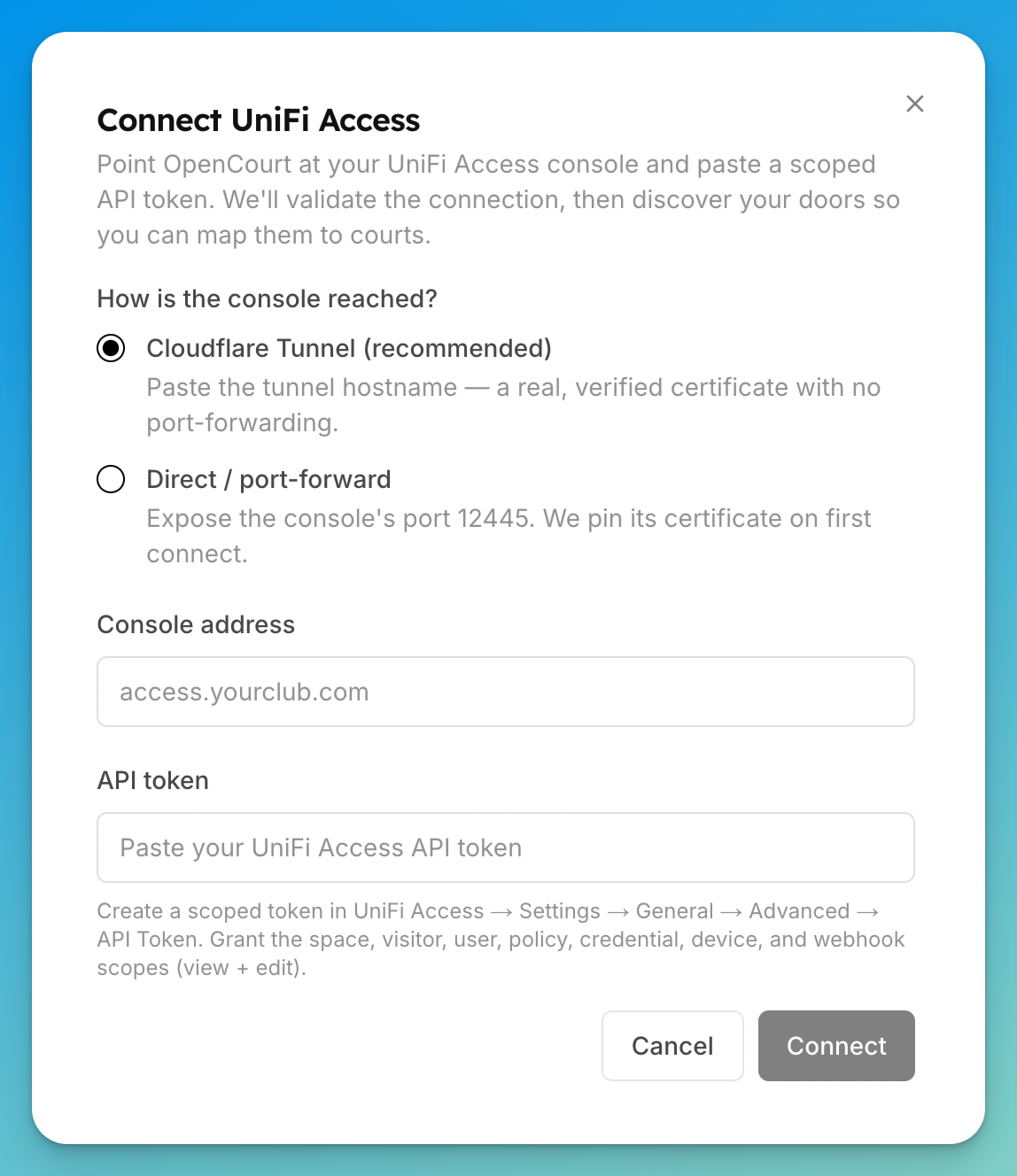
The dialog spells out the difference between the two: Cloudflare Tunnel (recommended) — "Paste the tunnel hostname — a real, verified certificate with no port-forwarding." — versus Direct / port-forward — "Expose the console's port 12445. We pin its certificate on first connect."
OpenCourt validates the token against your console, sets up push notifications for door events, and discovers your doors. You return to the Access Controls page, which now shows UniFi Access connected and the doors it found.
Map each door to a space. Switch to the Settings tab and find Court-to-Lock Mapping — the heading follows your club's wording. Choose a door for each space and click Save. This is what tells OpenCourt which door belongs to which space, so the right codes and unlock permissions apply.
Choose who can unlock, and when. Open a door and use its Door access section to control who can unlock it from the app and during which times. See Set who can unlock doors from the app.
What happens next
When a customer books a mapped space, OpenCourt creates a door code on your console that works only for that booking's time window, then removes it afterward — nothing to hand out or revoke. On doors bound to a hub, you can also unlock a mapped door yourself from its page in the admin app, and customers can unlock from the OpenCourt app during their booking (according to the access rules you set). The door opens momentarily and then relocks on its own.
Everything OpenCourt creates is added alongside your console's own setup — your existing cards, PINs, and policies keep working exactly as before, and OpenCourt only ever removes the codes it created.
If something goes wrong
"This console runs UniFi Identity Enterprise, which disables the local API" — the console is enrolled in UniFi Identity Enterprise, which turns off the local API OpenCourt uses. Move the console back to standalone UniFi Access, then connect again.
"Couldn't connect — check the API token and its scopes" — the token was rejected. Confirm you copied the whole token and that it has the space, visitor, user, policy, credential, device, and webhook scopes (view + edit).
Can't reach the console — double-check the address. For a tunnel, make sure the tunnel is running and the hostname resolves; for a port-forward, make sure port 12445 is open to the console. The console must be online.
A door shows no remote-unlock option — remote unlock only works on doors bound to a UniFi Access Hub. Door codes still work on any UniFi Access reader with a keypad.
"The lock didn't respond" when unlocking — a temporary issue reaching the door (offline or busy). Wait a moment and try again.