Getting through the door at your club
How you'll get into your club — a door code, unlocking from the OpenCourt app, or both — and what to do if you're stuck.
How you get into your club depends on how your club set things up. You might have a door code, the ability to unlock from the OpenCourt app, or both. This page covers each, so you're never stuck at the door.
Where to find your door code
If your club uses door codes, your code comes with your booking — you never have to ask for it. It's in two places:
On your reservation card, right on the club's home screen in the app. Look for the DOOR CODE box.
In your booking confirmation and reminder emails — look for the "Access Code:" line.
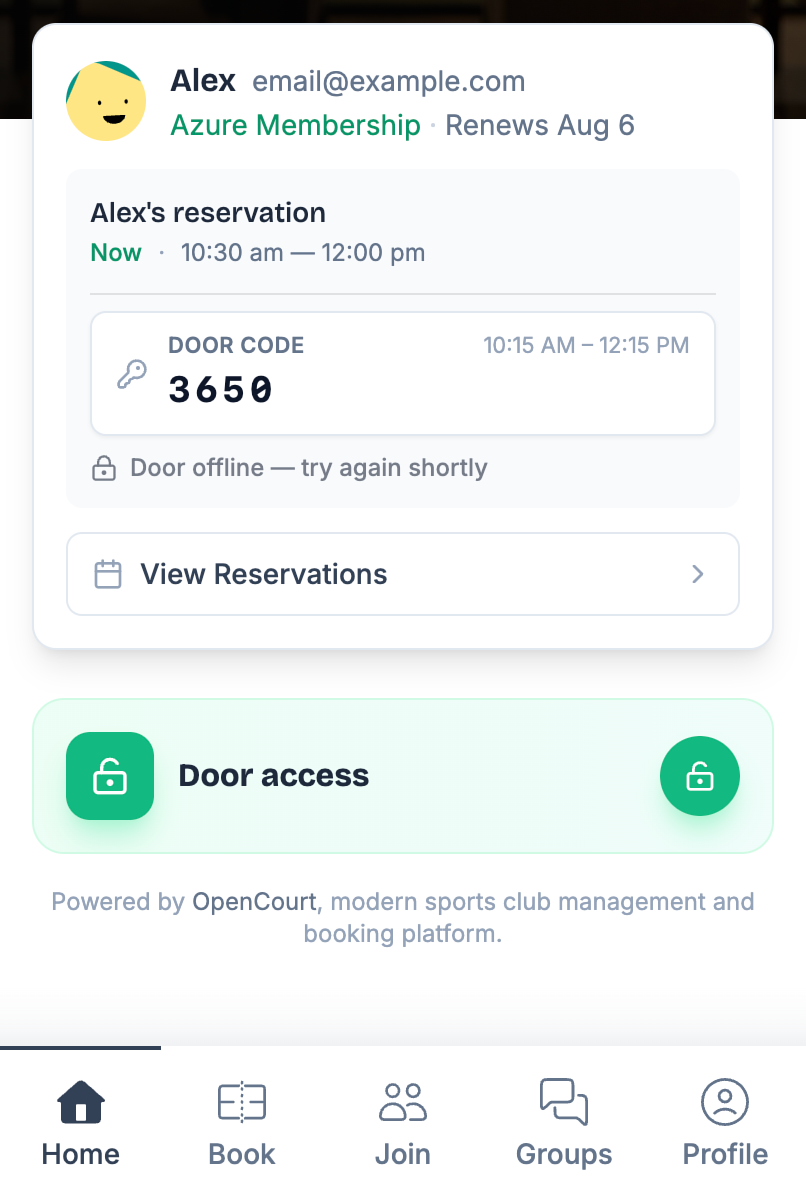
You type it on the door's keypad. Codes work for your booking time only — the times printed next to DOOR CODE are exactly when it starts and stops working, typically starting a little before your reservation and ending a little after.
The card tells you where your code stands:
Unlocking from the app
If your club turned this on, you can open the door from the app instead of typing a code. There are two ways in, and your club may give you both.
From your reservation card
When your booking is close enough, an unlock control appears on the reservation card itself — right under your door code. No navigating anywhere.
Your door code and the unlock button are independent. It's normal to see a working code and an offline door at the same time, as in the screenshot above — type the code and you're in.
From the Door access button
Below your bookings, the club home screen has a Door access button (some clubs show this as Club access). Tap it and:
Most clubs — an Unlock screen opens in OpenCourt. It lists your club's doors, each with its name and a green Online or red Offline label. Tap Unlock on your door, and you'll see Unlocked!
Clubs on a mobile-key system (like Salto KS) — a Club access screen opens inside your club's own app. This is still your club's app, not a separate one to download. Your phone is the key, so instead of typing a code you hold it near the lock.
If you get the mobile-key screen, follow what it tells you: hold your phone close to the lock, and give it 5–10 seconds to open. While it's working you'll see Looking for the lock… and sometimes Retrying unlock… — that's it searching over Bluetooth, not failing. Keep the phone near the lock and wait it out.
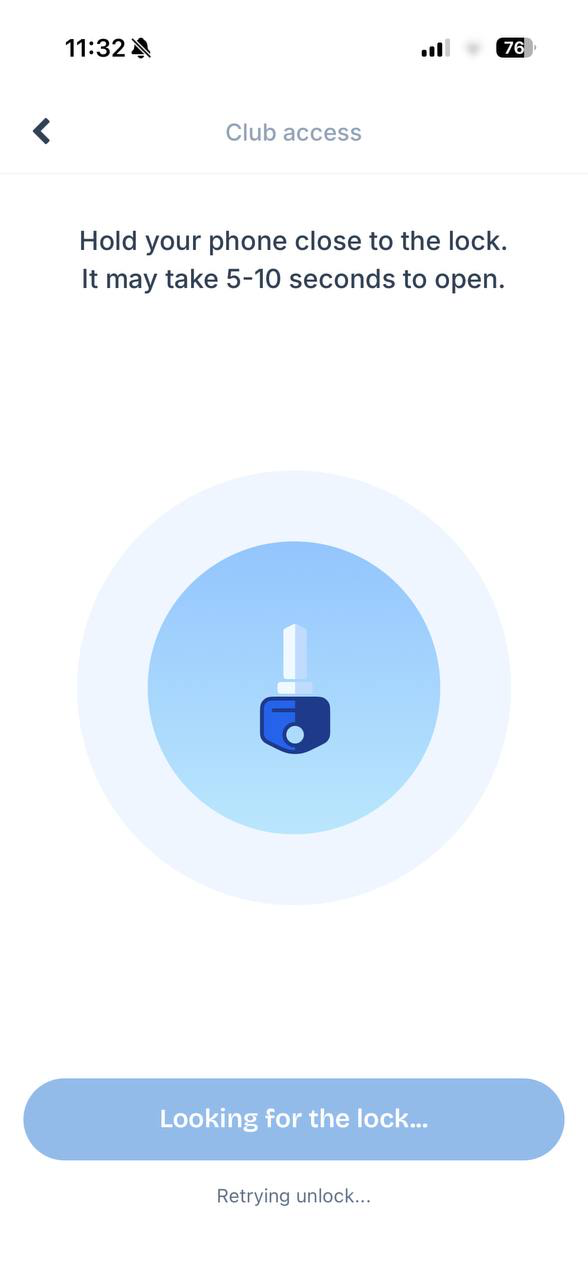
The most common mobile-key mistake is walking away too early. A few seconds of Looking for the lock… is normal. Make sure Bluetooth is on, hold the phone within a few inches of the reader, and stay put.
When you can unlock depends on your club. Some clubs let you unlock anytime; others only around your booking. If you don't see the option outside your booking, that's expected — use your door code, or come back closer to your reservation.
If you're stuck at the door
No unlock button and no Door access option — your club may not use in-app unlocking, or you may be outside the times it allows. Use the door code from your booking, or ask the front desk.
It says the door is offline — the lock can't be reached right now. Wait a few seconds and try again, or use your door code, which is stored on the lock itself and keeps working.
Your code says "activating…" — the code hasn't reached the lock yet because your booking is still a way off. It'll be there before you arrive.
Nothing happens when you tap — the lock may be briefly busy. Try once more in a moment.