Setting skill ratings to players
OpenCourt supports two kinds of skill ratings for players:
Self-declared ratings – set by players themselves in their own account.
Club-verified ratings – set by admins/coaches to validate player skills for gated events.
Here’s how each one works and how to set them up.
How players set their self-declared skill ratings
Players can add or update their own skill rating through their OpenCourt account. This is typically used for casual play or when the club allows self-declared ratings for open events.
Open your OpenCourt account (on desktop or on the OpenCourt app), and click on the My Profile tab. You can also use this link: app.getopencourt.com/my-profile .
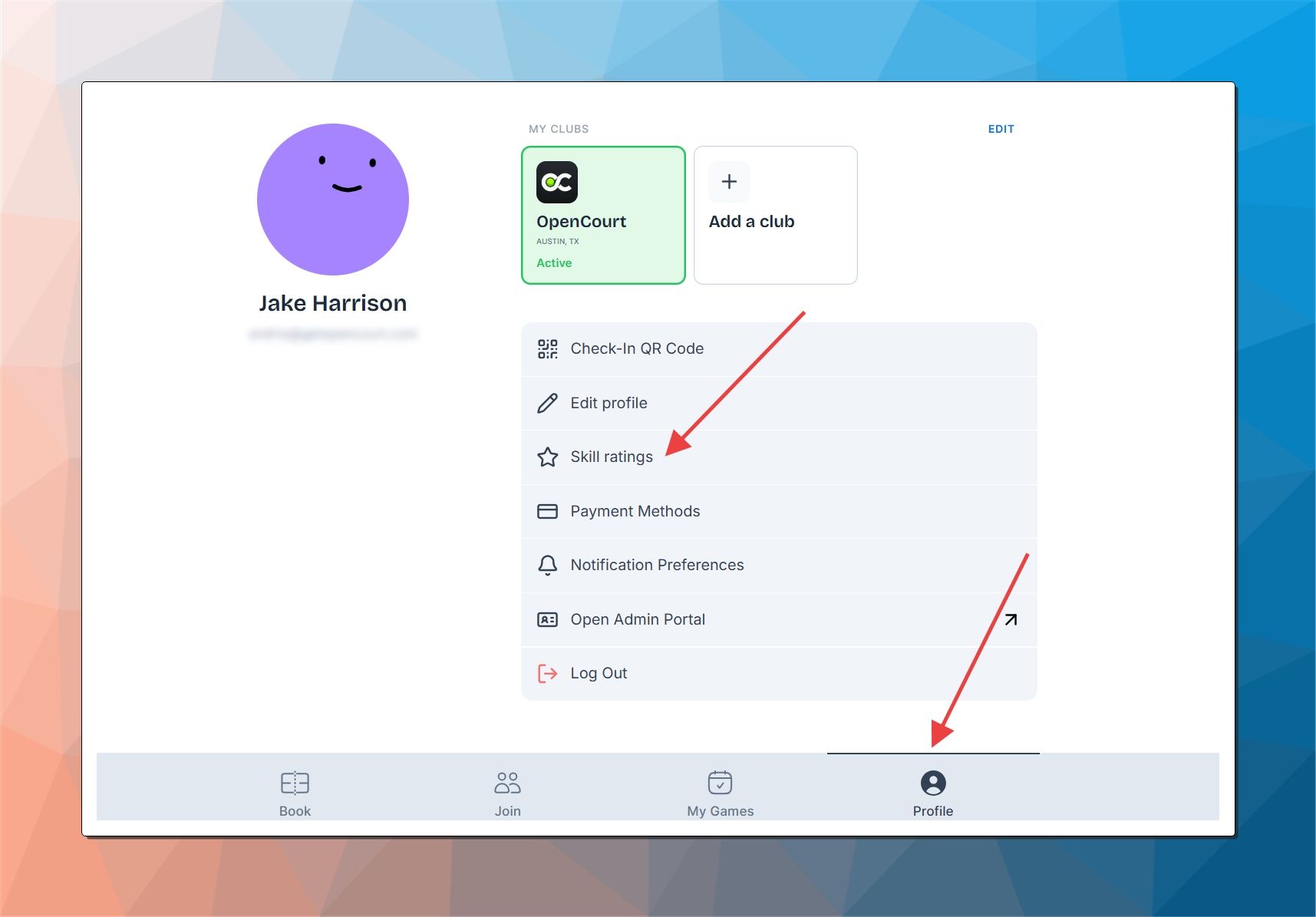
Click on Skill Ratings.
Under each sport (Pickleball, Tennis, or Padel), select your current skill level by using the slider.
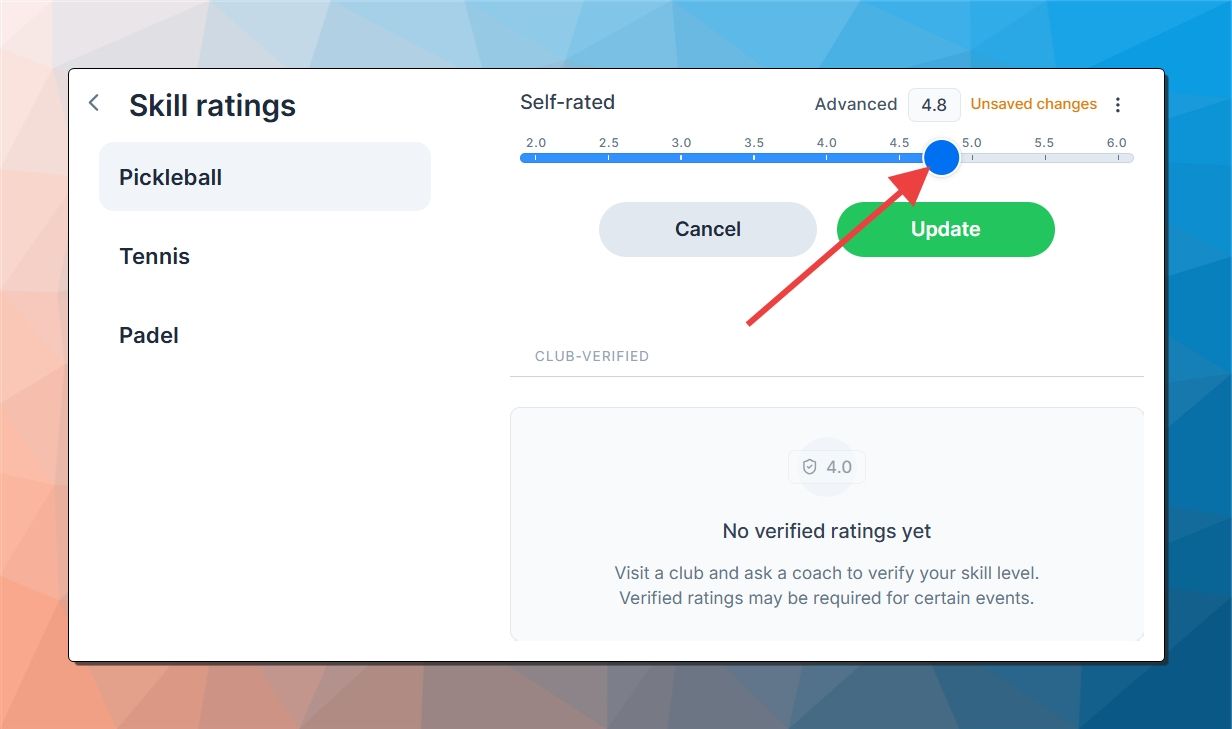
Click Update to save your rating.
🔔 Note: This rating is self-declared — it can be changed by the player anytime. Clubs can view it but can’t modify it.
How club admins set club-verified ratings for players
For events that require more accurate ratings (like advanced open play or gated tournaments), clubs can assign club-verified ratings directly to player accounts.
Ensure Skill Rating is enabled for your club. Contact the OpenCourt team to activate this feature for your club.
In the Admin Panel, go to the Users tab.
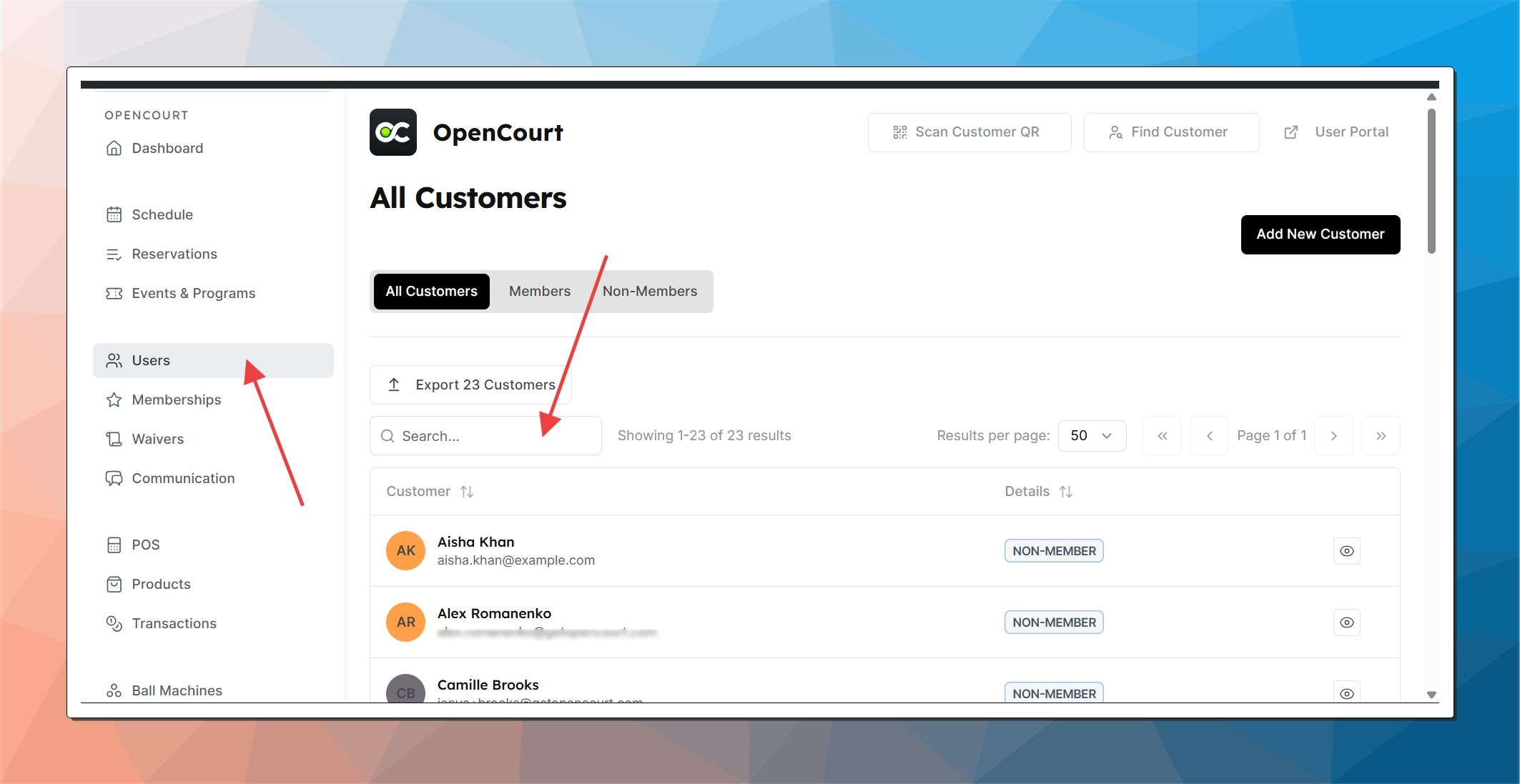
Use the search bar to find and click on the player’s name.
Navigate to the Skill Rating section in their profile. You’ll see:
Self-rated (shows if the user has set a personal rating).
Club-verified (displays any existing verified rating).
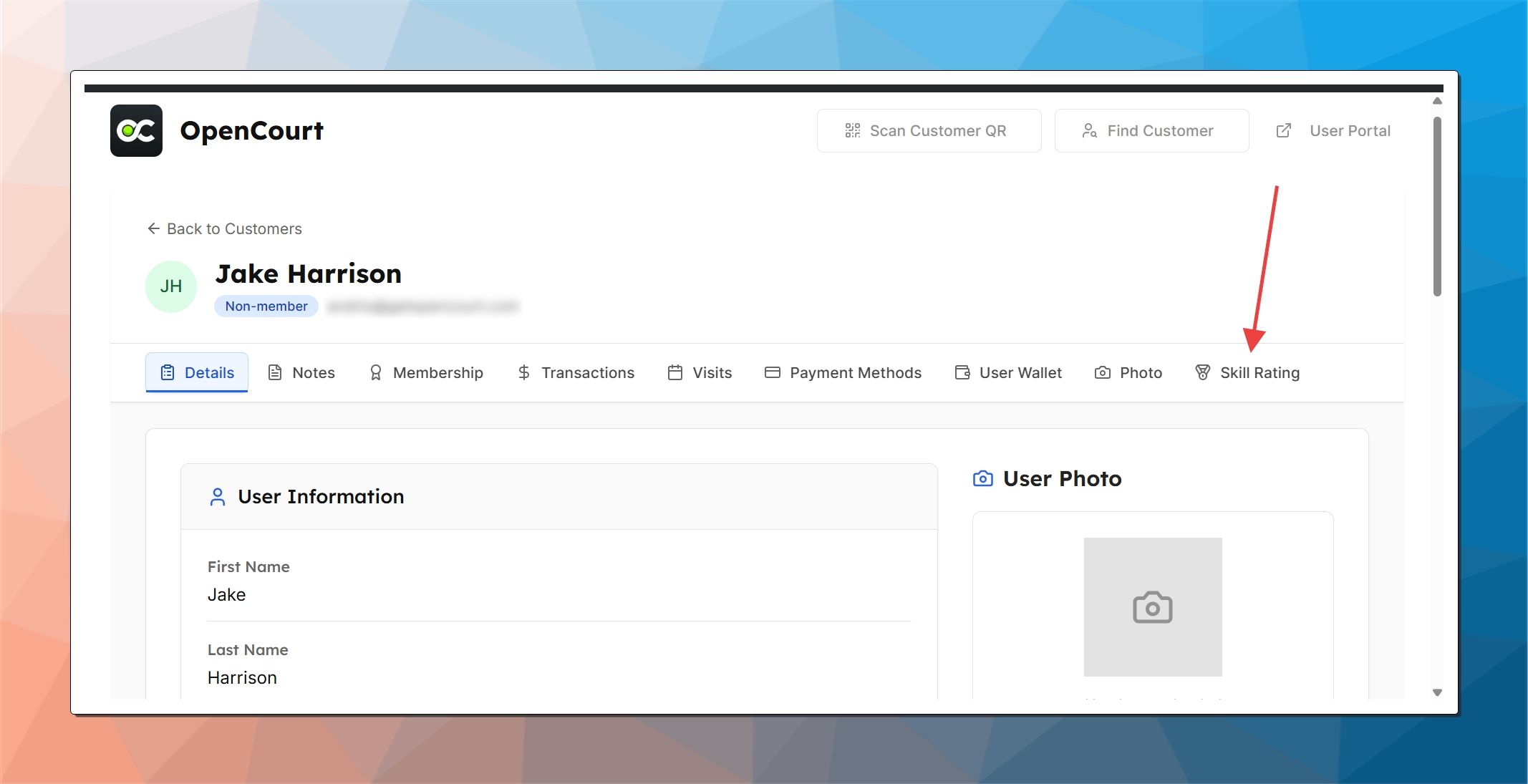
To assign a club-verified rating:
Click Set Club Verified Rating.
Choose a value from the slider.
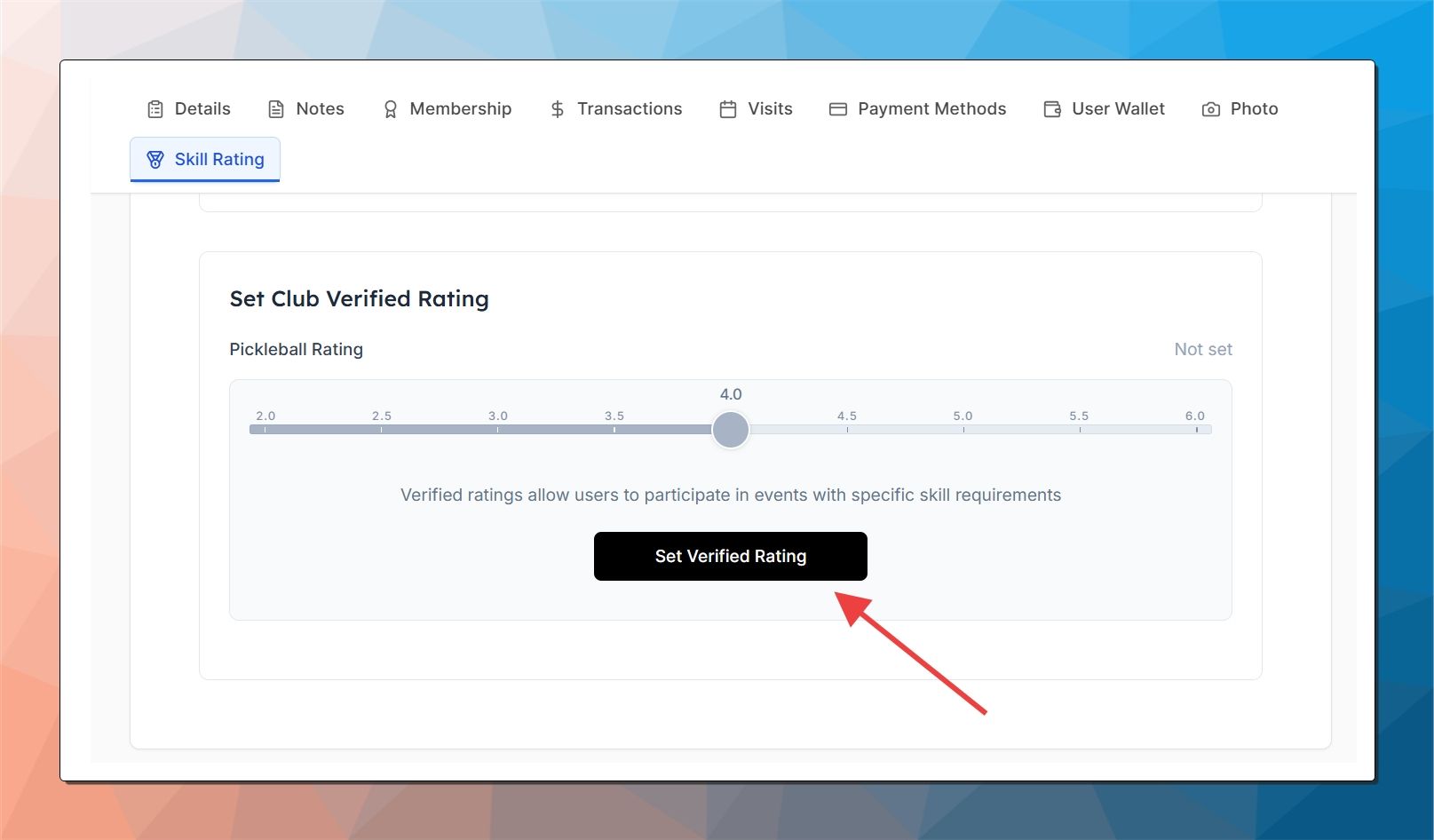
Click Update Rating to save.
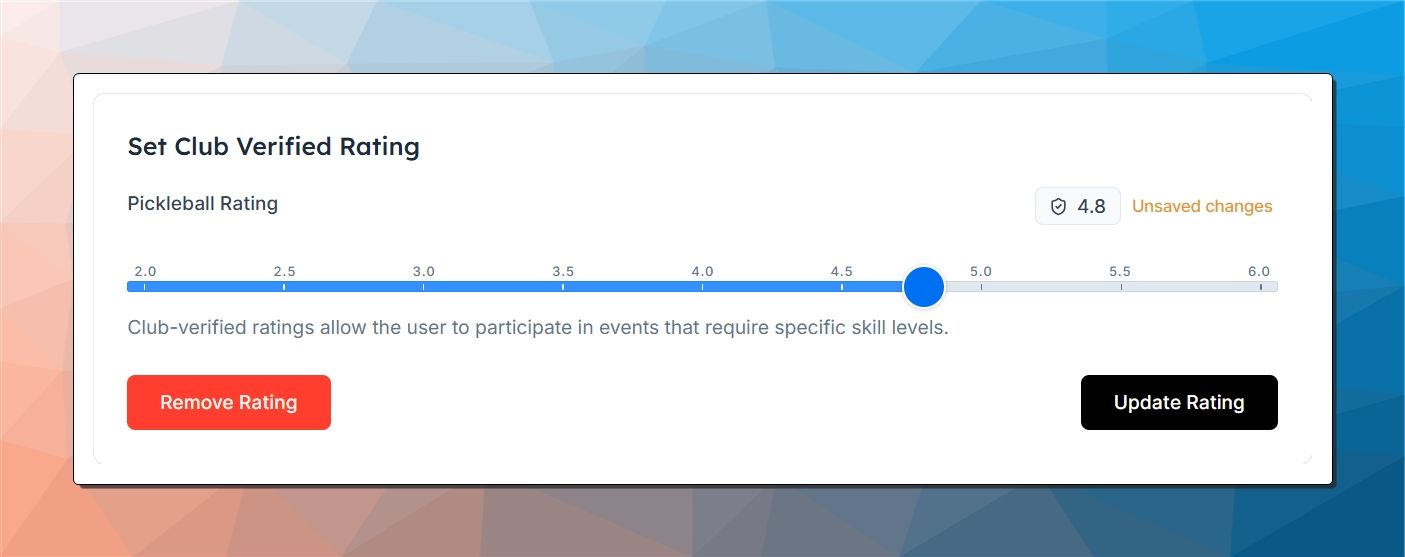
Once saved, the player will see this verified rating when they log into their account.
✅ Verified ratings are required to join events that have enforced skill requirements. They can’t be changed by the player.
What's next
To create an event with required rating, check out this guide.