Set up a TV schedule display for your lobby
Mount a TV in your lobby or pro shop and show a live, full-screen view of every court — reservations, classes, and events — updating itself all day. Members glance up, see what's open and what's next, and your front desk gets fewer "what court/bay/field am I on?" questions.
What it looks like
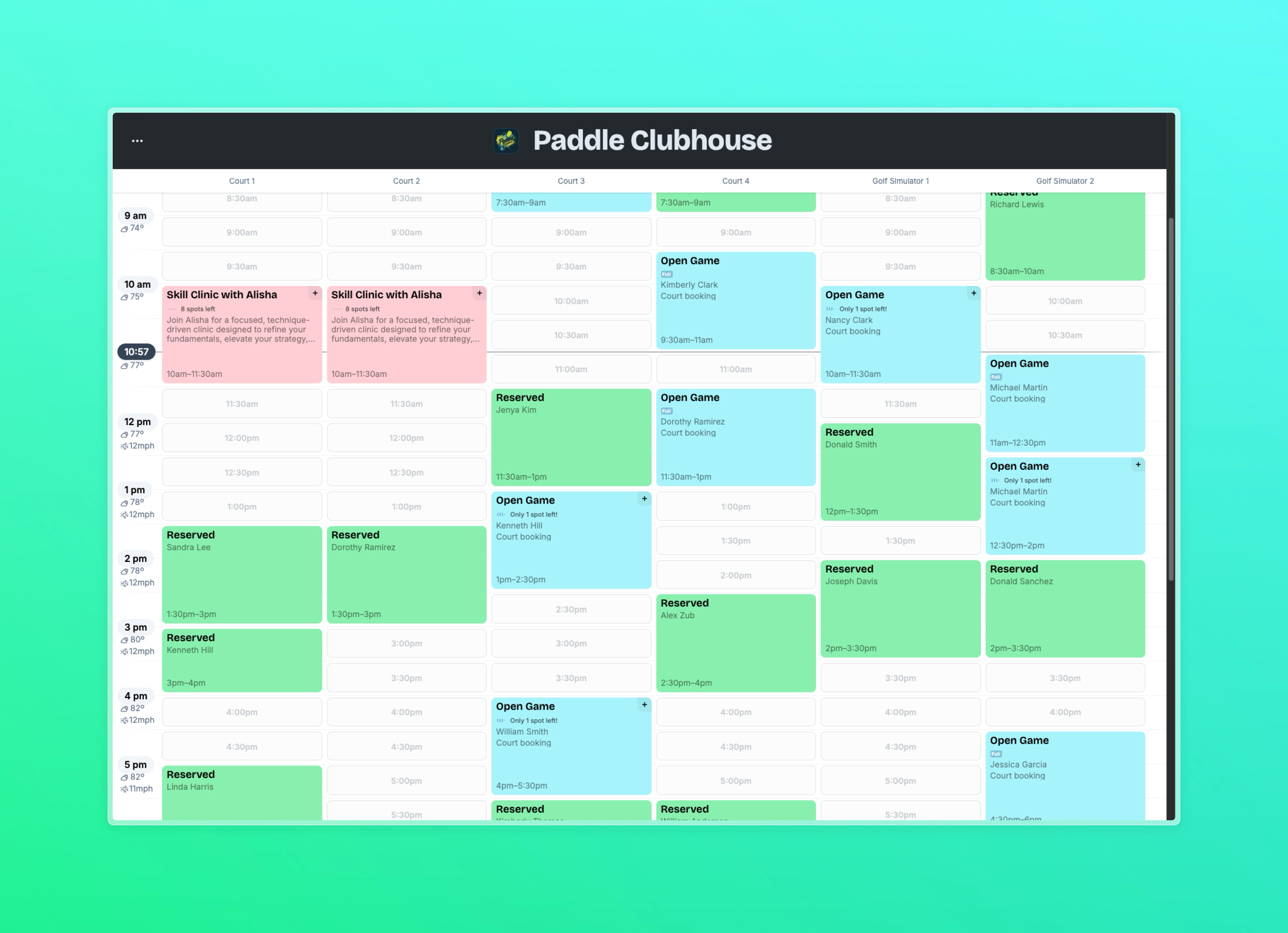
A dark, high-contrast schedule grid sized for a TV viewed from across a room:
Your club logo and name in the header
Every court as a column, today's hours running down the side
Reservations, events, and classes drawn in their time slots
A line that marks the current time and auto-scrolls down through the day
No login screen, no menus, no admin chrome
The display refreshes every minute, so a reservation booked from a phone shows up on the TV within about 60 seconds.
Set it up
Get the link. In the admin panel, go to Settings → Links & Embeds. Find the TV Schedule Display card. Copy the URL.
Open it on your TV. Any device with a browser works: a smart TV's built-in browser, an Amazon Fire Stick or Chromecast with Google TV, an Apple TV with a browser app, or a small PC/Mac mini wired to an HDMI input. Paste or type in the URL.
Go fullscreen. Open the menu in the top-left corner of the display and tap Fullscreen. Done.
The link is public — no login required — so you don't need to sign in on the TV.
On-screen controls
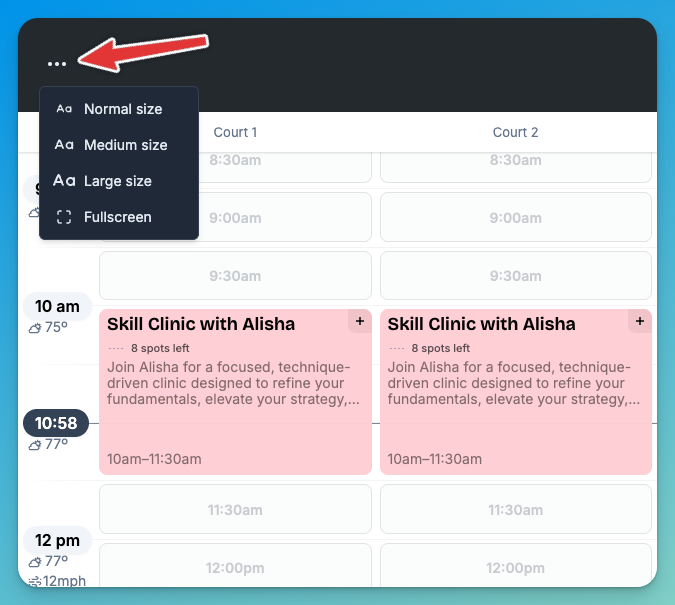
A small menu lives in the top-left corner of the TV view. Use a USB mouse, an air remote, or your TV's pointer:
If someone touches or scrolls the screen, autoscroll pauses so they can look around — re-enable it from the same menu when they're done.
Tips for a great display
Disable screen sleep on the TV or streaming device so the schedule stays on during business hours.
Use a dedicated browser tab. Don't share the tab with another task — a stray click takes the TV offline.
Wire it instead of Wi-Fi when you can. Ethernet to the streamer or PC keeps the display from going stale during Wi-Fi blips.
Refresh once a day. A nightly power cycle prevents long-running browser quirks. The display also reloads itself automatically when the day rolls over.