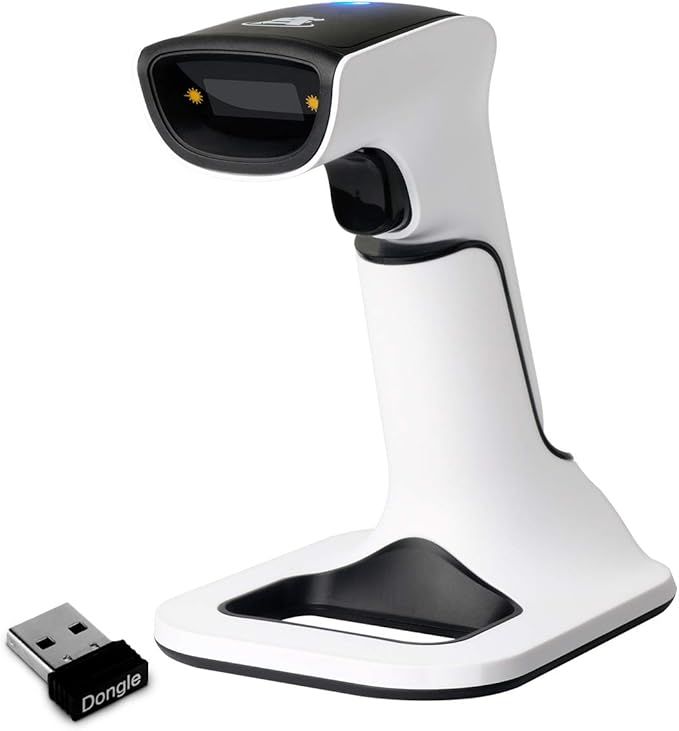
QR Code Scanner Setup & Usage
Connecting a QR Code Scanner to Your Computer
Follow the instructions that come with your scanner. Usually, you just need to connect it to your USB port. Some QR code scanners also offer Bluetooth connectivity.
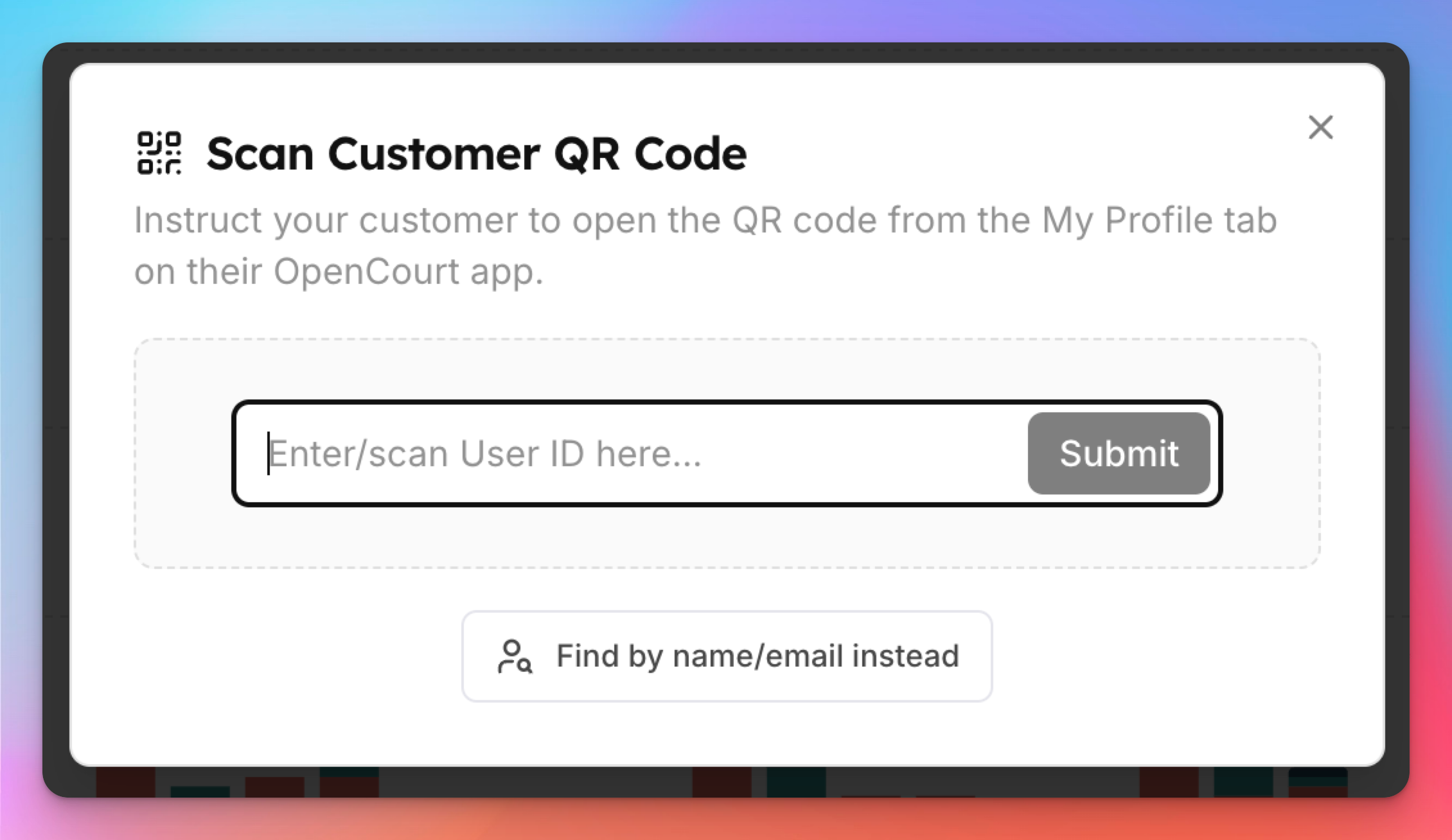
A barcode or QR code scanner works like a keyboard. It decodes what you scan and enters it into the input field currently in focus on your screen just like a keyboard would. Keep this in mind – if you scan a code when you're not in the intended dialog, it will enter the user id into whichever input your browser is focused on.
When and How to Use the QR Code Scanner
The QR code scanner offers a quick and easy way to find a customer without needing their name or email. It also helps open up the customer profile for those who haven't signed a waiver or interacted with your club yet.
However, the user must have the OpenCourt app (or your branded app) ready, or they can visit app.getopencourt.com and go to the My Profile tab. In some cases, it might still be easier to find customers by their name.
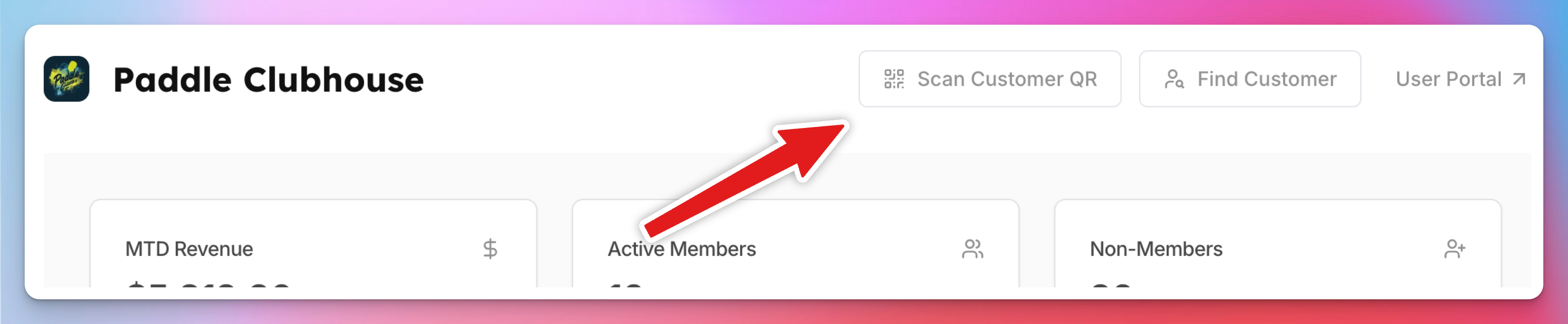
To use the QR Scanner to find a user, just open the Scan Customer QR dialog in your admin panel and use your scanner to scan the code into the input.
Which Scanner to Buy
Pretty much any QR code scanner that can be connected to the computer via USB and that supports scanning QR codes will work. We recommend ScanAvenger but most other scanners will work just fine. We recommend wired connection when possible for higher reliability, as opposed to bluetooth.