How Members Book a Lesson
See the full booking experience from the member’s perspective — from browsing coach profiles and selecting a service to choosing a date, adding participants, and completing payment. This guide walks through each step so you understand exactly how lessons appear and how bookings are confirmed in the app.
Step 1: Browse Coaches
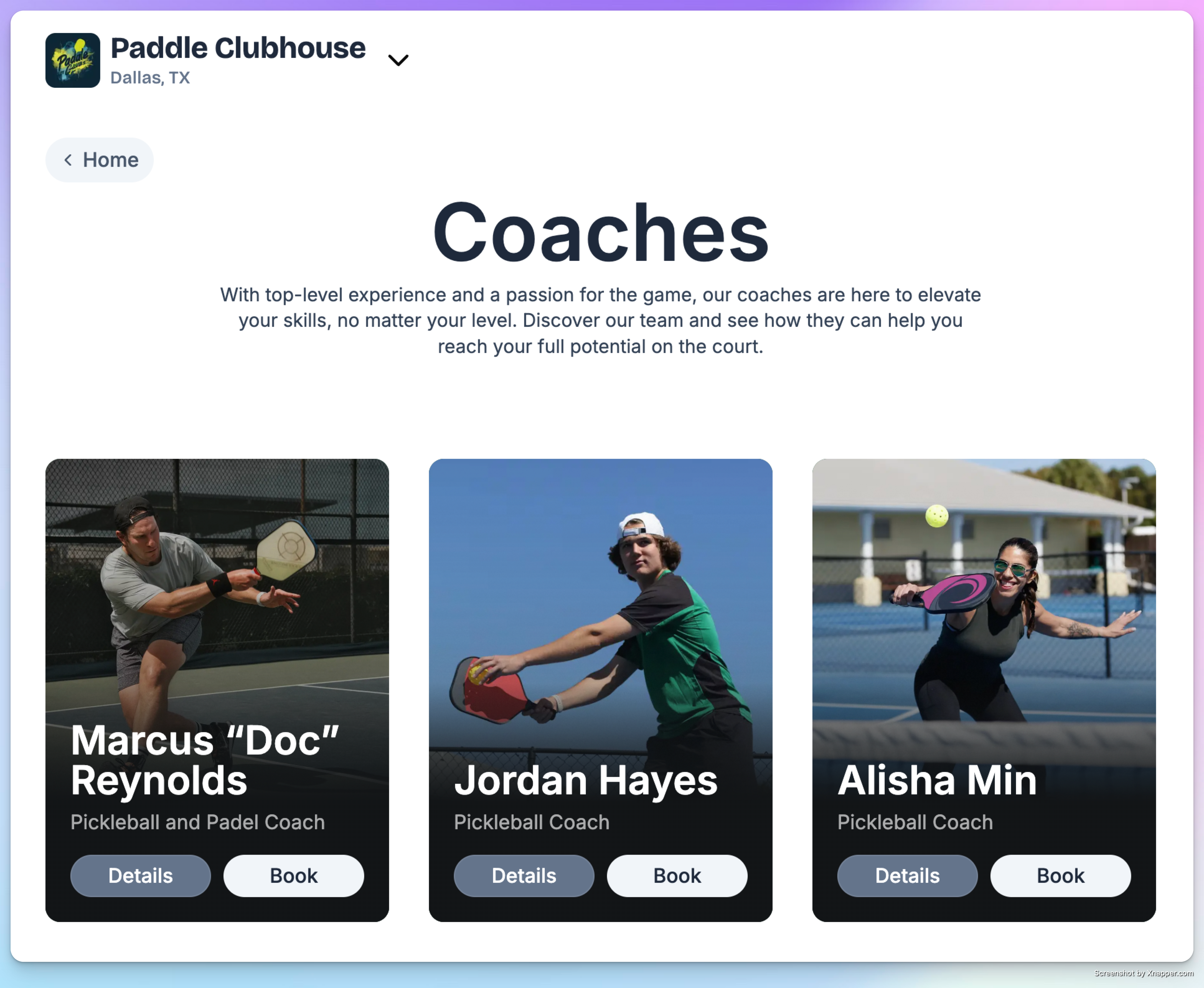
Members visit the Coaches page on your club's site. They see coach cards with photos, names, and titles. They can click Details to learn more, or Book to go straight to booking.
Step 2: Coach Profile & Service Selection
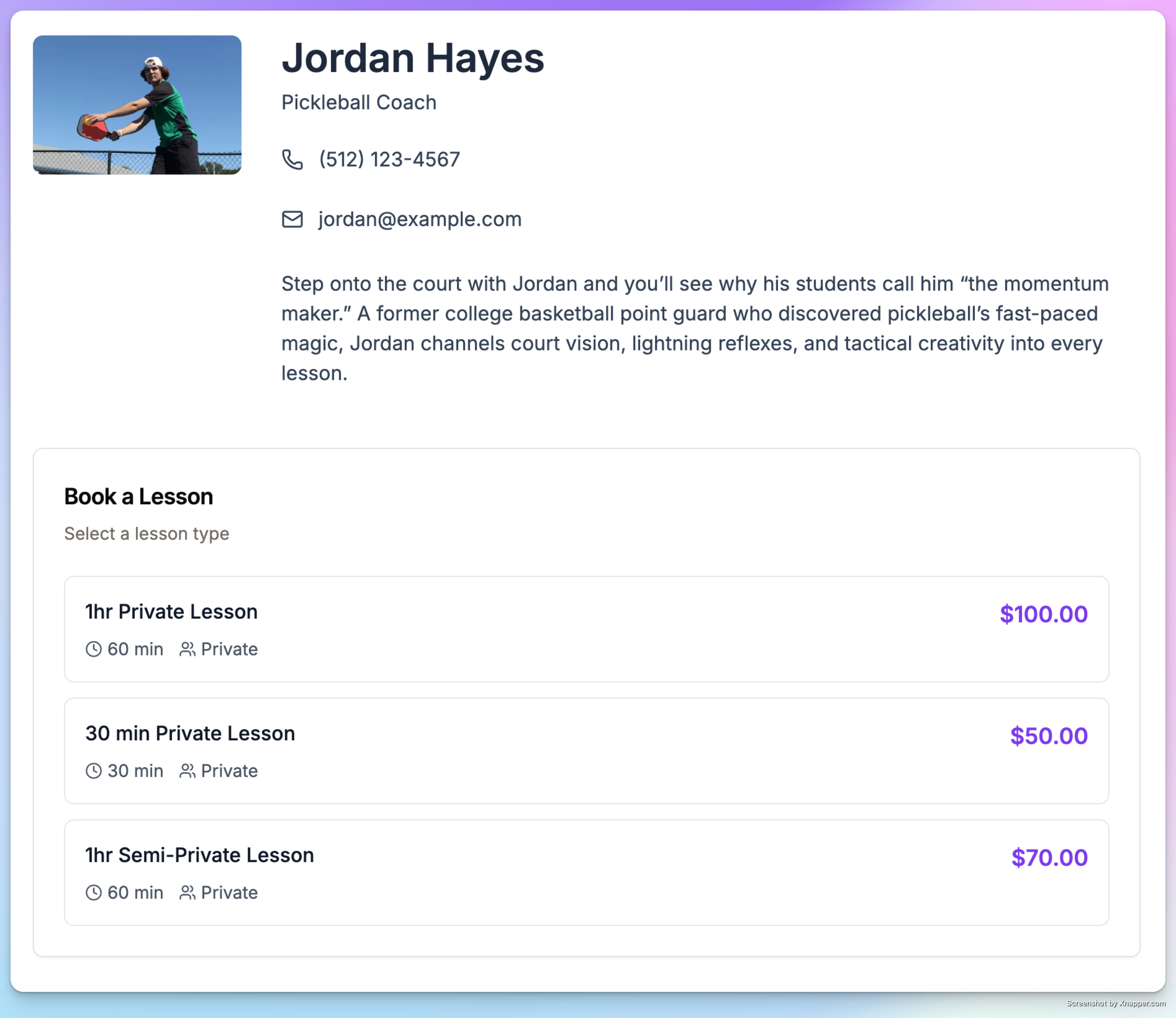
On the coach's detail page, members see the full profile — bio, contact information, availability, and a list of available services with pricing. The price shown is already adjusted for the member's role.
The member selects a service to start the booking flow.
Step 3: Pick a Date
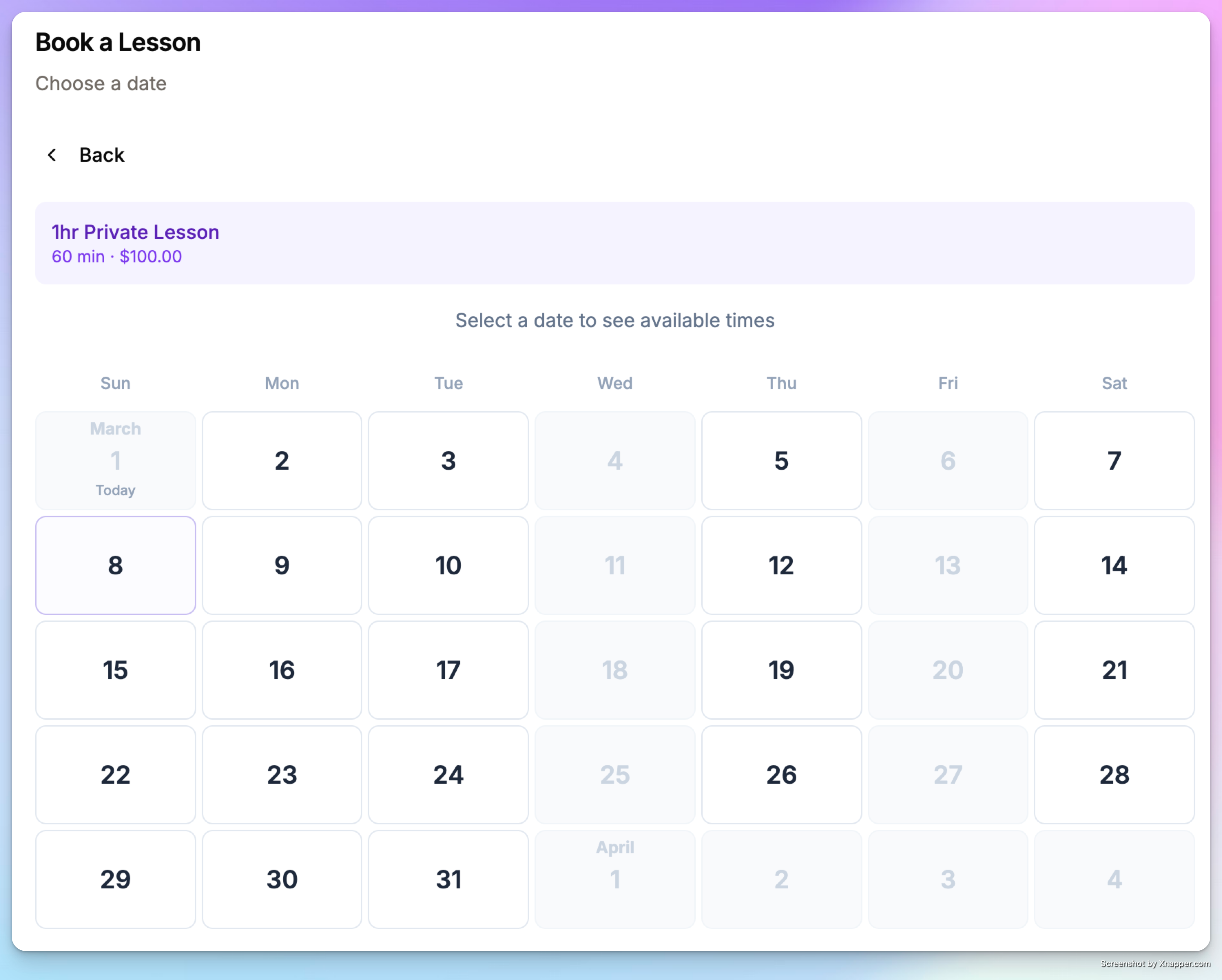
A calendar view shows available dates within the booking horizon. Dates with no availability are grayed out. The system checks both coach availability and court availability — a date is only shown as available if at least one bookable time slot exists.
Step 4: Pick a Time
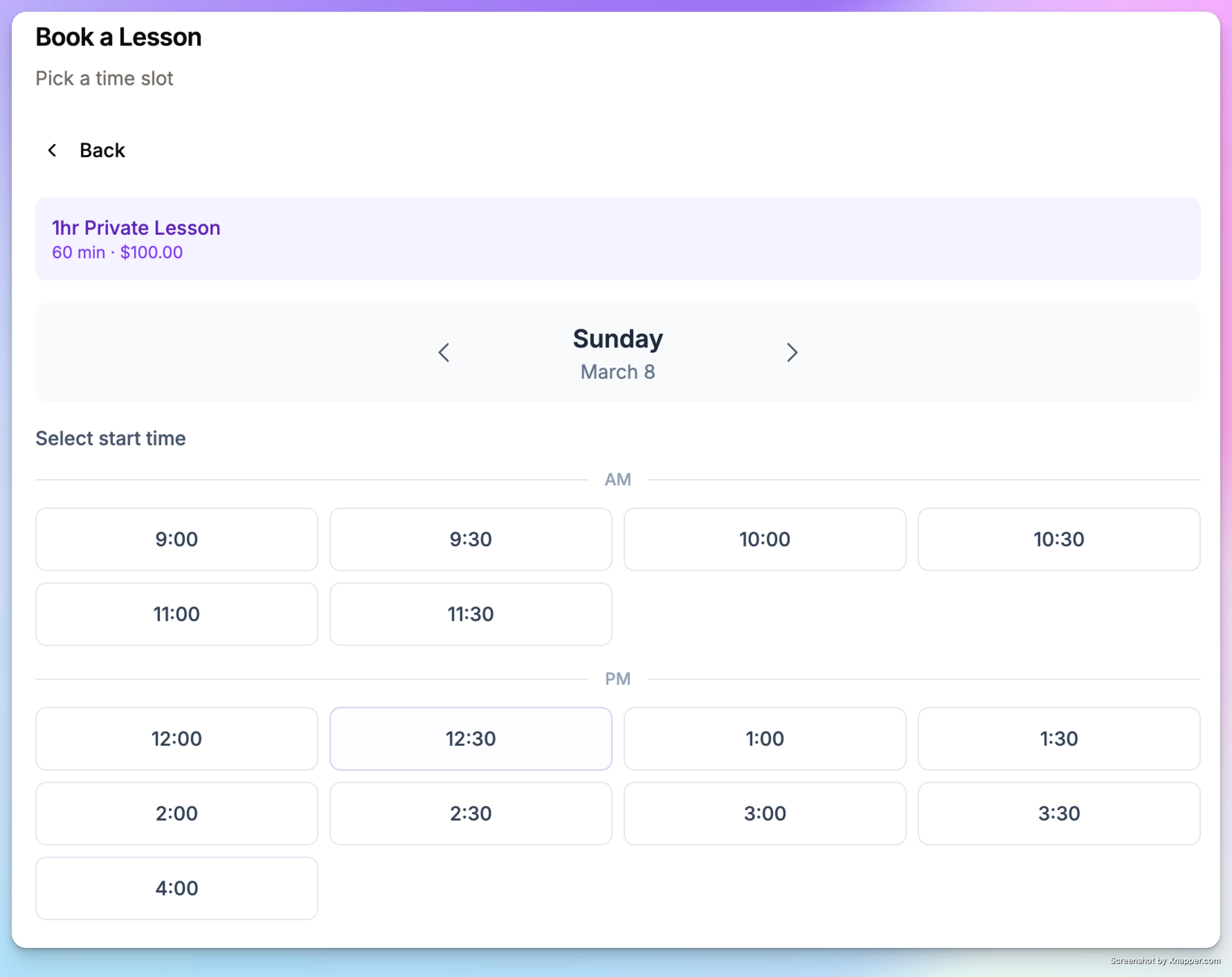
Available time slots for the selected date are listed. Only times where the coach is free AND a court is available appear. The member taps to select.
Step 5: Add Participants (Group/Semi-Private Only)
For services with max participants greater than 1, the member can add other players:
Enter guest names directly and pay for everyone, or
Share an invite link so other players can join and pay for themselves
The booking member is always participant #1.
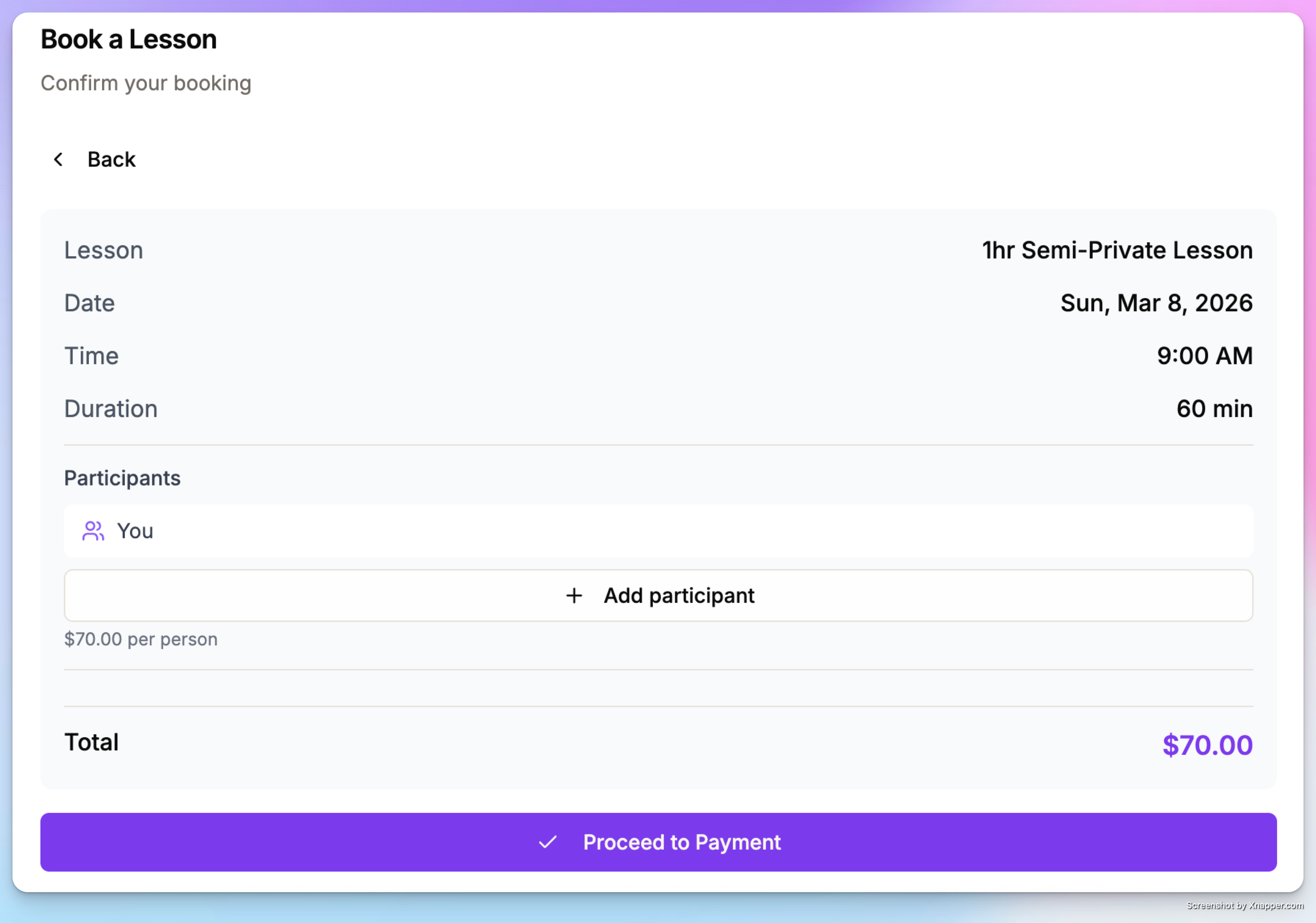
Step 6: Confirm & Pay
The member reviews the booking summary (coach, service, date, time, price) and confirms.
Immediate payment — Taken to a checkout screen. The lesson is created after payment succeeds.
Deferred payment — The lesson is booked immediately and appears in My Reservations. Payment is collected later.
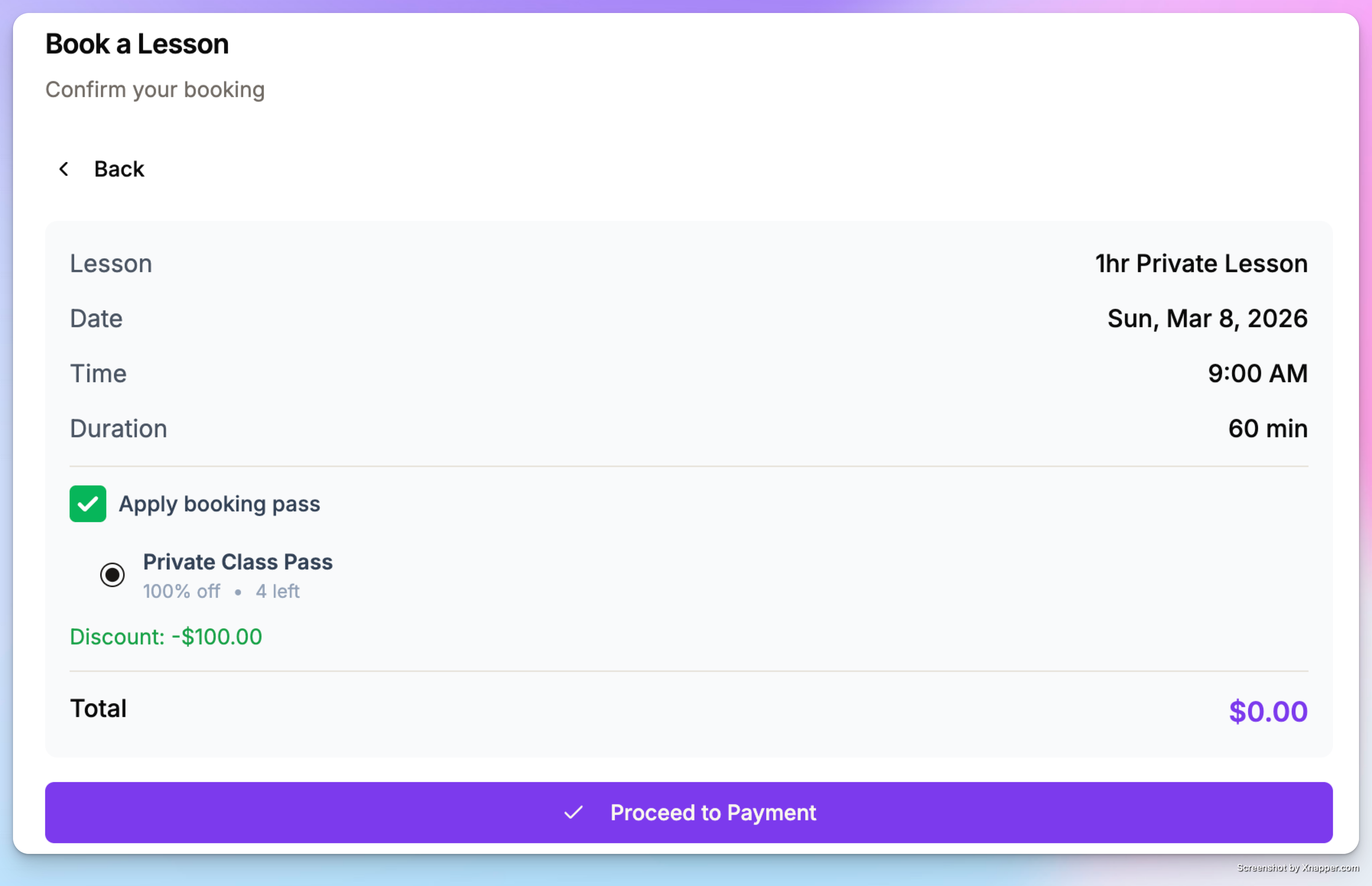
If a user has a booking pass for a private lesson they can use it to book this lesson.
After booking, the member is redirected to My Reservations where their lesson appears alongside their other bookings.