Set up the QR scanner at your front desk
Plug a USB QR scanner into your front-desk computer so scanning a customer's Check-In QR Code checks them in from any admin page. (About 2 minutes. You need a USB QR/2D scanner and the admin panel open.)
Note —
There is no in-app scanner setup. Any USB QR/2D scanner that reads QR codes works — OpenCourt has no proprietary hardware. Once the scanner is plugged in, scanning works from any page of the admin panel.
Before you begin
A USB QR/2D scanner. Any model that reads QR codes works — most cost 20–40 USD.
The scanner plugged into the computer that runs the admin panel.
The admin panel open and signed in to the right club (check the club name in the top bar).
How the scanner works
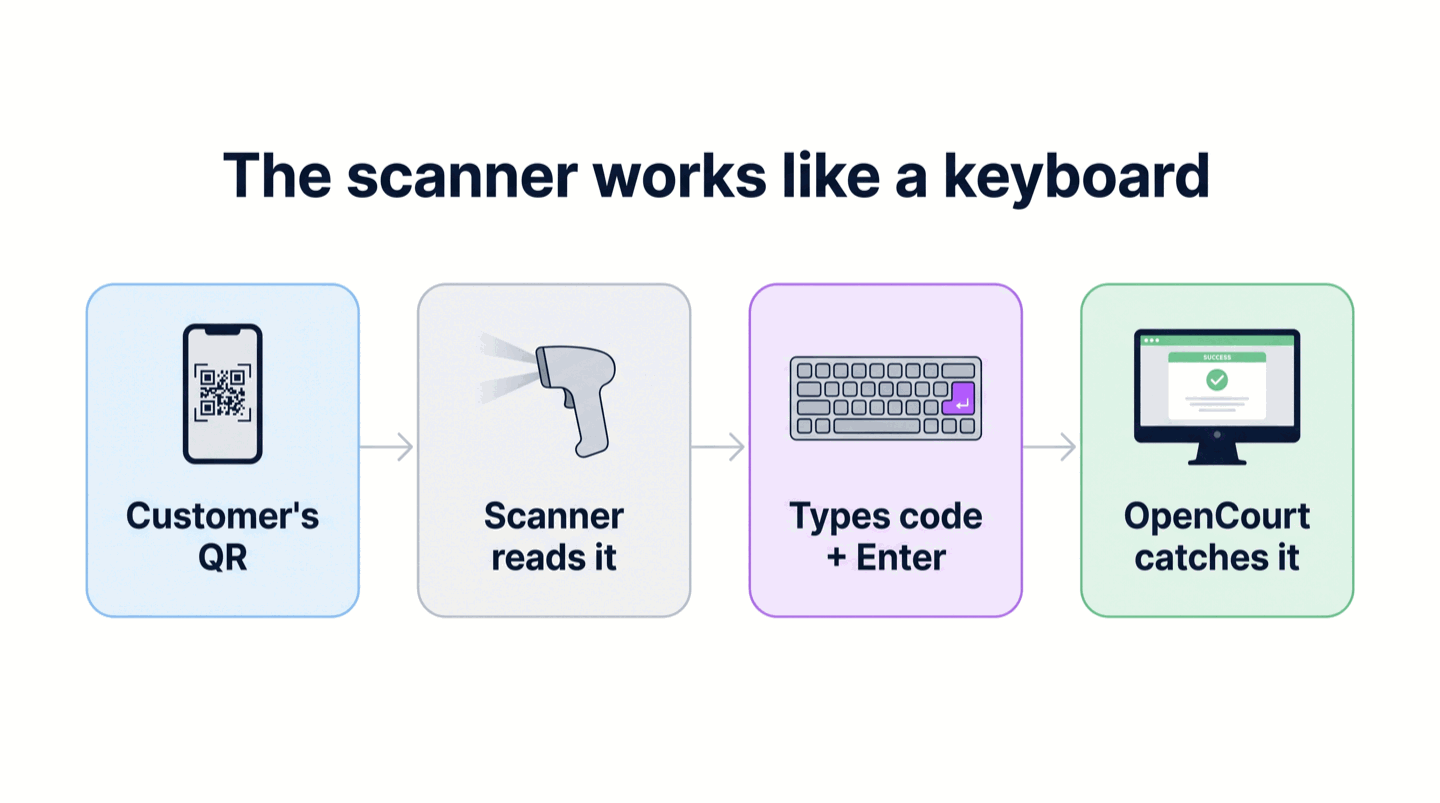
The scanner acts like a keyboard. When you scan a QR code, it types the code into whatever has focus, then sends an Enter (a carriage return) to submit it. OpenCourt listens for that fast keystroke burst on every admin page and opens the Scan result the moment a scan finishes. You do not click into a field or open a dialog first.
Set up the scanner
Plug the scanner into a USB port on the front-desk computer. Most scanners need no driver — the computer recognizes it as a keyboard.
Open any text box (a browser address bar, a note, a search field) and scan a QR code to test it. The code appears as text, followed by a new line — that new line is the Enter the scanner sends after each scan.
Open the admin panel to the Today page, scan a customer's Check-In QR Code, and confirm the Scan result appears. You are set up.
Tip —
A hands-free scanner stand is worth it if you check a line of customers in — set the scanner on the stand and customers hold their phone up to it. It is not required; a handheld scanner works the same way.
Make sure the scanner sends an Enter
OpenCourt reads a scan when the scanner ends it with an Enter or a Tab. Most scanners do this by default. If your test scan drops the code in without a new line, the scanner is not sending a terminator, and OpenCourt will not recognize the scan. Fix it by scanning the "Add Enter/CR suffix" configuration barcode from your scanner's manual (every scanner ships with one), or turn on the setting in its companion app.
A note on keyboard layout
The Check-In QR Code encodes characters that survive most keyboard layouts, because OpenCourt reads the physical key position rather than the typed character. That makes it work with non-US layouts (AZERTY and others) out of the box. A scanner that is itself set to a mismatched layout can still garble input, though — if scans come through as wrong characters, set the scanner to a US/QWERTY layout in its configuration.
If something goes wrong
Nothing happens when I scan — confirm the scanner is plugged in and that a test scan into a text box produces the code followed by a new line. No new line means the scanner is not sending an Enter; add an Enter/CR suffix from the scanner's manual.
The scanner types strange characters — the scanner is set to a mismatched keyboard layout. Set it to US/QWERTY in its configuration, then test again.
Only part of the code comes through — the scan is being split. Slow, repeated partial reads usually mean a dirty or scratched scanner window, or the phone screen brightness is too low; raise the phone's brightness and clean the scanner glass.
The code scans into a field instead of opening the Scan result — you had a text field focused when the scan landed. OpenCourt still reads scans globally; click an empty part of the page (not a text box) and scan again.