Resources (Ball Machines, Equipment & More)
Resources are bookable items at your club that members can add to their court reservations — ball machines, pitching machines, or any other equipment that needs to be reserved for a specific time slot. When a member books a court, they can optionally add a resource to their reservation. The system tracks availability so two people can't book the same ball machine at the same time, and handles pricing automatically.
Overview
Here's how the feature works end to end:
Admin creates resources — e.g., "Ball Machine 1", "Ball Machine 2"
Admin sets up resources as booking add-ons — configures pricing, courts where this resource can be booked, and who can book
Member books a court — during the booking flow, they see available resources and can add one to their reservation
System handles the rest — resource availability is tracked, pricing is added to the checkout, and the resource is reserved for the same time slot as the court
Setting Up Resources
Step 1: Create Resources
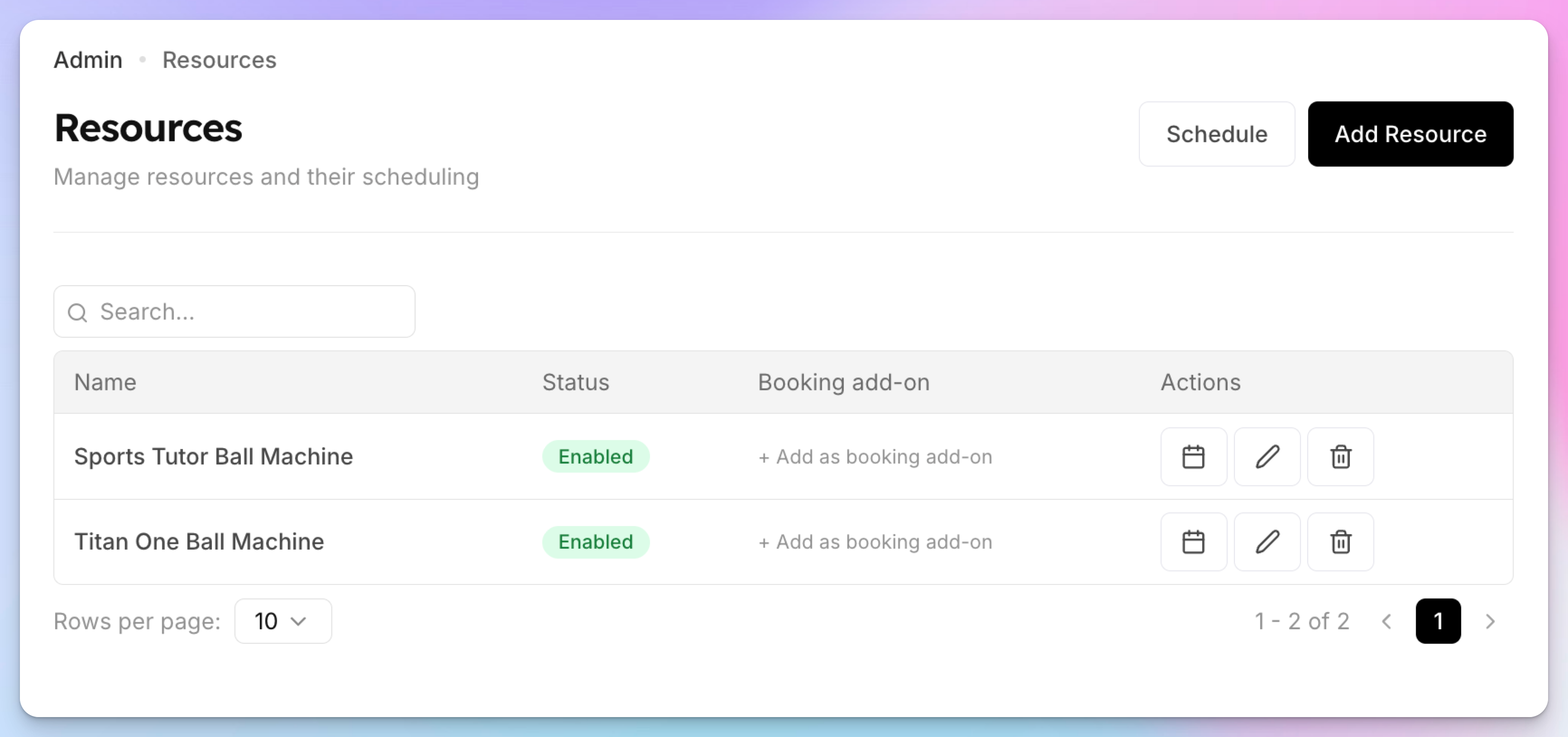
Go to Resources in the admin sidebar
Click Add Resource
Enter the resource name (e.g., "Ball Machine 1")
Toggle Enabled on
Save
If you have multiple units of the same resource (e.g., three ball machines), create each one as a separate resource. You can batch-create them — for example, creating "Ball Machine" with a quantity of 3 produces "Ball Machine 1", "Ball Machine 2", and "Ball Machine 3".
Step 2: Configure as Booking Add-Ons
Creating a resource makes it exist in the system, but members won't see it during booking until you set it up as a booking add-on.
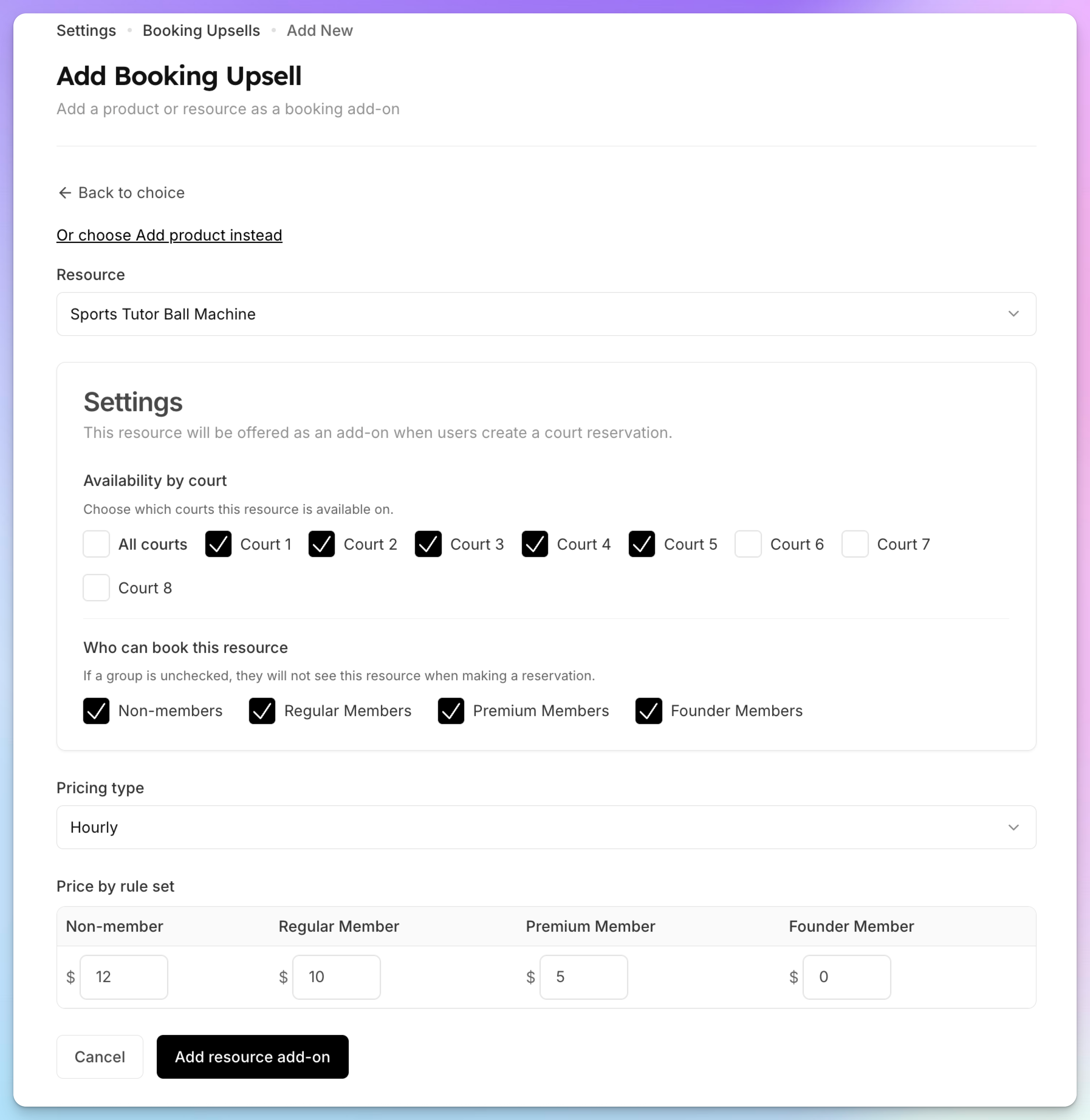
Go to Settings → Booking Upsells
Navigate to the Resources section
Click to add a resource as a booking add-on
Configure:
Price — The amount to charge (can be left empty for free resources) for every membership tier and non-members
Pricing mode — Fixed (flat fee regardless of booking duration) or Per Hour (price scales with the length of the court booking)
Courts — Which courts this resource is available on (all courts by default, or restrict to specific ones)
Save
Pricing Examples
Role-Based Pricing (Advanced)
For more granular control, you can set different prices for different membership roles. This is configured in the club settings and supports:
Default price for all users
Non-member price (different rate for non-members)
Per-role pricing (e.g., Gold members pay $10, Silver members pay $12, non-members pay $15)
Time-based pricing (e.g., weekend premium, off-peak discounts)
Court Restrictions
By default, a resource add-on is available on all courts. If a resource is physically located at a specific court or only makes sense on certain courts, restrict it:
Edit the resource add-on
In the Courts section, select which courts this resource is available on
Members booking a court outside this list won't see the resource as an option
Role-Based Availability
You can control which users see and can book each resource based on their membership role:
Non-authenticated users — Can they see the resource?
Non-members — Can they book it?
Specific membership roles — Toggle on/off per role

How Members Book Resources
During Court Reservation
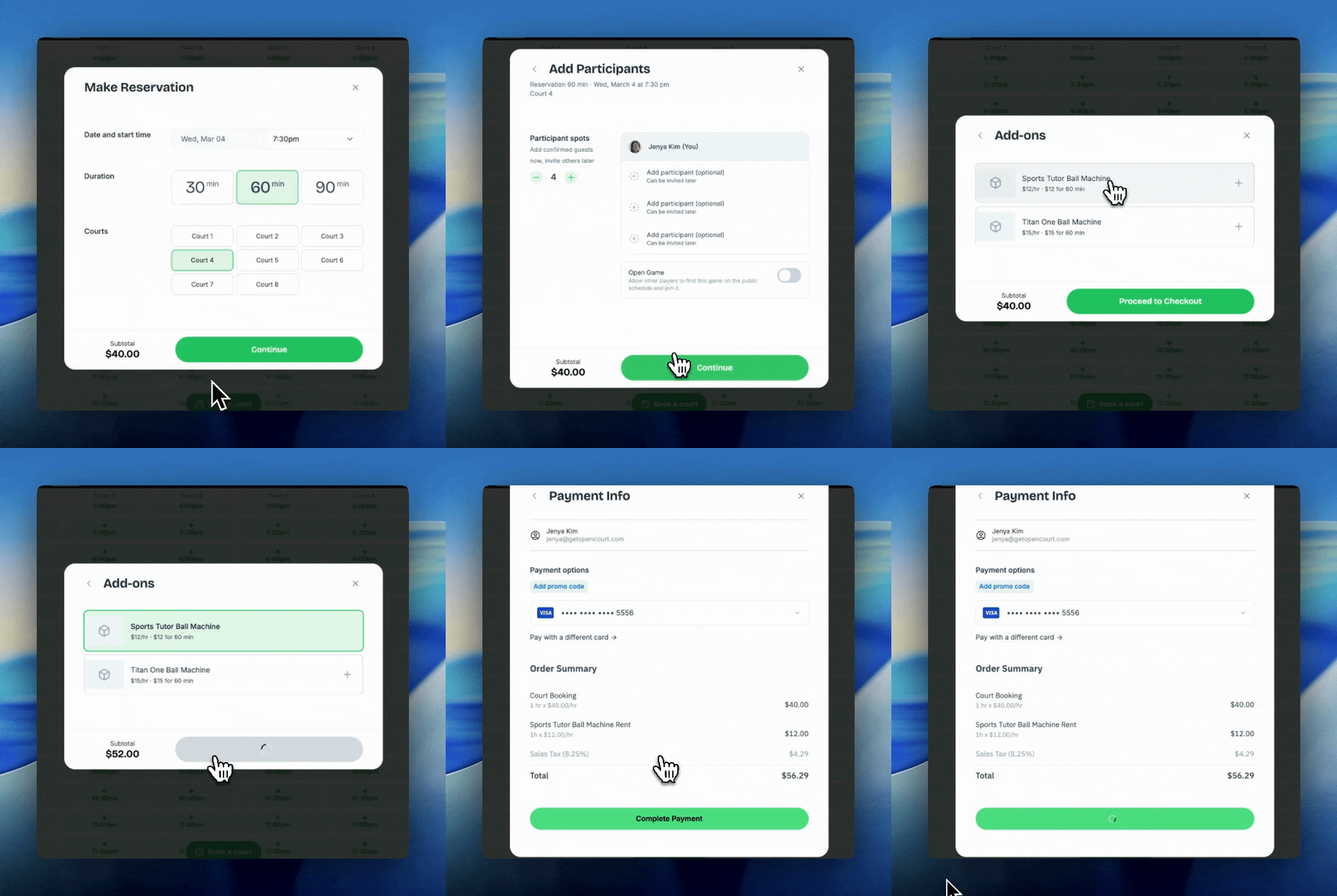
When a member books a court, they go through the reservation flow. If resources are configured as booking add-ons, a Services step appears:
Member selects a court and time
On the Services step, available resources are shown with:
Resource name (e.g., "Ball Machine 1")
Price (adjusted for the member's role and booking duration)
Availability status — if the resource is already booked for that time slot, it's shown as unavailable
Member checks the box next to the resource to add it
The total price updates to include the resource fee
Member completes checkout — the resource is reserved for the same time slot as the court
Availability
The system automatically tracks resource availability:
Each resource instance can only be booked once per time slot
If "Ball Machine 1" is taken but "Ball Machine 2" is free, the member sees one available and one unavailable
When editing an existing reservation, the member's current resource booking is excluded from conflict checks (so they can keep it without it showing as "taken")
Managing Resource Reservations (Admin)
Resource Schedule
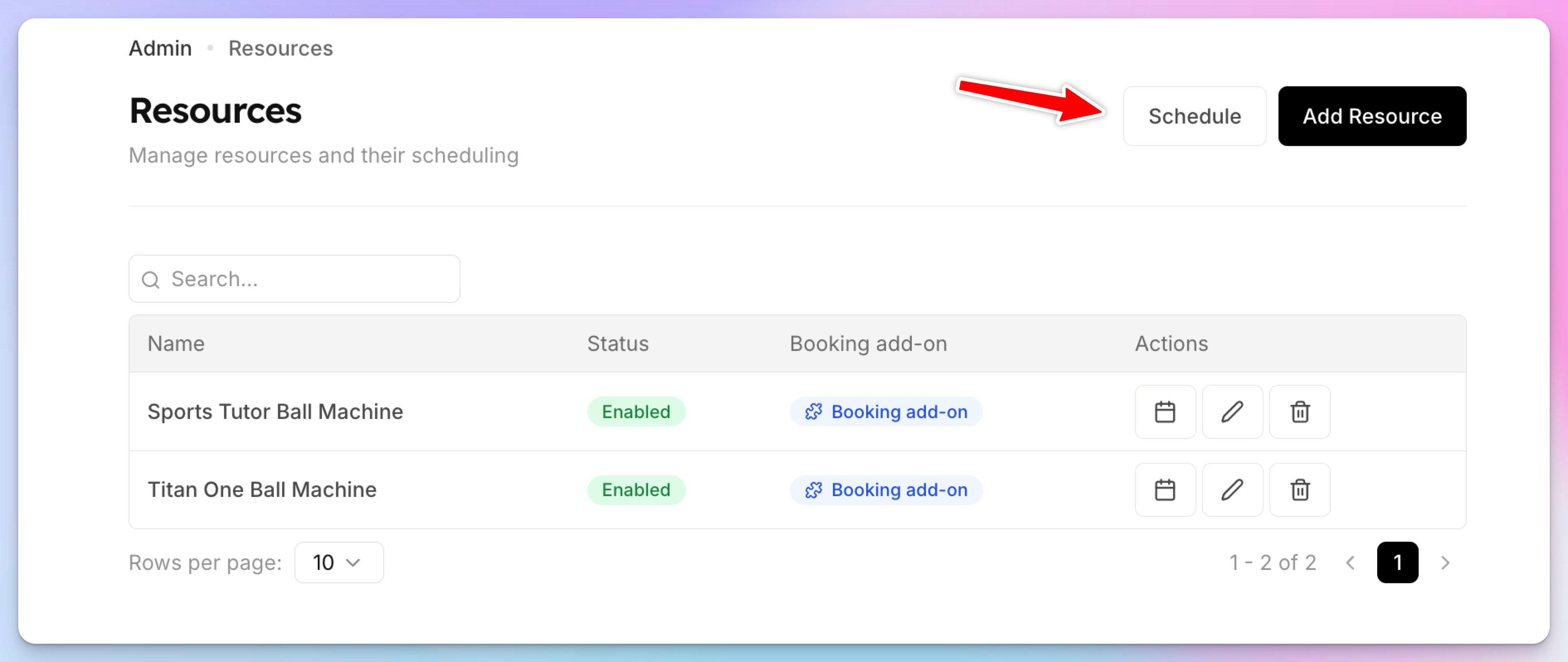
Admins can view and manage resource reservations from the Resources → Schedule view. This shows a calendar of all resource bookings — both those made through court reservations and any standalone resource reservations created by admins.
From the schedule view, admins can:
See which resources are booked and when
Create resource reservations directly (e.g., to block off maintenance time)
Edit or cancel existing resource reservations
Deleting Resources
When deleting a resource, the system checks for future reservations. If the resource has upcoming bookings, you'll be warned before confirming the deletion. Deleting a resource is a soft delete — historical booking data is preserved.
Tips
Name resources specifically — Use "Titan One Ball Machine", "Sports Tutor Ball Machine" instead of just "Ball Machine" so members know exactly which unit they're getting
Use Fixed pricing for simple setups — If the resource fee shouldn't change based on booking duration, Fixed pricing is simpler
Use Per Hour pricing for time-sensitive resources — If longer bookings should cost more (e.g., renting a ball machine for 2 hours costs more than 1 hour), use Per Hour
Restrict to relevant courts — If a ball machine can only be used on courts 1–3, set up the court restriction so members on court 4 don't see it as an option
Block maintenance time — Use the admin schedule view to create resource reservations during maintenance windows so members can't book the resource during that time