Set up Meta conversion tracking
Create your Meta dataset, get the Dataset ID and Conversions API token, and connect them in OpenCourt so your bookings and purchases report to Facebook and Instagram ads.
Connect your club to Meta (Facebook and Instagram ads) so every booking, membership, and store sale reports back to your ads. (About 15 minutes. You do Part 1 in Meta and Part 2 in OpenCourt.)
Ad and Conversion Tracking is in public beta. To turn it on for your club, email support@getopencourt.com or your OpenCourt customer success manager.
What you'll need: admin access to your club's Meta Business account (Events Manager) and OpenCourt admin access.
If a marketing agency runs your Meta ads, forward them this page. They can do Part 1 on their own — you only need to paste the two values into OpenCourt in Part 2.
Part 1 — Create your dataset in Meta
You'll end Part 1 with two things to copy: a Dataset ID and a Conversions API access token.
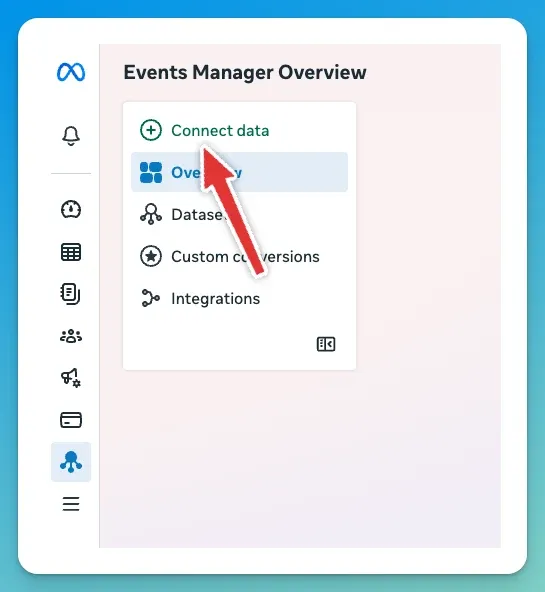
1. Open Events Manager and click "Connect data".
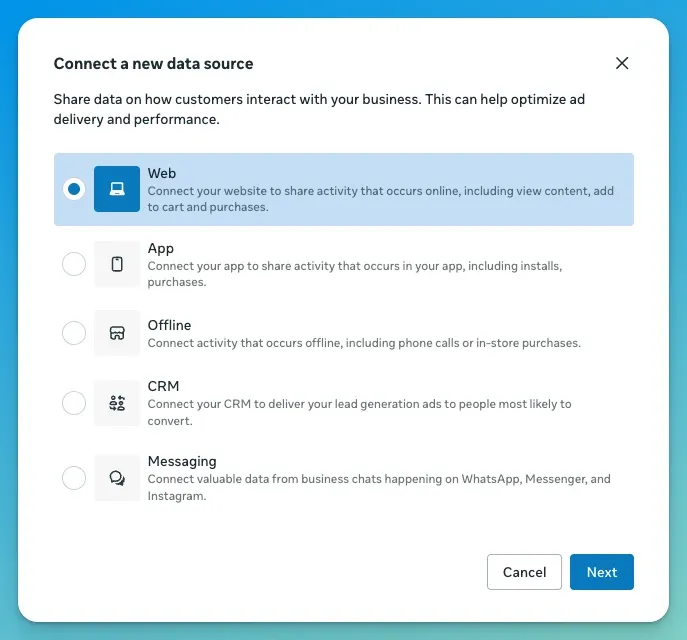
2. Choose "Web" as the data source, then continue.
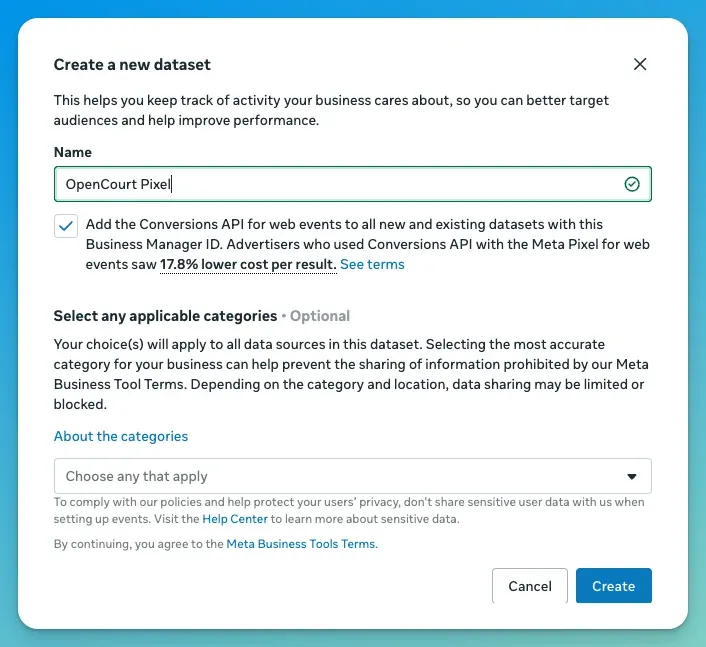
3. Name your dataset (e.g. your club name) and keep the "Conversions API" option checked, then create it.
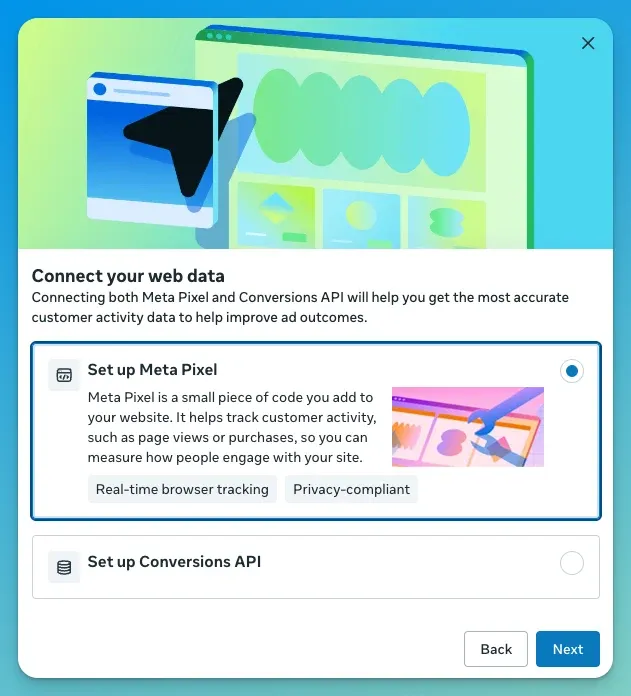
4. Close the "Connect your web data" screen — don't install anything. Meta offers to install a pixel here (add code to your site, email a developer, or set up with a partner). You don't need any of it — OpenCourt sends the events for you. Click the X in the top-right corner (or Close) to dismiss the screen.
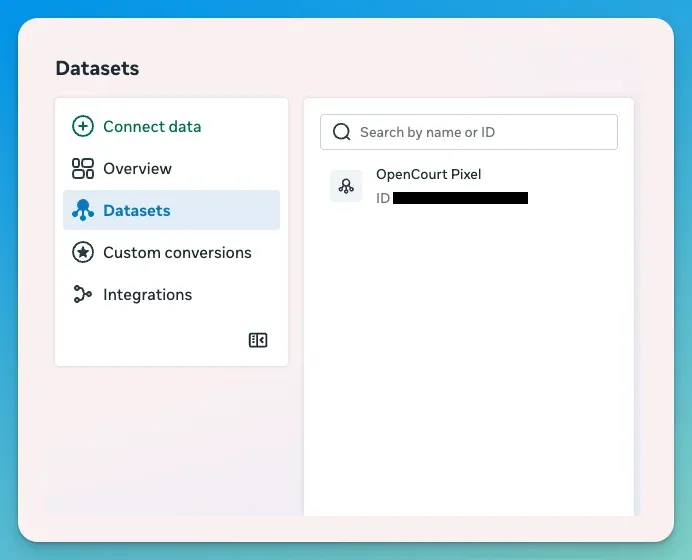
5. Open "Datasets" in the sidebar and select the dataset you just created.
6. Go to the dataset's "Settings" tab and copy the "Dataset ID". It's a 15–16 digit number.
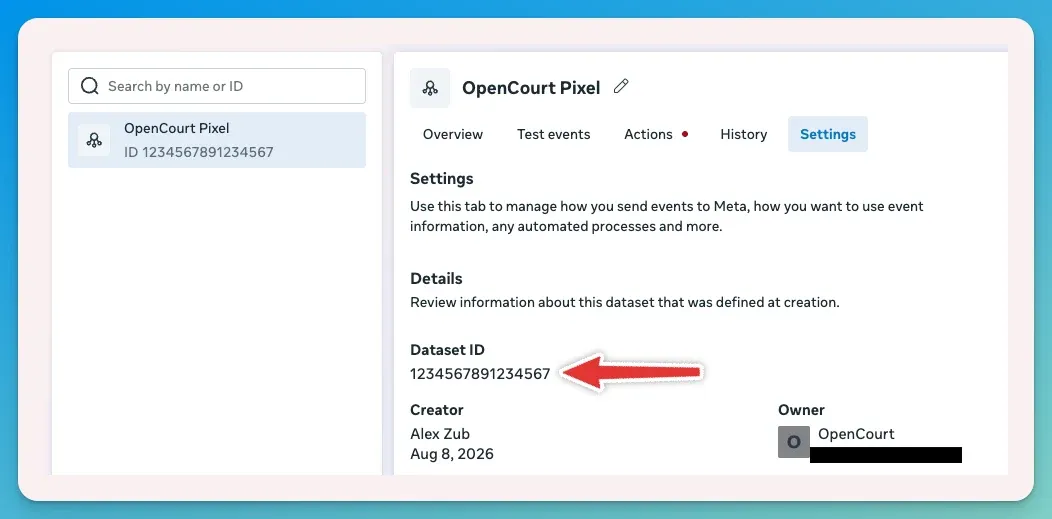
Meta renamed Pixel ID → Dataset ID (and Data sources → Datasets). They're the same thing — if a guide or your agency says "Pixel ID," they mean this Dataset ID.
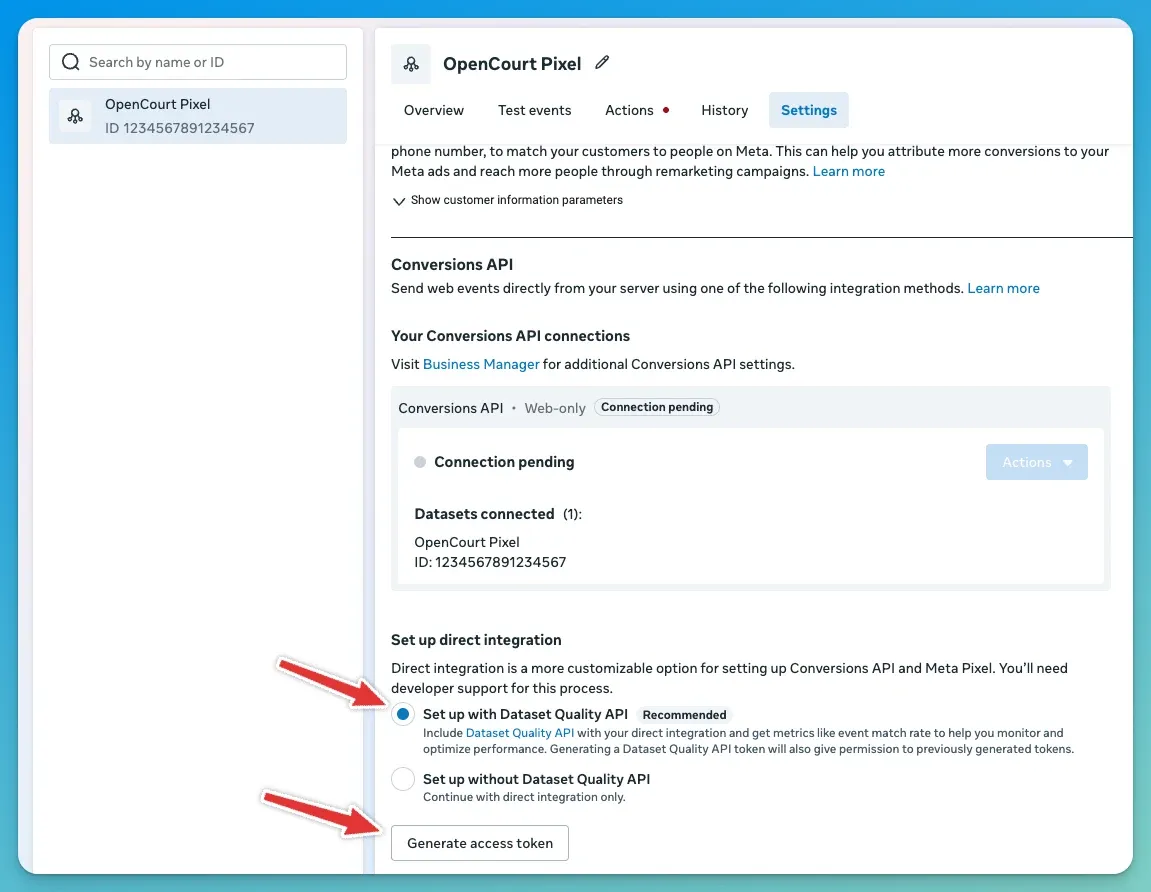
7. In the "Conversions API" section, generate an access token. Choose "Set up with Dataset Quality API" — it's Meta's recommended option, takes the same number of clicks, and lets OpenCourt read your Meta-side match quality later.
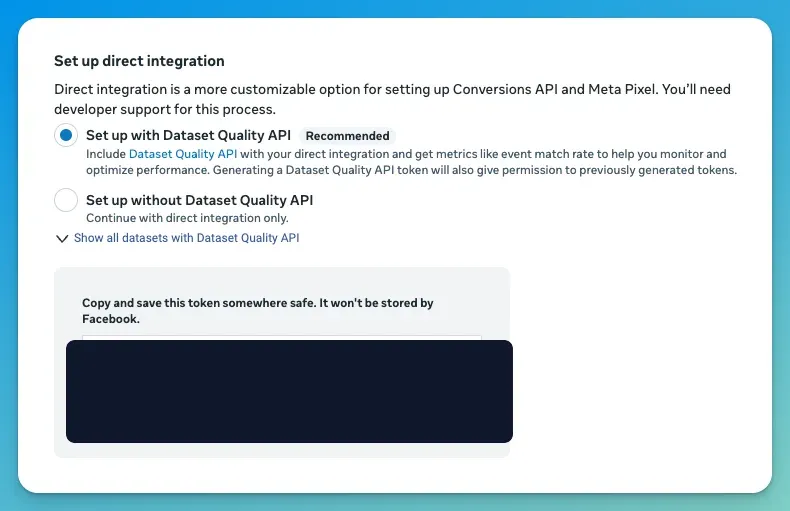
8. Copy the access token when Meta shows it.
Meta shows the token only once. Copy it now and paste it into OpenCourt in the next step — if you lose it, you'll have to generate a new one.
Part 2 — Connect it in OpenCourt
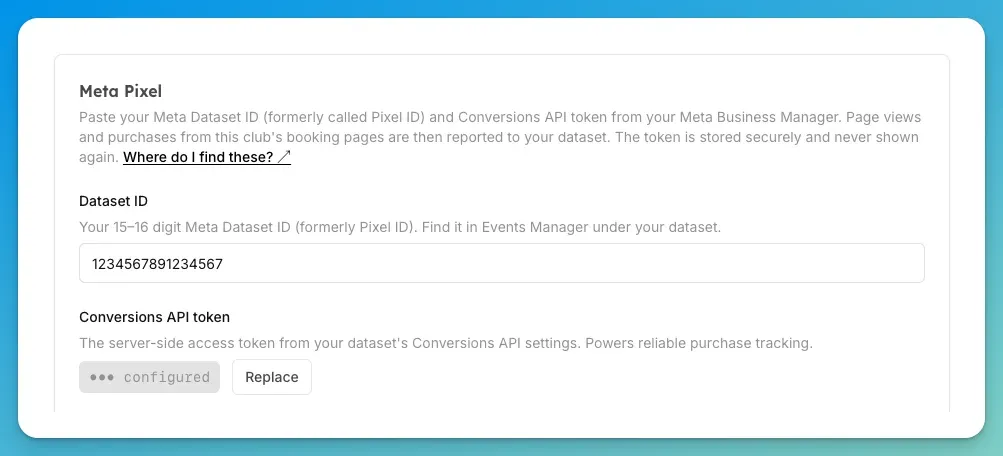
9. Open OpenCourt → Settings → Ad and Conversion Tracking. In the Meta Pixel card:
Paste your Dataset ID into the Dataset ID field.
Paste your Conversions API token into the Conversions API token field.
Leave Test event code empty for now — you'll use it in the next guide.
10. Click "Save". The first time you turn on any provider, OpenCourt shows a short data-sharing disclosure — read it and confirm. (What that disclosure covers, in plain English, is in What OpenCourt sends — and what it never sends.)
That's it — Meta will start receiving your page views and purchases. Before you rely on it, prove the connection with a quick test.
Next: Send a test event to confirm Meta is receiving your events correctly.