Let customers check themselves in with a posted QR code
Post a QR code at your club so customers check themselves in from their phones — no staff at the desk and no app to download. (About 10 minutes for the first QR. You need the club settings permission and, ideally, a tablet to display it.)
Note —
Self check-in is set up under Admin → Settings → Check-in, in the Self check-in section. You need the club settings permission to see it. This is the self-service side; for scanning customers in yourself, see Check a customer in with the QR scanner.
How self check-in works
You display a QR code at your club. A customer scans it with their phone camera, their browser opens the check-in page, and they check themselves in with one tap. It works for reservations, events, and programs the customer is on the roster for within the check-in window. Front-desk scanning and self check-in run the same rules, so the two never disagree.
Before you begin
The club settings permission (you can open Settings).
A device to display the QR: a tablet on a stand, a printed sign, or both.
Optional but recommended: your club's waiver is set up, so waiver-required customers are prompted to sign.
Create a self check-in QR code
Go to Admin → Settings → Check-in.
In the Self check-in section, under Your QR codes, click Add QR code.
Fill in the QR code:
Internal label — for your reference only (for example Front desk or Court 3 entry). Customers don't see it.
Title shown to customers — appears on the display and printable flyer (for example Self check-in).
Check-in QR type — choose Dynamic QR or Static QR (see the next section).
Click Add QR code.
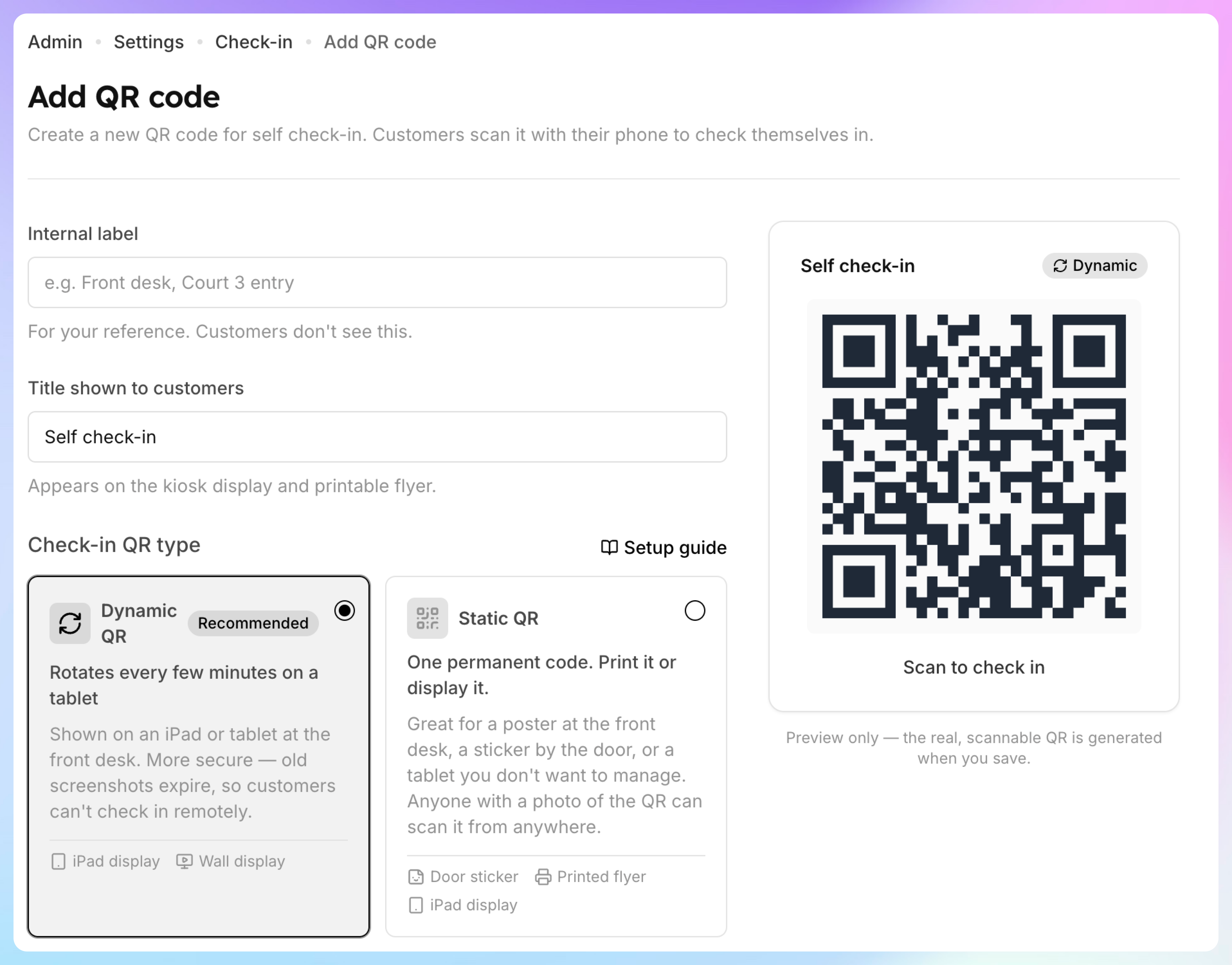
New QR codes are Enabled by default. A disabled QR code can't be used for check-in.
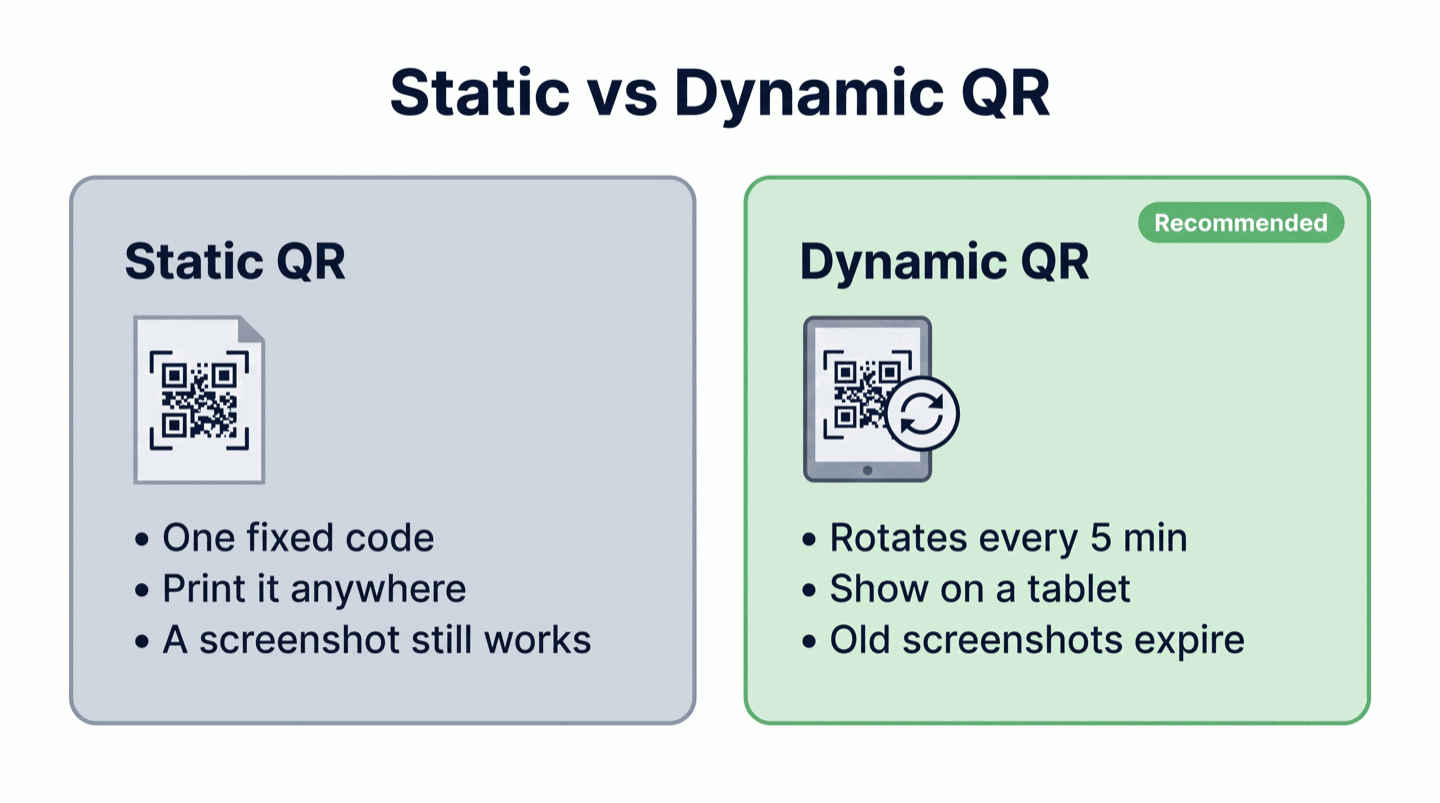
Choose Static or Dynamic
Important —
The rotation timing on a Dynamic QR (it rotates every 5 minutes and each code stays valid for 10 minutes) is set by OpenCourt and can't be changed from the admin panel. Contact support if you need different rotation timing. You can still switch a QR between Static and Dynamic yourself — except on a club's built-in default QR, where the type is Locked on default QR codes; add a new QR if you need a different type.
Display the QR code
On the Check-in settings page, find your QR code under Your QR codes and click View.
Under Deploy this kiosk (Dynamic) or Deploy this QR (Static), use the option that fits your setup:
Open display — opens the full-screen display page. Run this on the tablet you're mounting.
Copy the Display URL — paste it into the tablet's browser, then lock the browser to that page (on iPad, Guided Access keeps customers from navigating away).
Download PNG or Printable PDF — for a Static QR you want to print on a poster or sticker.
Tip —
Open the Setup guide (the button on the Check-in settings page) for device recommendations, iPad Guided Access steps, brightness and mounting tips, and printing guidance.
Set the check-in window
Check-in window controls how many minutes before a booking starts a customer can check in. The window always closes when the booking ends. The default is 180 minutes (three hours). Change it on the Check-in settings page — enter a number of minutes and it saves when you click away.
For self check-in this is a hard limit — a customer can't check themselves in before the window opens. At the front desk it only governs the automatic behavior: staff can always check an early arrival in by hand.
Decide whether payment is required
Require payment before check-in is a switch on the Check-in settings page:
On (Recommended) — self check-in refuses to check in customers with unpaid orders, including unpaid court fees on OpenGame bookings. A customer with a fee sees Pay to Check In and pays inline before they're checked in.
Off — an unpaid booking still checks in. Turn this off only if you collect payment at the front desk.
Note —
The same switch shapes the front desk: when it's on, scanning a customer with an unpaid fee opens the Scan result as Needs attention with the amount due (instead of checking them in automatically), so you collect before they go through. Staff can still check them in by hand either way.
What the customer experiences
When a customer scans your posted QR, their phone opens a page titled Check in at [your club]:
If they're signed out, they see Sign in to check in (or Create an account for a first visit).
Their eligible bookings appear under Your bookings, each with a Check in button. One tap checks them in.
If a booking has an unpaid fee and payment is required, the button becomes Pay to Check In and they pay inline.
If your club's waiver isn't signed, they're prompted with Sign waiver before they can check in.
Walk-ins with no booking in their name can browse Happening at [your club] to claim a guest spot booked under their name or join an open event on the spot.
Every self check-in shows up in the Check-in panel on your Today page under Recently checked in, badged Self check-in.
If something goes wrong
A customer says the QR won't scan — for a Dynamic QR, an old screenshot has expired by design; they need to scan the live tablet. Confirm the QR code is Enabled and the tablet is showing the current code.
"QR code expired" on the customer's phone — the Dynamic code rotated between the scan and the tap. Ask them to scan the live display again.
A customer's booking doesn't appear — they may have booked under a different email (they can sign out and back in), or the booking is outside the check-in window. A customer can't self-check-in before the window opens — if they're early and need to be in, the front desk can check them in by hand.
A paid customer is still asked to pay — confirm the order is actually settled; unpaid court fees on OpenGame bookings count. If payment is collected at the desk, turn Require payment before check-in off.
The QR type is greyed out — you're editing the built-in default QR, where the type is locked. Add a new QR code to pick a different type.