Send a test event
Use OpenCourt's built-in test console to prove your Meta connection works before real ad money depends on it.
Send a fake purchase from OpenCourt to Meta and watch it arrive — so you know the connection works before real ad money depends on it. (About 5 minutes.)
Ad and Conversion Tracking is in public beta. To turn it on for your club, email support@getopencourt.com or your OpenCourt customer success manager.
What you'll need: your Dataset ID and Conversions API token already saved in OpenCourt (from Set up Meta conversion tracking), plus access to your club's Meta Events Manager.
This test console is Meta-only. GA4 verifies through its own Realtime and DebugView reports, and Google Ads through each conversion action's diagnostics — no OpenCourt test console needed for those.
Step 1 — Get your test event code from Meta
In Meta Events Manager, open your dataset and go to the Test Events tab.
Select the channel Website — the tab shows a
test_event_code(something likeTEST12345).Copy it.
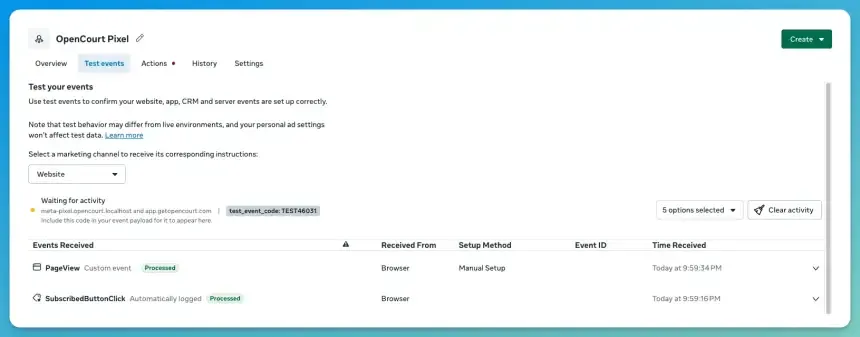
In OpenCourt → Admin → Settings → Ad and Conversion Tracking, paste the code into the Meta card's Test event code field and click Save.
The test event code only touches test events — it never affects your live tracking, so it's safe to leave set after you're done.
Step 2 — Send and watch
Meta's Test Events tab is a live listener, not a log. Open the Test Events tab in Meta first and keep it open, then click Send test event in OpenCourt. Events can take up to a minute to appear.
The code in OpenCourt must match the code in Meta's Test Events tab exactly. A wrong code still reports "Sent," but the events land in a bucket you can't see.
Open Meta's Test Events tab (Events Manager → your dataset → Test Events → channel Website) and keep it open.
In OpenCourt, go to the Meta card's Send a test event area, pick a scenario from the dropdown, and click Send test event. (The View in Meta Events Manager link next to the button jumps you straight to the right place in Meta.)
Watch the Test Events tab — your events should appear within about a minute, listed under your test code.
OpenCourt reports honestly after sending — something like: "Sent 2 events to Meta with test code TEST12345. Meta accepted them — that doesn't mean they're visible yet. Open your Meta Events Manager → Test Events tab and check they appear under that same code." "Accepted" only means Meta received the request — Meta counts events as received whether or not the code matched — so seeing them in the Test Events tab is the actual proof.
What each scenario sends
Nothing appeared?
Head to Monitor and troubleshoot — it covers the two usual suspects (tab not open first, code mismatch) and everything else.