Salto KS mobile access
How mobile-key access works on a Salto KS system — getting connected, assigning and revoking keys per customer, and what customers see at the door.
If your club runs a Salto KS access-control system, OpenCourt can connect to it so customers get phone-based (mobile key) access instead of typing a keypad code. Their phone becomes the key: they hold it near the lock and the door opens.
The initial connection is set up by the OpenCourt team. Once it's in place, you assign and revoke keys yourself, customer by customer — that's the part you'll do day to day, and it's covered below.
You need access-control permission to assign keys. Customer profiles live under Customers in the admin panel.
Getting Salto KS connected
Linking your Salto KS system to OpenCourt is a one-time setup we handle for you. It involves matching your Salto site, credential manager, and access group to your club, and we do it this way because getting those three wrong sends keys to the wrong doors.
To get started, contact OpenCourt support with:
Confirmation that your Salto KS account is linked to Seam. OpenCourt reaches Salto through Seam, so this has to exist first — your Salto administrator or installer can set it up.
Which Salto site this club corresponds to, if your Salto account covers more than one location.
Which access group customers should be placed in. This is the group that governs which doors they can open and when, so pick the one you'd put a regular member in.
If you're not sure about the last two, loop in whoever administers your Salto KS account — they'll know. We'll confirm once it's live, and from that point everything below is yours to run.
Grant mobile keys per customer
Mobile keys are assigned per customer, not automatically to everyone. Open the customer's admin profile and go to the Access Controls tab. The Digital Keys Access card — "Manage whether this user can receive Seam mobile key credentials for this club." — shows their status as Assigned or not, and gives you Assign or Revoke.
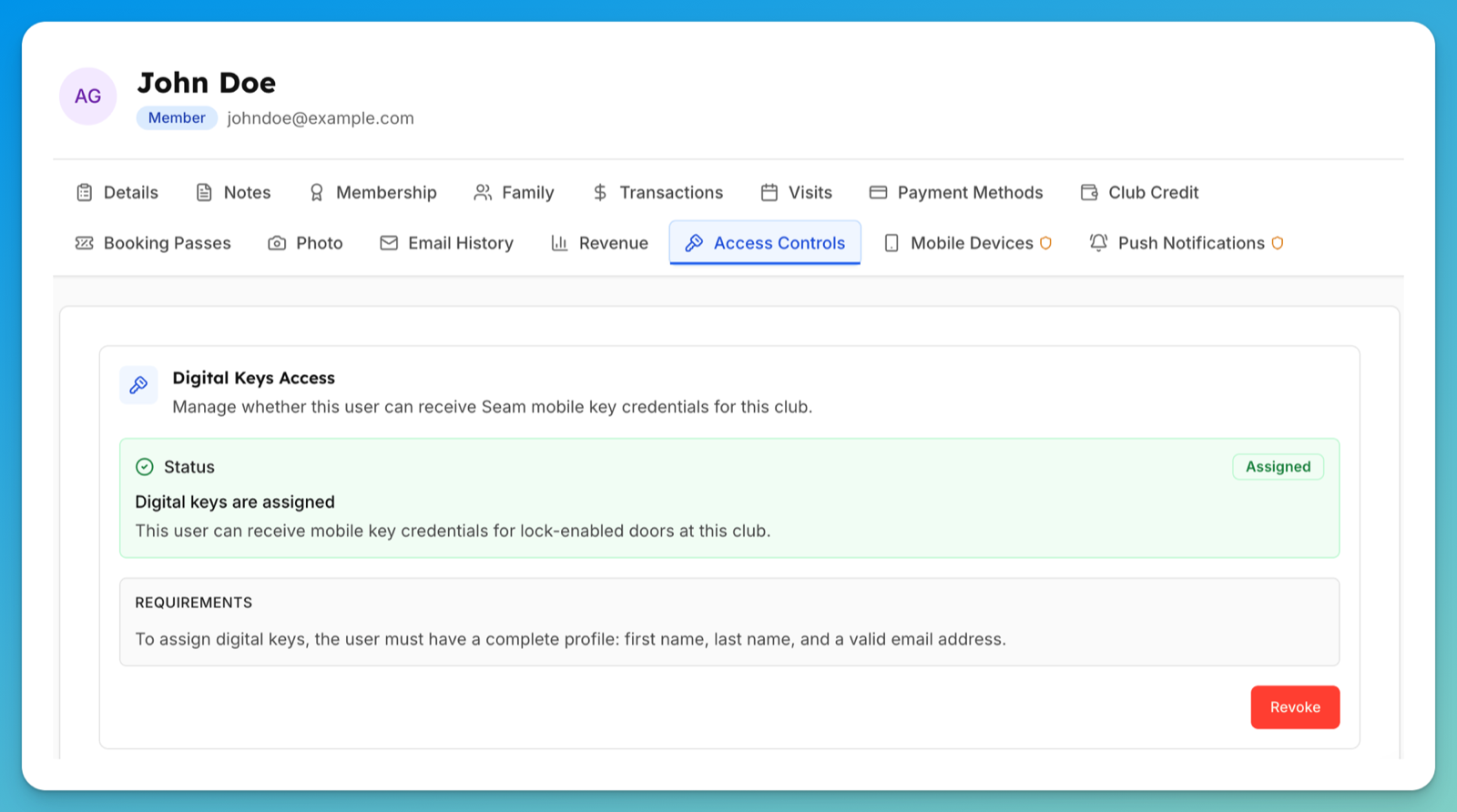
The card states the prerequisite plainly: "To assign digital keys, the user must have a complete profile: first name, last name, and a valid email address." If Assign doesn't work, that's almost always why — fix the profile on the Details tab first.
Mobile keys are presented in your club's branded mobile app, so customers need a recent version installed.
Do you still want door codes?
Mobile keys and per-booking door codes are independent. You can run either or both:
Mobile keys only. The access-code mode stays Off. Nobody gets a PIN; access is entirely phone-based through the keys you assign. This is the common shape for clubs on Salto KS.
Both. The mode is set to Smart Lock, so bookings also generate keypad codes, and mobile keys go to the people you assign them to — members and staff, typically, with drop-ins falling back to a code.
Tell us which you want when we set the connection up, and mention it any time you want to change. It matters more than it sounds: with codes Off, a customer without an assigned mobile key has no way in.
What the customer sees
On a mobile-key setup, the customer taps Door access on your club's home screen and a Club access screen opens inside your club's own branded app — a native screen, not a separate Salto app and nothing extra to download. Their phone is the key, so they hold it near the lock instead of typing a code.
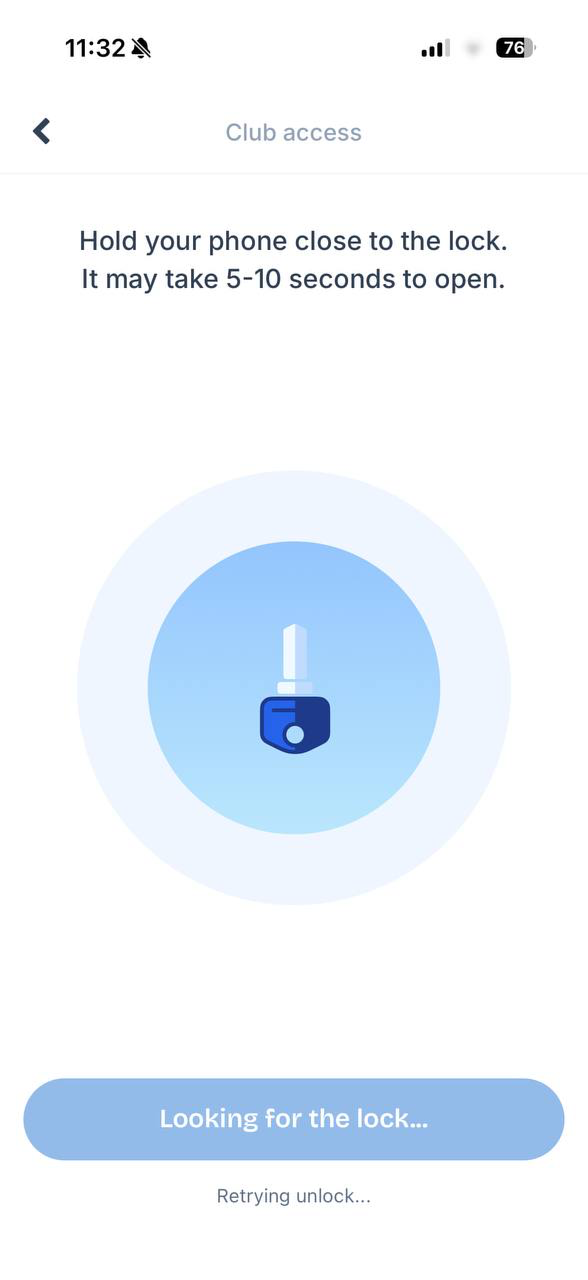
Tell your front desk this one thing: the screen says "Hold your phone close to the lock. It may take 5–10 seconds to open," and while it works it shows Looking for the lock… and sometimes Retrying unlock… That searching phase is normal Bluetooth behavior, not a failure. Customers who walk away after two seconds will report the door as broken when nothing is wrong.
This is the one part of OpenCourt door access that requires your branded mobile app. Customers on the web app won't see it. See Getting through the door at your club.
Access stays centralized in your Salto KS platform: OpenCourt grants and revokes membership in the access group you nominated, rather than running a parallel system. Which doors that group opens is defined in Salto, so it's Salto — not OpenCourt — that decides where a key works.
If something goes wrong
A customer doesn't get a mobile key — check their Access Controls tab shows Assigned, and that their profile has a first name, last name, and valid email. Then confirm they're on a current version of your club's app.
The key screen sits on "Looking for the lock…" — that's Bluetooth searching, and it can take 5–10 seconds. Have them hold the phone within a few inches of the reader with Bluetooth on, and wait. If it never connects, check the lock has power and is online in Salto.
A customer can't find Door access in the app — mobile keys only appear in your club's branded mobile app. On the web app there's nothing to show. Confirm they've installed the app and are signed in.
You need to change which doors customers can open — that's governed by the Salto access group we mapped, so it's changed in Salto KS, not in OpenCourt. Adjust the group's permissions in your Salto console, or contact us if you want customers moved to a different group.