A customer can't get in — troubleshoot door access
The customer says the door won't open. Find out whether the lock is down for everyone or just this one customer's access is blocked — then fix the right thing.
"A customer can't get in" has two very different causes, and they're fixed in opposite ways. Either the lock is down — a connection hiccup that fails for everyone and is fixed on site — or this one customer's access isn't valid right now, which is fixed in your settings or by explaining the timing. The customer only ever sees "it didn't open," so your first job is to tell the two apart.
Everything here lives under Settings → Access Controls in your admin panel. You'll need access-control permission.
First: is it everyone, or just this customer?
Don't try to ask the customer "does it work for everyone else?" — they don't know. Figure out the scope yourself:
Have staff (or a known-good account with a current booking on that door) try the same door. If it also fails, the lock is down for everyone. If it works, the problem is specific to this customer.
Check the Unlock History tab and look at the last hour. A run of Unlocked rows from other people means the lock is fine and this is a per-customer issue. Access Denied, Access Code Failed, or Device Disconnected rows across multiple different people means the lock is down.
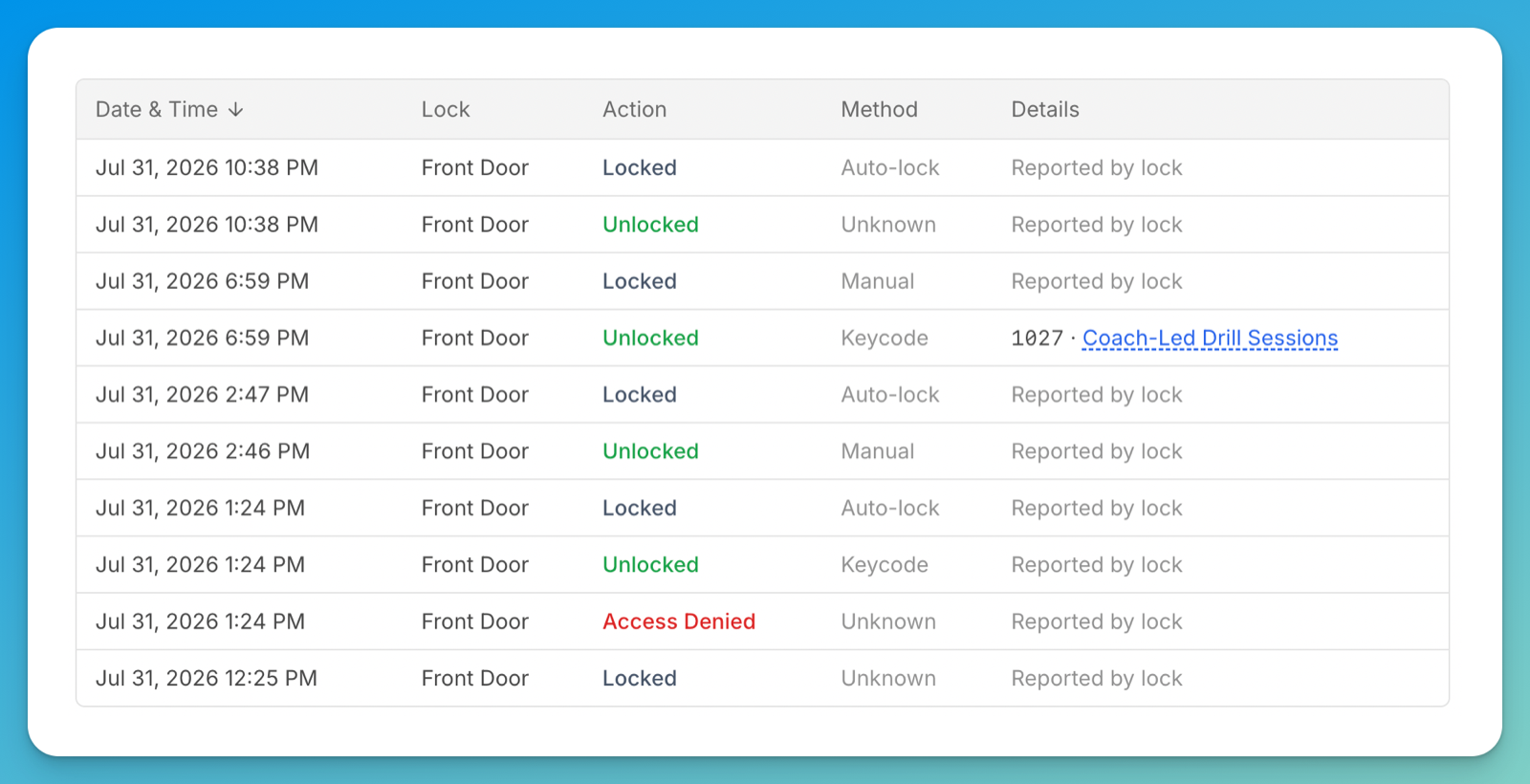
The Method column is what makes this readable. Keycode rows are people typing a booking code, and their Details links to the event — those are the ones you can trace. Manual rows are the door being opened by hand from the inside, with no code involved. Don't mistake a healthy run of Manual unlocks for a problem. Full breakdown in Door codes day-to-day.
The lock is down for everyone
When unlock fails for everyone, it's almost always a temporary connection hiccup between the lock (or its controller) and its provider — not anyone's account. It usually clears within a few minutes.
Symptoms: unlock worked recently, then started failing for multiple different people; the app shows "unlock failed" or just spins; the unlock history shows Device Disconnected, Access Code Failed, or Low Battery rows.
Wait 1–2 minutes and retry. These hiccups often self-clear.
Power-cycle the controller on site. Find the access-control unit wired to the door, unplug it, wait about 15 seconds, plug it back in, give it a minute to come back online, then try again. This resolves the large majority of cases.
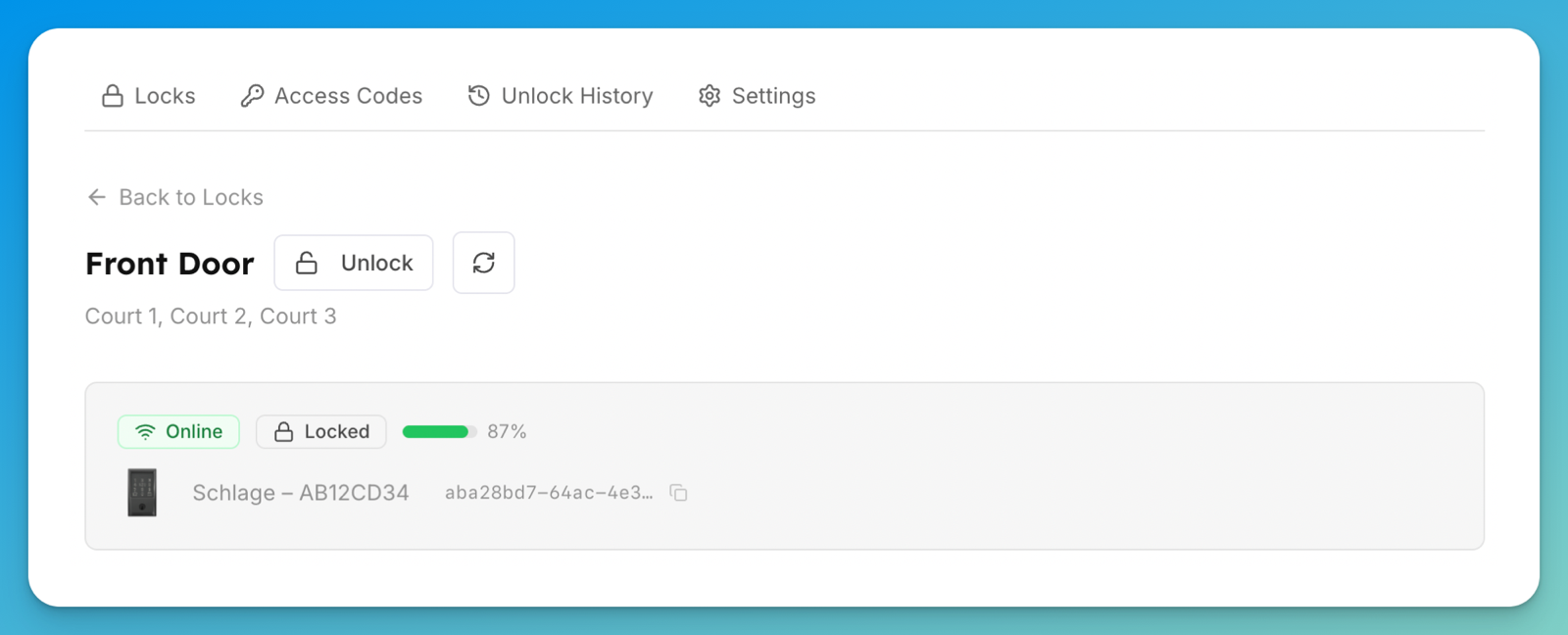
Test from the admin side. Open the lock's page and use the Unlock button in the header. The status bar there shows whether the lock is online and its battery level — a Low Battery warning is worth acting on before it fails completely.
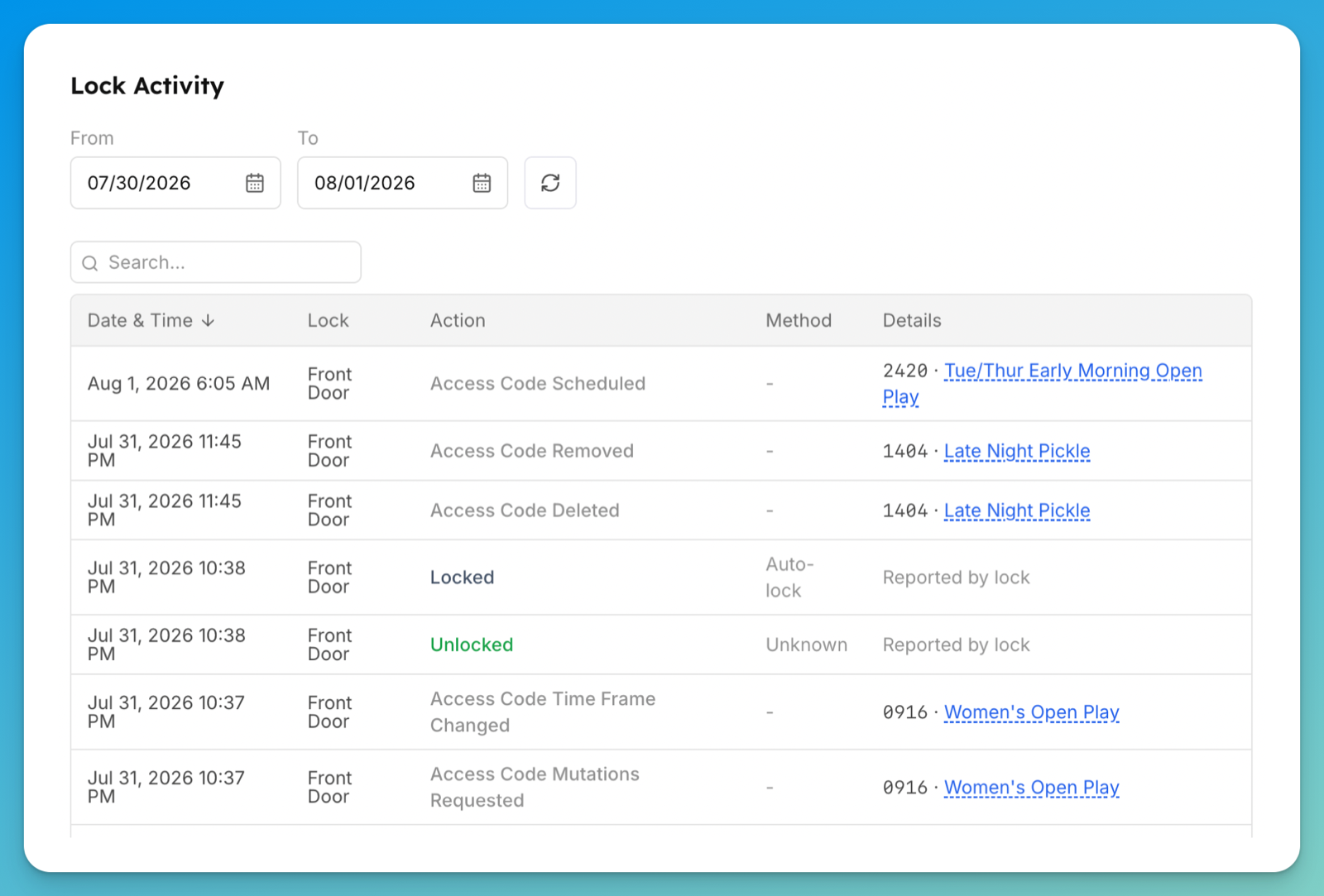
Scroll down the same page for Lock Activity, which narrows to that one lock and adds a From / To date range. Alongside the Locked/Unlocked events you'll see OpenCourt's own code operations — Access Code Scheduled, Access Code Removed, Access Code Deleted, Access Code Time Frame Changed — each with the code and its booking. That's the record that answers "did their code ever actually reach this lock?"
If the controller is powered and online but unlock still fails for everyone, or a power-cycle didn't help (or it keeps recurring), contact OpenCourt support with the door, when it started, and what the unlock history shows.
One customer can't get in (others can)
The lock is fine — others are getting in. Now it's about how this customer gets in and when they're trying. Work through the symptom that matches.
Their door code doesn't work
Codes are time-limited. The same rule that governs in-app unlock drives the code window: by default a code activates 30 minutes before the reservation and expires 10 minutes after it ends (a per-lock rule can change this). Outside that window the code does nothing.
Open the Access Codes tab and find their code.
Check the Valid From, Valid Until, and Status columns. Upcoming means it hasn't turned on yet (they're early). Expired or Revoked means the window has passed or the booking was cancelled. Only Active codes open the door.
Confirm the space column on the code matches the space they actually booked — a code only opens the door mapped to that space. (That column is headed Court, Bay, or Field, matching your club.)
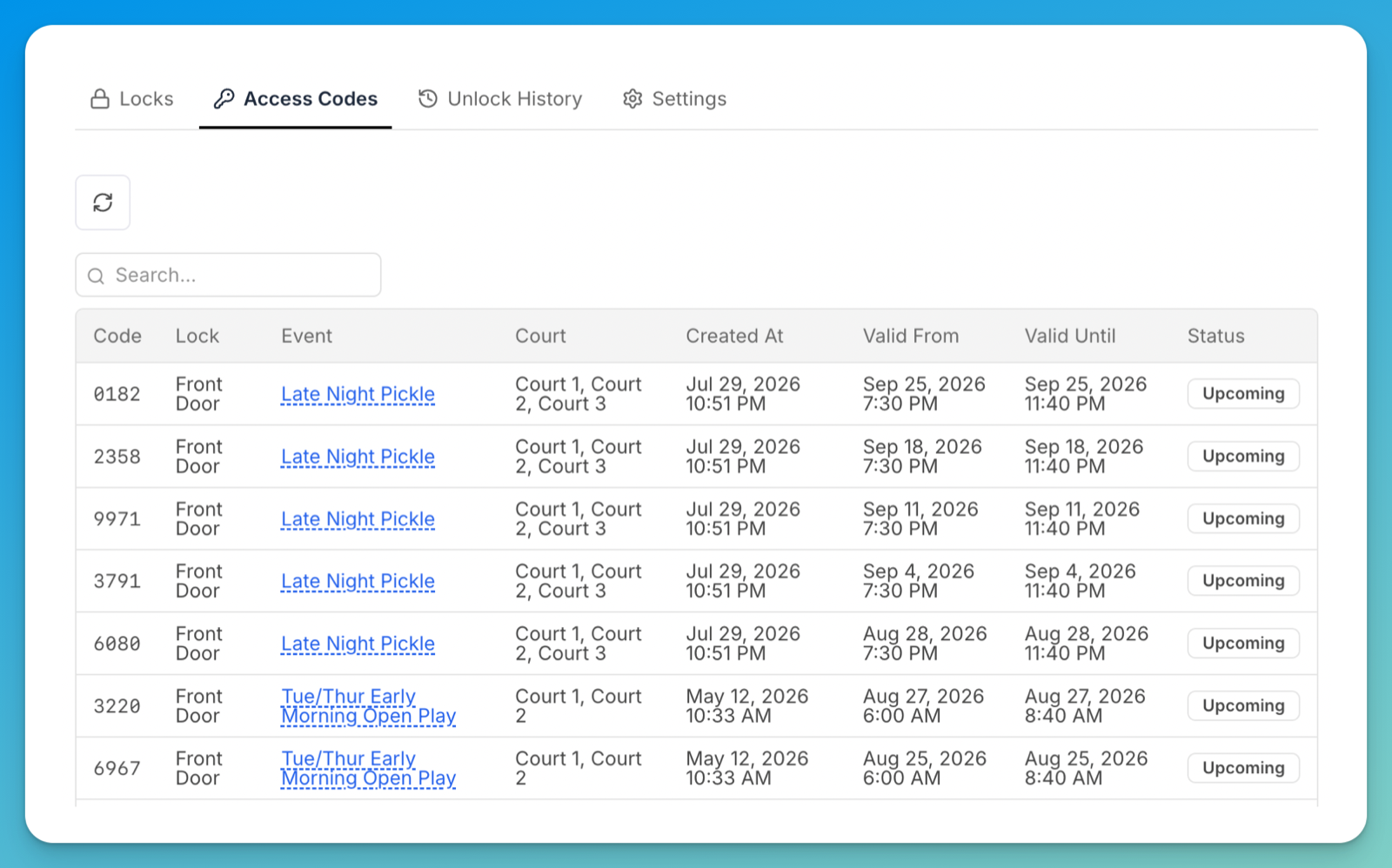
A big gap between Created At and Valid From is normal. A code for a booking weeks out is created the moment the booking is made, sits Upcoming, and only becomes Active in its window.
A code that isn't loaded onto the lock yet is normal, not broken. Native scheduling pushes codes about 72 hours ahead; Just-in-Time pushes them about 60 minutes before (the lock must be online then). On RemoteLock, a code stays pending until the lock confirms it, so a pending code ahead of the booking is expected.
They don't see an unlock option in the app
In-app unlock needs a chain of things to all be true. Check them in order:
Club-wide unlock is on. In Settings → Access Controls, the Remote Unlock setting must be enabled ("Allow users to unlock doors from the club home page…"). If it's off, no one sees the option.
The lock supports remote unlock. Some locks only issue codes and can't be unlocked remotely.
Their rule set allows it. The per-lock Door access rule for their rule set must not be No app unlock.
They're in the window, on the right space. If the rule is During reservations only, they must be inside the window (default 30 min before to 10 min after, per-lock adjustable) and their booking must be on the space mapped to that door.
The app says access denied / not authorized
This means they reached the lock but the rule turned them away. Two usual causes:
Their rule set's Door access rule is "No app unlock" — that role is intentionally not allowed to unlock this door. Check the door's rules on the lock page and confirm the rule assigned to their rule set (including any Non-members override).
They're outside the "During reservations only" window, or their booking is on a space that isn't mapped to this door. Confirm the timing and the space.
Their code changed
If you (or the customer) moved the booking to a different space or door, OpenCourt issues a new code for the new door and sends a "Your access code changed" email. The old code stops working. Ask them to use the latest code from the app (booking details → Access code) or their most recent confirmation email. A plain reschedule that keeps the same space keeps the same PIN with an updated window.
Membership changed and access stopped
Access rules can differ by rule set. If a customer's membership lapsed or changed, they may fall under a different rule set — often the Non-members override — whose rule is No app unlock or a narrower window. Check which rule set they're on now and what that rule set allows.
Every in-app unlock attempt — success or failure — is recorded in the club activity log with the customer's name, since they were signed in when they tapped. If the customer's memory of "it just stopped" doesn't match, the activity log shows exactly what happened and when. (Keypad entries land in Unlock History instead, tied to the code and its booking rather than a person.)
Still stuck?
If the customer clearly should get in — valid Active code (or all four unlock conditions met), right space, right time — and still can't, contact OpenCourt support. Include:
The customer's name
The door (lock name)
The time it failed
What the unlock history shows for that attempt