Set who can unlock doors from the app
Turn on in-app door unlocking for customers, and set per-lock rules for who can unlock and when.
Decide whether customers can open a door straight from the OpenCourt app, and set per-lock rules for who can unlock and when. (About 5 minutes. You'll need admin access and a lock that supports remote unlock.)
You need access-control permission. Everything here lives under Settings → Access Controls. Per-lock Door access rules are available on Seam, Rhombus, and UniFi Access locks that support remote unlock. RemoteLock manages its own codes, so a RemoteLock lock shows only the door code window settings — not the who-can-unlock rules. Customers can still unlock a RemoteLock door from the app once you turn on in-app unlocking below — it just uses the standard reservation window (30 minutes before until 10 minutes after) for everyone, with no per-role overrides.
In-app unlocking is separate from door codes: a customer might get in with a door code, with in-app unlock, or both. This page covers in-app unlock — but a lock's default rule also sets the door code window (when a booking's code activates and expires), so that one timing applies to both. Overrides don't; see the callout under "Per-lock access rules" below.
There are two layers of control.
1. The club-wide switch
Go to Settings → Access Controls and find the Remote Unlock section — "Allow users to unlock doors from the club home page. Access rules on each lock control who can unlock and when." Switch it to Enabled. While it's Disabled, customers never see an unlock option — they use their door code instead.
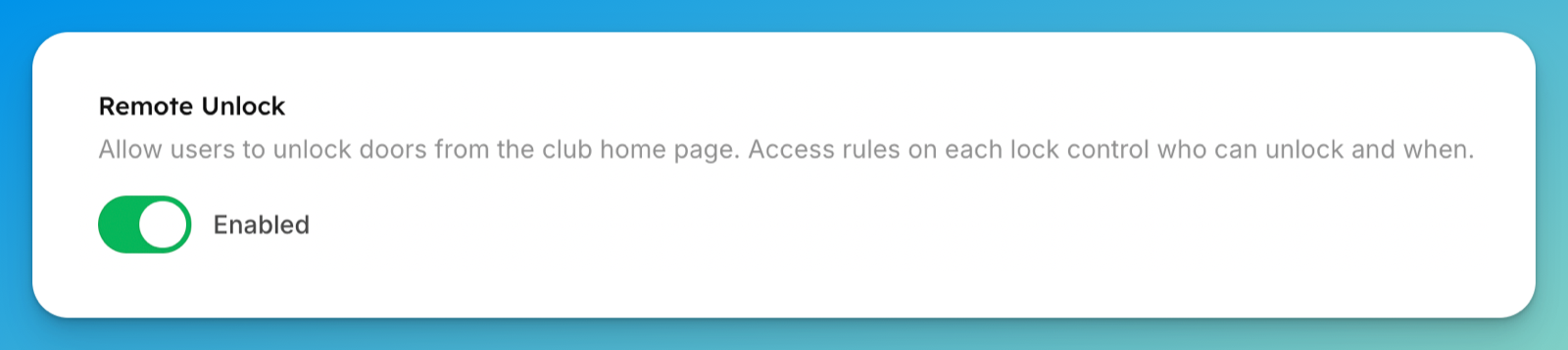
The Remote Unlock section only appears once you're in Smart Lock mode with at least one connected lock that supports remote unlock.
2. Per-lock access rules (who, and when)
Open a lock from the Locks tab and find its Door access section — "Control who can unlock this lock from the app and when — and, for locks with door codes, when a booking's code is active."
Start with the Default access rule. It offers three modes:
Below that, Overrides (optional) lists your rule sets — Non-members plus each rule set you've created (for example Coach or Legacy Member). Each row shows Using default until you switch it on, at which point it reads Custom rule and opens the same three modes. So you might leave the default at During reservations only and give coaches Can always unlock.
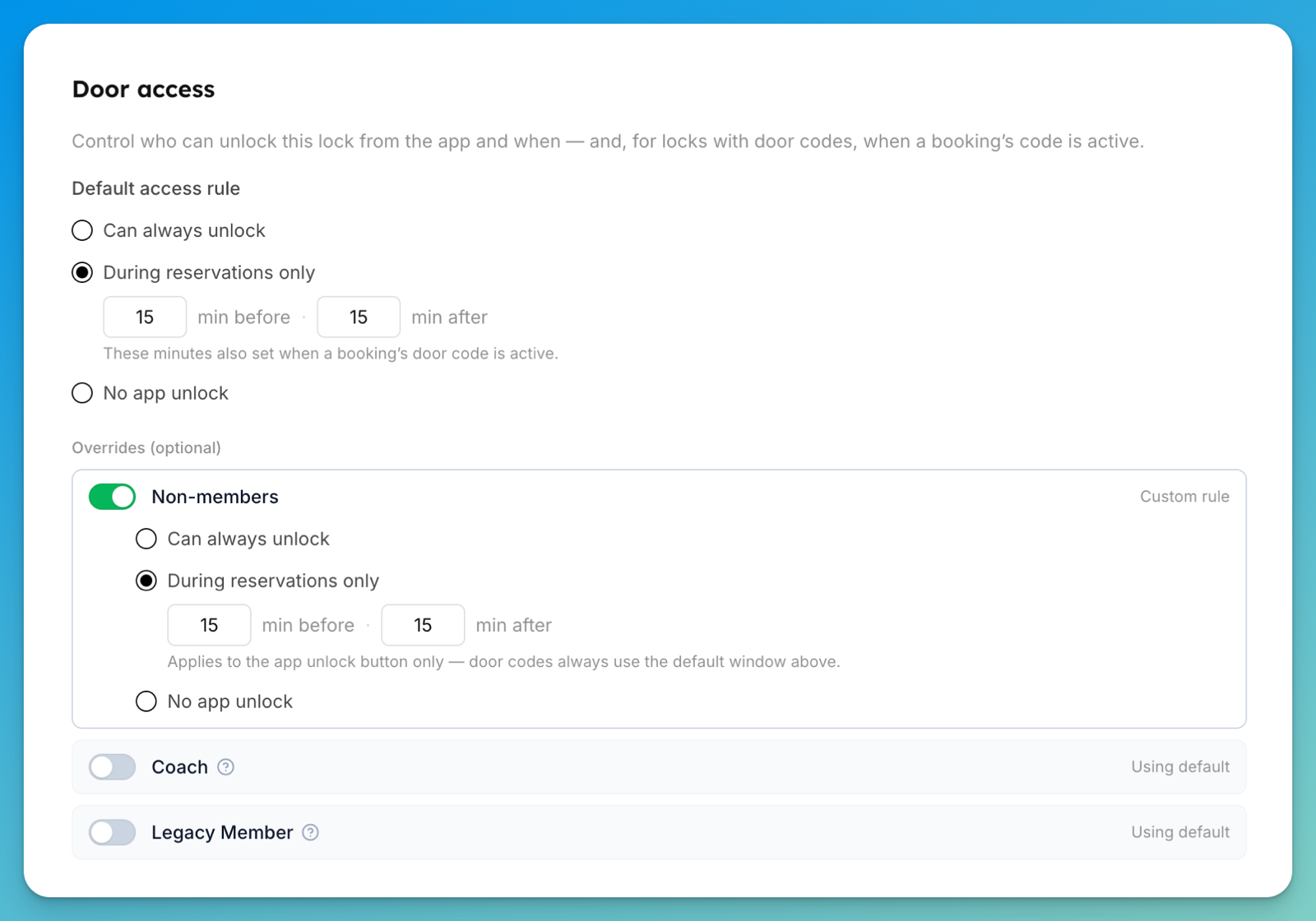
The default rule and an override do different things to door codes.
On the Default access rule, the min before / min after window sets both the app-unlock window and when a booking's door code goes active. The page says so: "These minutes also set when a booking's door code is active."
On an override, the minutes move only the app unlock button: "Applies to the app unlock button only — door codes always use the default window above."
So if you want a group's door code to activate earlier, change the default window. Widening an override won't do it.
When you switch an override to Custom rule it starts out matching the default — same mode, same minutes. That's a starting point, not a link: change it and it stays changed, and later edits to the default won't flow through.
If the effective rule for non-members works out to Can always unlock, the page raises an amber alert: "Non-members can unlock this door anytime." — "With this rule, anyone signed in to OpenCourt who isn't a member of your club can unlock this door at any time — no booking required. If you only meant members, set the Non-members override below to 'During reservations only' or 'No app unlock'." Only leave it that way on purpose.
The separate "Door code window" field
If you set the default rule to Can always unlock or No app unlock, the min before / min after fields disappear — but a code-capable lock still needs to know when a booking's code is live. So a separate Door code window box appears, captioned "When a booking's keypad code is active, relative to the reservation." Set it there instead.
Code-only locks show just this box. A keypad with no remote unlock, or a RemoteLock lock that pushes its own codes, has no app-unlock policy to configure — the whole Door access section collapses to the Door code window field.
Steps
In Settings → Access Controls, set Remote Unlock to Enabled.
Open the lock you want to configure and go to its Door access section.
Set the Default rule's mode. For During reservations only, set the min before and min after.
(Optional) Switch Non-members or a specific rule set to Custom rule and set its mode.
Save.
What customers see
Two things, and they're independent:
An unlock control on their reservation card, which counts down ("Unlock available in 12 min"), turns into a green Unlock door button when your window opens, and reads "Door offline — try again shortly" if the lock is unreachable.
A Door access button on the club home screen. Tapping it lists the doors they can unlock — or, for mobile-key setups, opens the door-access screen in your club's branded app.
Because they're independent, a customer can have a perfectly good door code while the unlock button shows the door offline. The code is stored on the lock, so it still works. See Getting through the door at your club.
If something goes wrong
Customers don't see an unlock option — check that Remote Unlock is Enabled, the customer's rule set isn't on No app unlock, and (for During reservations only) they're inside the allowed window with a booking on the space mapped to that door.
There's no Door access rules section on a lock — who-can-unlock rules appear on Seam, Rhombus, and UniFi Access locks that support remote unlock. A RemoteLock lock shows only the door code window; its customers can still unlock from the app, on the standard reservation window.
A non-member can unlock when they shouldn't — set the Non-members override to No app unlock, or to During reservations only.
A customer still can't get in — work through A customer can't get in — troubleshoot door access.