Connect Rhombus to your club
Connect your club's Rhombus access-control organization so you and your customers can unlock mapped doors from the OpenCourt app.
Connect your club's Rhombus access-control organization so you can unlock mapped doors from the admin app, and so your customers can unlock a door from the OpenCourt app during their booking. (About 2 minutes. You'll need admin access and a Rhombus API key.)
You need access-control permission. The page is under Settings → Access Controls.
Rhombus is an unlock-only integration. It does not create per-booking door codes (PINs) the way Seam and RemoteLock do — instead, people unlock a mapped door from the OpenCourt app. When a door is unlocked it opens for a few seconds and then relocks itself.
Before you begin
You have a Rhombus organization with at least one access-controlled door set up.
You have a Rhombus API key for that organization. Generate one in the Rhombus console (Settings → API keys). Treat it like a password — it grants access to your whole Rhombus organization.
Steps
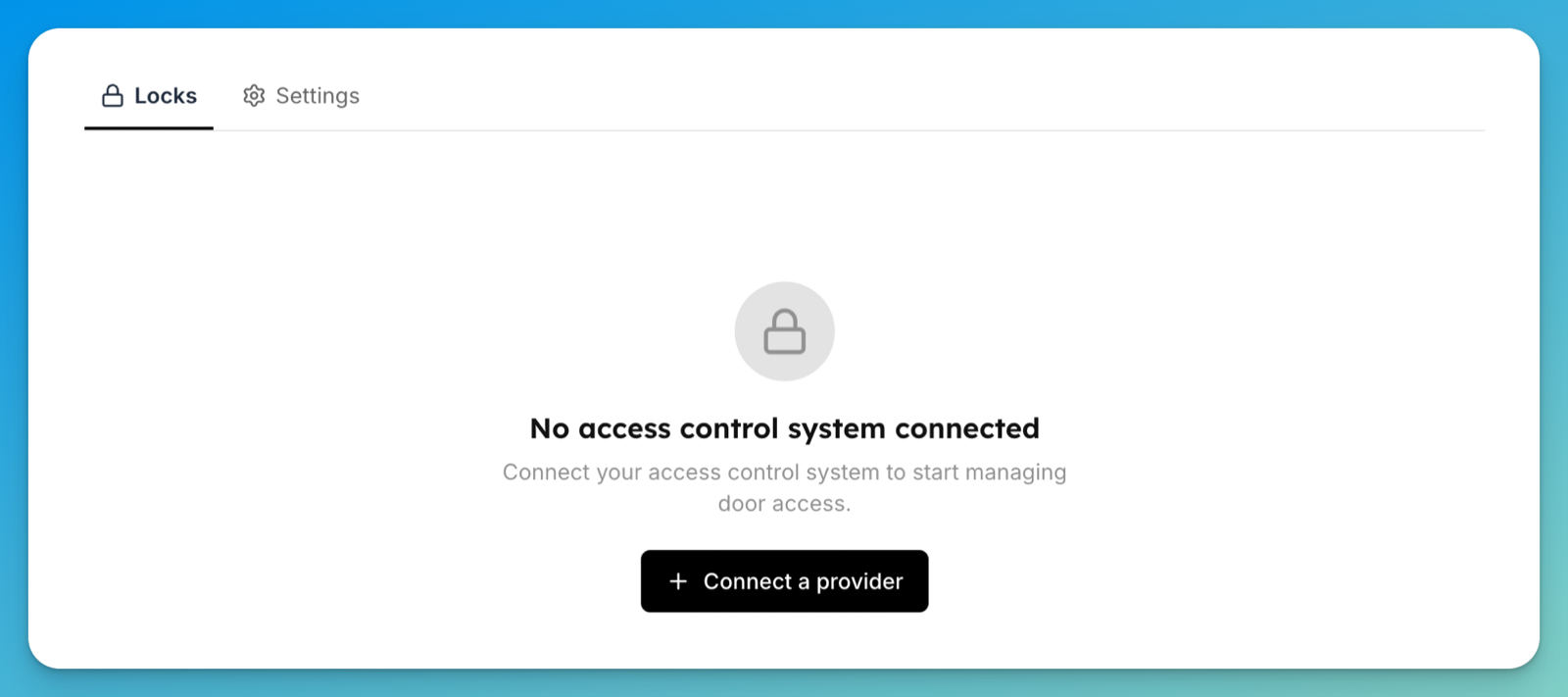
In the admin app, go to Settings → Access Controls. You land on the Locks tab. With nothing connected yet you'll see No access control system connected.
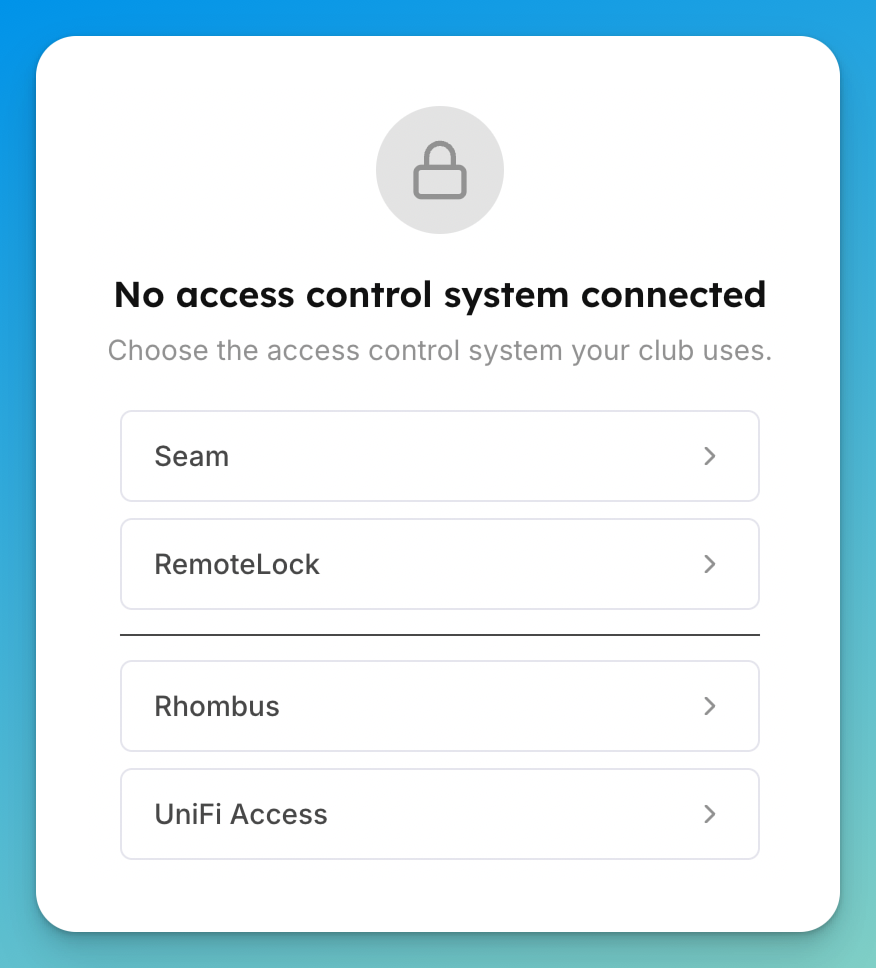
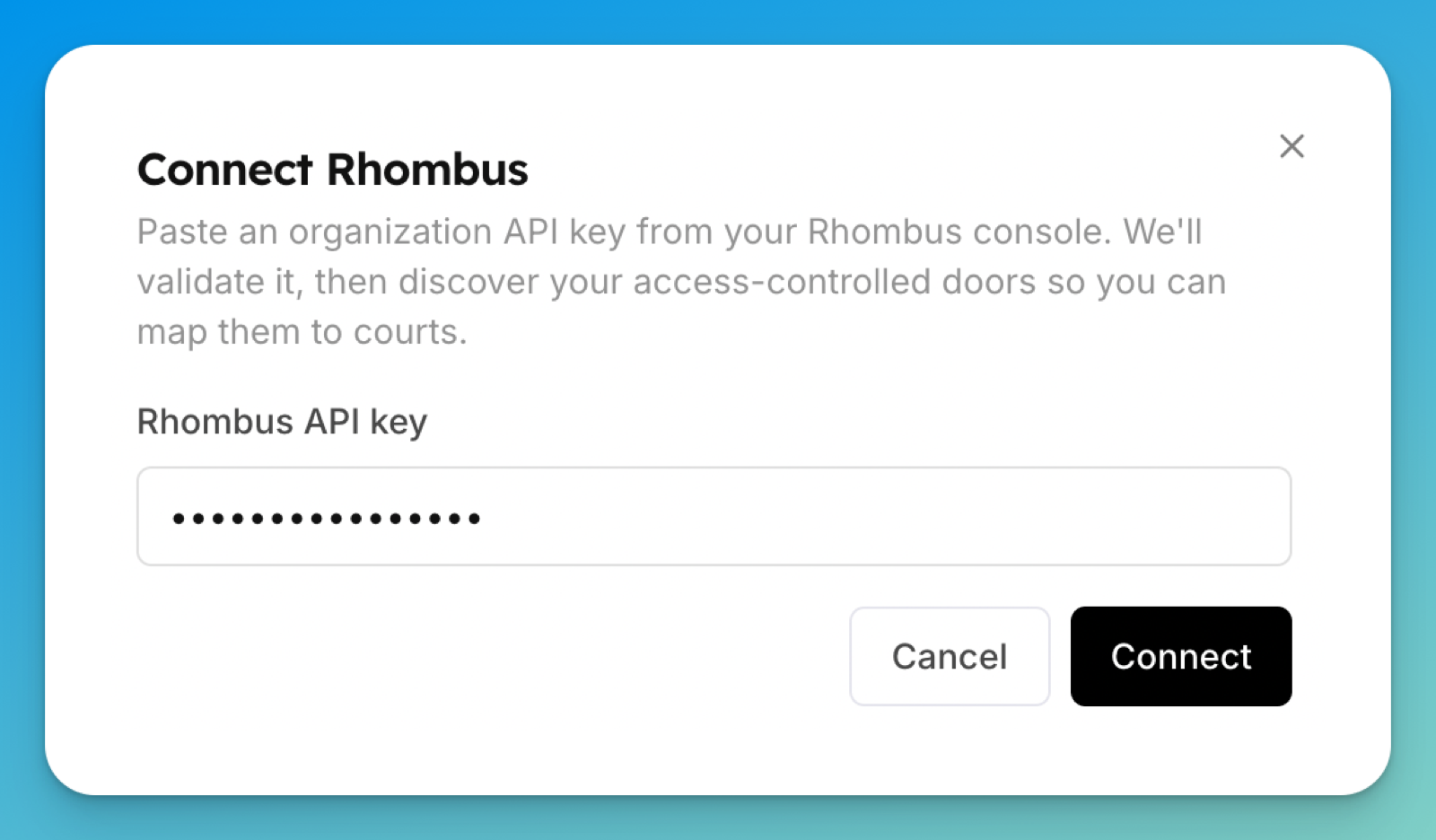
Click Connect a provider, then choose Rhombus. The Connect Rhombus dialog opens — "Paste an organization API key from your Rhombus console. We'll validate it, then discover your access-controlled doors so you can map them to courts."
Paste your key into Rhombus API key and click Connect. OpenCourt validates the key with Rhombus and, if it's valid, finds your organization's doors. (Your key is stored securely and is never shown again.)
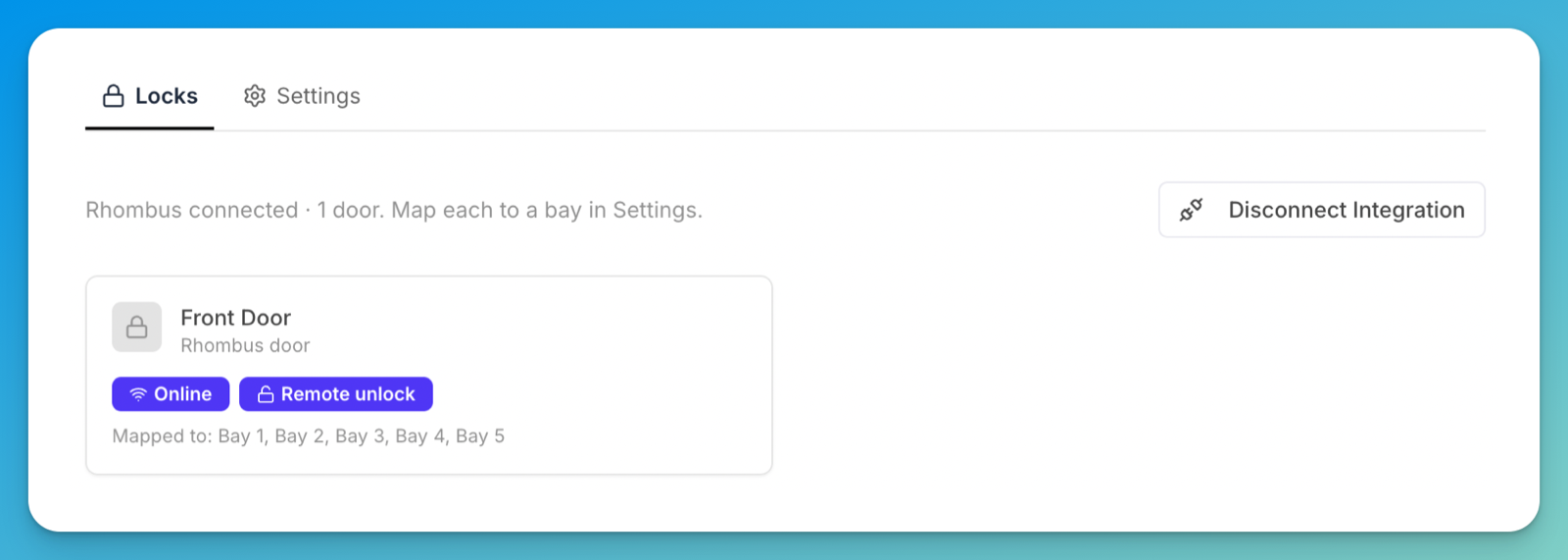
You return to the Access Controls page, which shows a line like "Rhombus connected · 1 door. Map each to a court in Settings." — that line follows your club's wording. Note the door's badges: Online and Remote unlock, with no PIN codes badge — that's the unlock-only nature of Rhombus, visible at a glance.
Map each door to a space. Switch to the Settings tab and find Court-to-Lock Mapping — the heading follows your club's wording. Choose a door for each space and click Save. This is what tells OpenCourt which door belongs to which space, so the right people can unlock it.
Choose who can unlock, and when. Open a door and use its Door access section to control who can unlock it from the app and during which times (for example, only during a booking). See Set who can unlock doors from the app.
What happens next
Customers who book a mapped space can unlock that space's door from the OpenCourt app, according to the access rules you set. You can also unlock any mapped door yourself from its page in the admin app — the door opens momentarily and then relocks on its own.
If something goes wrong
"Couldn't connect to Rhombus — check the API key" — the key was rejected or Rhombus couldn't be reached. Double-check you copied the whole key from the Rhombus console and try again.
"Rhombus is connected, but no doors were found" — add or enable access-controlled doors in Rhombus, then return to Access Controls and refresh.
"The lock didn't respond" when unlocking — a temporary issue reaching the door. Wait a moment and try again.