Disconnect or switch your lock provider
Disconnect a lock provider, understand what disconnecting revokes and removes, and switch to a different provider — Seam, RemoteLock, Rhombus, or UniFi Access.
Disconnect your club's lock provider, or replace it with a different one. (About 5 minutes. You'll need admin access. Disconnecting revokes every active door code, so pick a quiet time.)
This lives under Settings → Access Controls and needs access-control permission. Your club runs one provider at a time — Seam, RemoteLock, Rhombus, or UniFi Access. There's no way to run two at once, so switching means disconnect first, then connect the new one.
Pause codes without disconnecting
If you only need to stop new codes for a while — a closure, a hardware swap, testing — don't disconnect. Change the access-control mode instead. The mode has three options:
Off — "No access codes are used."
Manual Access Codes — you set codes yourself.
Smart Lock ({provider}) — codes are generated automatically.
Switching from Smart Lock to Off or Manual Access Codes shows this confirmation:
New events and reservations will no longer generate {provider} access codes. Existing codes on previously created events will remain active. Your {provider} connection and lock mappings will be preserved if you switch back.
So a mode switch pauses code generation but keeps your connection, your lock-to-space mappings, and your per-lock rules. Disconnecting removes all of that. For anything temporary, switch the mode.
Disconnect the integration
Go to Settings → Access Controls and stay on the Locks tab. Disconnect Integration sits at the top right, above your lock cards — not on the Settings tab.
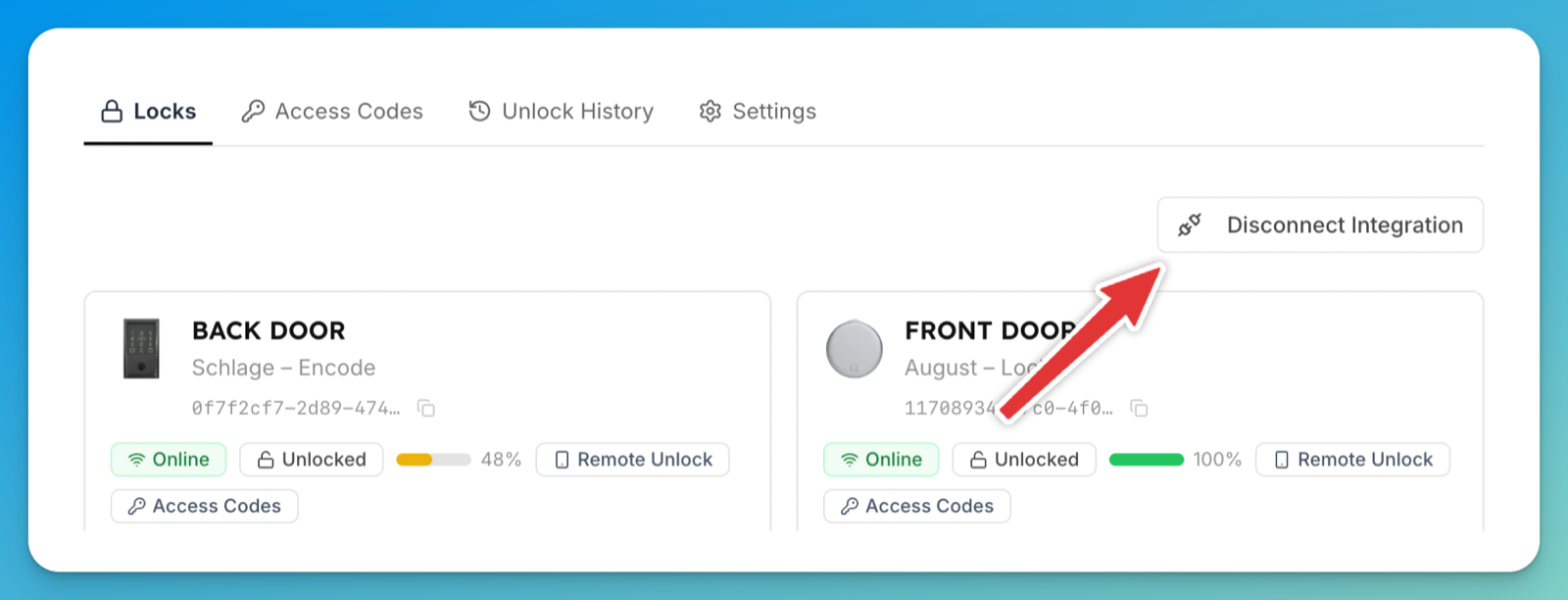
Click Disconnect Integration. A confirmation opens titled Disconnect locks integration? with this text: "This will immediately revoke all active door codes and remove all lock devices. Customers and staff will lose smart lock access until you reconnect a provider. You can reconnect at any time."
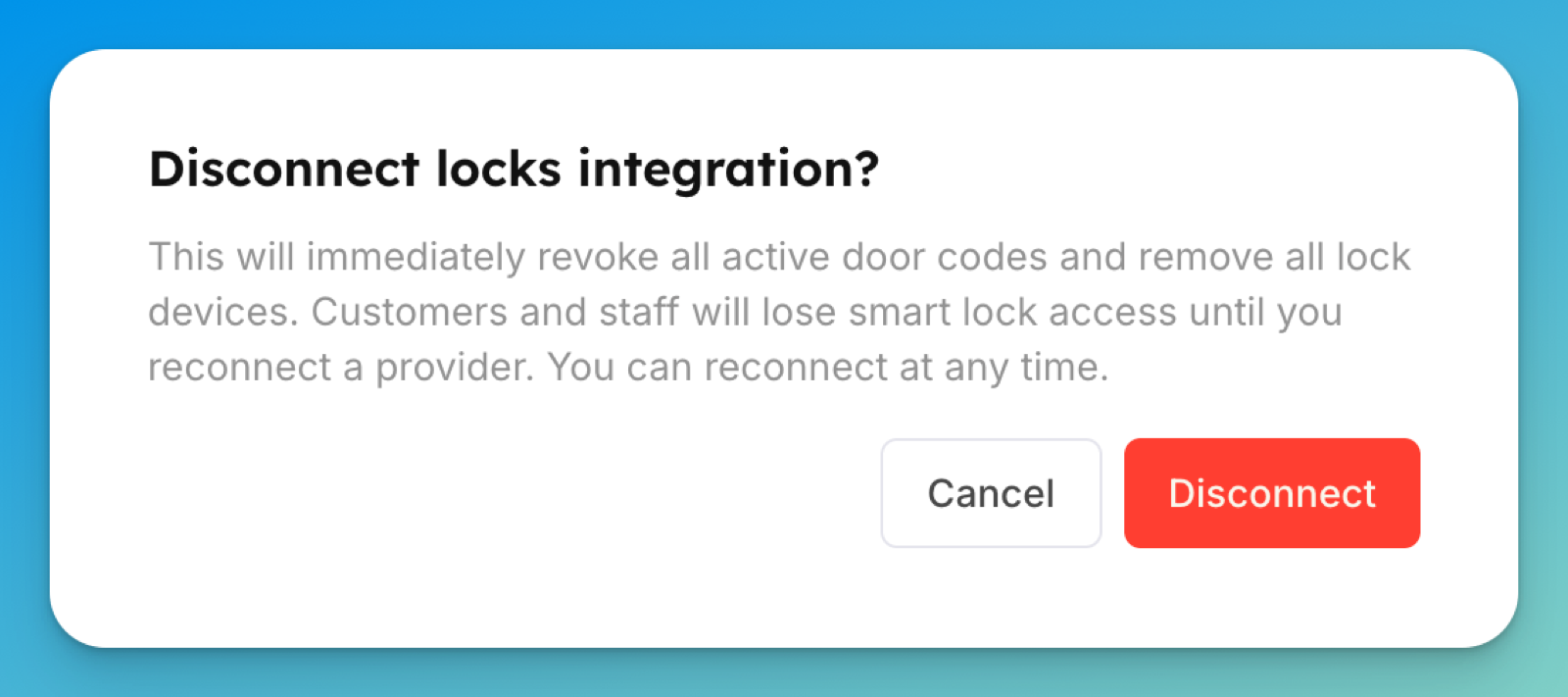
Click Disconnect. You'll see Locks integration disconnected. and the page returns to the provider picker: "Choose the access control system your club uses." — listing Seam, RemoteLock, Rhombus, and UniFi Access.
What disconnecting removes
Disconnecting is immediate and clears everything:
All active door codes are revoked and stored codes are deleted — customers and staff lose smart lock access right away.
Every lock device and its space mapping is removed.
The provider connection is removed.
The action is recorded in your club's activity log.
Reconnecting later means re-mapping locks to spaces and reconfiguring per-lock rules from scratch.
Switch to a different provider
Pick a quiet time. Customers with upcoming bookings lose their codes the moment you disconnect.
Disconnect the current provider (steps above).
Connect the new provider from the picker: Seam, RemoteLock, Rhombus, or UniFi Access.
Re-map each lock to its space — mappings don't carry over.
Re-set your per-lock rules (who can unlock, and when).
Test one booking end-to-end to confirm codes reach the hardware.
Existing future bookings do not get new codes on their own. Codes are issued when a booking is created or changed — connecting a provider and mapping spaces doesn't sweep back over bookings that already exist. So every booking made before the switch is left without a code, silently.
Re-save each affected upcoming booking (opening and saving it re-issues the code), or contact OpenCourt support to re-issue them in bulk. If you have more than a handful, ask us — don't click through them one by one.
If something goes wrong
Disconnect fails or errors — a temporary connection issue. Try again shortly; if it keeps failing, contact OpenCourt support.
Customers report lost door codes after disconnecting — expected. Disconnecting revokes every active code immediately (see the timing note above). Re-save their bookings or contact support to re-issue codes.
You disconnected but only wanted a pause — reconnect the provider, then re-map locks and rules. Next time, switch the mode to Off instead — it keeps your connection and mappings.