Upgrading / Downgrading Membership
The Membership Upgrade/Downgrade feature makes it easy to switch members between different plans — whether they’re moving from monthly to annual, upgrading to a higher tier, or switching to a lower one.
🔁 When to Use It
Use this feature to:
Move a member from Monthly to Annual billing (or vice versa).
Upgrade a member to a higher-tier plan.
Schedule a downgrade to a lower-tier plan at their next renewal date.
⚙️ How to Change a Membership
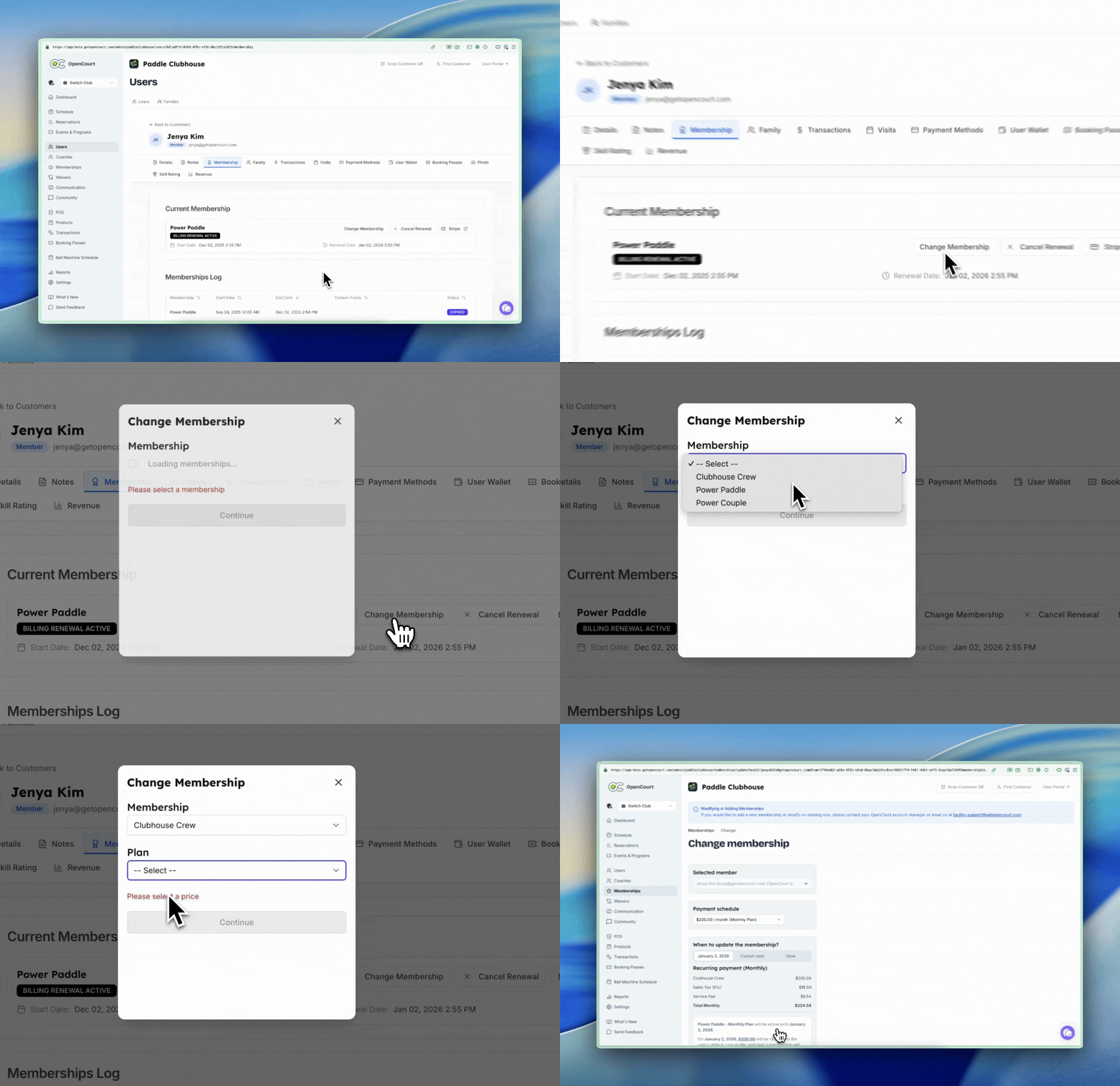
Go to the member’s Profile.
Open the Membership tab.
You’ll see their current membership details — including start date and next renewal date.
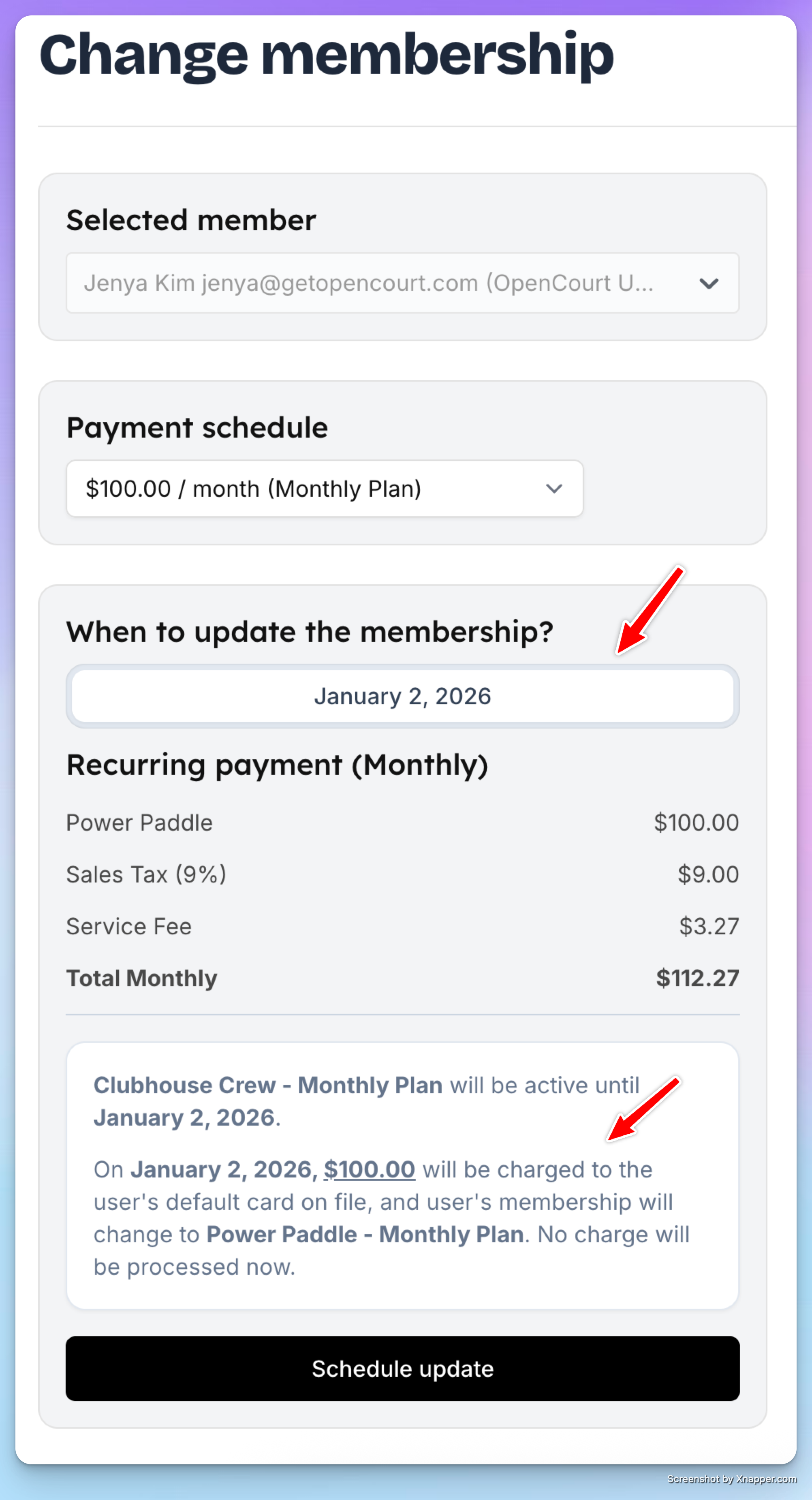
Click Change Membership.
Select the new membership type and plan.
Click Continue.
⏰ Choose When to Apply the Change
When upgrading, you’ll see three options for when to apply the new membership:
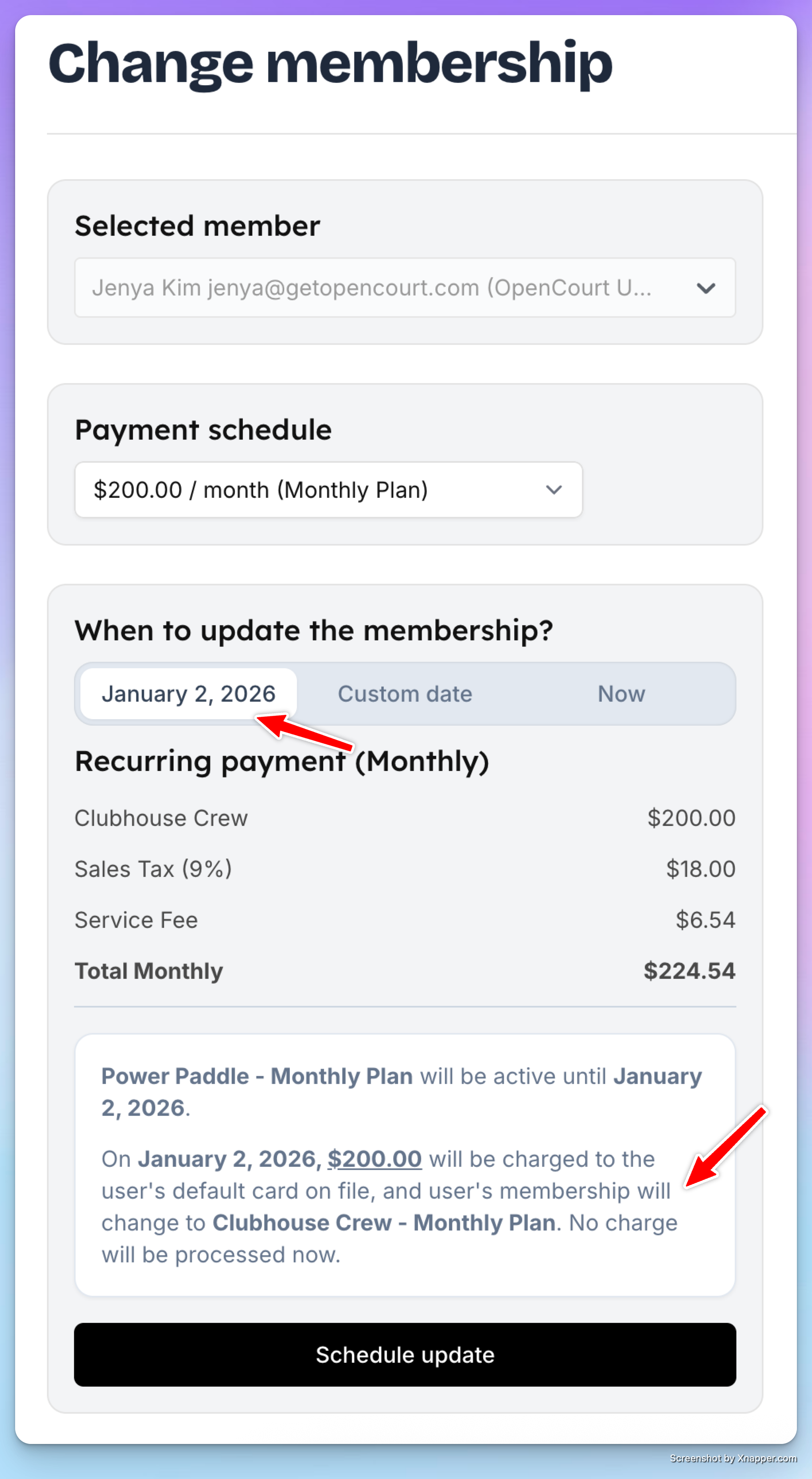
1. At Next Renewal Date (Recommended)
The membership will switch automatically on the next billing date.
No charge is processed today.
On the renewal date, the new membership plan and price will apply.
✅ This is the most common option for upgrades and plan changes.
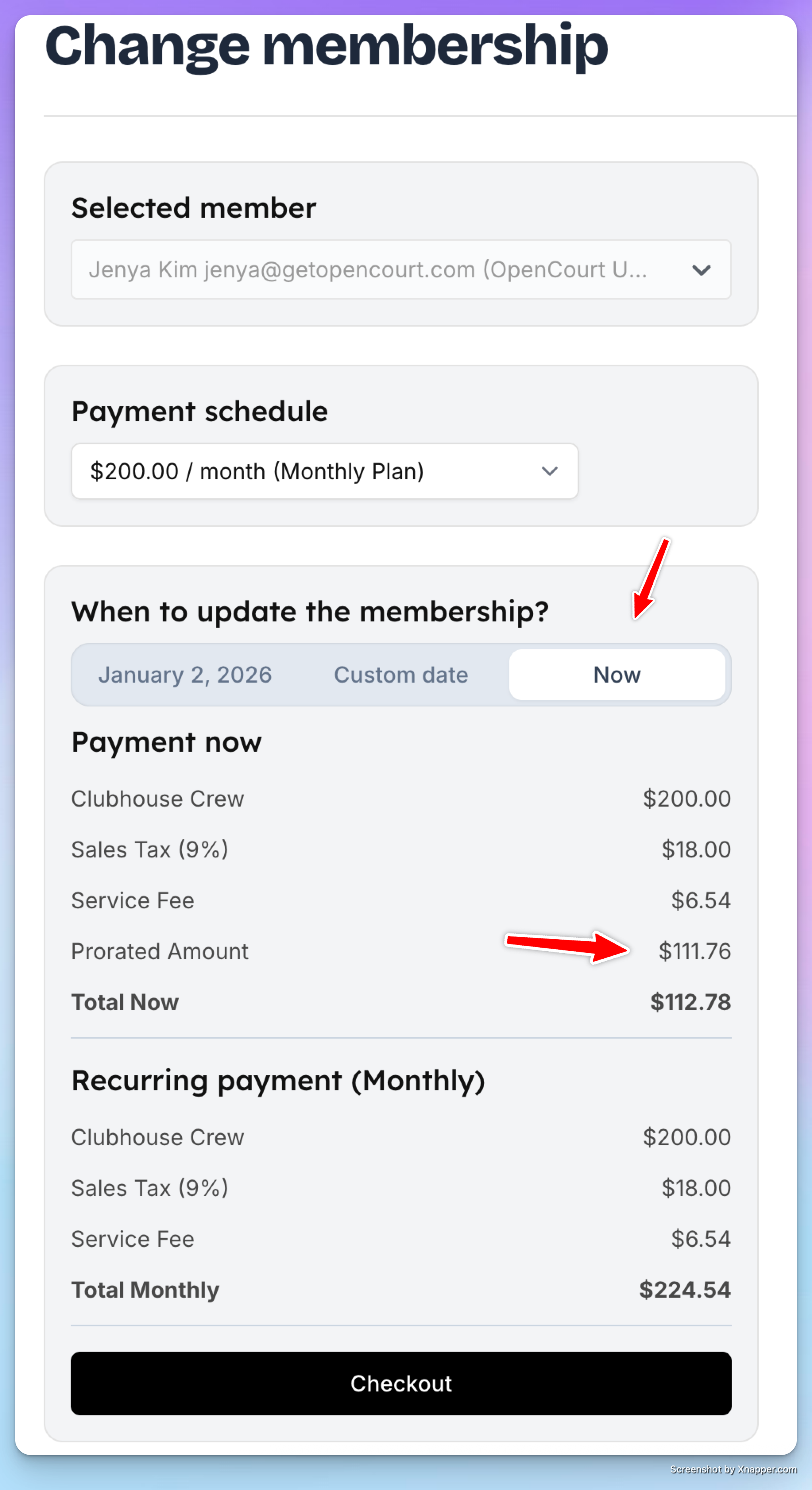
2. Effective Now
The member’s plan changes immediately.
The system automatically calculates a prorated amount based on the unused days from the current plan.
The member is charged the difference between the remaining value of their old plan and the price of the new one.
Starting from the next billing cycle, they’ll be charged the full amount for the new plan.
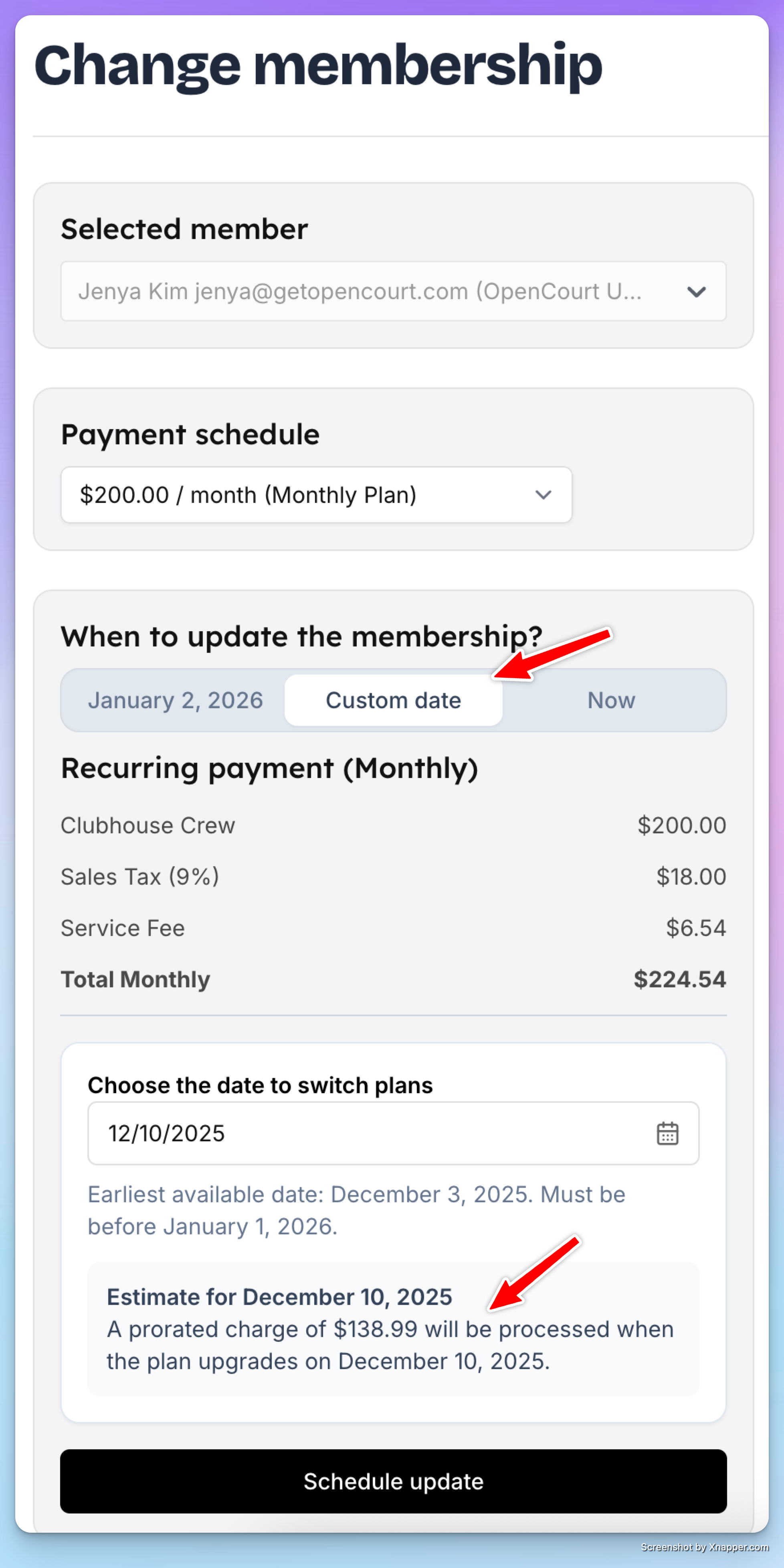
3. Custom Date
Choose any date in the future to schedule the change.
The system calculates the prorated amount as of that date and shows you the expected charge.
Click Schedule Update to confirm.
The membership will automatically update on that date.
⬇️ Downgrading a Membership
When downgrading (moving to a lower plan):
You can only schedule the change for the next renewal date.
No refunds or partial adjustments are made for the current billing period.
On the renewal date, the new lower-tier membership will automatically take effect.
This policy helps prevent mid-cycle refunds and keeps billing consistent.
🔄 Reviewing or Canceling Scheduled Updates
After scheduling an upgrade or downgrade:
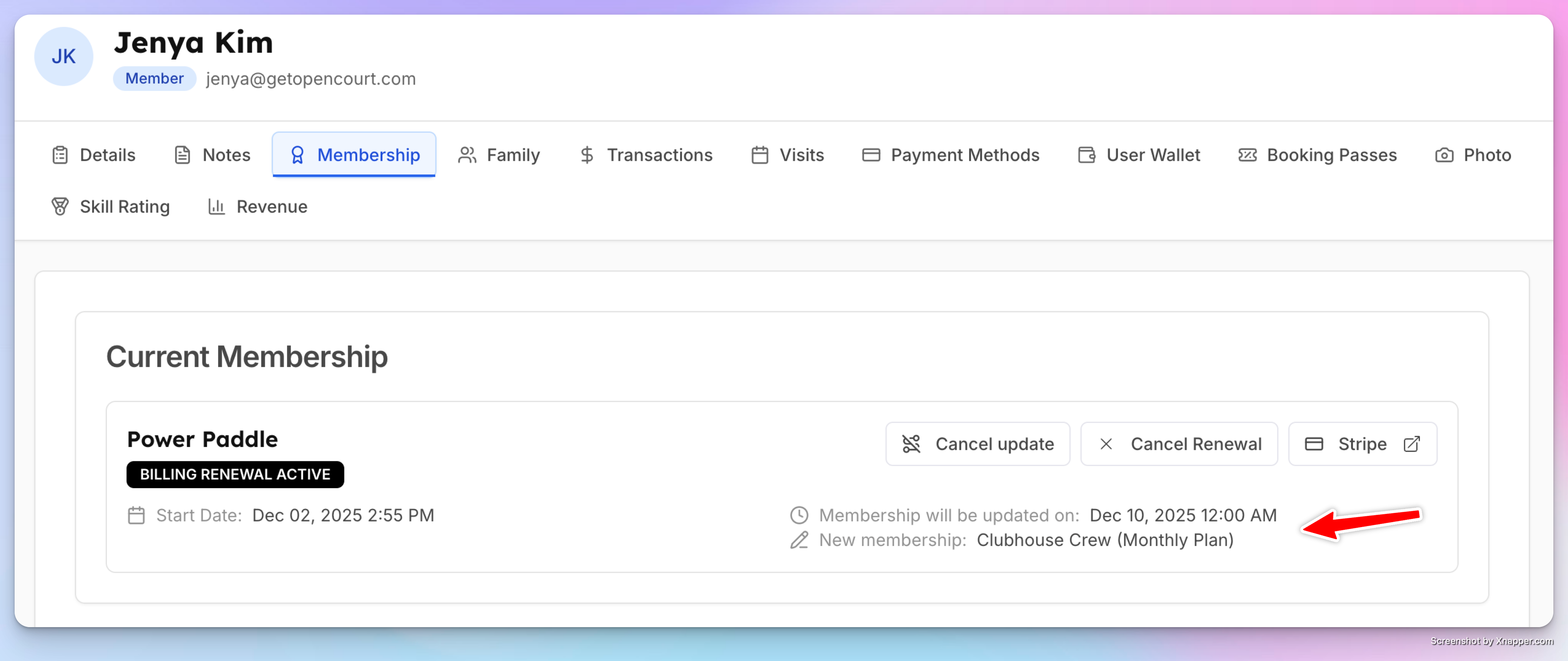
You’ll see both the current membership and the upcoming change listed in the member’s profile.
If the member changes their mind or you made an error, you can click Cancel Update to revert the change.
✅ That’s it! You can now easily manage membership changes — whether it’s an upgrade, downgrade, or plan switch — without canceling or re-adding members.