Checking if a customer signed a waiver
You may occasionally need to confirm whether a customer has signed your club’s waiver. You can easily check it on their user’s profile page.
Steps to Check Waiver Status
Method 1. Open their user’s profile on Users page
Click Users page in the left-hand menu.
Use the search bar to find the customer by name or email
Click the customer’s name to view their full profile
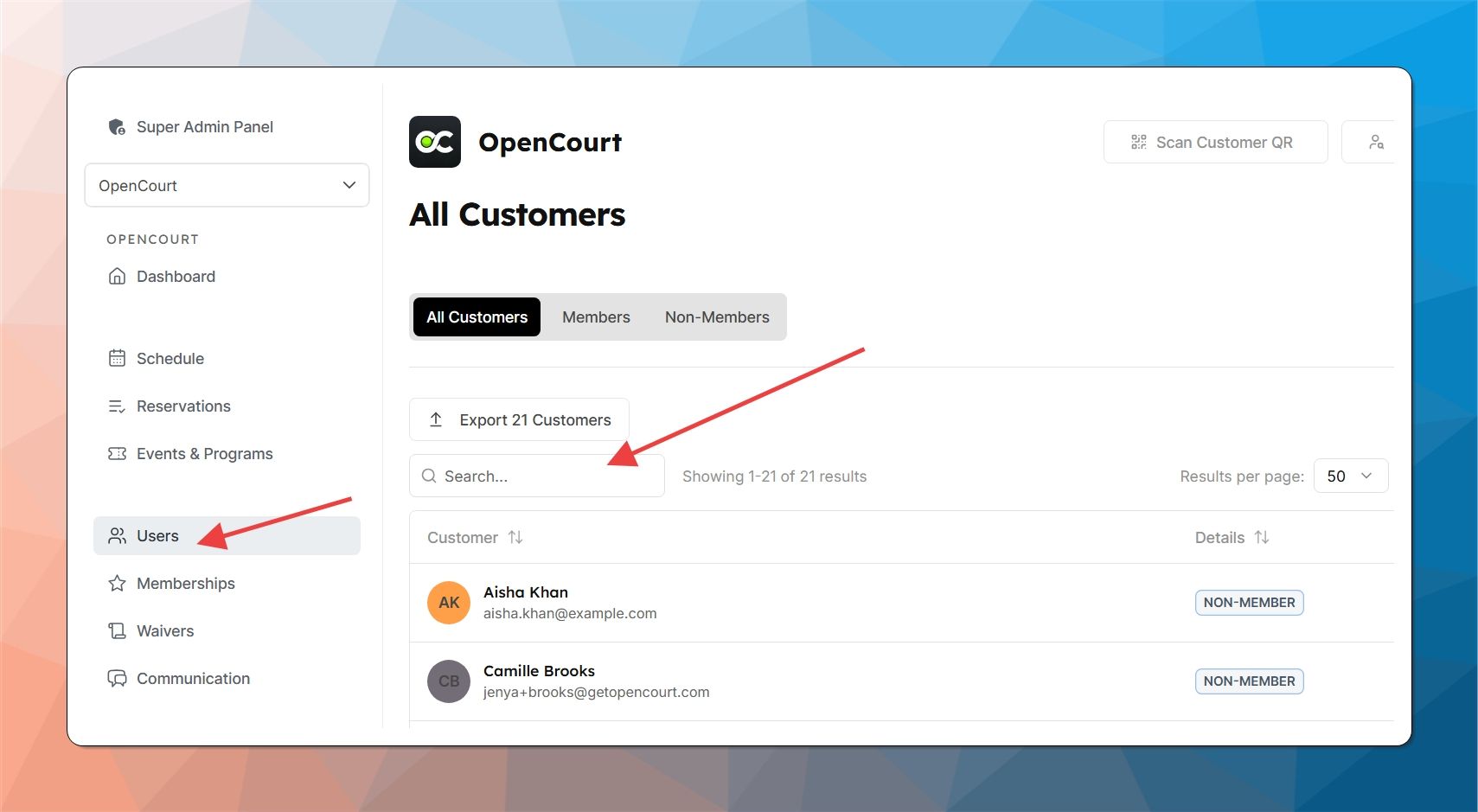
Under Details, scroll to “Membership & Waiver” section
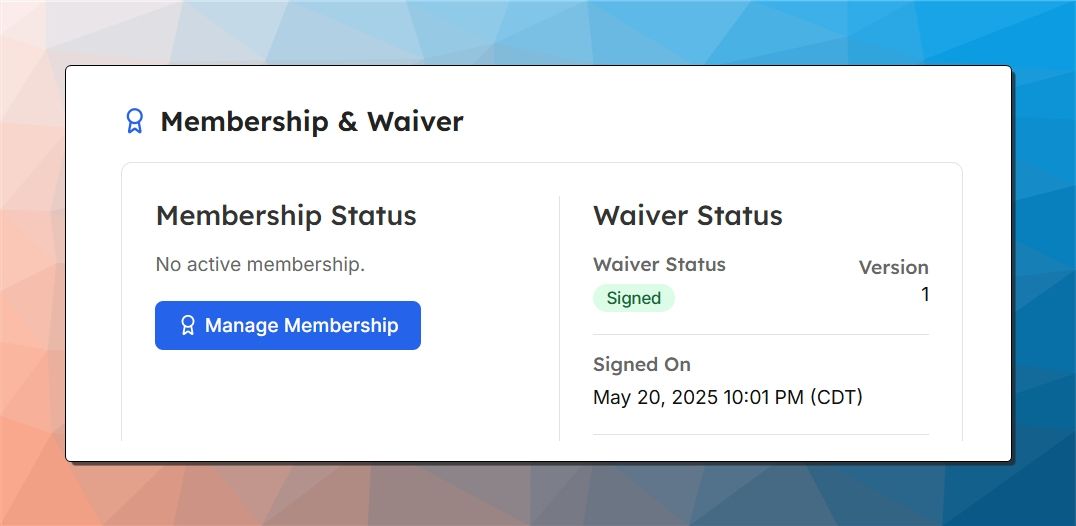
Look for the Waiver Status under this section
If Waiver is signed If the customer has already completed the waiver, you’ll see:
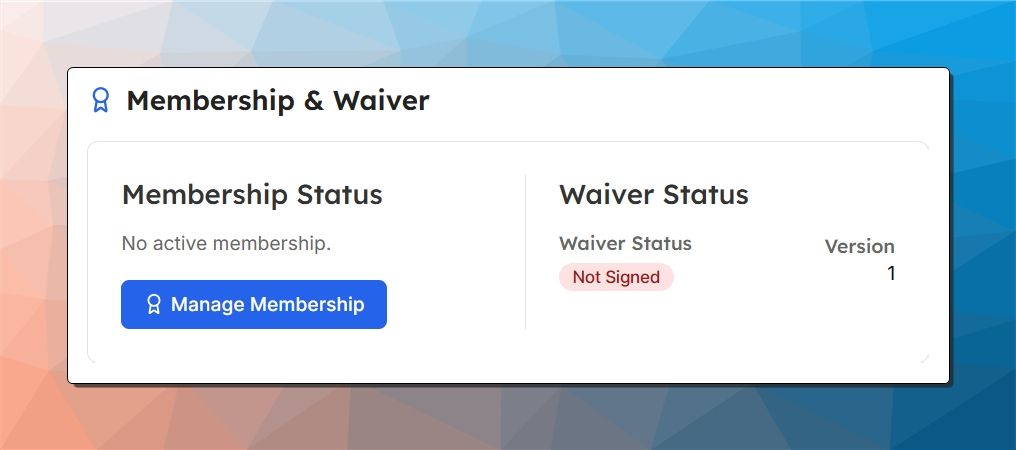
If Waiver is not signed If the waiver has not been signed, you'll see:
Method 2: Using the QR Code Scanner or Find Customer
Whip this out for quick checks at the front desk, especially during busy periods or for first-time visitors. It’s ideal when a player’s standing right there with their QR code ready.
In the admin panel, click "Scan Customer QR"
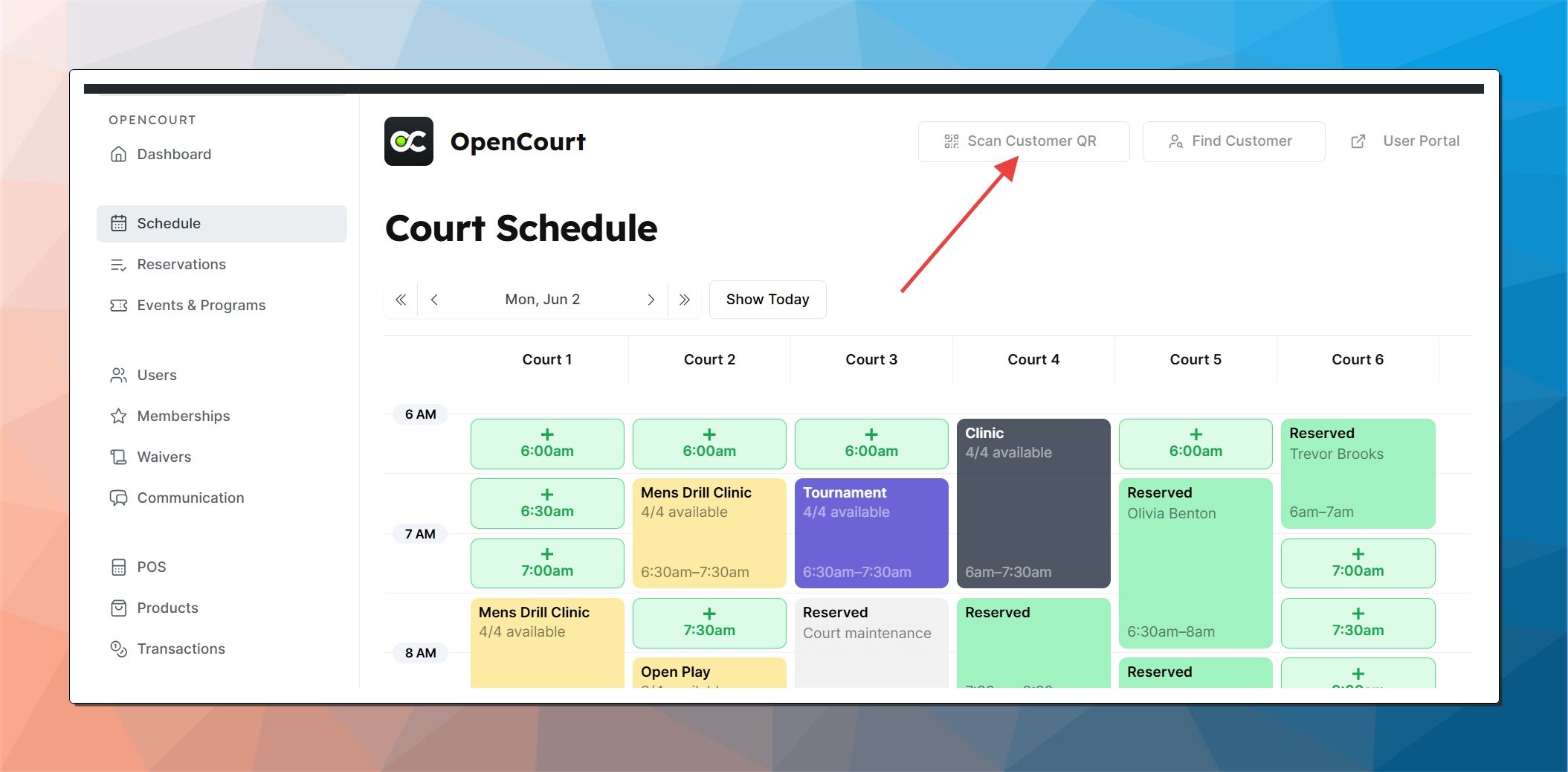
Ask the customer to show their QR code The user must have the OpenCourt app (or your branded app) ready, or they can visit app.getopencourt.com and go to the "My Profile" tab where they can find their own Check-In QR code.
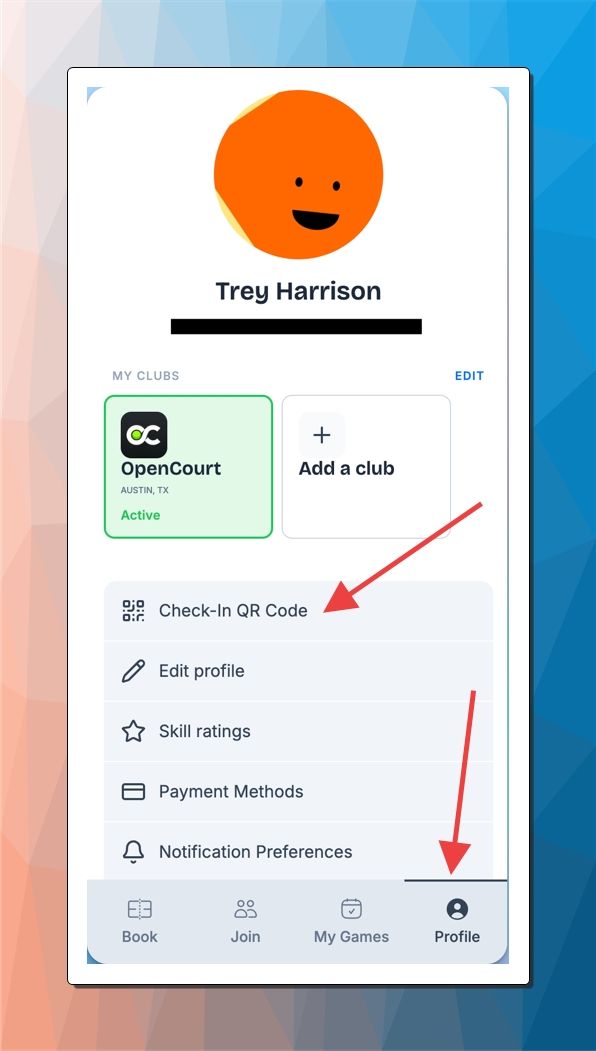
Scan the Customer's QR Code and View the player’s info
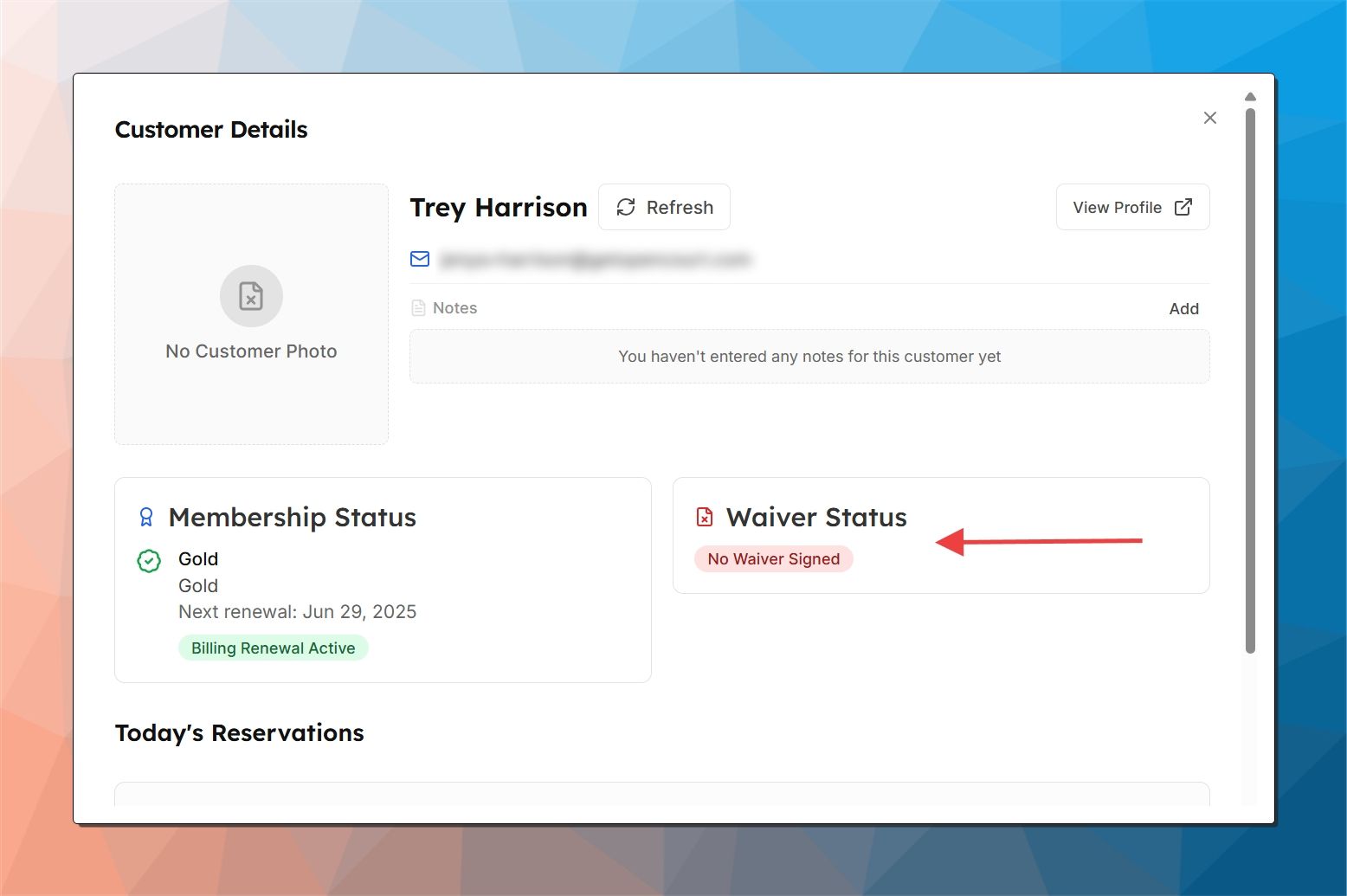
Once scanned, a Customer Details pop-up appears.
In the Customer Details pop-up, look under Waiver Status to see if it’s signed or not signed.
💡 Additional tips
If a new version of your waiver is created by the OpenCourt team, all users will need to sign it again, regardless of whether they signed a previous version.
If needed, you can send the club waiver link to the customer directly:
https://app.getopencourt.com/club/<your_club_name>/waiverThe system will also prompt users automatically during court bookings, event registration, and membership purchases if a waiver signature is missing.