Editing Programs (Event Series)
Quickly update multiple upcoming events in a program without having to edit or recreate each one manually. This is especially useful if you’re running recurring events like weekly open plays or clinics and need to adjust times, courts, or a number of participants mid-season.
And you can also add new events to an existing program whenever needed — for example, to extend the series or insert an extra session between existing dates.
When to use “Bulk Edit”
Use Bulk edit when you need to:
Change time slots, courts or participant limits for multiple future events at a time.
In this scenario, you can select one or multiple instances of the Program (events), and apply these changes to them quickly and easily.
When to use “Edit Settings”
Use Edit settings when you need to change details that apply across sessions—like the event name/description, privacy, pricing, or requirements.
Update event settings like pricing, public registration, divisions, or skill ratings.
Add or remove sign-up questions.
Modify event descriptions or names across all sessions.
When to edit Events individually
You can choose to edit any given event within the program individually. You can adjust any settings on that individual event – however, keep in mind that editing any event individually makes it not follow any settings of the Program. In a way, it becomes “detached” from any future updates of the Program, while still technically being a part of it.
How to Bulk Edit a Program
Go to Events & Programs from the left-hand menu.
Click on Programs or Event Series.
Under the Active tab, find the program you want to edit.
Click Bulk Edit.
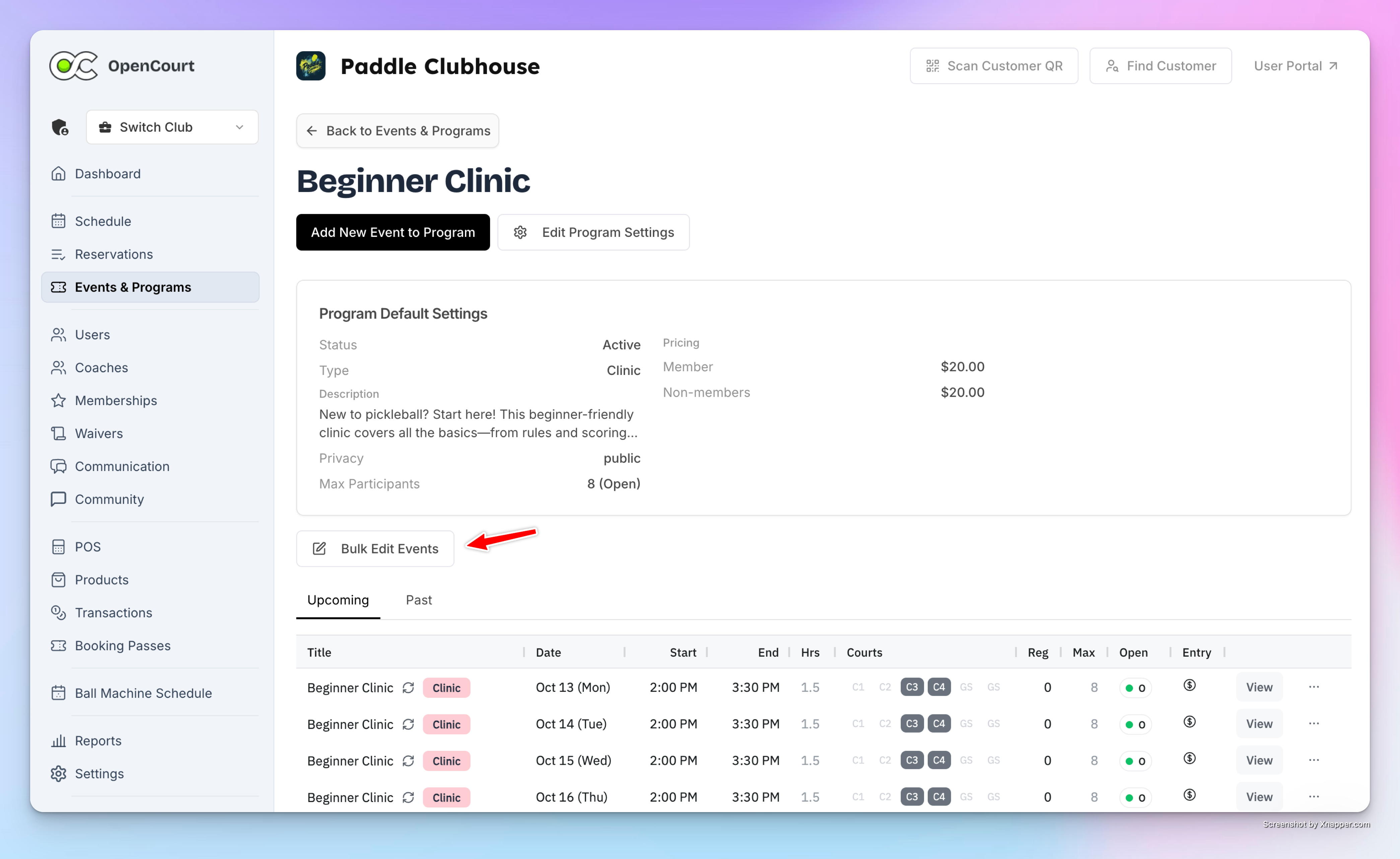
Select which events you want to modify:
Choose All events in the series,
Or click the small arrow icon to select this event and all events after it (e.g., starting next month).
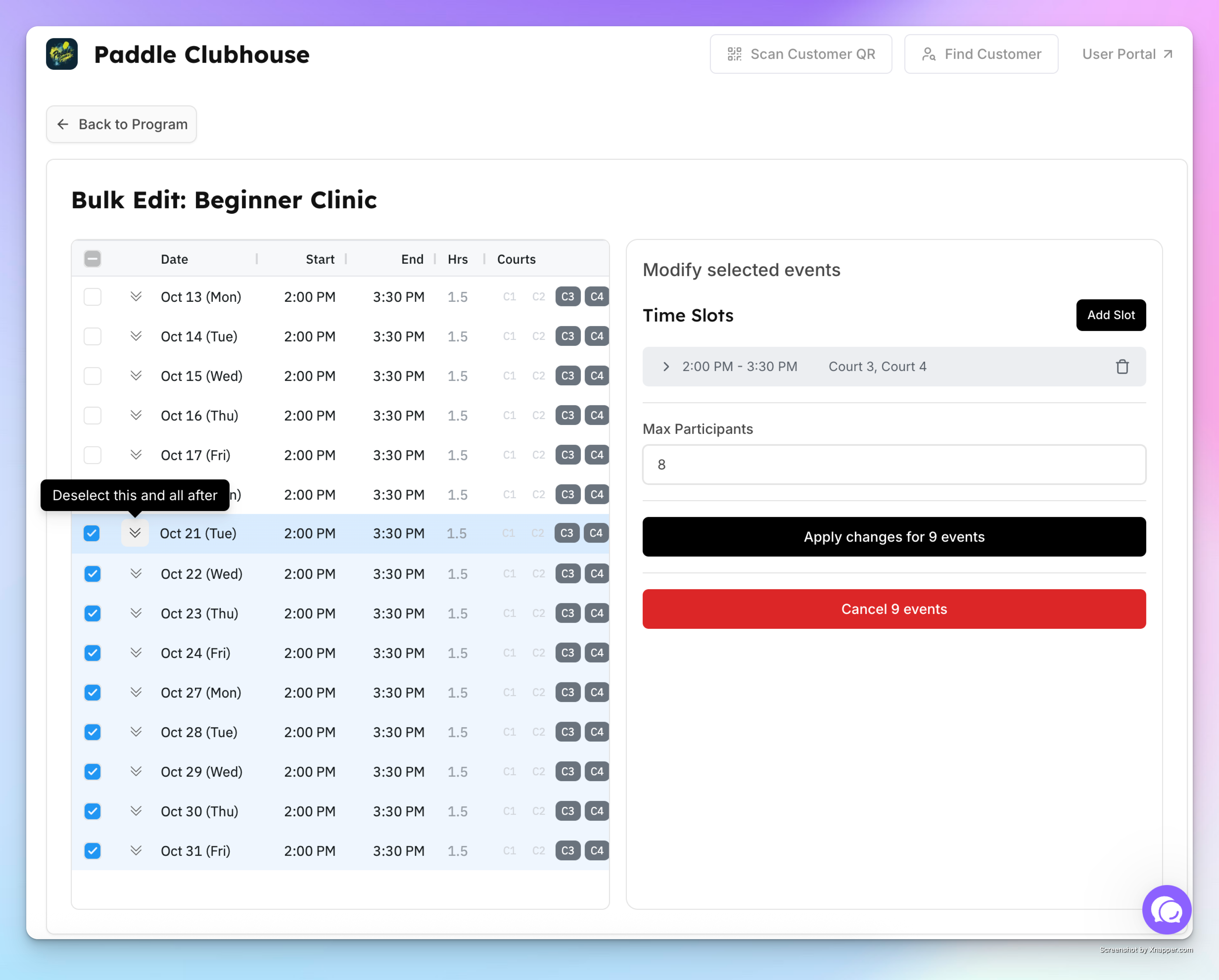
Once selected, click Apply Changes.
After confirming your edits, click Update Event Series. You’ll see a success message (“Programs bulk edited successfully”) and your changes will appear immediately under Upcoming Events.
Note:
If you change the time or courts to slots that are already booked, the system will show an overlap warning. Simply choose a different time or court to avoid conflicts.
How to Edit Program Settings
Go to Events & Programs → Event Series.
Open the program and click Edit settings.
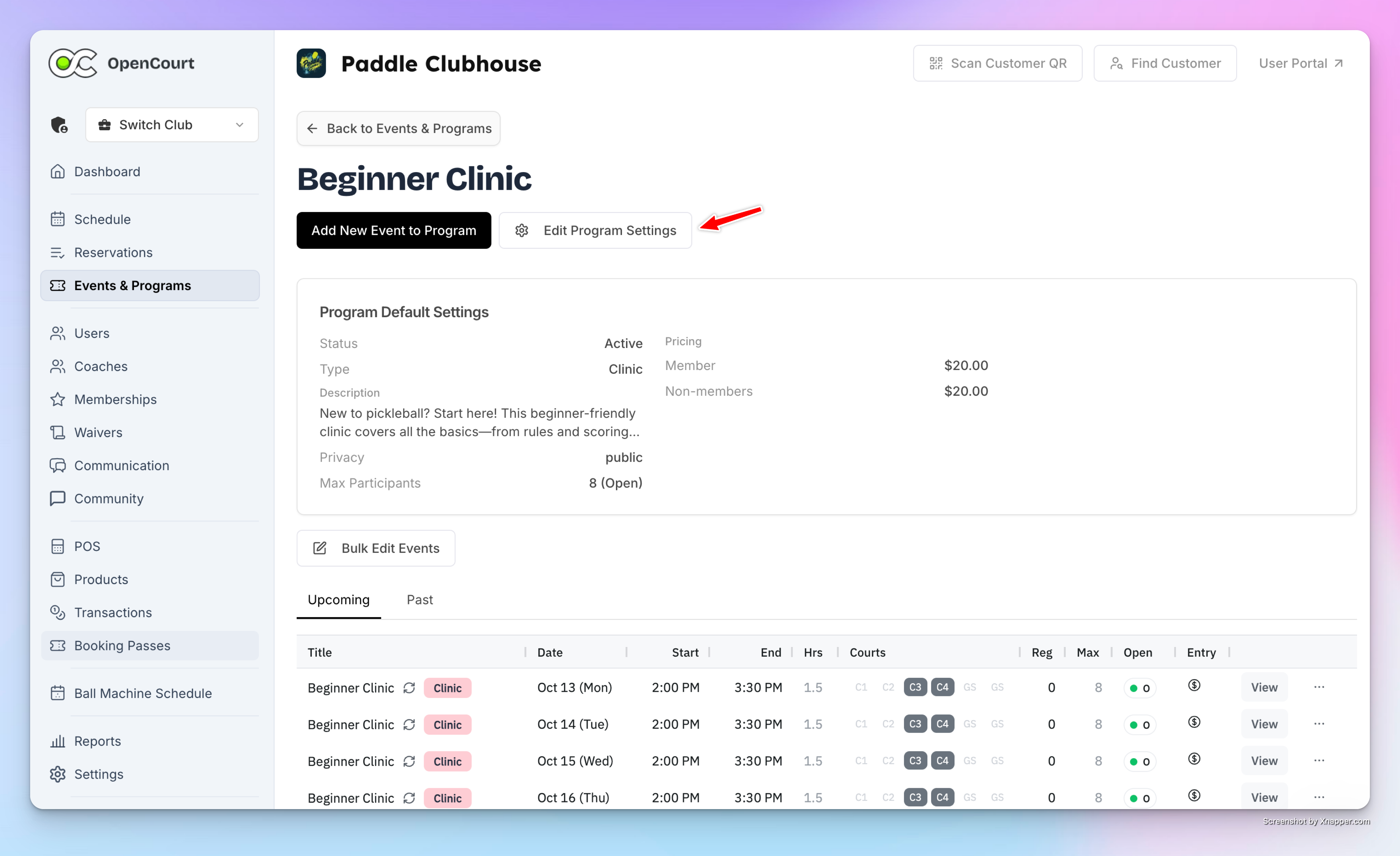
Update any of the following:
Name & Description
Public Registration (toggle on/off)
Make Event Private (from this point forward)
Participants Limit
Pricing
Skill Rating (add/remove)
Sign-up Questions (add/remove)
Event Divisions (add/remove)
Click Update Event Series.
Scope of changes:
Settings apply only to the upcoming events. After saving, you’ll see a success message and the updates will appear immediately under Upcoming Events.
Adding or Removing Events in the Series
And you can also add new events to an existing program whenever needed — for example, to extend the series or insert an extra session between existing dates:
Click Add New Event to Program.
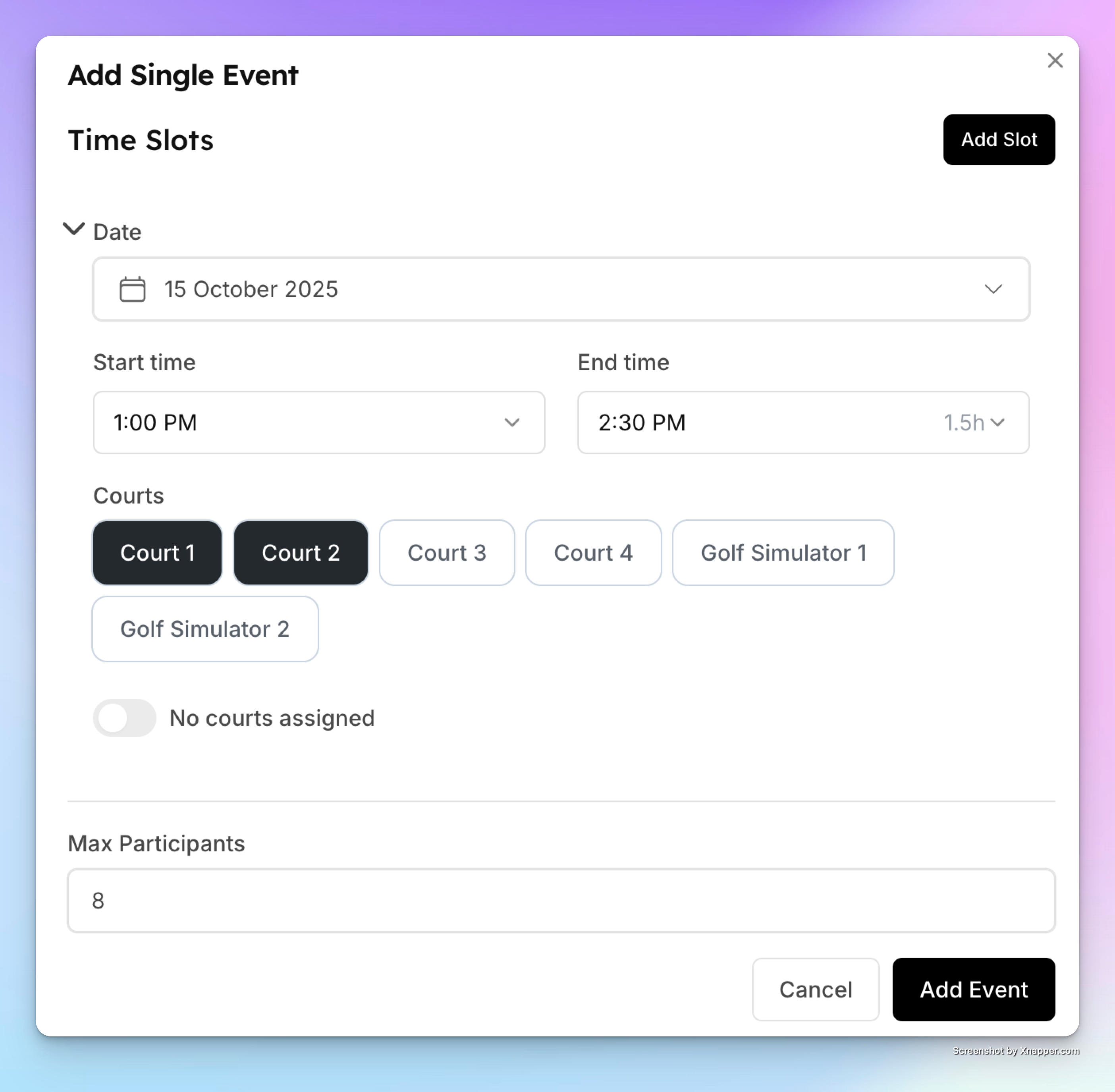
Choose a new date, time slot, and court(s).
Set the participants limit.
Click Create.
The new event will automatically appear in your program list.