Auto-Cancellation for Events
The Auto-Cancellation feature makes it easy for clubs to manage events that depend on a minimum number of participants, such as clinics and open plays. If an event doesn’t reach the required number of sign-ups by a set time, it will be automatically canceled, and refunds will be issued to participants.
How It Works
When creating an event (e.g., open play, clinic), admins can enable Auto-Cancellation:
Enable Auto-Cancellation
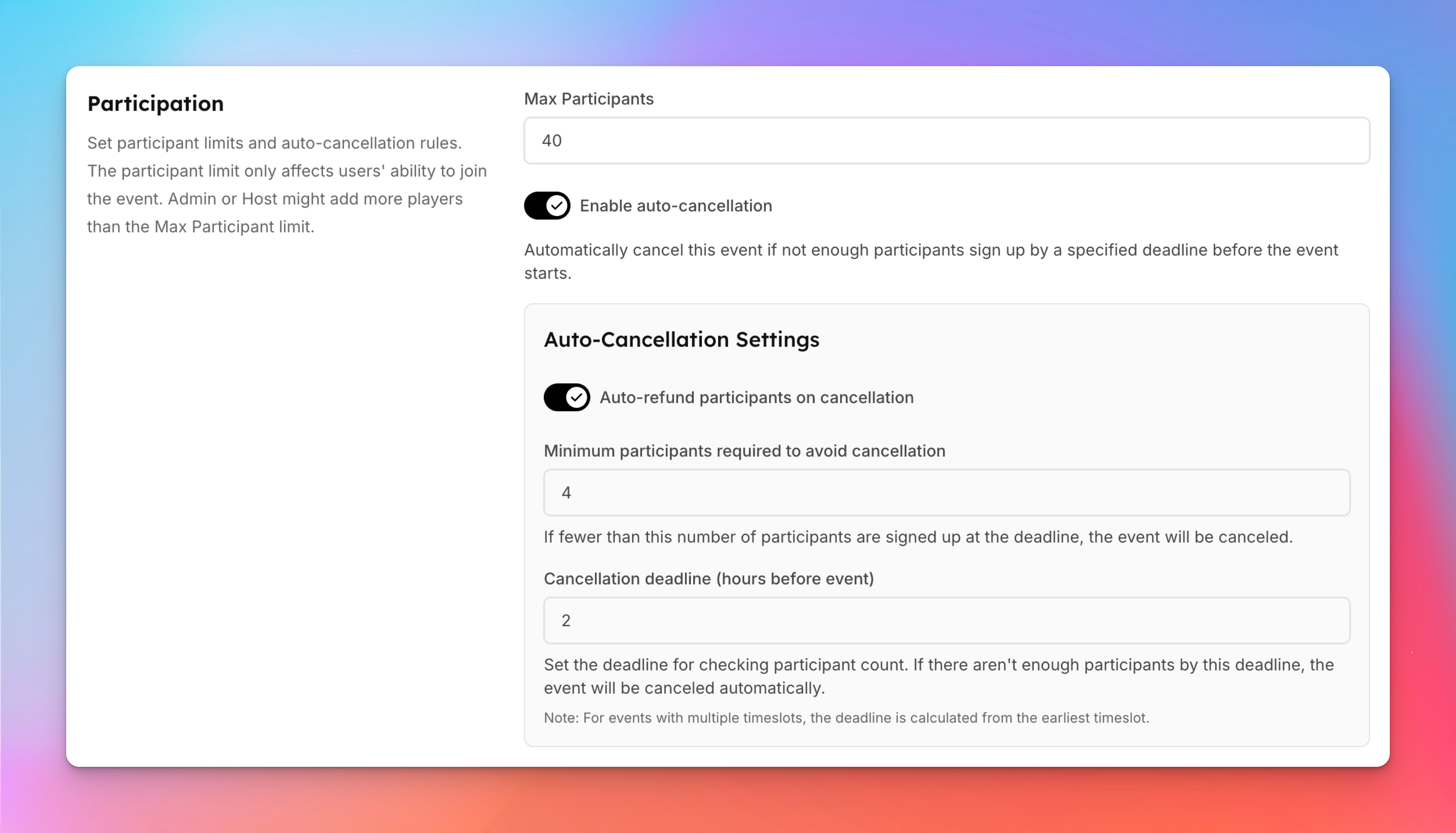
In the Participation block toggle on Enable Auto-Cancellation.
Set the minimum number of participants required for the event.
Example: 4 participants minimum.
Set the Cancellation Check Time — Choose how many hours before the event the system should check registrations.
Example: Check 2 hours before start time.
Save the Event
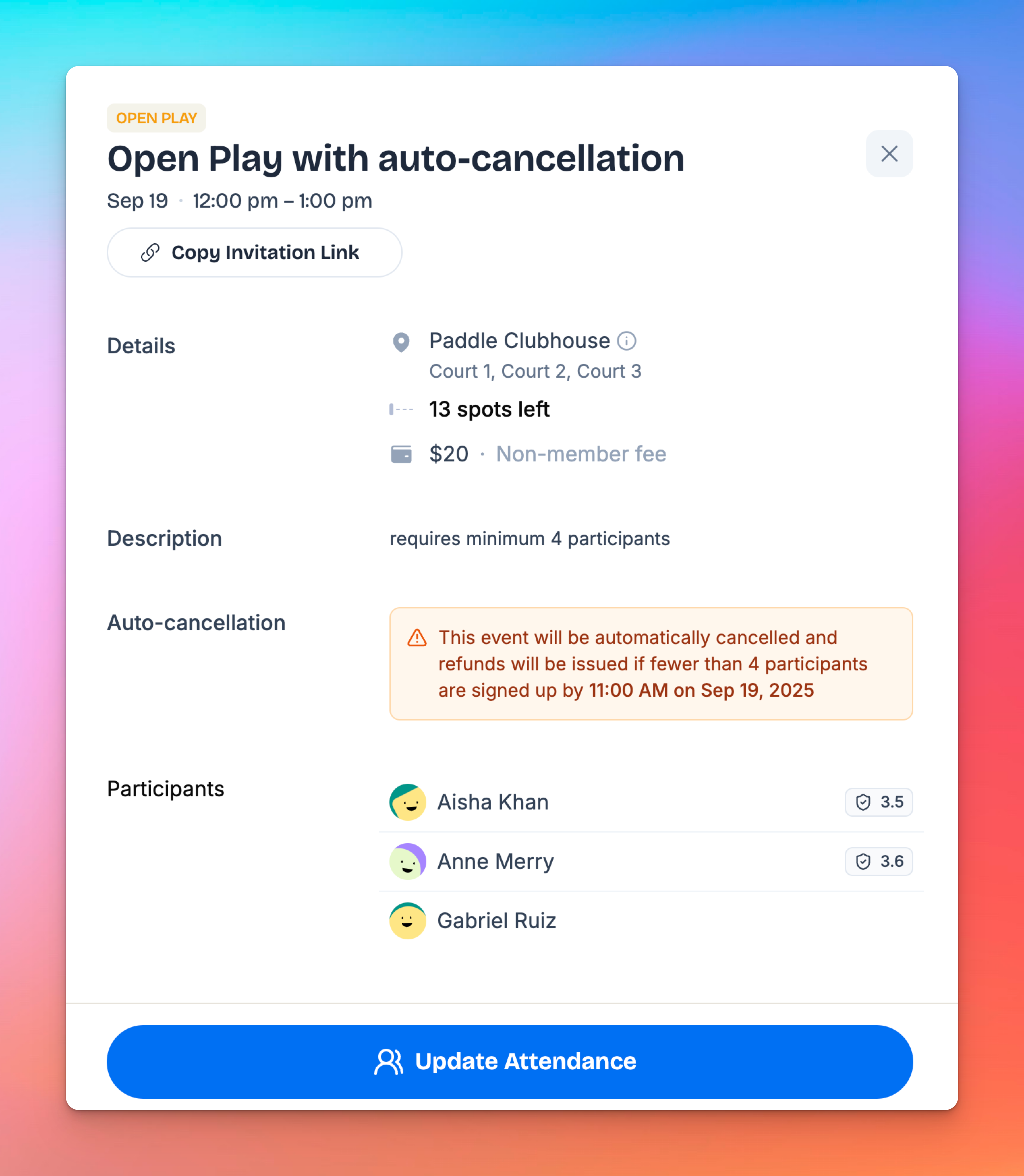
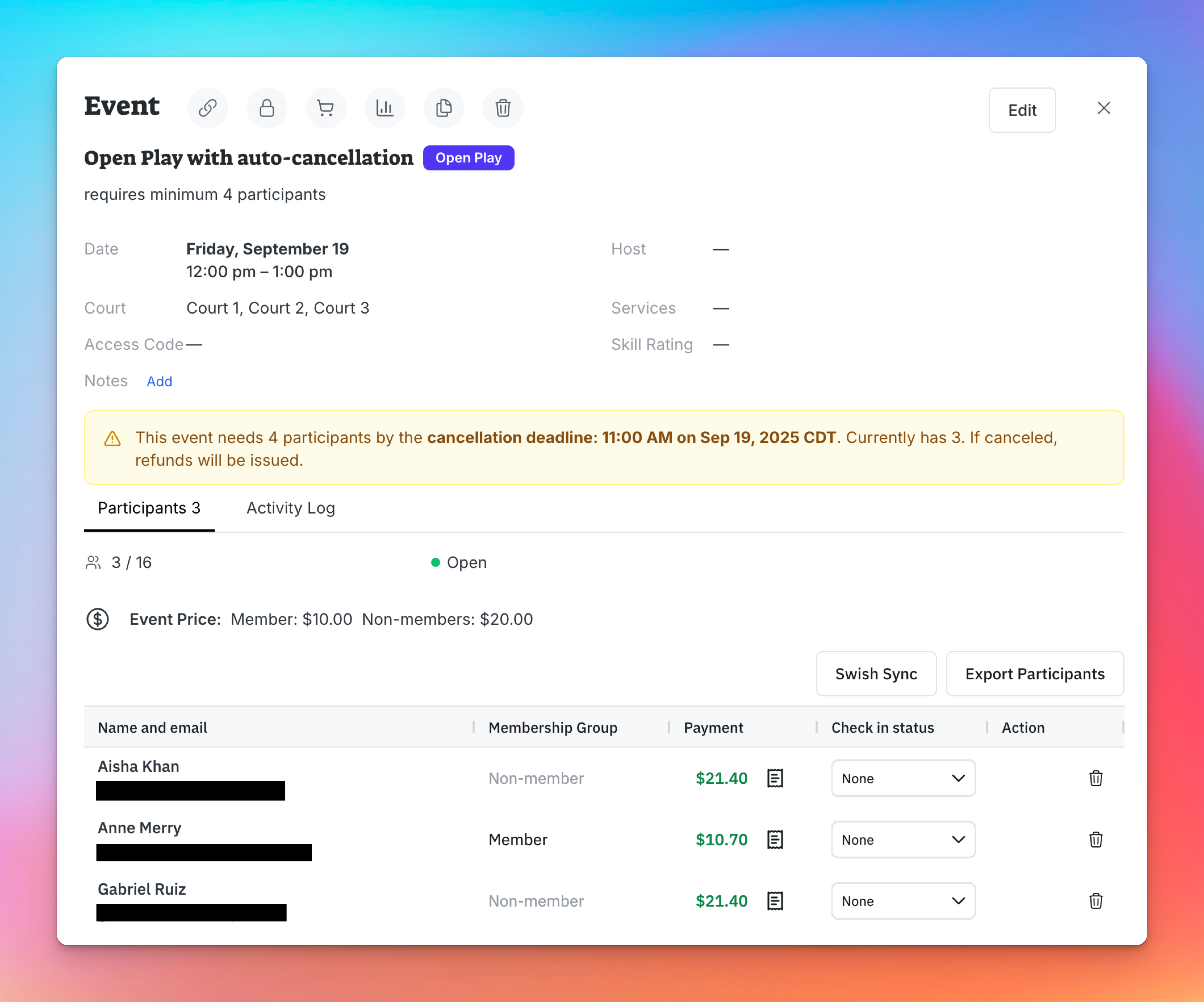
Once created, the event will display a warning for both admins and users that it may be canceled if minimum participation is not met.
What Happens if the Event is Canceled?
If the participant requirement is not met by the cancellation check time:
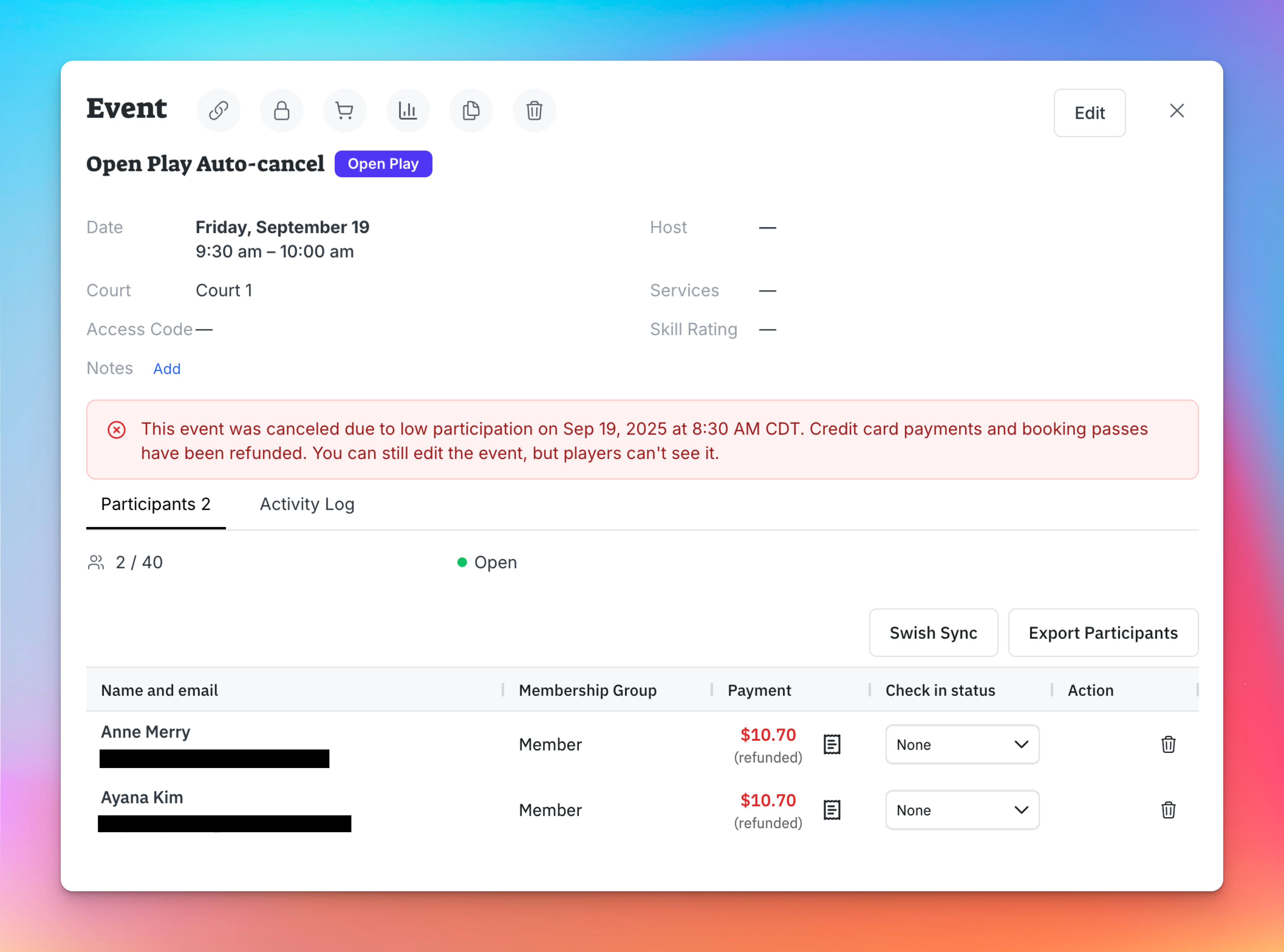
The event will be automatically canceled.
Participants who already registered and paid will receive a refund.
Users will no longer see the event in the schedule.
Admins will see it on Events & Programs page
Example
You create an Open Play requiring at least 4 players.
Auto-cancellation is set to 2 hours before start time.
By the check time, only 3 players have registered.
The system automatically cancels the event and issues refunds to those 3 players.
Key Notes
Admins see a warning on the event page that auto-cancellation is enabled.
Players also see a warning before registering, so they know the event might be canceled if it doesn’t meet the minimum sign-ups.
Everything else in event creation (pricing, courts, time slots) works as usual.