Creating a Free Court Hours Pass
Give your members a pool of free court hours per month. Instead of counting individual bookings, the pass tracks total time — each reservation deducts its duration from the pool.
Example: Premium members get 5 free hours for court bookings per month.
Step 1: Create the Pass Template
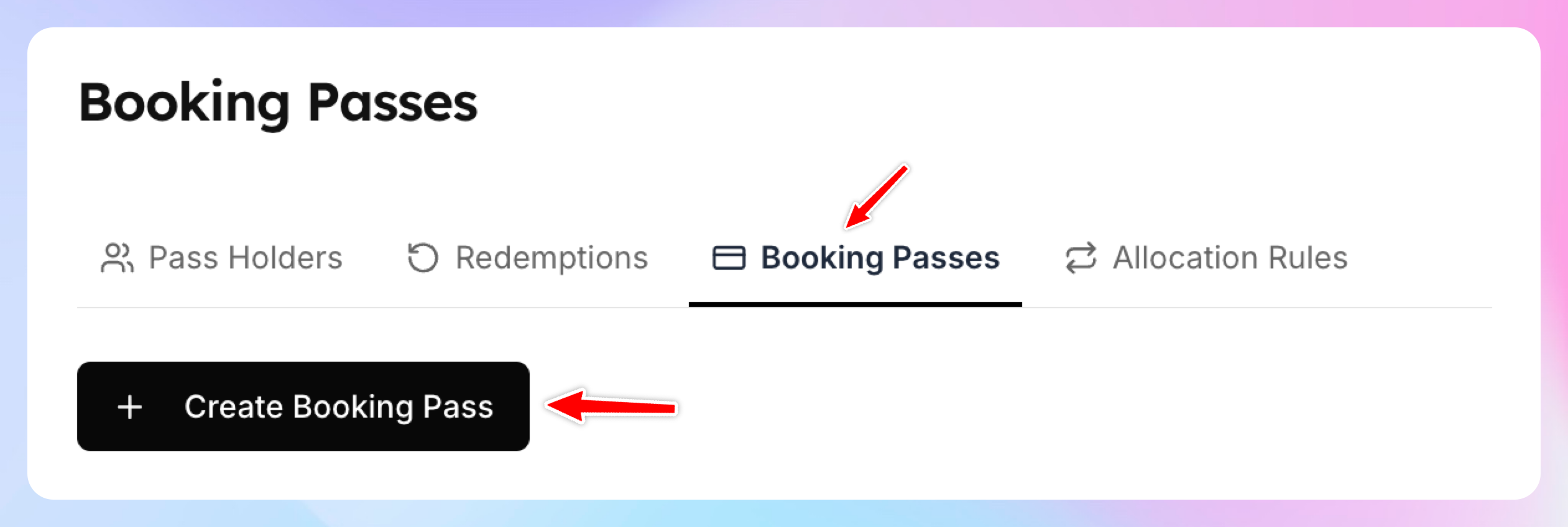
Go to Booking Passes page
Click Create Booking Pass
Enter the name and the description of the pass (optional)
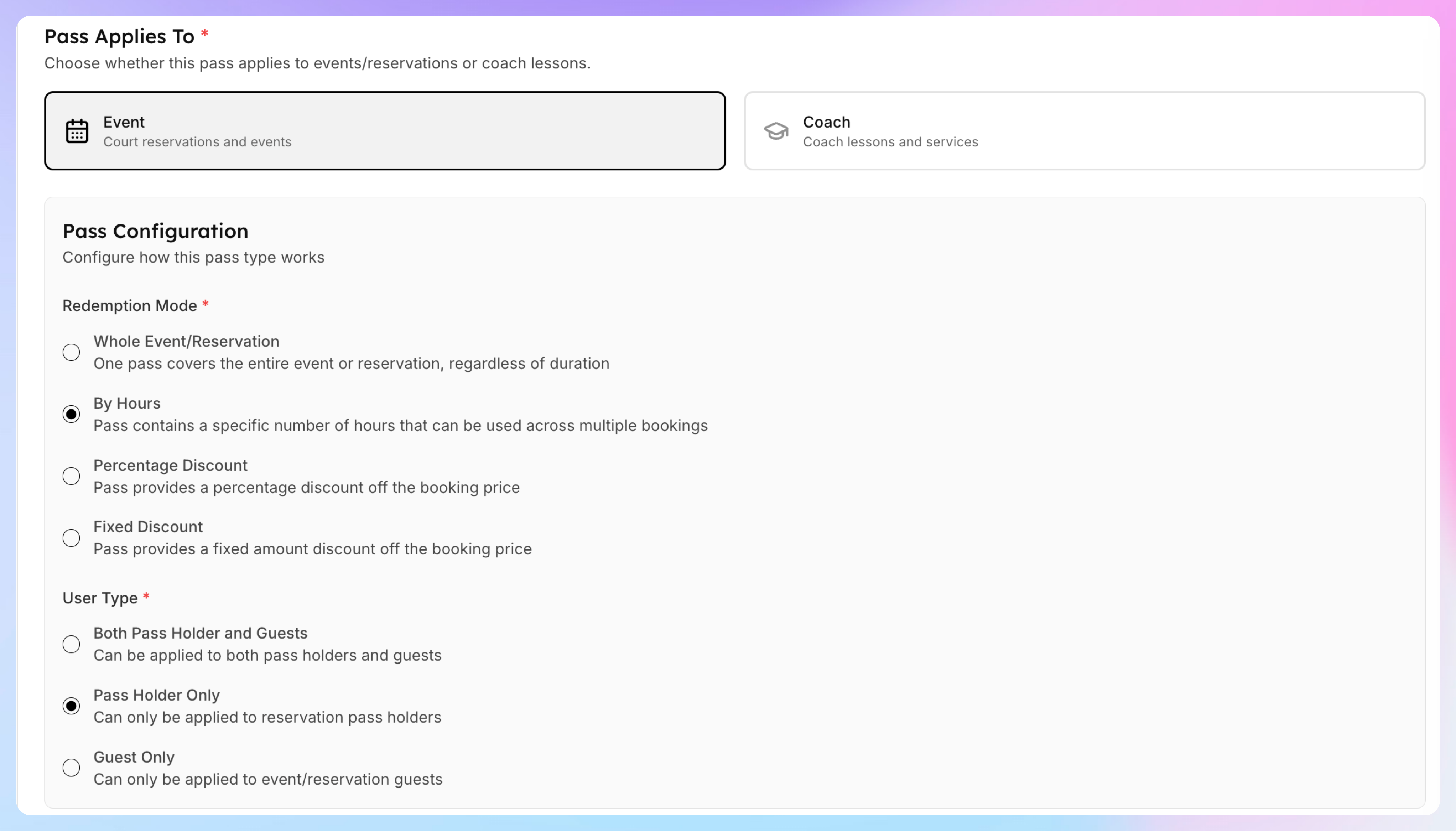
Pick Event that it applies to.
Choose Whole Event/Reservation
Choose Pass Holder Only as a user type that it can be applied to.
If you want your members to share it with their family members, toggle on this setting:

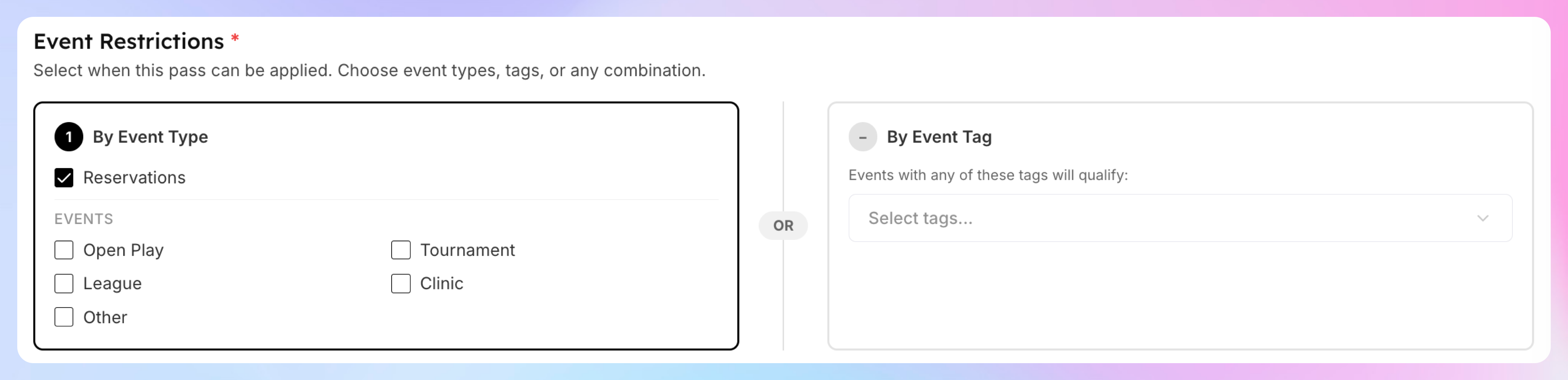
Under Event Restrictions, check only Reservations. Leave all event types (Open Play, Clinic, etc.) unchecked — this pass should only apply to court reservations.
Click Create Booking Pass.
Note: "By Hours" is only available for Event passes — not Coach passes.
Step 2: Create the Allocation Rule
Now set up automatic allocation so members get passes when their membership activates.
Go to Booking Passes → Allocation Rules
Click Create Rule

Use this form to choose who will receive these passes, when they’ll be granted, and how often they’ll be issued.
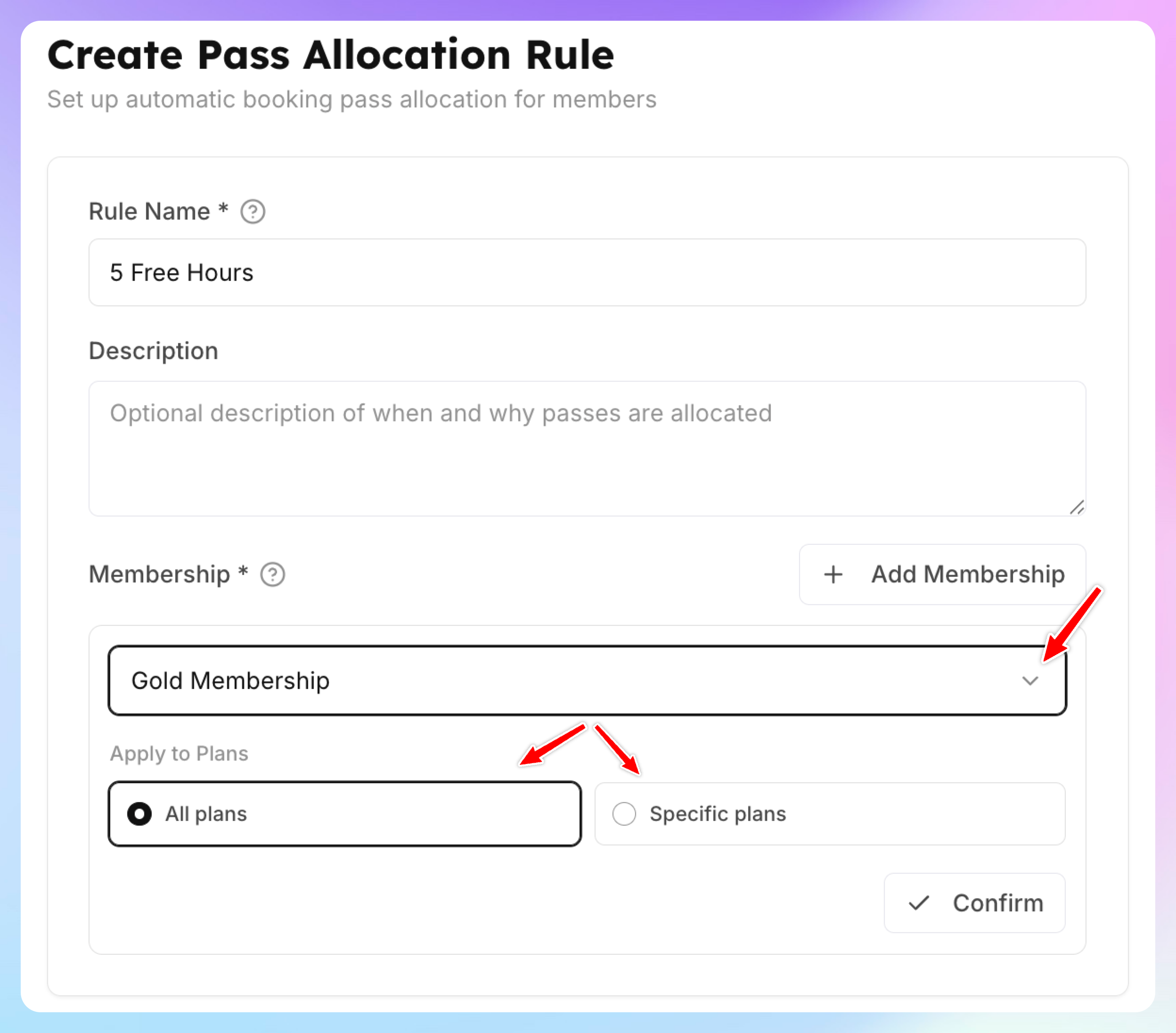
1. Fill out the name and the description (optional)
2.Select the memberships and plans these passes should apply to.
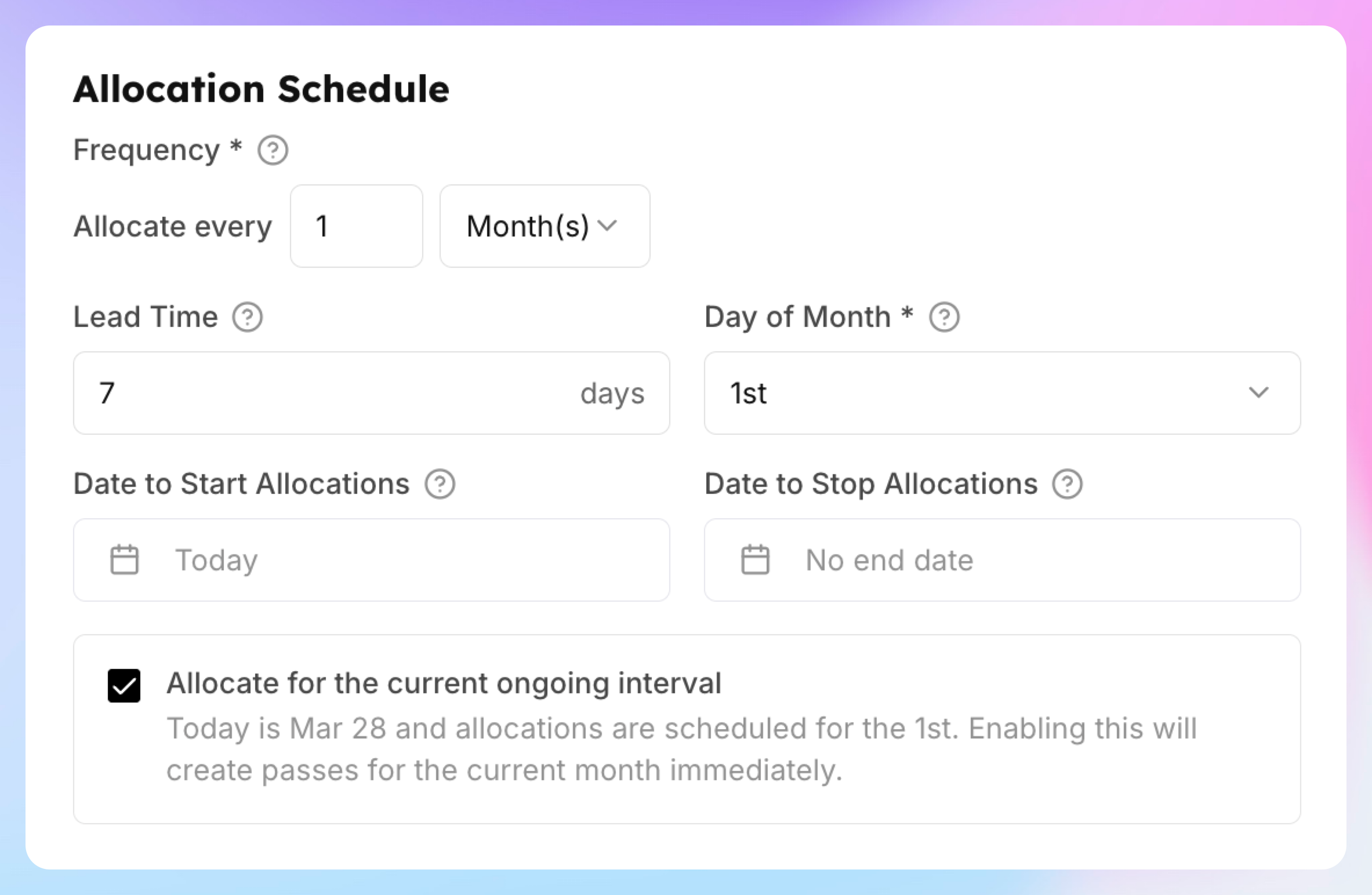
3. Define how often you will grant those passes - e.g. every month, or every week etc.
4. How many days in advance you’ll issue them (Lead Time) - e.g. your members can book 7 days in advance, then they’ll need to have passes 7 days in advance before the new month/week starts.
5. If you check “Allocate for the current ongoing interval”, it’ll create the passes for he current period. Otherwise, it will start generating passes from the next month/week.
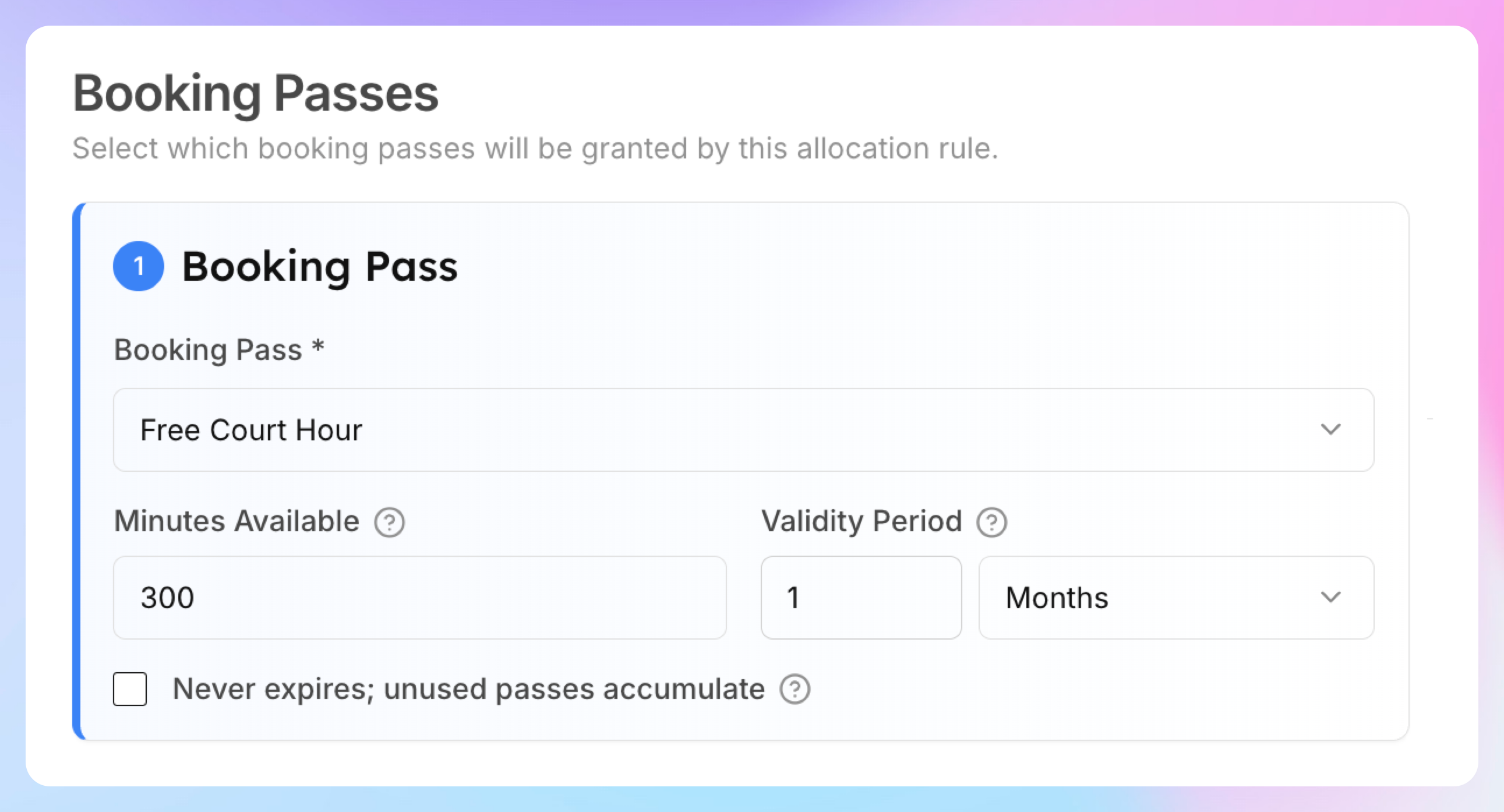
6. Under Booking Passes, click Add a booking pass and configure how many hours (minutes) you want to give per certain period.
Click Save.
How It Works for Members
A Premium member books a 90-minute court reservation
The system deducts 90 minutes from their pool (300 → 210 minutes remaining)
They book another 60-minute reservation — pool goes to 150 minutes
They can keep booking until the pool runs out
If they try to book a 2-hour slot with only 90 minutes left, the pass won't cover it — they pay full price
On the 1st of next month, a fresh 300-minute pool is allocated
Members can see their remaining balance in My Profile → Booking Passes (displayed as hours and minutes, e.g., "3h 30m remaining").
When to Use Hours vs Whole Event
The "By Hours" mode is more flexible — members can book three 90-minute sessions or five 60-minute sessions, whatever they prefer.
Key Points
The hour pool is set in the allocation rule (Minutes Available field), not on the pass template
A booking must fit entirely within the remaining pool — partial coverage is not supported
Unused hours expire at the end of the month unless you check "Never expires" in the allocation rule
The pass applies to all event types you selected in Event Restrictions — if you only checked Reservations, Open Play bookings won't deduct from the pool