Creating a Pass Package
A Pass Package is a product that bundles one or more booking passes together. When a customer purchases the package, the passes are automatically allocated to their account. Unlike allocation rules (which tie passes to memberships), packages are one-time purchases — sold through your online store, POS, or payment links.
Use cases:
A "10-Pack of Court Bookings" that anyone can buy
A "Beginner Bundle" with 5 clinic passes and 3 court hours
A "Private Lesson Package" with 5 lessons with a specific coach
Step 1: Create the Booking Pass Templates First
Before creating a package, you need the booking pass template(s) that will be included. If you haven't created them yet, go to Booking Passes → Booking Passes and create the templates you need.
See the most popular individual pass guides for details:
You only need the pass templates — you do NOT need allocation rules for packages. The package itself handles allocation on purchase.
Step 2: Create the Pass Package
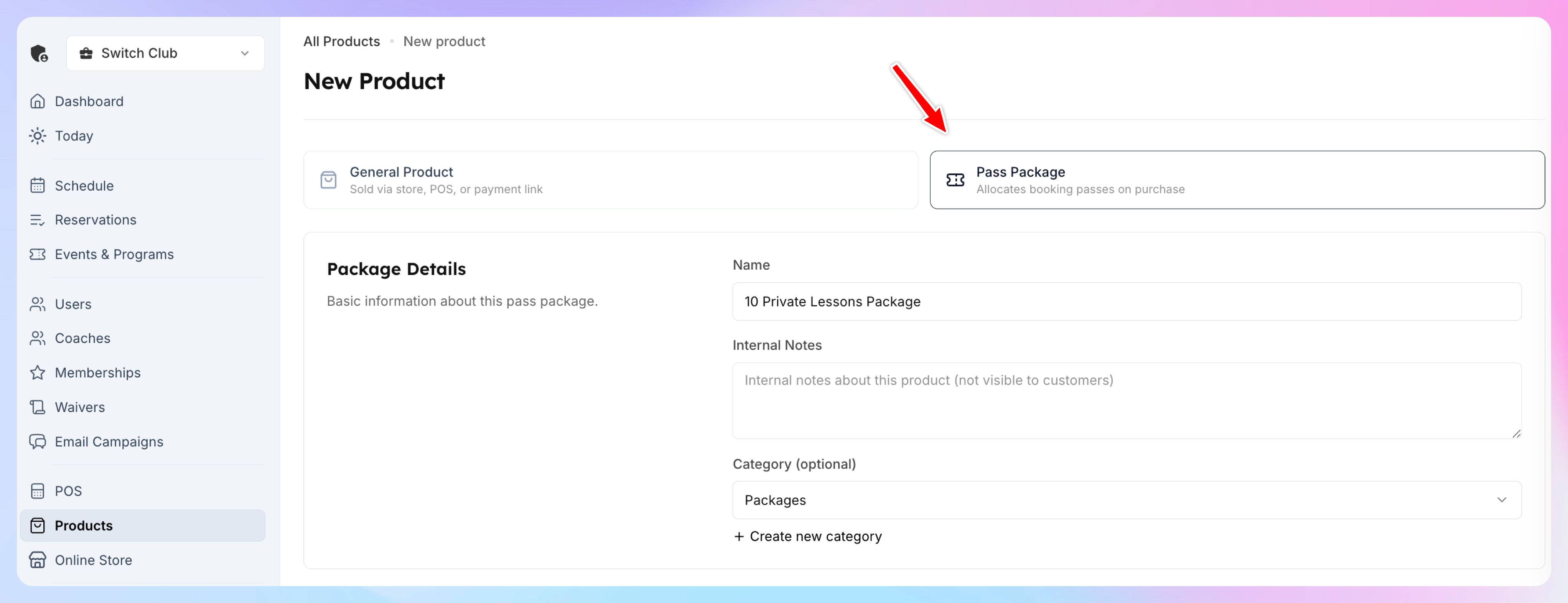
Go to Products → Add Product
At the top, you'll see two options: General Product and Pass Package. Select Pass Package.
Product Details
Product Image
Upload an optional image to showcase the package on your store page. Images are cropped to square format, max 5MB.
Sales Channels
Choose where the package can be purchased:
Both channels can be enabled at the same time.

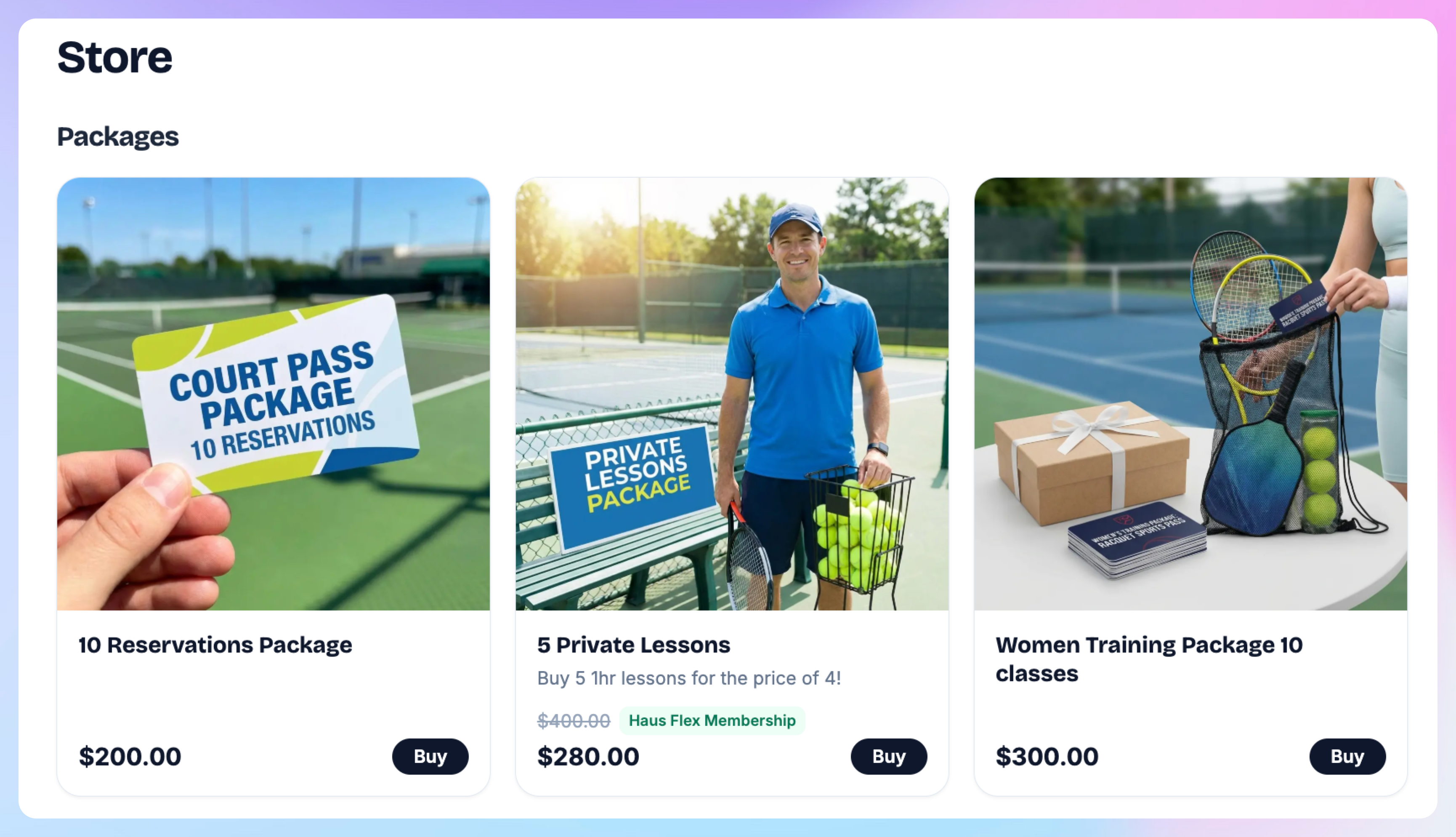
If you enabled the “Online Store” channel, your customers will see it on the Store page, and will be able to purchase from the app or website:
Customer Description
This description is visible to customers on the store page and payment link. Use it to explain what's included in the package — e.g., "Includes 10 court booking passes, valid for 3 months."
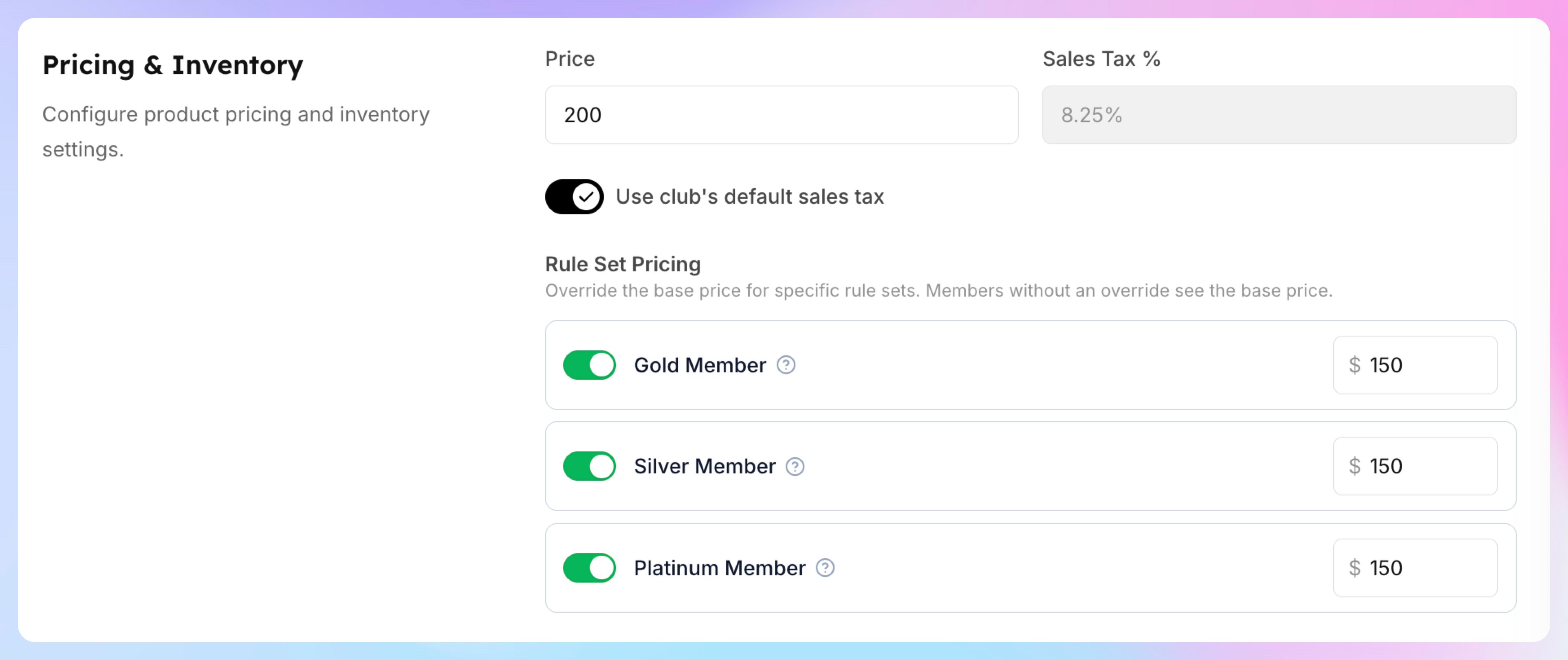
Pricing
Booking Passes
This is where you configure what's included in the package.
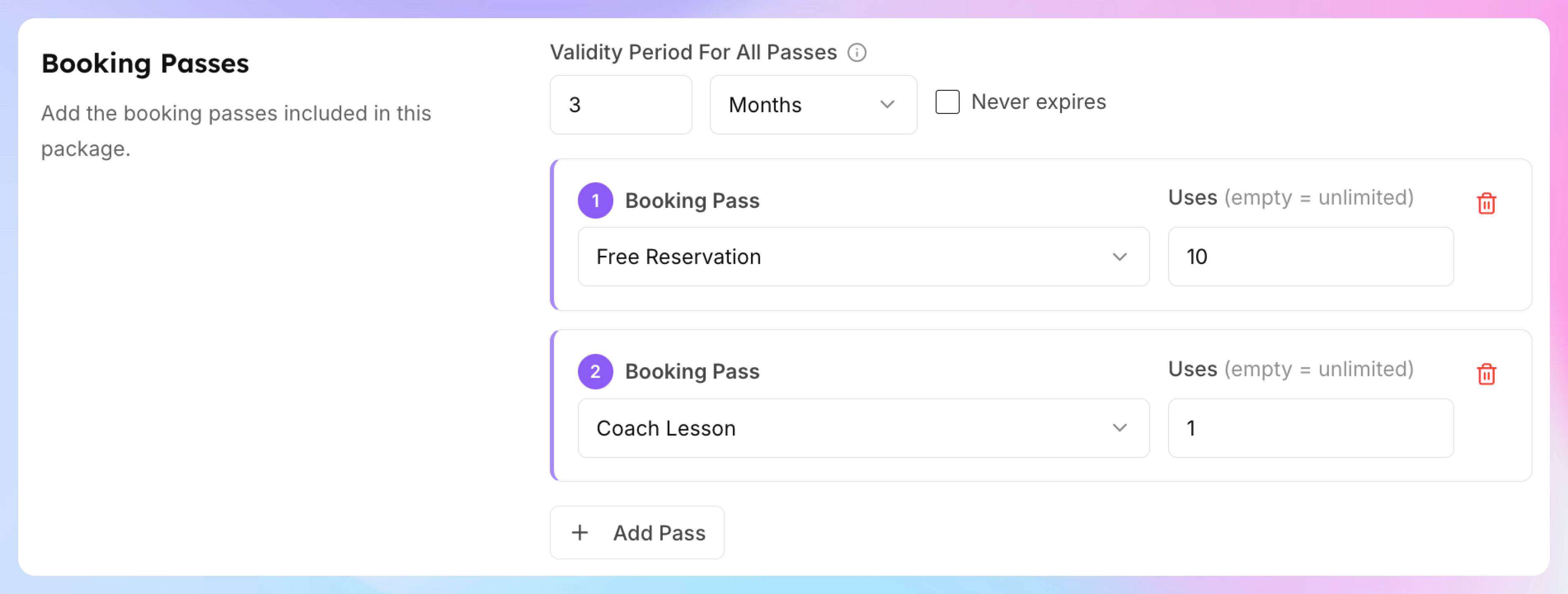
Validity Period
Set how long the passes remain valid after purchase:
Enter an amount and unit (e.g., 3 months, 30 days, 1 year)
Or check "Never expires" if passes should last indefinitely
This validity period applies to all passes in the package.
Adding Passes
Click "Add Pass" to add a booking pass to the package. For each pass, configure:
You can add multiple passes to a single package. For example, a "Premium Bundle" could include:
10 court reservation passes
2 guest passes
1 private lesson pass
Click "Add Pass" again for each additional pass template.
Deferred Start (Optional)
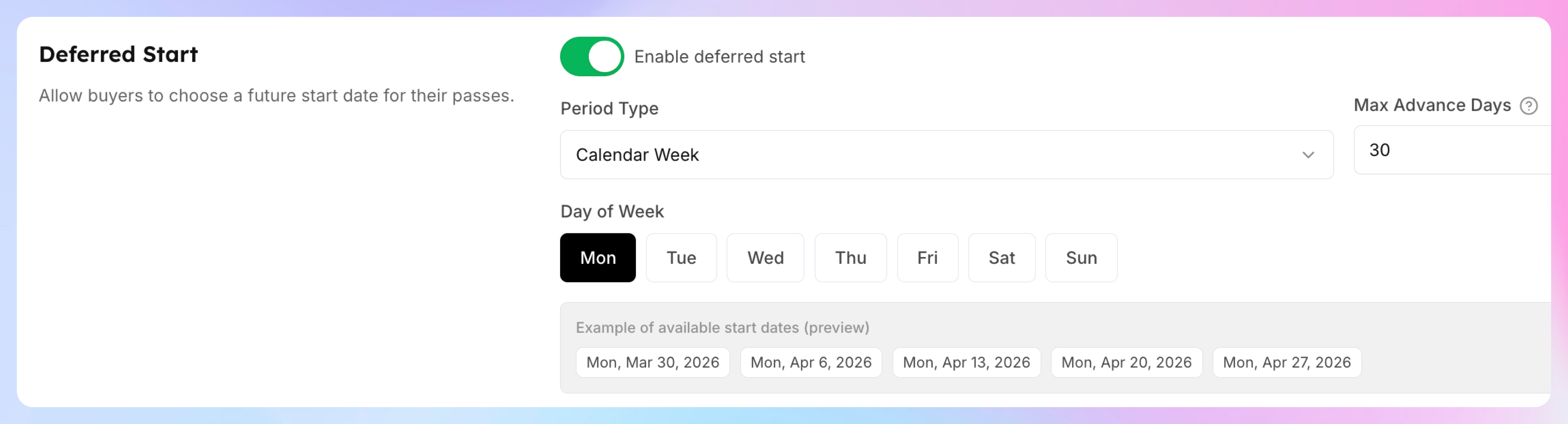
By default, passes become active immediately on purchase. Enable Deferred Start to let buyers choose a future start date — useful for seasonal packages or programs that start on specific dates.
Toggle "Enable deferred start" to reveal the configuration:
Period type options:
When the buyer purchases the package, they'll see a date picker at checkout with the available start dates based on your configuration.
Step 3: Save
Click Save at the bottom of the form. The package is now created and available for purchase through the channels you selected.
Example: 10-Pack of Court Bookings
Scenario: You want to sell a package of 10 court reservations for $150, valid for 3 months.
Prerequisites: Create a "Court Booking" pass template (Event type, Whole Event, Pass Holder Only, Reservations only) — see Free Reservation Pass.
Package setup:
How it works for the customer:
Customer finds the package on the club's online store
They purchase it for $200
10 court booking passes are immediately allocated to their account
Each time they book a court, one pass is consumed
After 3 months, any unused passes expire
Example: Beginner Bundle
Scenario: A "Beginner Bundle" for $99 that includes 5 clinic passes and 3 hours of court time.
Prerequisites:
A "Clinic Pass" template (Event type, Whole Event, Clinic only)
A "Court Hours" template (Event type, By Hours, Reservations only)
Package setup:
With deferred start on "Calendar Month, Day 1", the buyer can choose to start their bundle on the 1st of this month or next month.
Packages vs Allocation Rules
Use allocation rules for recurring member benefits (e.g., "Gold members get 4 free reservations every month"). Use packages for one-time purchases that anyone can buy.
Key Points
Pass templates must be created before you can add them to a package
The validity period applies to all passes in the package — you can't set different expiration dates for individual passes within a package
When a package is purchased, passes are allocated immediately (unless deferred start is enabled)
Packages appear as products in your store — customers don't need a membership to purchase them
You can edit a package after creation, but changes won't affect already-purchased packages
Rule set-based pricing lets you offer member discounts on packages (e.g., members pay $79, non-members pay $99)