Sending Emails to Event Participants
Admins can send a custom email directly to the participants of any event — a clinic, open play, tournament, or any other event type. This is useful for sharing last-minute updates or any message that applies specifically to the people in that event.
How to Send an Email
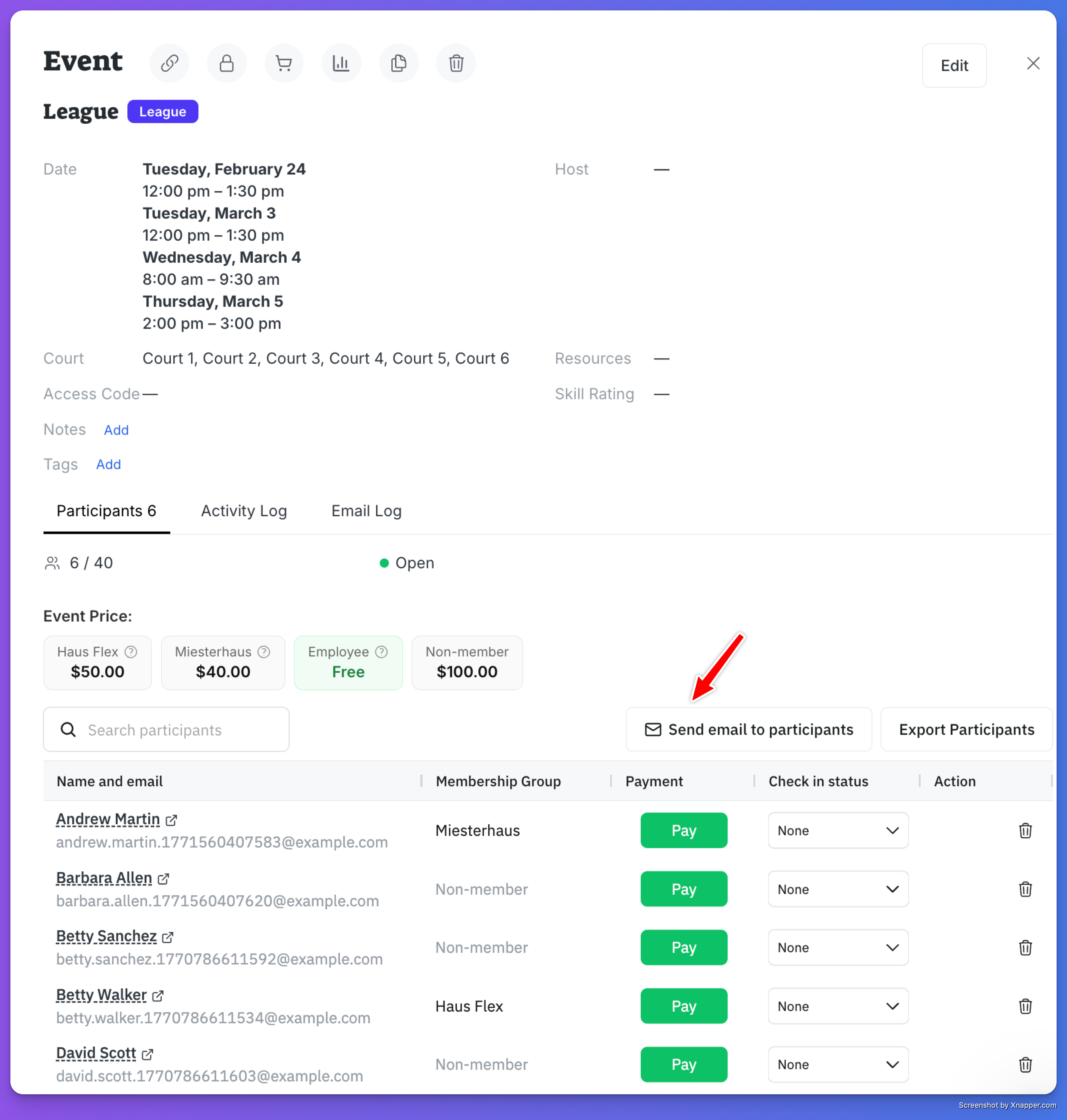
Open the event from the admin events list
Go to the Participants tab
Click Send email to participants in the header area above the participants table
Step 1: Compose Your Message
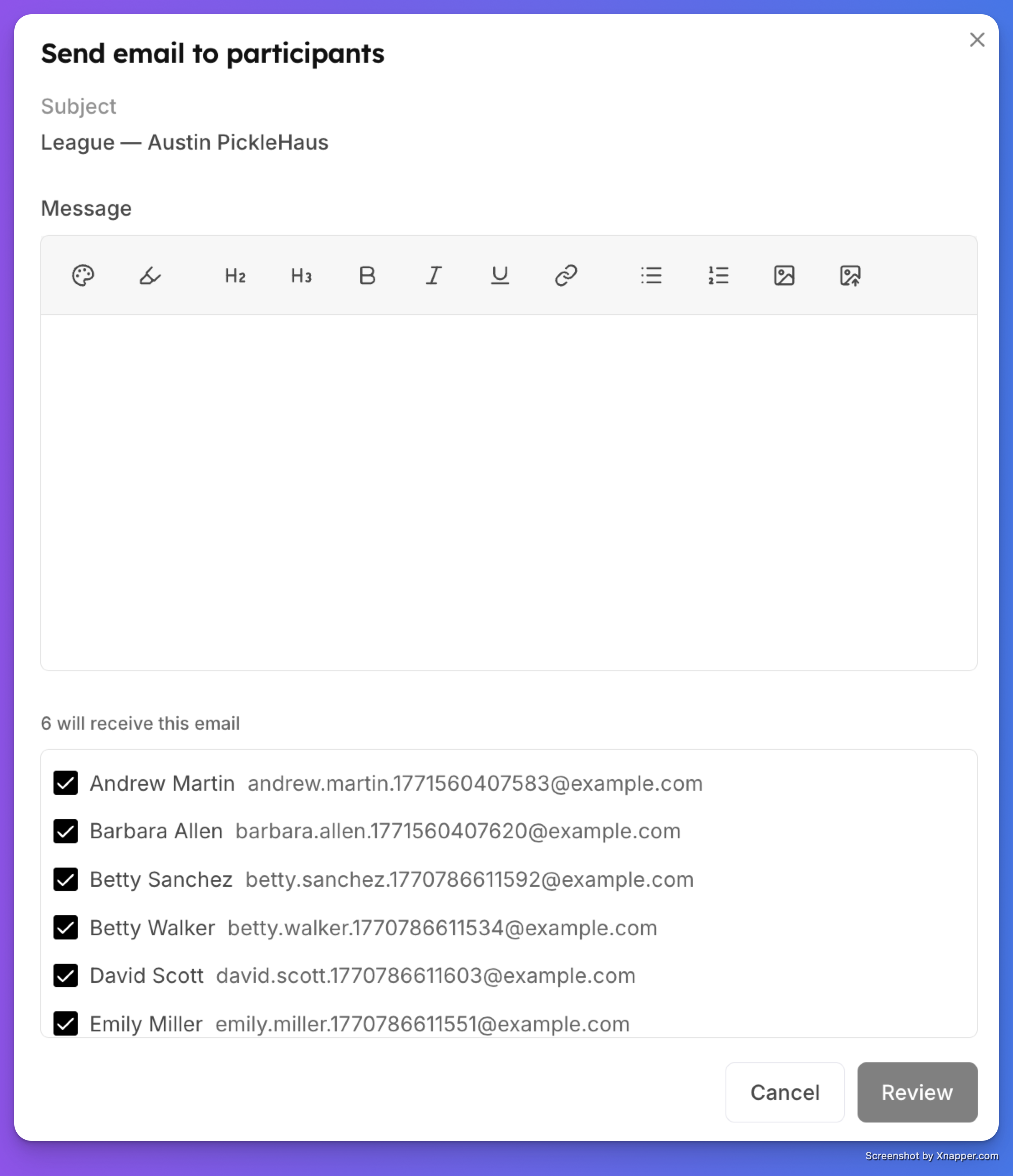
The email popup opens with two sections:
Subject — Pre-filled as "[Event Name] — [Club Name]". This gives recipients immediate context about which event the email relates to.
Message — A rich text editor where you write your message.
Step 2: Choose Recipients
Below the editor, you'll see a list of all recipients. By default, all confirmed participants and waitlisted members are selected. Each person has a checkbox — uncheck anyone you want to exclude from this email.
The label shows how many people will receive the email (e.g., "6 will receive this email").
Guests without user accounts are automatically excluded since they don't have email addresses in the system.
Step 3: Review
Click Review to see a preview of the email before sending. The review step shows:
Email preview — How the email will look to recipients, including:
An intro line: "You have an update from [Club Name] regarding your upcoming event"
Your custom message in a left-bordered card
An Event Details card with the event name, date/time, duration, and court/space assignment
Recipient list — The final list of people who will receive the email, with names and email addresses
Step 4: Send
Click Send email to send. You'll see a confirmation toast:
Success: "Email queued for X recipient(s)"
Partial failure: "X email(s) queued. Y failed to enqueue." (if some addresses had issues)
Full failure: Error message with details
Email Log
Every event has an Email Log tab in the event detail modal, right next to the Activity Log. This shows all emails related to this event — both admin-sent emails and automatic system notifications (reminders, confirmations, updates).
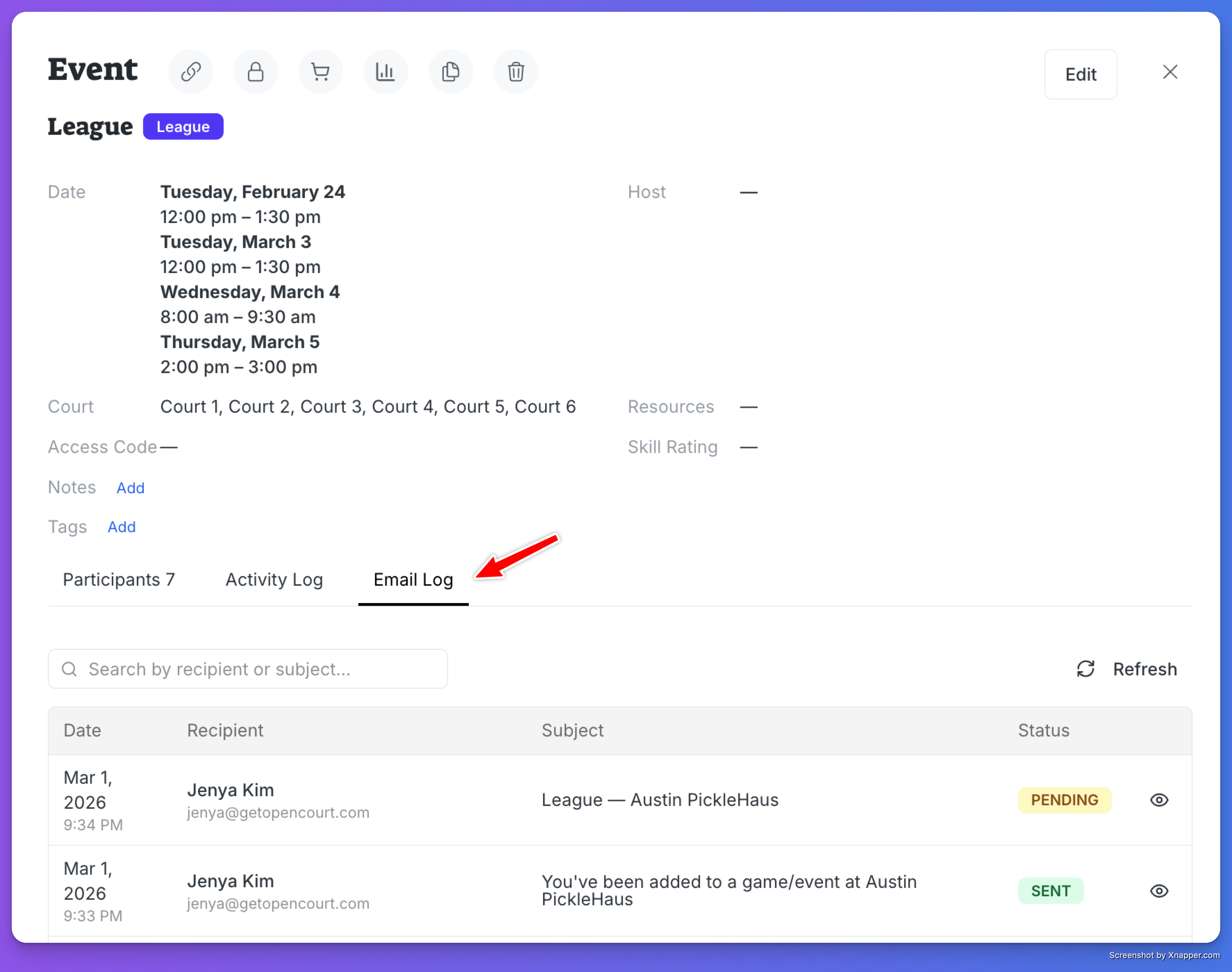
The Email Log table shows:
Date — When the email was sent
Recipient — Name and email address
Subject — The email subject line
Status — Sent (green), Pending (yellow), Failed (red), or Skipped (gray)
You can search by recipient name or subject, and click the eye icon on any row to preview the full rendered email.
Failed or skipped emails show the error reason in a tooltip when you hover over the status badge.
What the Email Looks Like
Recipients receive a branded email with:
Header — Club branding
Intro line — "You have an update from [Club Name] regarding your upcoming event."
Your message — The custom content you wrote, displayed in a left-bordered card to visually distinguish it from the event details
Event Details card — A gray card showing:
Event name
Date and time with duration (e.g., "Saturday, March 7 at 9:00 AM - 10:30 AM (1h 30m)")
Court/space assignment (if applicable)
Footer — Club name and OpenCourt branding
Where Else These Emails Appear
Admin-sent event emails are tracked across the platform:
Tips
Use it for time-sensitive updates — Court change, schedule shift, weather cancellation, parking info, or any detail that participants need to know before the event.
Uncheck waitlisted members if the update only applies to confirmed participants (e.g., court assignments).
Check the Email Log after sending to verify delivery. If any emails failed, you can see the error reason by hovering over the red status badge.
No setup required — Unlike Email Campaigns, this feature works out of the box. It uses the platform's transactional email stream, so there's no club-level email configuration needed.